Table of Contents
Theme Compatibility
Very Important Note: If you paste this code in all themes, you will find additional settings inside the apps section. Therefore, I recommend that no matter which theme you are using, you should paste this code in the Sections folder under the file name apps.liquid.
Hello, Our Apps Users
We’ve noticed that some users are experiencing issues with Shopify free apps when using the Horizon (new update) theme and a few other Shopify free themes.
However, this issue does not occur with the Shopify Dawn theme, Shopify core premium themes, or ThemeForest themes.
If you are facing this issue on the Horizon theme or any newly updated Shopify free theme, please review the Video we’ve shared and follow the guideline below.
Create file name : apps.liquid and past it
Summary :
– This issue is related to the Horizon / Shopify free theme layout behavior
– It is not an app bug
– Dawn, Shopify premium themes, and ThemeForest themes work without any issues
– Following the steps above will resolve the problem
If you still face issues after following this guide, please share updated screenshots and we will be happy to assist further.
Why This Issue Happens:
In the Horizon new update theme (and some other Shopify free themes), when you add an app block, it is automatically wrapped inside a Section container.
This Section applies automatic CSS and admin UI styles, which may conflict with the app’s layout. As a result, app content such as FlipBooks or iframe-based apps may appear squeezed, misaligned, or broken.
This is a theme-level layout behavior, not an app bug.
How to Fix the Issue (Solution)
Please follow these steps carefully:
1. Go to Online Store → Themes → Edit code
2. Open the Sections folder
3. Find the file named apps.liquid
– If the file exists, open it and paste the provided code into it
– If the file does not exist, create a new file named apps.liquid and paste the code into it
4. Save the file
5. Go back to Theme Customization
6. Add the app block again
After completing these steps, everything should display correctly.
					{%- style -%}
  .apps-section-{{ section.id }} {
    background-color: {{ section.settings.bg_color }};
    {% if section.settings.bg_image != blank %}
      background-image: url({{ section.settings.bg_image | image_url: width: 2400 }});
    {% else %}
      background-image: none;
    {% endif %}
    background-size: {{ section.settings.bg_size }};
    background-position: {{ section.settings.bg_position }};
    background-repeat: {{ section.settings.bg_repeat }};
    background-attachment: {{ section.settings.bg_attachment }};
    margin-top: {{ section.settings.margin_top }}px;
    margin-bottom: {{ section.settings.margin_bottom }}px;
    padding-top: {{ section.settings.padding_top }}px;
    padding-bottom: {{ section.settings.padding_bottom }}px;
    min-height: {{ section.settings.section_height }}px;
    position: relative;
    overflow: hidden;
  }

  .apps-section-{{ section.id }} .apps-section__inner {
    position: relative;
    z-index: 1;
    min-height: inherit;
    display: flex;
    flex-direction: column;
    justify-content: center;
  }

  .apps-section-{{ section.id }} .apps-section__blocks {
    display: flex;
    flex-direction: column;
    width: 100%;
    align-items:
      {% case section.settings.block_alignment %}
        {% when 'left' %} flex-start
        {% when 'center' %} center
        {% when 'right' %} flex-end
      {% endcase %};
  }

  .apps-section-{{ section.id }} .apps-section__block-item {
    width: 100%;
    max-width: 100%;
  }

  .apps-section-{{ section.id }} .apps-section__block-item > * {
    max-width: 100%;
  }

  @media screen and (max-width: 749px) {
    .apps-section-{{ section.id }} {
      margin-top: {{ section.settings.margin_top_mobile }}px;
      margin-bottom: {{ section.settings.margin_bottom_mobile }}px;
      padding-top: {{ section.settings.padding_top_mobile }}px;
      padding-bottom: {{ section.settings.padding_bottom_mobile }}px;
      min-height: {{ section.settings.section_height_mobile }}px;
      background-attachment: scroll;
    }
  }
{%- endstyle -%}

<div class="apps-section-{{ section.id }}">
  <div class="apps-section__inner {% if section.settings.include_margins %}page-width{% endif %}">
    <div class="apps-section__blocks">
      {% for block in section.blocks %}
        <div class="apps-section__block-item" {{ block.shopify_attributes }}>
          {% render block %}
        </div>
      {% endfor %}
    </div>
  </div>
</div>

{% schema %}
{
  "name": "Apps",
  "tag": "section",
  "class": "section",
  "settings": [
    {
      "type": "checkbox",
      "id": "include_margins",
      "default": true,
      "label": "Include page margins"
    },
    {
      "type": "header",
      "content": "Background"
    },
    {
      "type": "color",
      "id": "bg_color",
      "label": "Background color",
      "default": "#ffffff"
    },
    {
      "type": "image_picker",
      "id": "bg_image",
      "label": "Background image"
    },
    {
      "type": "select",
      "id": "bg_size",
      "label": "Background size",
      "default": "cover",
      "options": [
        { "value": "cover", "label": "Cover" },
        { "value": "contain", "label": "Contain" },
        { "value": "auto", "label": "Auto" }
      ]
    },
    {
      "type": "select",
      "id": "bg_position",
      "label": "Background position",
      "default": "center center",
      "options": [
        { "value": "left top", "label": "Left top" },
        { "value": "center top", "label": "Center top" },
        { "value": "right top", "label": "Right top" },
        { "value": "left center", "label": "Left center" },
        { "value": "center center", "label": "Center center" },
        { "value": "right center", "label": "Right center" },
        { "value": "left bottom", "label": "Left bottom" },
        { "value": "center bottom", "label": "Center bottom" },
        { "value": "right bottom", "label": "Right bottom" }
      ]
    },
    {
      "type": "select",
      "id": "bg_repeat",
      "label": "Background repeat",
      "default": "no-repeat",
      "options": [
        { "value": "no-repeat", "label": "No repeat" },
        { "value": "repeat", "label": "Repeat" },
        { "value": "repeat-x", "label": "Repeat horizontally" },
        { "value": "repeat-y", "label": "Repeat vertically" }
      ]
    },
    {
      "type": "select",
      "id": "bg_attachment",
      "label": "Background attachment",
      "default": "scroll",
      "options": [
        { "value": "scroll", "label": "Scroll" },
        { "value": "fixed", "label": "Fixed" }
      ]
    },
    {
      "type": "header",
      "content": "Desktop spacing"
    },
    {
      "type": "range",
      "id": "margin_top",
      "min": 0,
      "max": 300,
      "step": 4,
      "unit": "px",
      "label": "Margin top",
      "default": 0
    },
    {
      "type": "range",
      "id": "margin_bottom",
      "min": 0,
      "max": 300,
      "step": 4,
      "unit": "px",
      "label": "Margin bottom",
      "default": 0
    },
    {
      "type": "range",
      "id": "padding_top",
      "min": 0,
      "max": 300,
      "step": 4,
      "unit": "px",
      "label": "Padding top",
      "default": 0
    },
    {
      "type": "range",
      "id": "padding_bottom",
      "min": 0,
      "max": 300,
      "step": 4,
      "unit": "px",
      "label": "Padding bottom",
      "default": 0
    },
    {
      "type": "range",
      "id": "section_height",
      "min": 0,
      "max": 1200,
      "step": 20,
      "unit": "px",
      "label": "Section minimum height",
      "default": 0
    },
    {
      "type": "header",
      "content": "Mobile spacing"
    },
    {
      "type": "range",
      "id": "margin_top_mobile",
      "min": 0,
      "max": 200,
      "step": 4,
      "unit": "px",
      "label": "Mobile margin top",
      "default": 0
    },
    {
      "type": "range",
      "id": "margin_bottom_mobile",
      "min": 0,
      "max": 200,
      "step": 4,
      "unit": "px",
      "label": "Mobile margin bottom",
      "default": 0
    },
    {
      "type": "range",
      "id": "padding_top_mobile",
      "min": 0,
      "max": 200,
      "step": 4,
      "unit": "px",
      "label": "Mobile padding top",
      "default": 0
    },
    {
      "type": "range",
      "id": "padding_bottom_mobile",
      "min": 0,
      "max": 200,
      "step": 4,
      "unit": "px",
      "label": "Mobile padding bottom",
      "default": 0
    },
    {
      "type": "range",
      "id": "section_height_mobile",
      "min": 0,
      "max": 800,
      "step": 20,
      "unit": "px",
      "label": "Mobile section minimum height",
      "default": 0
    },
    {
      "type": "header",
      "content": "Block alignment"
    },
    {
      "type": "select",
      "id": "block_alignment",
      "label": "Block alignment",
      "default": "left",
      "options": [
        { "value": "left", "label": "Left" },
        { "value": "center", "label": "Center" },
        { "value": "right", "label": "Right" }
      ]
    }
  ],
  "blocks": [
    { "type": "@app" }
  ],
  "presets": [
    { "name": "Apps" }
  ]
}
{% endschema %}
Video Installation Guide
YMM Fitment Checker Video Guideline
YMM Navigation Filter Video Guideline
Year Make Model Trim Video Guideline
Year Make Model Trim Engine Video Guideline
Main Full Video Guideline
Friends2a YMM PartFinder – Installation & Setup Guide
Step 1: Add the App to Your Theme
- Go to Shopify Admin → Online Store → Themes → Customize.
- Open the page where you want to add the vehicle finder.
- Click Add section or Add block.
- Open the Apps tab.
- Select the required Friends2a YMM PartFinder block.
- Place the block where you want customers to use it.
- Configure the block settings and click Save.
1. YMM Part Finder New
What does it do?
The YMM Part Finder New lets customers select:
Year → Make → Model
The options are connected through a Shopify Navigation Menu. Customers can select their vehicle and continue to the linked page/product location.
Setup
- Add YMM Part Finder New to your theme.
- In YMM Menu, select your Shopify Navigation Menu.
- Create your menu in this structure:
Year
└── 2025
    └── Honda
└── Civic- Save the navigation menu.
- Select this menu inside the block settings.
Main Settings
- YMM Menu – Select the vehicle navigation menu.
- Automatically open the next dropdown – Automatically opens the next selection after choosing an option.
- Pre-select dropdowns based on current page URL – Automatically selects vehicle values when matching URL information is available.
- Dropdown 1 label – Year label.
- Dropdown 2 label – Make label.
- Dropdown 3 label – Model label.
- Input background color – Background of the dropdown fields.
- Dropdown panel background color – Background of the opened option panel.
- Button label – Text shown on the search button.
- Only show label when layout is stacked – Controls label visibility depending on layout.
- Icon – Select the button icon.
- Icon alignment – Place the icon before or after the button text.
- Button style – Choose the button appearance.
- Button text color – Button text color.
- Button default color – Default button color.
- Button hover color – Color when the mouse is over the button.
- Button active/open color – Active button color.
- Button ready color – Color when the finder is ready.
- Button disabled color – Color when selections are incomplete.
- Layout type – Horizontal or Vertical.
- Z-index settings – Controls the dropdown layering when it overlaps other theme elements.
2. YMM Menu Filter
What does it do?
The YMM Menu Filter creates a vehicle-based product filtering experience.
Customers can browse the vehicle menu and see compatible products in the results area. Product cards include options such as Add to cart and View details.
Setup
- Add YMM Menu Filter to the required page.
- Select your vehicle navigation menu under YMM menu.
- Make sure your navigation menu contains the correct Year → Make → Model structure.
- Configure the sidebar and product display settings.
- Save the theme.
Main Settings
- YMM menu – Select the vehicle navigation menu.
- Sidebar heading – Heading displayed above the vehicle filter.
- Results heading – Heading shown above filtered products.
- Add to cart text – Text used on the Add to cart button.
- View details text – Text used on the product details button.
- Container width – Controls the overall content width.
- Margin top – Controls space above the filter.
- Sidebar width – Controls the filter sidebar width.
- Items per page – Number of products displayed per page.
- Heading size – Sidebar/result heading size.
- Menu text size – Vehicle menu text size.
- Sort text size – Product sorting text size.
- Button text size – Product button text size.
- Add to cart padding – Controls Add to cart button spacing.
- View details padding – Controls View details button spacing.
- Desktop columns – Number of product columns on desktop.
- Tablet columns – Number of product columns on tablet.
- Mobile columns – Number of product columns on mobile.
- Sidebar background – Sidebar background color.
- Sidebar text color – Sidebar text color.
- Main background – Main results background.
- Primary button background/text – Add to cart button colors.
- Secondary button background/text – View details button colors.
3. YMM Fitment Checker
What does it do?
The YMM Fitment Checker allows customers to select:
Year → Make → Model
and check whether the selected vehicle is compatible with the current product.
It displays a fitment message based on the selected vehicle.
Setup
- Add YMM Fitment Checker to your product page.
- Select the same YMM Menu used for your vehicle structure.
- Configure the vehicle labels.
- Set your compatibility messages.
- Save the theme.
Main Settings
- YMM Menu – Select the vehicle navigation menu.
- Heading – Main checker heading.
- Layout – Choose the checker layout.
- Year label – Year field label.
- Make label – Make field label.
- Model label – Model field label.
- Button label – Check button text.
- Fit message – Message shown when the vehicle is compatible.
- No-fit message – Message shown when the vehicle is not compatible.
- Empty selection message – Message shown before a vehicle is selected.
- Checking message – Message shown while compatibility is being checked.
- Automatically open the next dropdown – Opens the next dropdown automatically.
- Widget background – Checker background color.
- Button background – Button color.
- Button text color – Button text color.
- Success background/text – Compatible result colors.
- Error background/text – Incompatible result colors.
4. YMMT Part Finder
What does it do?
The YMMT Part Finder uses fitment JSON to create a dynamic:
Year → Make → Model → Trim
vehicle selector.
The merchant provides the fitment data in JSON format.
Example JSON
[
  {
    "sku": "F2-YMMT-001",
    "year": "2025",
    "make": "Honda",
    "model": "Civic",
    "trim": "Sport"
  },
  {
    "sku": "F2-YMMT-002",
    "year": "2025",
    "make": "Toyota",
    "model": "Camry",
    "trim": "XLE"
  }
]
Collection Naming
For each fitment, create the Shopify collection using:
Year - Make - Model - TrimExample:
2025 - Honda - Civic - SportThe collection can contain all compatible products for that vehicle.
Main Settings
- Fitment JSON – Paste your vehicle fitment data.
- Search dropdown after – Enables dropdown search when the available options reach the selected number.
- Auto-open next dropdown – Automatically opens the next available field.
- Preselect from URL – Allows vehicle values to be preselected from the URL.
- Year label – Year field label.
- Make label – Make field label.
- Model label – Model field label.
- Trim label – Trim field label.
- Background color – Finder background.
- Dropdown background – Dropdown panel background.
- Button label – Search button text.
- Hide button label on stacked layout – Hides button text when using stacked layout.
- Button icon – Search, arrow, or no icon.
- Icon position – Before or after button text.
- Button style – Filled, outline, or text.
- Button font size – Search button text size.
- Button colors – Configure default, hover, active, ready, disabled, and text colors.
- Layout – Horizontal or Vertical.
- Maximum width – Controls finder width.
- Gap – Controls spacing between fields.
Customer Flow
Year
 ↓
Make
 ↓
Model
 ↓
Trim
 ↓
Search
 ↓
Matching Collection
The customer is taken to the matching Shopify collection page.
5. YMMTE Part Finder
What does it do?
The YMMTE Part Finder extends YMMT by adding an Engine selection.
Customer flow:
Year → Make → Model → Trim → Engine
Example JSON
[
  {
    "sku": "F2-YMMTE-001",
    "year": "2025",
    "make": "Honda",
    "model": "Civic",
    "trim": "Sport",
    "engine": "1.5L Turbo"
  },
  {
    "sku": "F2-YMMTE-002",
    "year": "2025",
    "make": "Toyota",
    "model": "Camry",
    "trim": "XLE",
    "engine": "2.5L Hybrid"
  }
]
Collection Naming
Use:
Year - Make - Model - Trim - EngineExample:
2025 - Honda - Civic - Sport - 1.5L TurboPut all compatible products inside the corresponding collection.
Main Settings
YMMTE includes the same finder customization options as YMMT, plus:
- Fitment JSON – Enter Year, Make, Model, Trim and Engine data.
- Year label – Customize Year text.
- Make label – Customize Make text.
- Model label – Customize Model text.
- Trim label – Customize Trim text.
- Engine label – Customize Engine text.
- Search dropdown after – Enable search for large option lists.
- Auto-open next dropdown – Automatically continue to the next vehicle field.
- Preselect from URL – Preselect vehicle information from the URL.
- Button settings – Label, icon, position, style, size and colors.
- Layout – Horizontal or Vertical.
- Maximum width – Finder maximum width.
- Gap – Spacing between fields.
Customer Flow
Year
 ↓
Make
 ↓
Model
 ↓
Trim
 ↓
Engine
 ↓
Search
 ↓
Matching Collection
Before Going Live
For YMMT and YMMTE, make sure:
- Fitment JSON is valid.
- Every required vehicle value is included.
- Collection names exactly follow the required naming format.
- Compatible products are added to the corresponding collection.
- The finder is added to the correct theme page.
- Test several different Year/Make/Model combinations before publishing.
Important: Your uploaded ZIP actually contains an additional legacy YMM Part Finder block besides these five primary blocks. I have not included that older block in the guide above so the guide stays focused on the five newer/main blocks you asked for.
Demo JSON Testing Code for YMMT Block
[
{
"sku": "F2-YMMT-001",
"year": "2025",
"make": "Honda",
"model": "Civic",
"trim": "Sport"
},
{
"sku": "F2-YMMT-002",
"year": "2025",
"make": "Honda",
"model": "Civic",
"trim": "EX"
},
{
"sku": "F2-YMMT-003",
"year": "2025",
"make": "Honda",
"model": "Civic",
"trim": "Touring"
},
{
"sku": "F2-YMMT-004",
"year": "2025",
"make": "Honda",
"model": "Accord",
"trim": "LX"
},
{
"sku": "F2-YMMT-005",
"year": "2025",
"make": "Honda",
"model": "Accord",
"trim": "Sport"
},
{
"sku": "F2-YMMT-006",
"year": "2025",
"make": "Honda",
"model": "Accord",
"trim": "Touring"
},
{
"sku": "F2-YMMT-007",
"year": "2025",
"make": "Honda",
"model": "CR-V",
"trim": "LX"
},
{
"sku": "F2-YMMT-008",
"year": "2025",
"make": "Honda",
"model": "CR-V",
"trim": "EX"
},
{
"sku": "F2-YMMT-009",
"year": "2025",
"make": "Honda",
"model": "CR-V",
"trim": "Touring"
},
{
"sku": "F2-YMMT-010",
"year": "2025",
"make": "Toyota",
"model": "Camry",
"trim": "LE"
},
{
"sku": "F2-YMMT-011",
"year": "2025",
"make": "Toyota",
"model": "Camry",
"trim": "SE"
},
{
"sku": "F2-YMMT-012",
"year": "2025",
"make": "Toyota",
"model": "Camry",
"trim": "XLE"
},
{
"sku": "F2-YMMT-013",
"year": "2025",
"make": "Toyota",
"model": "Corolla",
"trim": "LE"
},
{
"sku": "F2-YMMT-014",
"year": "2025",
"make": "Toyota",
"model": "Corolla",
"trim": "SE"
},
{
"sku": "F2-YMMT-015",
"year": "2025",
"make": "Toyota",
"model": "Corolla",
"trim": "XSE"
},
{
"sku": "F2-YMMT-016",
"year": "2025",
"make": "Toyota",
"model": "RAV4",
"trim": "LE"
},
{
"sku": "F2-YMMT-017",
"year": "2025",
"make": "Toyota",
"model": "RAV4",
"trim": "XLE"
},
{
"sku": "F2-YMMT-018",
"year": "2025",
"make": "Toyota",
"model": "RAV4",
"trim": "Limited"
},
{
"sku": "F2-YMMT-019",
"year": "2025",
"make": "Ford",
"model": "F-150",
"trim": "XL"
},
{
"sku": "F2-YMMT-020",
"year": "2025",
"make": "Ford",
"model": "F-150",
"trim": "XLT"
},
{
"sku": "F2-YMMT-021",
"year": "2025",
"make": "Ford",
"model": "F-150",
"trim": "Lariat"
},
{
"sku": "F2-YMMT-022",
"year": "2025",
"make": "Ford",
"model": "Mustang",
"trim": "EcoBoost"
},
{
"sku": "F2-YMMT-023",
"year": "2025",
"make": "Ford",
"model": "Mustang",
"trim": "GT"
},
{
"sku": "F2-YMMT-024",
"year": "2025",
"make": "Ford",
"model": "Mustang",
"trim": "Premium"
},
{
"sku": "F2-YMMT-025",
"year": "2025",
"make": "Ford",
"model": "Escape",
"trim": "Base"
},
{
"sku": "F2-YMMT-026",
"year": "2025",
"make": "Ford",
"model": "Escape",
"trim": "Active"
},
{
"sku": "F2-YMMT-027",
"year": "2025",
"make": "Ford",
"model": "Escape",
"trim": "ST-Line"
},
{
"sku": "F2-YMMT-028",
"year": "2025",
"make": "Chevrolet",
"model": "Silverado 1500",
"trim": "WT"
},
{
"sku": "F2-YMMT-029",
"year": "2025",
"make": "Chevrolet",
"model": "Silverado 1500",
"trim": "LT"
},
{
"sku": "F2-YMMT-030",
"year": "2025",
"make": "Chevrolet",
"model": "Silverado 1500",
"trim": "RST"
},
{
"sku": "F2-YMMT-031",
"year": "2025",
"make": "Chevrolet",
"model": "Malibu",
"trim": "LS"
},
{
"sku": "F2-YMMT-032",
"year": "2025",
"make": "Chevrolet",
"model": "Malibu",
"trim": "RS"
},
{
"sku": "F2-YMMT-033",
"year": "2025",
"make": "Chevrolet",
"model": "Malibu",
"trim": "Premier"
},
{
"sku": "F2-YMMT-034",
"year": "2025",
"make": "Chevrolet",
"model": "Equinox",
"trim": "LS"
},
{
"sku": "F2-YMMT-035",
"year": "2025",
"make": "Chevrolet",
"model": "Equinox",
"trim": "LT"
},
{
"sku": "F2-YMMT-036",
"year": "2025",
"make": "Chevrolet",
"model": "Equinox",
"trim": "RS"
},
{
"sku": "F2-YMMT-037",
"year": "2025",
"make": "Nissan",
"model": "Altima",
"trim": "S"
},
{
"sku": "F2-YMMT-038",
"year": "2025",
"make": "Nissan",
"model": "Altima",
"trim": "SV"
},
{
"sku": "F2-YMMT-039",
"year": "2025",
"make": "Nissan",
"model": "Altima",
"trim": "SR"
},
{
"sku": "F2-YMMT-040",
"year": "2025",
"make": "Nissan",
"model": "Rogue",
"trim": "S"
},
{
"sku": "F2-YMMT-041",
"year": "2025",
"make": "Nissan",
"model": "Rogue",
"trim": "SV"
},
{
"sku": "F2-YMMT-042",
"year": "2025",
"make": "Nissan",
"model": "Rogue",
"trim": "SL"
},
{
"sku": "F2-YMMT-043",
"year": "2025",
"make": "BMW",
"model": "3 Series",
"trim": "330i"
},
{
"sku": "F2-YMMT-044",
"year": "2025",
"make": "BMW",
"model": "3 Series",
"trim": "330e"
},
{
"sku": "F2-YMMT-045",
"year": "2025",
"make": "BMW",
"model": "3 Series",
"trim": "M340i"
},
{
"sku": "F2-YMMT-046",
"year": "2025",
"make": "BMW",
"model": "5 Series",
"trim": "530i"
},
{
"sku": "F2-YMMT-047",
"year": "2025",
"make": "BMW",
"model": "5 Series",
"trim": "540i"
},
{
"sku": "F2-YMMT-048",
"year": "2025",
"make": "BMW",
"model": "5 Series",
"trim": "M550i"
},
{
"sku": "F2-YMMT-049",
"year": "2025",
"make": "Mercedes-Benz",
"model": "C-Class",
"trim": "C 300"
},
{
"sku": "F2-YMMT-050",
"year": "2025",
"make": "Mercedes-Benz",
"model": "C-Class",
"trim": "C 43"
},
{
"sku": "F2-YMMT-051",
"year": "2025",
"make": "Mercedes-Benz",
"model": "C-Class",
"trim": "C 63"
},
{
"sku": "F2-YMMT-052",
"year": "2025",
"make": "Mercedes-Benz",
"model": "E-Class",
"trim": "E 350"
},
{
"sku": "F2-YMMT-053",
"year": "2025",
"make": "Mercedes-Benz",
"model": "E-Class",
"trim": "E 450"
},
{
"sku": "F2-YMMT-054",
"year": "2025",
"make": "Mercedes-Benz",
"model": "E-Class",
"trim": "AMG E 53"
},
{
"sku": "F2-YMMT-055",
"year": "2024",
"make": "Honda",
"model": "Civic",
"trim": "Sport"
},
{
"sku": "F2-YMMT-056",
"year": "2024",
"make": "Honda",
"model": "Civic",
"trim": "EX"
},
{
"sku": "F2-YMMT-057",
"year": "2024",
"make": "Honda",
"model": "Civic",
"trim": "Touring"
},
{
"sku": "F2-YMMT-058",
"year": "2024",
"make": "Honda",
"model": "Accord",
"trim": "LX"
},
{
"sku": "F2-YMMT-059",
"year": "2024",
"make": "Honda",
"model": "Accord",
"trim": "Sport"
},
{
"sku": "F2-YMMT-060",
"year": "2024",
"make": "Honda",
"model": "Accord",
"trim": "Touring"
},
{
"sku": "F2-YMMT-061",
"year": "2024",
"make": "Honda",
"model": "CR-V",
"trim": "LX"
},
{
"sku": "F2-YMMT-062",
"year": "2024",
"make": "Honda",
"model": "CR-V",
"trim": "EX"
},
{
"sku": "F2-YMMT-063",
"year": "2024",
"make": "Honda",
"model": "CR-V",
"trim": "Touring"
},
{
"sku": "F2-YMMT-064",
"year": "2024",
"make": "Toyota",
"model": "Camry",
"trim": "LE"
},
{
"sku": "F2-YMMT-065",
"year": "2024",
"make": "Toyota",
"model": "Camry",
"trim": "SE"
},
{
"sku": "F2-YMMT-066",
"year": "2024",
"make": "Toyota",
"model": "Camry",
"trim": "XLE"
},
{
"sku": "F2-YMMT-067",
"year": "2024",
"make": "Toyota",
"model": "Corolla",
"trim": "LE"
},
{
"sku": "F2-YMMT-068",
"year": "2024",
"make": "Toyota",
"model": "Corolla",
"trim": "SE"
},
{
"sku": "F2-YMMT-069",
"year": "2024",
"make": "Toyota",
"model": "Corolla",
"trim": "XSE"
},
{
"sku": "F2-YMMT-070",
"year": "2024",
"make": "Toyota",
"model": "RAV4",
"trim": "LE"
},
{
"sku": "F2-YMMT-071",
"year": "2024",
"make": "Toyota",
"model": "RAV4",
"trim": "XLE"
},
{
"sku": "F2-YMMT-072",
"year": "2024",
"make": "Toyota",
"model": "RAV4",
"trim": "Limited"
},
{
"sku": "F2-YMMT-073",
"year": "2024",
"make": "Ford",
"model": "F-150",
"trim": "XL"
},
{
"sku": "F2-YMMT-074",
"year": "2024",
"make": "Ford",
"model": "F-150",
"trim": "XLT"
},
{
"sku": "F2-YMMT-075",
"year": "2024",
"make": "Ford",
"model": "F-150",
"trim": "Lariat"
},
{
"sku": "F2-YMMT-076",
"year": "2024",
"make": "Ford",
"model": "Mustang",
"trim": "EcoBoost"
},
{
"sku": "F2-YMMT-077",
"year": "2024",
"make": "Ford",
"model": "Mustang",
"trim": "GT"
},
{
"sku": "F2-YMMT-078",
"year": "2024",
"make": "Ford",
"model": "Mustang",
"trim": "Premium"
},
{
"sku": "F2-YMMT-079",
"year": "2024",
"make": "Ford",
"model": "Escape",
"trim": "Base"
},
{
"sku": "F2-YMMT-080",
"year": "2024",
"make": "Ford",
"model": "Escape",
"trim": "Active"
},
{
"sku": "F2-YMMT-081",
"year": "2024",
"make": "Ford",
"model": "Escape",
"trim": "ST-Line"
},
{
"sku": "F2-YMMT-082",
"year": "2024",
"make": "Chevrolet",
"model": "Silverado 1500",
"trim": "WT"
},
{
"sku": "F2-YMMT-083",
"year": "2024",
"make": "Chevrolet",
"model": "Silverado 1500",
"trim": "LT"
},
{
"sku": "F2-YMMT-084",
"year": "2024",
"make": "Chevrolet",
"model": "Silverado 1500",
"trim": "RST"
},
{
"sku": "F2-YMMT-085",
"year": "2024",
"make": "Chevrolet",
"model": "Malibu",
"trim": "LS"
},
{
"sku": "F2-YMMT-086",
"year": "2024",
"make": "Chevrolet",
"model": "Malibu",
"trim": "RS"
},
{
"sku": "F2-YMMT-087",
"year": "2024",
"make": "Chevrolet",
"model": "Malibu",
"trim": "Premier"
},
{
"sku": "F2-YMMT-088",
"year": "2024",
"make": "Chevrolet",
"model": "Equinox",
"trim": "LS"
},
{
"sku": "F2-YMMT-089",
"year": "2024",
"make": "Chevrolet",
"model": "Equinox",
"trim": "LT"
},
{
"sku": "F2-YMMT-090",
"year": "2024",
"make": "Chevrolet",
"model": "Equinox",
"trim": "RS"
},
{
"sku": "F2-YMMT-091",
"year": "2024",
"make": "Nissan",
"model": "Altima",
"trim": "S"
},
{
"sku": "F2-YMMT-092",
"year": "2024",
"make": "Nissan",
"model": "Altima",
"trim": "SV"
},
{
"sku": "F2-YMMT-093",
"year": "2024",
"make": "Nissan",
"model": "Altima",
"trim": "SR"
},
{
"sku": "F2-YMMT-094",
"year": "2024",
"make": "Nissan",
"model": "Rogue",
"trim": "S"
},
{
"sku": "F2-YMMT-095",
"year": "2024",
"make": "Nissan",
"model": "Rogue",
"trim": "SV"
},
{
"sku": "F2-YMMT-096",
"year": "2024",
"make": "Nissan",
"model": "Rogue",
"trim": "SL"
},
{
"sku": "F2-YMMT-097",
"year": "2024",
"make": "BMW",
"model": "3 Series",
"trim": "330i"
},
{
"sku": "F2-YMMT-098",
"year": "2024",
"make": "BMW",
"model": "3 Series",
"trim": "330e"
},
{
"sku": "F2-YMMT-099",
"year": "2024",
"make": "BMW",
"model": "3 Series",
"trim": "M340i"
},
{
"sku": "F2-YMMT-100",
"year": "2024",
"make": "BMW",
"model": "5 Series",
"trim": "530i"
},
{
"sku": "F2-YMMT-101",
"year": "2024",
"make": "BMW",
"model": "5 Series",
"trim": "540i"
},
{
"sku": "F2-YMMT-102",
"year": "2024",
"make": "BMW",
"model": "5 Series",
"trim": "M550i"
},
{
"sku": "F2-YMMT-103",
"year": "2024",
"make": "Mercedes-Benz",
"model": "C-Class",
"trim": "C 300"
},
{
"sku": "F2-YMMT-104",
"year": "2024",
"make": "Mercedes-Benz",
"model": "C-Class",
"trim": "C 43"
},
{
"sku": "F2-YMMT-105",
"year": "2024",
"make": "Mercedes-Benz",
"model": "C-Class",
"trim": "C 63"
},
{
"sku": "F2-YMMT-106",
"year": "2024",
"make": "Mercedes-Benz",
"model": "E-Class",
"trim": "E 350"
},
{
"sku": "F2-YMMT-107",
"year": "2024",
"make": "Mercedes-Benz",
"model": "E-Class",
"trim": "E 450"
},
{
"sku": "F2-YMMT-108",
"year": "2024",
"make": "Mercedes-Benz",
"model": "E-Class",
"trim": "AMG E 53"
},
{
"sku": "F2-YMMT-109",
"year": "2023",
"make": "Honda",
"model": "Civic",
"trim": "Sport"
},
{
"sku": "F2-YMMT-110",
"year": "2023",
"make": "Honda",
"model": "Civic",
"trim": "EX"
},
{
"sku": "F2-YMMT-111",
"year": "2023",
"make": "Honda",
"model": "Civic",
"trim": "Touring"
},
{
"sku": "F2-YMMT-112",
"year": "2023",
"make": "Honda",
"model": "Accord",
"trim": "LX"
},
{
"sku": "F2-YMMT-113",
"year": "2023",
"make": "Honda",
"model": "Accord",
"trim": "Sport"
},
{
"sku": "F2-YMMT-114",
"year": "2023",
"make": "Honda",
"model": "Accord",
"trim": "Touring"
},
{
"sku": "F2-YMMT-115",
"year": "2023",
"make": "Honda",
"model": "CR-V",
"trim": "LX"
},
{
"sku": "F2-YMMT-116",
"year": "2023",
"make": "Honda",
"model": "CR-V",
"trim": "EX"
},
{
"sku": "F2-YMMT-117",
"year": "2023",
"make": "Honda",
"model": "CR-V",
"trim": "Touring"
},
{
"sku": "F2-YMMT-118",
"year": "2023",
"make": "Toyota",
"model": "Camry",
"trim": "LE"
},
{
"sku": "F2-YMMT-119",
"year": "2023",
"make": "Toyota",
"model": "Camry",
"trim": "SE"
},
{
"sku": "F2-YMMT-120",
"year": "2023",
"make": "Toyota",
"model": "Camry",
"trim": "XLE"
},
{
"sku": "F2-YMMT-121",
"year": "2023",
"make": "Toyota",
"model": "Corolla",
"trim": "LE"
},
{
"sku": "F2-YMMT-122",
"year": "2023",
"make": "Toyota",
"model": "Corolla",
"trim": "SE"
},
{
"sku": "F2-YMMT-123",
"year": "2023",
"make": "Toyota",
"model": "Corolla",
"trim": "XSE"
},
{
"sku": "F2-YMMT-124",
"year": "2023",
"make": "Toyota",
"model": "RAV4",
"trim": "LE"
},
{
"sku": "F2-YMMT-125",
"year": "2023",
"make": "Toyota",
"model": "RAV4",
"trim": "XLE"
},
{
"sku": "F2-YMMT-126",
"year": "2023",
"make": "Toyota",
"model": "RAV4",
"trim": "Limited"
},
{
"sku": "F2-YMMT-127",
"year": "2023",
"make": "Ford",
"model": "F-150",
"trim": "XL"
},
{
"sku": "F2-YMMT-128",
"year": "2023",
"make": "Ford",
"model": "F-150",
"trim": "XLT"
},
{
"sku": "F2-YMMT-129",
"year": "2023",
"make": "Ford",
"model": "F-150",
"trim": "Lariat"
},
{
"sku": "F2-YMMT-130",
"year": "2023",
"make": "Ford",
"model": "Mustang",
"trim": "EcoBoost"
},
{
"sku": "F2-YMMT-131",
"year": "2023",
"make": "Ford",
"model": "Mustang",
"trim": "GT"
},
{
"sku": "F2-YMMT-132",
"year": "2023",
"make": "Ford",
"model": "Mustang",
"trim": "Premium"
},
{
"sku": "F2-YMMT-133",
"year": "2023",
"make": "Ford",
"model": "Escape",
"trim": "Base"
},
{
"sku": "F2-YMMT-134",
"year": "2023",
"make": "Ford",
"model": "Escape",
"trim": "Active"
},
{
"sku": "F2-YMMT-135",
"year": "2023",
"make": "Ford",
"model": "Escape",
"trim": "ST-Line"
},
{
"sku": "F2-YMMT-136",
"year": "2023",
"make": "Chevrolet",
"model": "Silverado 1500",
"trim": "WT"
},
{
"sku": "F2-YMMT-137",
"year": "2023",
"make": "Chevrolet",
"model": "Silverado 1500",
"trim": "LT"
},
{
"sku": "F2-YMMT-138",
"year": "2023",
"make": "Chevrolet",
"model": "Silverado 1500",
"trim": "RST"
},
{
"sku": "F2-YMMT-139",
"year": "2023",
"make": "Chevrolet",
"model": "Malibu",
"trim": "LS"
},
{
"sku": "F2-YMMT-140",
"year": "2023",
"make": "Chevrolet",
"model": "Malibu",
"trim": "RS"
},
{
"sku": "F2-YMMT-141",
"year": "2023",
"make": "Chevrolet",
"model": "Malibu",
"trim": "Premier"
},
{
"sku": "F2-YMMT-142",
"year": "2023",
"make": "Chevrolet",
"model": "Equinox",
"trim": "LS"
},
{
"sku": "F2-YMMT-143",
"year": "2023",
"make": "Chevrolet",
"model": "Equinox",
"trim": "LT"
},
{
"sku": "F2-YMMT-144",
"year": "2023",
"make": "Chevrolet",
"model": "Equinox",
"trim": "RS"
},
{
"sku": "F2-YMMT-145",
"year": "2023",
"make": "Nissan",
"model": "Altima",
"trim": "S"
},
{
"sku": "F2-YMMT-146",
"year": "2023",
"make": "Nissan",
"model": "Altima",
"trim": "SV"
},
{
"sku": "F2-YMMT-147",
"year": "2023",
"make": "Nissan",
"model": "Altima",
"trim": "SR"
},
{
"sku": "F2-YMMT-148",
"year": "2023",
"make": "Nissan",
"model": "Rogue",
"trim": "S"
},
{
"sku": "F2-YMMT-149",
"year": "2023",
"make": "Nissan",
"model": "Rogue",
"trim": "SV"
},
{
"sku": "F2-YMMT-150",
"year": "2023",
"make": "Nissan",
"model": "Rogue",
"trim": "SL"
},
{
"sku": "F2-YMMT-151",
"year": "2023",
"make": "BMW",
"model": "3 Series",
"trim": "330i"
},
{
"sku": "F2-YMMT-152",
"year": "2023",
"make": "BMW",
"model": "3 Series",
"trim": "330e"
},
{
"sku": "F2-YMMT-153",
"year": "2023",
"make": "BMW",
"model": "3 Series",
"trim": "M340i"
},
{
"sku": "F2-YMMT-154",
"year": "2023",
"make": "BMW",
"model": "5 Series",
"trim": "530i"
},
{
"sku": "F2-YMMT-155",
"year": "2023",
"make": "BMW",
"model": "5 Series",
"trim": "540i"
},
{
"sku": "F2-YMMT-156",
"year": "2023",
"make": "BMW",
"model": "5 Series",
"trim": "M550i"
},
{
"sku": "F2-YMMT-157",
"year": "2023",
"make": "Mercedes-Benz",
"model": "C-Class",
"trim": "C 300"
},
{
"sku": "F2-YMMT-158",
"year": "2023",
"make": "Mercedes-Benz",
"model": "C-Class",
"trim": "C 43"
},
{
"sku": "F2-YMMT-159",
"year": "2023",
"make": "Mercedes-Benz",
"model": "C-Class",
"trim": "C 63"
},
{
"sku": "F2-YMMT-160",
"year": "2023",
"make": "Mercedes-Benz",
"model": "E-Class",
"trim": "E 350"
},
{
"sku": "F2-YMMT-161",
"year": "2023",
"make": "Mercedes-Benz",
"model": "E-Class",
"trim": "E 450"
},
{
"sku": "F2-YMMT-162",
"year": "2023",
"make": "Mercedes-Benz",
"model": "E-Class",
"trim": "AMG E 53"
},
{
"sku": "F2-YMMT-163",
"year": "2022",
"make": "Honda",
"model": "Civic",
"trim": "Sport"
},
{
"sku": "F2-YMMT-164",
"year": "2022",
"make": "Honda",
"model": "Civic",
"trim": "EX"
},
{
"sku": "F2-YMMT-165",
"year": "2022",
"make": "Honda",
"model": "Civic",
"trim": "Touring"
},
{
"sku": "F2-YMMT-166",
"year": "2022",
"make": "Honda",
"model": "Accord",
"trim": "LX"
},
{
"sku": "F2-YMMT-167",
"year": "2022",
"make": "Honda",
"model": "Accord",
"trim": "Sport"
},
{
"sku": "F2-YMMT-168",
"year": "2022",
"make": "Honda",
"model": "Accord",
"trim": "Touring"
},
{
"sku": "F2-YMMT-169",
"year": "2022",
"make": "Honda",
"model": "CR-V",
"trim": "LX"
},
{
"sku": "F2-YMMT-170",
"year": "2022",
"make": "Honda",
"model": "CR-V",
"trim": "EX"
},
{
"sku": "F2-YMMT-171",
"year": "2022",
"make": "Honda",
"model": "CR-V",
"trim": "Touring"
},
{
"sku": "F2-YMMT-172",
"year": "2022",
"make": "Toyota",
"model": "Camry",
"trim": "LE"
},
{
"sku": "F2-YMMT-173",
"year": "2022",
"make": "Toyota",
"model": "Camry",
"trim": "SE"
},
{
"sku": "F2-YMMT-174",
"year": "2022",
"make": "Toyota",
"model": "Camry",
"trim": "XLE"
},
{
"sku": "F2-YMMT-175",
"year": "2022",
"make": "Toyota",
"model": "Corolla",
"trim": "LE"
},
{
"sku": "F2-YMMT-176",
"year": "2022",
"make": "Toyota",
"model": "Corolla",
"trim": "SE"
},
{
"sku": "F2-YMMT-177",
"year": "2022",
"make": "Toyota",
"model": "Corolla",
"trim": "XSE"
},
{
"sku": "F2-YMMT-178",
"year": "2022",
"make": "Toyota",
"model": "RAV4",
"trim": "LE"
},
{
"sku": "F2-YMMT-179",
"year": "2022",
"make": "Toyota",
"model": "RAV4",
"trim": "XLE"
},
{
"sku": "F2-YMMT-180",
"year": "2022",
"make": "Toyota",
"model": "RAV4",
"trim": "Limited"
},
{
"sku": "F2-YMMT-181",
"year": "2022",
"make": "Ford",
"model": "F-150",
"trim": "XL"
},
{
"sku": "F2-YMMT-182",
"year": "2022",
"make": "Ford",
"model": "F-150",
"trim": "XLT"
},
{
"sku": "F2-YMMT-183",
"year": "2022",
"make": "Ford",
"model": "F-150",
"trim": "Lariat"
},
{
"sku": "F2-YMMT-184",
"year": "2022",
"make": "Ford",
"model": "Mustang",
"trim": "EcoBoost"
},
{
"sku": "F2-YMMT-185",
"year": "2022",
"make": "Ford",
"model": "Mustang",
"trim": "GT"
},
{
"sku": "F2-YMMT-186",
"year": "2022",
"make": "Ford",
"model": "Mustang",
"trim": "Premium"
},
{
"sku": "F2-YMMT-187",
"year": "2022",
"make": "Ford",
"model": "Escape",
"trim": "Base"
},
{
"sku": "F2-YMMT-188",
"year": "2022",
"make": "Ford",
"model": "Escape",
"trim": "Active"
},
{
"sku": "F2-YMMT-189",
"year": "2022",
"make": "Ford",
"model": "Escape",
"trim": "ST-Line"
},
{
"sku": "F2-YMMT-190",
"year": "2022",
"make": "Chevrolet",
"model": "Silverado 1500",
"trim": "WT"
},
{
"sku": "F2-YMMT-191",
"year": "2022",
"make": "Chevrolet",
"model": "Silverado 1500",
"trim": "LT"
},
{
"sku": "F2-YMMT-192",
"year": "2022",
"make": "Chevrolet",
"model": "Silverado 1500",
"trim": "RST"
},
{
"sku": "F2-YMMT-193",
"year": "2022",
"make": "Chevrolet",
"model": "Malibu",
"trim": "LS"
},
{
"sku": "F2-YMMT-194",
"year": "2022",
"make": "Chevrolet",
"model": "Malibu",
"trim": "RS"
},
{
"sku": "F2-YMMT-195",
"year": "2022",
"make": "Chevrolet",
"model": "Malibu",
"trim": "Premier"
},
{
"sku": "F2-YMMT-196",
"year": "2022",
"make": "Chevrolet",
"model": "Equinox",
"trim": "LS"
},
{
"sku": "F2-YMMT-197",
"year": "2022",
"make": "Chevrolet",
"model": "Equinox",
"trim": "LT"
},
{
"sku": "F2-YMMT-198",
"year": "2022",
"make": "Chevrolet",
"model": "Equinox",
"trim": "RS"
},
{
"sku": "F2-YMMT-199",
"year": "2022",
"make": "Nissan",
"model": "Altima",
"trim": "S"
},
{
"sku": "F2-YMMT-200",
"year": "2022",
"make": "Nissan",
"model": "Altima",
"trim": "SV"
},
{
"sku": "F2-YMMT-201",
"year": "2022",
"make": "Nissan",
"model": "Altima",
"trim": "SR"
},
{
"sku": "F2-YMMT-202",
"year": "2022",
"make": "Nissan",
"model": "Rogue",
"trim": "S"
},
{
"sku": "F2-YMMT-203",
"year": "2022",
"make": "Nissan",
"model": "Rogue",
"trim": "SV"
},
{
"sku": "F2-YMMT-204",
"year": "2022",
"make": "Nissan",
"model": "Rogue",
"trim": "SL"
},
{
"sku": "F2-YMMT-205",
"year": "2022",
"make": "BMW",
"model": "3 Series",
"trim": "330i"
},
{
"sku": "F2-YMMT-206",
"year": "2022",
"make": "BMW",
"model": "3 Series",
"trim": "330e"
},
{
"sku": "F2-YMMT-207",
"year": "2022",
"make": "BMW",
"model": "3 Series",
"trim": "M340i"
},
{
"sku": "F2-YMMT-208",
"year": "2022",
"make": "BMW",
"model": "5 Series",
"trim": "530i"
},
{
"sku": "F2-YMMT-209",
"year": "2022",
"make": "BMW",
"model": "5 Series",
"trim": "540i"
},
{
"sku": "F2-YMMT-210",
"year": "2022",
"make": "BMW",
"model": "5 Series",
"trim": "M550i"
},
{
"sku": "F2-YMMT-211",
"year": "2022",
"make": "Mercedes-Benz",
"model": "C-Class",
"trim": "C 300"
},
{
"sku": "F2-YMMT-212",
"year": "2022",
"make": "Mercedes-Benz",
"model": "C-Class",
"trim": "C 43"
},
{
"sku": "F2-YMMT-213",
"year": "2022",
"make": "Mercedes-Benz",
"model": "C-Class",
"trim": "C 63"
},
{
"sku": "F2-YMMT-214",
"year": "2022",
"make": "Mercedes-Benz",
"model": "E-Class",
"trim": "E 350"
},
{
"sku": "F2-YMMT-215",
"year": "2022",
"make": "Mercedes-Benz",
"model": "E-Class",
"trim": "E 450"
},
{
"sku": "F2-YMMT-216",
"year": "2022",
"make": "Mercedes-Benz",
"model": "E-Class",
"trim": "AMG E 53"
},
{
"sku": "F2-YMMT-217",
"year": "2021",
"make": "Honda",
"model": "Civic",
"trim": "Sport"
},
{
"sku": "F2-YMMT-218",
"year": "2021",
"make": "Honda",
"model": "Civic",
"trim": "EX"
},
{
"sku": "F2-YMMT-219",
"year": "2021",
"make": "Honda",
"model": "Civic",
"trim": "Touring"
},
{
"sku": "F2-YMMT-220",
"year": "2021",
"make": "Honda",
"model": "Accord",
"trim": "LX"
},
{
"sku": "F2-YMMT-221",
"year": "2021",
"make": "Honda",
"model": "Accord",
"trim": "Sport"
},
{
"sku": "F2-YMMT-222",
"year": "2021",
"make": "Honda",
"model": "Accord",
"trim": "Touring"
},
{
"sku": "F2-YMMT-223",
"year": "2021",
"make": "Honda",
"model": "CR-V",
"trim": "LX"
},
{
"sku": "F2-YMMT-224",
"year": "2021",
"make": "Honda",
"model": "CR-V",
"trim": "EX"
},
{
"sku": "F2-YMMT-225",
"year": "2021",
"make": "Honda",
"model": "CR-V",
"trim": "Touring"
},
{
"sku": "F2-YMMT-226",
"year": "2021",
"make": "Toyota",
"model": "Camry",
"trim": "LE"
},
{
"sku": "F2-YMMT-227",
"year": "2021",
"make": "Toyota",
"model": "Camry",
"trim": "SE"
},
{
"sku": "F2-YMMT-228",
"year": "2021",
"make": "Toyota",
"model": "Camry",
"trim": "XLE"
},
{
"sku": "F2-YMMT-229",
"year": "2021",
"make": "Toyota",
"model": "Corolla",
"trim": "LE"
},
{
"sku": "F2-YMMT-230",
"year": "2021",
"make": "Toyota",
"model": "Corolla",
"trim": "SE"
},
{
"sku": "F2-YMMT-231",
"year": "2021",
"make": "Toyota",
"model": "Corolla",
"trim": "XSE"
},
{
"sku": "F2-YMMT-232",
"year": "2021",
"make": "Toyota",
"model": "RAV4",
"trim": "LE"
},
{
"sku": "F2-YMMT-233",
"year": "2021",
"make": "Toyota",
"model": "RAV4",
"trim": "XLE"
},
{
"sku": "F2-YMMT-234",
"year": "2021",
"make": "Toyota",
"model": "RAV4",
"trim": "Limited"
},
{
"sku": "F2-YMMT-235",
"year": "2021",
"make": "Ford",
"model": "F-150",
"trim": "XL"
},
{
"sku": "F2-YMMT-236",
"year": "2021",
"make": "Ford",
"model": "F-150",
"trim": "XLT"
},
{
"sku": "F2-YMMT-237",
"year": "2021",
"make": "Ford",
"model": "F-150",
"trim": "Lariat"
},
{
"sku": "F2-YMMT-238",
"year": "2021",
"make": "Ford",
"model": "Mustang",
"trim": "EcoBoost"
},
{
"sku": "F2-YMMT-239",
"year": "2021",
"make": "Ford",
"model": "Mustang",
"trim": "GT"
},
{
"sku": "F2-YMMT-240",
"year": "2021",
"make": "Ford",
"model": "Mustang",
"trim": "Premium"
},
{
"sku": "F2-YMMT-241",
"year": "2021",
"make": "Ford",
"model": "Escape",
"trim": "Base"
},
{
"sku": "F2-YMMT-242",
"year": "2021",
"make": "Ford",
"model": "Escape",
"trim": "Active"
},
{
"sku": "F2-YMMT-243",
"year": "2021",
"make": "Ford",
"model": "Escape",
"trim": "ST-Line"
},
{
"sku": "F2-YMMT-244",
"year": "2021",
"make": "Chevrolet",
"model": "Silverado 1500",
"trim": "WT"
},
{
"sku": "F2-YMMT-245",
"year": "2021",
"make": "Chevrolet",
"model": "Silverado 1500",
"trim": "LT"
},
{
"sku": "F2-YMMT-246",
"year": "2021",
"make": "Chevrolet",
"model": "Silverado 1500",
"trim": "RST"
},
{
"sku": "F2-YMMT-247",
"year": "2021",
"make": "Chevrolet",
"model": "Malibu",
"trim": "LS"
},
{
"sku": "F2-YMMT-248",
"year": "2021",
"make": "Chevrolet",
"model": "Malibu",
"trim": "RS"
},
{
"sku": "F2-YMMT-249",
"year": "2021",
"make": "Chevrolet",
"model": "Malibu",
"trim": "Premier"
},
{
"sku": "F2-YMMT-250",
"year": "2021",
"make": "Chevrolet",
"model": "Equinox",
"trim": "LS"
},
{
"sku": "F2-YMMT-251",
"year": "2021",
"make": "Chevrolet",
"model": "Equinox",
"trim": "LT"
},
{
"sku": "F2-YMMT-252",
"year": "2021",
"make": "Chevrolet",
"model": "Equinox",
"trim": "RS"
},
{
"sku": "F2-YMMT-253",
"year": "2021",
"make": "Nissan",
"model": "Altima",
"trim": "S"
},
{
"sku": "F2-YMMT-254",
"year": "2021",
"make": "Nissan",
"model": "Altima",
"trim": "SV"
},
{
"sku": "F2-YMMT-255",
"year": "2021",
"make": "Nissan",
"model": "Altima",
"trim": "SR"
},
{
"sku": "F2-YMMT-256",
"year": "2021",
"make": "Nissan",
"model": "Rogue",
"trim": "S"
},
{
"sku": "F2-YMMT-257",
"year": "2021",
"make": "Nissan",
"model": "Rogue",
"trim": "SV"
},
{
"sku": "F2-YMMT-258",
"year": "2021",
"make": "Nissan",
"model": "Rogue",
"trim": "SL"
},
{
"sku": "F2-YMMT-259",
"year": "2021",
"make": "BMW",
"model": "3 Series",
"trim": "330i"
},
{
"sku": "F2-YMMT-260",
"year": "2021",
"make": "BMW",
"model": "3 Series",
"trim": "330e"
},
{
"sku": "F2-YMMT-261",
"year": "2021",
"make": "BMW",
"model": "3 Series",
"trim": "M340i"
},
{
"sku": "F2-YMMT-262",
"year": "2021",
"make": "BMW",
"model": "5 Series",
"trim": "530i"
},
{
"sku": "F2-YMMT-263",
"year": "2021",
"make": "BMW",
"model": "5 Series",
"trim": "540i"
},
{
"sku": "F2-YMMT-264",
"year": "2021",
"make": "BMW",
"model": "5 Series",
"trim": "M550i"
},
{
"sku": "F2-YMMT-265",
"year": "2021",
"make": "Mercedes-Benz",
"model": "C-Class",
"trim": "C 300"
},
{
"sku": "F2-YMMT-266",
"year": "2021",
"make": "Mercedes-Benz",
"model": "C-Class",
"trim": "C 43"
},
{
"sku": "F2-YMMT-267",
"year": "2021",
"make": "Mercedes-Benz",
"model": "C-Class",
"trim": "C 63"
},
{
"sku": "F2-YMMT-268",
"year": "2021",
"make": "Mercedes-Benz",
"model": "E-Class",
"trim": "E 350"
},
{
"sku": "F2-YMMT-269",
"year": "2021",
"make": "Mercedes-Benz",
"model": "E-Class",
"trim": "E 450"
},
{
"sku": "F2-YMMT-270",
"year": "2021",
"make": "Mercedes-Benz",
"model": "E-Class",
"trim": "AMG E 53"
},
{
"sku": "F2-YMMT-271",
"year": "2020",
"make": "Honda",
"model": "Civic",
"trim": "Sport"
},
{
"sku": "F2-YMMT-272",
"year": "2020",
"make": "Honda",
"model": "Civic",
"trim": "EX"
},
{
"sku": "F2-YMMT-273",
"year": "2020",
"make": "Honda",
"model": "Civic",
"trim": "Touring"
},
{
"sku": "F2-YMMT-274",
"year": "2020",
"make": "Honda",
"model": "Accord",
"trim": "LX"
},
{
"sku": "F2-YMMT-275",
"year": "2020",
"make": "Honda",
"model": "Accord",
"trim": "Sport"
},
{
"sku": "F2-YMMT-276",
"year": "2020",
"make": "Honda",
"model": "Accord",
"trim": "Touring"
},
{
"sku": "F2-YMMT-277",
"year": "2020",
"make": "Honda",
"model": "CR-V",
"trim": "LX"
},
{
"sku": "F2-YMMT-278",
"year": "2020",
"make": "Honda",
"model": "CR-V",
"trim": "EX"
},
{
"sku": "F2-YMMT-279",
"year": "2020",
"make": "Honda",
"model": "CR-V",
"trim": "Touring"
},
{
"sku": "F2-YMMT-280",
"year": "2020",
"make": "Toyota",
"model": "Camry",
"trim": "LE"
},
{
"sku": "F2-YMMT-281",
"year": "2020",
"make": "Toyota",
"model": "Camry",
"trim": "SE"
},
{
"sku": "F2-YMMT-282",
"year": "2020",
"make": "Toyota",
"model": "Camry",
"trim": "XLE"
},
{
"sku": "F2-YMMT-283",
"year": "2020",
"make": "Toyota",
"model": "Corolla",
"trim": "LE"
},
{
"sku": "F2-YMMT-284",
"year": "2020",
"make": "Toyota",
"model": "Corolla",
"trim": "SE"
},
{
"sku": "F2-YMMT-285",
"year": "2020",
"make": "Toyota",
"model": "Corolla",
"trim": "XSE"
},
{
"sku": "F2-YMMT-286",
"year": "2020",
"make": "Toyota",
"model": "RAV4",
"trim": "LE"
},
{
"sku": "F2-YMMT-287",
"year": "2020",
"make": "Toyota",
"model": "RAV4",
"trim": "XLE"
},
{
"sku": "F2-YMMT-288",
"year": "2020",
"make": "Toyota",
"model": "RAV4",
"trim": "Limited"
},
{
"sku": "F2-YMMT-289",
"year": "2020",
"make": "Ford",
"model": "F-150",
"trim": "XL"
},
{
"sku": "F2-YMMT-290",
"year": "2020",
"make": "Ford",
"model": "F-150",
"trim": "XLT"
},
{
"sku": "F2-YMMT-291",
"year": "2020",
"make": "Ford",
"model": "F-150",
"trim": "Lariat"
},
{
"sku": "F2-YMMT-292",
"year": "2020",
"make": "Ford",
"model": "Mustang",
"trim": "EcoBoost"
},
{
"sku": "F2-YMMT-293",
"year": "2020",
"make": "Ford",
"model": "Mustang",
"trim": "GT"
},
{
"sku": "F2-YMMT-294",
"year": "2020",
"make": "Ford",
"model": "Mustang",
"trim": "Premium"
},
{
"sku": "F2-YMMT-295",
"year": "2020",
"make": "Ford",
"model": "Escape",
"trim": "Base"
},
{
"sku": "F2-YMMT-296",
"year": "2020",
"make": "Ford",
"model": "Escape",
"trim": "Active"
},
{
"sku": "F2-YMMT-297",
"year": "2020",
"make": "Ford",
"model": "Escape",
"trim": "ST-Line"
},
{
"sku": "F2-YMMT-298",
"year": "2020",
"make": "Chevrolet",
"model": "Silverado 1500",
"trim": "WT"
},
{
"sku": "F2-YMMT-299",
"year": "2020",
"make": "Chevrolet",
"model": "Silverado 1500",
"trim": "LT"
},
{
"sku": "F2-YMMT-300",
"year": "2020",
"make": "Chevrolet",
"model": "Silverado 1500",
"trim": "RST"
},
{
"sku": "F2-YMMT-301",
"year": "2020",
"make": "Chevrolet",
"model": "Malibu",
"trim": "LS"
},
{
"sku": "F2-YMMT-302",
"year": "2020",
"make": "Chevrolet",
"model": "Malibu",
"trim": "RS"
},
{
"sku": "F2-YMMT-303",
"year": "2020",
"make": "Chevrolet",
"model": "Malibu",
"trim": "Premier"
},
{
"sku": "F2-YMMT-304",
"year": "2020",
"make": "Chevrolet",
"model": "Equinox",
"trim": "LS"
},
{
"sku": "F2-YMMT-305",
"year": "2020",
"make": "Chevrolet",
"model": "Equinox",
"trim": "LT"
},
{
"sku": "F2-YMMT-306",
"year": "2020",
"make": "Chevrolet",
"model": "Equinox",
"trim": "RS"
},
{
"sku": "F2-YMMT-307",
"year": "2020",
"make": "Nissan",
"model": "Altima",
"trim": "S"
},
{
"sku": "F2-YMMT-308",
"year": "2020",
"make": "Nissan",
"model": "Altima",
"trim": "SV"
},
{
"sku": "F2-YMMT-309",
"year": "2020",
"make": "Nissan",
"model": "Altima",
"trim": "SR"
},
{
"sku": "F2-YMMT-310",
"year": "2020",
"make": "Nissan",
"model": "Rogue",
"trim": "S"
},
{
"sku": "F2-YMMT-311",
"year": "2020",
"make": "Nissan",
"model": "Rogue",
"trim": "SV"
},
{
"sku": "F2-YMMT-312",
"year": "2020",
"make": "Nissan",
"model": "Rogue",
"trim": "SL"
},
{
"sku": "F2-YMMT-313",
"year": "2020",
"make": "BMW",
"model": "3 Series",
"trim": "330i"
},
{
"sku": "F2-YMMT-314",
"year": "2020",
"make": "BMW",
"model": "3 Series",
"trim": "330e"
},
{
"sku": "F2-YMMT-315",
"year": "2020",
"make": "BMW",
"model": "3 Series",
"trim": "M340i"
},
{
"sku": "F2-YMMT-316",
"year": "2020",
"make": "BMW",
"model": "5 Series",
"trim": "530i"
},
{
"sku": "F2-YMMT-317",
"year": "2020",
"make": "BMW",
"model": "5 Series",
"trim": "540i"
},
{
"sku": "F2-YMMT-318",
"year": "2020",
"make": "BMW",
"model": "5 Series",
"trim": "M550i"
},
{
"sku": "F2-YMMT-319",
"year": "2020",
"make": "Mercedes-Benz",
"model": "C-Class",
"trim": "C 300"
},
{
"sku": "F2-YMMT-320",
"year": "2020",
"make": "Mercedes-Benz",
"model": "C-Class",
"trim": "C 43"
},
{
"sku": "F2-YMMT-321",
"year": "2020",
"make": "Mercedes-Benz",
"model": "C-Class",
"trim": "C 63"
},
{
"sku": "F2-YMMT-322",
"year": "2020",
"make": "Mercedes-Benz",
"model": "E-Class",
"trim": "E 350"
},
{
"sku": "F2-YMMT-323",
"year": "2020",
"make": "Mercedes-Benz",
"model": "E-Class",
"trim": "E 450"
},
{
"sku": "F2-YMMT-324",
"year": "2020",
"make": "Mercedes-Benz",
"model": "E-Class",
"trim": "AMG E 53"
},
{
"sku": "F2-YMMT-325",
"year": "2019",
"make": "Honda",
"model": "Civic",
"trim": "Sport"
},
{
"sku": "F2-YMMT-326",
"year": "2019",
"make": "Honda",
"model": "Civic",
"trim": "EX"
},
{
"sku": "F2-YMMT-327",
"year": "2019",
"make": "Honda",
"model": "Civic",
"trim": "Touring"
},
{
"sku": "F2-YMMT-328",
"year": "2019",
"make": "Honda",
"model": "Accord",
"trim": "LX"
},
{
"sku": "F2-YMMT-329",
"year": "2019",
"make": "Honda",
"model": "Accord",
"trim": "Sport"
},
{
"sku": "F2-YMMT-330",
"year": "2019",
"make": "Honda",
"model": "Accord",
"trim": "Touring"
},
{
"sku": "F2-YMMT-331",
"year": "2019",
"make": "Honda",
"model": "CR-V",
"trim": "LX"
},
{
"sku": "F2-YMMT-332",
"year": "2019",
"make": "Honda",
"model": "CR-V",
"trim": "EX"
},
{
"sku": "F2-YMMT-333",
"year": "2019",
"make": "Honda",
"model": "CR-V",
"trim": "Touring"
},
{
"sku": "F2-YMMT-334",
"year": "2019",
"make": "Toyota",
"model": "Camry",
"trim": "LE"
},
{
"sku": "F2-YMMT-335",
"year": "2019",
"make": "Toyota",
"model": "Camry",
"trim": "SE"
},
{
"sku": "F2-YMMT-336",
"year": "2019",
"make": "Toyota",
"model": "Camry",
"trim": "XLE"
},
{
"sku": "F2-YMMT-337",
"year": "2019",
"make": "Toyota",
"model": "Corolla",
"trim": "LE"
},
{
"sku": "F2-YMMT-338",
"year": "2019",
"make": "Toyota",
"model": "Corolla",
"trim": "SE"
},
{
"sku": "F2-YMMT-339",
"year": "2019",
"make": "Toyota",
"model": "Corolla",
"trim": "XSE"
},
{
"sku": "F2-YMMT-340",
"year": "2019",
"make": "Toyota",
"model": "RAV4",
"trim": "LE"
},
{
"sku": "F2-YMMT-341",
"year": "2019",
"make": "Toyota",
"model": "RAV4",
"trim": "XLE"
},
{
"sku": "F2-YMMT-342",
"year": "2019",
"make": "Toyota",
"model": "RAV4",
"trim": "Limited"
},
{
"sku": "F2-YMMT-343",
"year": "2019",
"make": "Ford",
"model": "F-150",
"trim": "XL"
},
{
"sku": "F2-YMMT-344",
"year": "2019",
"make": "Ford",
"model": "F-150",
"trim": "XLT"
},
{
"sku": "F2-YMMT-345",
"year": "2019",
"make": "Ford",
"model": "F-150",
"trim": "Lariat"
},
{
"sku": "F2-YMMT-346",
"year": "2019",
"make": "Ford",
"model": "Mustang",
"trim": "EcoBoost"
},
{
"sku": "F2-YMMT-347",
"year": "2019",
"make": "Ford",
"model": "Mustang",
"trim": "GT"
},
{
"sku": "F2-YMMT-348",
"year": "2019",
"make": "Ford",
"model": "Mustang",
"trim": "Premium"
},
{
"sku": "F2-YMMT-349",
"year": "2019",
"make": "Ford",
"model": "Escape",
"trim": "Base"
},
{
"sku": "F2-YMMT-350",
"year": "2019",
"make": "Ford",
"model": "Escape",
"trim": "Active"
},
{
"sku": "F2-YMMT-351",
"year": "2019",
"make": "Ford",
"model": "Escape",
"trim": "ST-Line"
},
{
"sku": "F2-YMMT-352",
"year": "2019",
"make": "Chevrolet",
"model": "Silverado 1500",
"trim": "WT"
},
{
"sku": "F2-YMMT-353",
"year": "2019",
"make": "Chevrolet",
"model": "Silverado 1500",
"trim": "LT"
},
{
"sku": "F2-YMMT-354",
"year": "2019",
"make": "Chevrolet",
"model": "Silverado 1500",
"trim": "RST"
},
{
"sku": "F2-YMMT-355",
"year": "2019",
"make": "Chevrolet",
"model": "Malibu",
"trim": "LS"
},
{
"sku": "F2-YMMT-356",
"year": "2019",
"make": "Chevrolet",
"model": "Malibu",
"trim": "RS"
},
{
"sku": "F2-YMMT-357",
"year": "2019",
"make": "Chevrolet",
"model": "Malibu",
"trim": "Premier"
},
{
"sku": "F2-YMMT-358",
"year": "2019",
"make": "Chevrolet",
"model": "Equinox",
"trim": "LS"
},
{
"sku": "F2-YMMT-359",
"year": "2019",
"make": "Chevrolet",
"model": "Equinox",
"trim": "LT"
},
{
"sku": "F2-YMMT-360",
"year": "2019",
"make": "Chevrolet",
"model": "Equinox",
"trim": "RS"
},
{
"sku": "F2-YMMT-361",
"year": "2019",
"make": "Nissan",
"model": "Altima",
"trim": "S"
},
{
"sku": "F2-YMMT-362",
"year": "2019",
"make": "Nissan",
"model": "Altima",
"trim": "SV"
},
{
"sku": "F2-YMMT-363",
"year": "2019",
"make": "Nissan",
"model": "Altima",
"trim": "SR"
},
{
"sku": "F2-YMMT-364",
"year": "2019",
"make": "Nissan",
"model": "Rogue",
"trim": "S"
},
{
"sku": "F2-YMMT-365",
"year": "2019",
"make": "Nissan",
"model": "Rogue",
"trim": "SV"
},
{
"sku": "F2-YMMT-366",
"year": "2019",
"make": "Nissan",
"model": "Rogue",
"trim": "SL"
},
{
"sku": "F2-YMMT-367",
"year": "2019",
"make": "BMW",
"model": "3 Series",
"trim": "330i"
},
{
"sku": "F2-YMMT-368",
"year": "2019",
"make": "BMW",
"model": "3 Series",
"trim": "330e"
},
{
"sku": "F2-YMMT-369",
"year": "2019",
"make": "BMW",
"model": "3 Series",
"trim": "M340i"
},
{
"sku": "F2-YMMT-370",
"year": "2019",
"make": "BMW",
"model": "5 Series",
"trim": "530i"
},
{
"sku": "F2-YMMT-371",
"year": "2019",
"make": "BMW",
"model": "5 Series",
"trim": "540i"
},
{
"sku": "F2-YMMT-372",
"year": "2019",
"make": "BMW",
"model": "5 Series",
"trim": "M550i"
},
{
"sku": "F2-YMMT-373",
"year": "2019",
"make": "Mercedes-Benz",
"model": "C-Class",
"trim": "C 300"
},
{
"sku": "F2-YMMT-374",
"year": "2019",
"make": "Mercedes-Benz",
"model": "C-Class",
"trim": "C 43"
},
{
"sku": "F2-YMMT-375",
"year": "2019",
"make": "Mercedes-Benz",
"model": "C-Class",
"trim": "C 63"
},
{
"sku": "F2-YMMT-376",
"year": "2019",
"make": "Mercedes-Benz",
"model": "E-Class",
"trim": "E 350"
},
{
"sku": "F2-YMMT-377",
"year": "2019",
"make": "Mercedes-Benz",
"model": "E-Class",
"trim": "E 450"
},
{
"sku": "F2-YMMT-378",
"year": "2019",
"make": "Mercedes-Benz",
"model": "E-Class",
"trim": "AMG E 53"
},
{
"sku": "F2-YMMT-379",
"year": "2018",
"make": "Honda",
"model": "Civic",
"trim": "Sport"
},
{
"sku": "F2-YMMT-380",
"year": "2018",
"make": "Honda",
"model": "Civic",
"trim": "EX"
},
{
"sku": "F2-YMMT-381",
"year": "2018",
"make": "Honda",
"model": "Civic",
"trim": "Touring"
},
{
"sku": "F2-YMMT-382",
"year": "2018",
"make": "Honda",
"model": "Accord",
"trim": "LX"
},
{
"sku": "F2-YMMT-383",
"year": "2018",
"make": "Honda",
"model": "Accord",
"trim": "Sport"
},
{
"sku": "F2-YMMT-384",
"year": "2018",
"make": "Honda",
"model": "Accord",
"trim": "Touring"
},
{
"sku": "F2-YMMT-385",
"year": "2018",
"make": "Honda",
"model": "CR-V",
"trim": "LX"
},
{
"sku": "F2-YMMT-386",
"year": "2018",
"make": "Honda",
"model": "CR-V",
"trim": "EX"
},
{
"sku": "F2-YMMT-387",
"year": "2018",
"make": "Honda",
"model": "CR-V",
"trim": "Touring"
},
{
"sku": "F2-YMMT-388",
"year": "2018",
"make": "Toyota",
"model": "Camry",
"trim": "LE"
},
{
"sku": "F2-YMMT-389",
"year": "2018",
"make": "Toyota",
"model": "Camry",
"trim": "SE"
},
{
"sku": "F2-YMMT-390",
"year": "2018",
"make": "Toyota",
"model": "Camry",
"trim": "XLE"
},
{
"sku": "F2-YMMT-391",
"year": "2018",
"make": "Toyota",
"model": "Corolla",
"trim": "LE"
},
{
"sku": "F2-YMMT-392",
"year": "2018",
"make": "Toyota",
"model": "Corolla",
"trim": "SE"
},
{
"sku": "F2-YMMT-393",
"year": "2018",
"make": "Toyota",
"model": "Corolla",
"trim": "XSE"
},
{
"sku": "F2-YMMT-394",
"year": "2018",
"make": "Toyota",
"model": "RAV4",
"trim": "LE"
},
{
"sku": "F2-YMMT-395",
"year": "2018",
"make": "Toyota",
"model": "RAV4",
"trim": "XLE"
},
{
"sku": "F2-YMMT-396",
"year": "2018",
"make": "Toyota",
"model": "RAV4",
"trim": "Limited"
},
{
"sku": "F2-YMMT-397",
"year": "2018",
"make": "Ford",
"model": "F-150",
"trim": "XL"
},
{
"sku": "F2-YMMT-398",
"year": "2018",
"make": "Ford",
"model": "F-150",
"trim": "XLT"
},
{
"sku": "F2-YMMT-399",
"year": "2018",
"make": "Ford",
"model": "F-150",
"trim": "Lariat"
},
{
"sku": "F2-YMMT-400",
"year": "2018",
"make": "Ford",
"model": "Mustang",
"trim": "EcoBoost"
},
{
"sku": "F2-YMMT-401",
"year": "2018",
"make": "Ford",
"model": "Mustang",
"trim": "GT"
},
{
"sku": "F2-YMMT-402",
"year": "2018",
"make": "Ford",
"model": "Mustang",
"trim": "Premium"
},
{
"sku": "F2-YMMT-403",
"year": "2018",
"make": "Ford",
"model": "Escape",
"trim": "Base"
},
{
"sku": "F2-YMMT-404",
"year": "2018",
"make": "Ford",
"model": "Escape",
"trim": "Active"
},
{
"sku": "F2-YMMT-405",
"year": "2018",
"make": "Ford",
"model": "Escape",
"trim": "ST-Line"
},
{
"sku": "F2-YMMT-406",
"year": "2018",
"make": "Chevrolet",
"model": "Silverado 1500",
"trim": "WT"
},
{
"sku": "F2-YMMT-407",
"year": "2018",
"make": "Chevrolet",
"model": "Silverado 1500",
"trim": "LT"
},
{
"sku": "F2-YMMT-408",
"year": "2018",
"make": "Chevrolet",
"model": "Silverado 1500",
"trim": "RST"
},
{
"sku": "F2-YMMT-409",
"year": "2018",
"make": "Chevrolet",
"model": "Malibu",
"trim": "LS"
},
{
"sku": "F2-YMMT-410",
"year": "2018",
"make": "Chevrolet",
"model": "Malibu",
"trim": "RS"
},
{
"sku": "F2-YMMT-411",
"year": "2018",
"make": "Chevrolet",
"model": "Malibu",
"trim": "Premier"
},
{
"sku": "F2-YMMT-412",
"year": "2018",
"make": "Chevrolet",
"model": "Equinox",
"trim": "LS"
},
{
"sku": "F2-YMMT-413",
"year": "2018",
"make": "Chevrolet",
"model": "Equinox",
"trim": "LT"
},
{
"sku": "F2-YMMT-414",
"year": "2018",
"make": "Chevrolet",
"model": "Equinox",
"trim": "RS"
},
{
"sku": "F2-YMMT-415",
"year": "2018",
"make": "Nissan",
"model": "Altima",
"trim": "S"
},
{
"sku": "F2-YMMT-416",
"year": "2018",
"make": "Nissan",
"model": "Altima",
"trim": "SV"
},
{
"sku": "F2-YMMT-417",
"year": "2018",
"make": "Nissan",
"model": "Altima",
"trim": "SR"
},
{
"sku": "F2-YMMT-418",
"year": "2018",
"make": "Nissan",
"model": "Rogue",
"trim": "S"
},
{
"sku": "F2-YMMT-419",
"year": "2018",
"make": "Nissan",
"model": "Rogue",
"trim": "SV"
},
{
"sku": "F2-YMMT-420",
"year": "2018",
"make": "Nissan",
"model": "Rogue",
"trim": "SL"
},
{
"sku": "F2-YMMT-421",
"year": "2018",
"make": "BMW",
"model": "3 Series",
"trim": "330i"
},
{
"sku": "F2-YMMT-422",
"year": "2018",
"make": "BMW",
"model": "3 Series",
"trim": "330e"
},
{
"sku": "F2-YMMT-423",
"year": "2018",
"make": "BMW",
"model": "3 Series",
"trim": "M340i"
},
{
"sku": "F2-YMMT-424",
"year": "2018",
"make": "BMW",
"model": "5 Series",
"trim": "530i"
},
{
"sku": "F2-YMMT-425",
"year": "2018",
"make": "BMW",
"model": "5 Series",
"trim": "540i"
},
{
"sku": "F2-YMMT-426",
"year": "2018",
"make": "BMW",
"model": "5 Series",
"trim": "M550i"
},
{
"sku": "F2-YMMT-427",
"year": "2018",
"make": "Mercedes-Benz",
"model": "C-Class",
"trim": "C 300"
},
{
"sku": "F2-YMMT-428",
"year": "2018",
"make": "Mercedes-Benz",
"model": "C-Class",
"trim": "C 43"
},
{
"sku": "F2-YMMT-429",
"year": "2018",
"make": "Mercedes-Benz",
"model": "C-Class",
"trim": "C 63"
},
{
"sku": "F2-YMMT-430",
"year": "2018",
"make": "Mercedes-Benz",
"model": "E-Class",
"trim": "E 350"
},
{
"sku": "F2-YMMT-431",
"year": "2018",
"make": "Mercedes-Benz",
"model": "E-Class",
"trim": "E 450"
},
{
"sku": "F2-YMMT-432",
"year": "2018",
"make": "Mercedes-Benz",
"model": "E-Class",
"trim": "AMG E 53"
},
{
"sku": "F2-YMMT-433",
"year": "2017",
"make": "Honda",
"model": "Civic",
"trim": "Sport"
},
{
"sku": "F2-YMMT-434",
"year": "2017",
"make": "Honda",
"model": "Civic",
"trim": "EX"
},
{
"sku": "F2-YMMT-435",
"year": "2017",
"make": "Honda",
"model": "Civic",
"trim": "Touring"
},
{
"sku": "F2-YMMT-436",
"year": "2017",
"make": "Honda",
"model": "Accord",
"trim": "LX"
},
{
"sku": "F2-YMMT-437",
"year": "2017",
"make": "Honda",
"model": "Accord",
"trim": "Sport"
},
{
"sku": "F2-YMMT-438",
"year": "2017",
"make": "Honda",
"model": "Accord",
"trim": "Touring"
},
{
"sku": "F2-YMMT-439",
"year": "2017",
"make": "Honda",
"model": "CR-V",
"trim": "LX"
},
{
"sku": "F2-YMMT-440",
"year": "2017",
"make": "Honda",
"model": "CR-V",
"trim": "EX"
},
{
"sku": "F2-YMMT-441",
"year": "2017",
"make": "Honda",
"model": "CR-V",
"trim": "Touring"
},
{
"sku": "F2-YMMT-442",
"year": "2017",
"make": "Toyota",
"model": "Camry",
"trim": "LE"
},
{
"sku": "F2-YMMT-443",
"year": "2017",
"make": "Toyota",
"model": "Camry",
"trim": "SE"
},
{
"sku": "F2-YMMT-444",
"year": "2017",
"make": "Toyota",
"model": "Camry",
"trim": "XLE"
},
{
"sku": "F2-YMMT-445",
"year": "2017",
"make": "Toyota",
"model": "Corolla",
"trim": "LE"
},
{
"sku": "F2-YMMT-446",
"year": "2017",
"make": "Toyota",
"model": "Corolla",
"trim": "SE"
},
{
"sku": "F2-YMMT-447",
"year": "2017",
"make": "Toyota",
"model": "Corolla",
"trim": "XSE"
},
{
"sku": "F2-YMMT-448",
"year": "2017",
"make": "Toyota",
"model": "RAV4",
"trim": "LE"
},
{
"sku": "F2-YMMT-449",
"year": "2017",
"make": "Toyota",
"model": "RAV4",
"trim": "XLE"
},
{
"sku": "F2-YMMT-450",
"year": "2017",
"make": "Toyota",
"model": "RAV4",
"trim": "Limited"
},
{
"sku": "F2-YMMT-451",
"year": "2017",
"make": "Ford",
"model": "F-150",
"trim": "XL"
},
{
"sku": "F2-YMMT-452",
"year": "2017",
"make": "Ford",
"model": "F-150",
"trim": "XLT"
},
{
"sku": "F2-YMMT-453",
"year": "2017",
"make": "Ford",
"model": "F-150",
"trim": "Lariat"
},
{
"sku": "F2-YMMT-454",
"year": "2017",
"make": "Ford",
"model": "Mustang",
"trim": "EcoBoost"
},
{
"sku": "F2-YMMT-455",
"year": "2017",
"make": "Ford",
"model": "Mustang",
"trim": "GT"
},
{
"sku": "F2-YMMT-456",
"year": "2017",
"make": "Ford",
"model": "Mustang",
"trim": "Premium"
},
{
"sku": "F2-YMMT-457",
"year": "2017",
"make": "Ford",
"model": "Escape",
"trim": "Base"
},
{
"sku": "F2-YMMT-458",
"year": "2017",
"make": "Ford",
"model": "Escape",
"trim": "Active"
},
{
"sku": "F2-YMMT-459",
"year": "2017",
"make": "Ford",
"model": "Escape",
"trim": "ST-Line"
},
{
"sku": "F2-YMMT-460",
"year": "2017",
"make": "Chevrolet",
"model": "Silverado 1500",
"trim": "WT"
},
{
"sku": "F2-YMMT-461",
"year": "2017",
"make": "Chevrolet",
"model": "Silverado 1500",
"trim": "LT"
},
{
"sku": "F2-YMMT-462",
"year": "2017",
"make": "Chevrolet",
"model": "Silverado 1500",
"trim": "RST"
},
{
"sku": "F2-YMMT-463",
"year": "2017",
"make": "Chevrolet",
"model": "Malibu",
"trim": "LS"
},
{
"sku": "F2-YMMT-464",
"year": "2017",
"make": "Chevrolet",
"model": "Malibu",
"trim": "RS"
},
{
"sku": "F2-YMMT-465",
"year": "2017",
"make": "Chevrolet",
"model": "Malibu",
"trim": "Premier"
},
{
"sku": "F2-YMMT-466",
"year": "2017",
"make": "Chevrolet",
"model": "Equinox",
"trim": "LS"
},
{
"sku": "F2-YMMT-467",
"year": "2017",
"make": "Chevrolet",
"model": "Equinox",
"trim": "LT"
},
{
"sku": "F2-YMMT-468",
"year": "2017",
"make": "Chevrolet",
"model": "Equinox",
"trim": "RS"
},
{
"sku": "F2-YMMT-469",
"year": "2017",
"make": "Nissan",
"model": "Altima",
"trim": "S"
},
{
"sku": "F2-YMMT-470",
"year": "2017",
"make": "Nissan",
"model": "Altima",
"trim": "SV"
},
{
"sku": "F2-YMMT-471",
"year": "2017",
"make": "Nissan",
"model": "Altima",
"trim": "SR"
},
{
"sku": "F2-YMMT-472",
"year": "2017",
"make": "Nissan",
"model": "Rogue",
"trim": "S"
},
{
"sku": "F2-YMMT-473",
"year": "2017",
"make": "Nissan",
"model": "Rogue",
"trim": "SV"
},
{
"sku": "F2-YMMT-474",
"year": "2017",
"make": "Nissan",
"model": "Rogue",
"trim": "SL"
},
{
"sku": "F2-YMMT-475",
"year": "2017",
"make": "BMW",
"model": "3 Series",
"trim": "330i"
},
{
"sku": "F2-YMMT-476",
"year": "2017",
"make": "BMW",
"model": "3 Series",
"trim": "330e"
},
{
"sku": "F2-YMMT-477",
"year": "2017",
"make": "BMW",
"model": "3 Series",
"trim": "M340i"
},
{
"sku": "F2-YMMT-478",
"year": "2017",
"make": "BMW",
"model": "5 Series",
"trim": "530i"
},
{
"sku": "F2-YMMT-479",
"year": "2017",
"make": "BMW",
"model": "5 Series",
"trim": "540i"
},
{
"sku": "F2-YMMT-480",
"year": "2017",
"make": "BMW",
"model": "5 Series",
"trim": "M550i"
},
{
"sku": "F2-YMMT-481",
"year": "2017",
"make": "Mercedes-Benz",
"model": "C-Class",
"trim": "C 300"
},
{
"sku": "F2-YMMT-482",
"year": "2017",
"make": "Mercedes-Benz",
"model": "C-Class",
"trim": "C 43"
},
{
"sku": "F2-YMMT-483",
"year": "2017",
"make": "Mercedes-Benz",
"model": "C-Class",
"trim": "C 63"
},
{
"sku": "F2-YMMT-484",
"year": "2017",
"make": "Mercedes-Benz",
"model": "E-Class",
"trim": "E 350"
},
{
"sku": "F2-YMMT-485",
"year": "2017",
"make": "Mercedes-Benz",
"model": "E-Class",
"trim": "E 450"
},
{
"sku": "F2-YMMT-486",
"year": "2017",
"make": "Mercedes-Benz",
"model": "E-Class",
"trim": "AMG E 53"
},
{
"sku": "F2-YMMT-487",
"year": "2016",
"make": "Honda",
"model": "Civic",
"trim": "Sport"
},
{
"sku": "F2-YMMT-488",
"year": "2016",
"make": "Honda",
"model": "Civic",
"trim": "EX"
},
{
"sku": "F2-YMMT-489",
"year": "2016",
"make": "Honda",
"model": "Civic",
"trim": "Touring"
},
{
"sku": "F2-YMMT-490",
"year": "2016",
"make": "Honda",
"model": "Accord",
"trim": "LX"
},
{
"sku": "F2-YMMT-491",
"year": "2016",
"make": "Honda",
"model": "Accord",
"trim": "Sport"
},
{
"sku": "F2-YMMT-492",
"year": "2016",
"make": "Honda",
"model": "Accord",
"trim": "Touring"
},
{
"sku": "F2-YMMT-493",
"year": "2016",
"make": "Honda",
"model": "CR-V",
"trim": "LX"
},
{
"sku": "F2-YMMT-494",
"year": "2016",
"make": "Honda",
"model": "CR-V",
"trim": "EX"
},
{
"sku": "F2-YMMT-495",
"year": "2016",
"make": "Honda",
"model": "CR-V",
"trim": "Touring"
},
{
"sku": "F2-YMMT-496",
"year": "2016",
"make": "Toyota",
"model": "Camry",
"trim": "LE"
},
{
"sku": "F2-YMMT-497",
"year": "2016",
"make": "Toyota",
"model": "Camry",
"trim": "SE"
},
{
"sku": "F2-YMMT-498",
"year": "2016",
"make": "Toyota",
"model": "Camry",
"trim": "XLE"
},
{
"sku": "F2-YMMT-499",
"year": "2016",
"make": "Toyota",
"model": "Corolla",
"trim": "LE"
},
{
"sku": "F2-YMMT-500",
"year": "2016",
"make": "Toyota",
"model": "Corolla",
"trim": "SE"
}
]
Demo JSON Testing Code for YMMTE
[
{
"sku": "F2-YMMTE-001",
"year": "2025",
"make": "Honda",
"model": "Civic",
"trim": "Sport",
"engine": "1.5L Turbo"
},
{
"sku": "F2-YMMTE-002",
"year": "2025",
"make": "Honda",
"model": "Civic",
"trim": "Sport",
"engine": "2.0L"
},
{
"sku": "F2-YMMTE-003",
"year": "2025",
"make": "Honda",
"model": "Civic",
"trim": "EX",
"engine": "1.5L Turbo"
},
{
"sku": "F2-YMMTE-004",
"year": "2025",
"make": "Honda",
"model": "Civic",
"trim": "EX",
"engine": "2.0L"
},
{
"sku": "F2-YMMTE-005",
"year": "2025",
"make": "Honda",
"model": "Civic",
"trim": "Touring",
"engine": "1.5L Turbo"
},
{
"sku": "F2-YMMTE-006",
"year": "2025",
"make": "Honda",
"model": "Civic",
"trim": "Touring",
"engine": "2.0L"
},
{
"sku": "F2-YMMTE-007",
"year": "2025",
"make": "Honda",
"model": "Accord",
"trim": "LX",
"engine": "1.5L Turbo"
},
{
"sku": "F2-YMMTE-008",
"year": "2025",
"make": "Honda",
"model": "Accord",
"trim": "LX",
"engine": "2.0L"
},
{
"sku": "F2-YMMTE-009",
"year": "2025",
"make": "Honda",
"model": "Accord",
"trim": "Sport",
"engine": "1.5L Turbo"
},
{
"sku": "F2-YMMTE-010",
"year": "2025",
"make": "Honda",
"model": "Accord",
"trim": "Sport",
"engine": "2.0L"
},
{
"sku": "F2-YMMTE-011",
"year": "2025",
"make": "Honda",
"model": "Accord",
"trim": "Touring",
"engine": "1.5L Turbo"
},
{
"sku": "F2-YMMTE-012",
"year": "2025",
"make": "Honda",
"model": "Accord",
"trim": "Touring",
"engine": "2.0L"
},
{
"sku": "F2-YMMTE-013",
"year": "2025",
"make": "Honda",
"model": "CR-V",
"trim": "LX",
"engine": "1.5L Turbo"
},
{
"sku": "F2-YMMTE-014",
"year": "2025",
"make": "Honda",
"model": "CR-V",
"trim": "LX",
"engine": "2.0L"
},
{
"sku": "F2-YMMTE-015",
"year": "2025",
"make": "Honda",
"model": "CR-V",
"trim": "EX",
"engine": "1.5L Turbo"
},
{
"sku": "F2-YMMTE-016",
"year": "2025",
"make": "Honda",
"model": "CR-V",
"trim": "EX",
"engine": "2.0L"
},
{
"sku": "F2-YMMTE-017",
"year": "2025",
"make": "Honda",
"model": "CR-V",
"trim": "Touring",
"engine": "1.5L Turbo"
},
{
"sku": "F2-YMMTE-018",
"year": "2025",
"make": "Honda",
"model": "CR-V",
"trim": "Touring",
"engine": "2.0L"
},
{
"sku": "F2-YMMTE-019",
"year": "2025",
"make": "Toyota",
"model": "Camry",
"trim": "LE",
"engine": "2.5L"
},
{
"sku": "F2-YMMTE-020",
"year": "2025",
"make": "Toyota",
"model": "Camry",
"trim": "LE",
"engine": "2.5L Hybrid"
},
{
"sku": "F2-YMMTE-021",
"year": "2025",
"make": "Toyota",
"model": "Camry",
"trim": "SE",
"engine": "2.5L"
},
{
"sku": "F2-YMMTE-022",
"year": "2025",
"make": "Toyota",
"model": "Camry",
"trim": "SE",
"engine": "2.5L Hybrid"
},
{
"sku": "F2-YMMTE-023",
"year": "2025",
"make": "Toyota",
"model": "Camry",
"trim": "XLE",
"engine": "2.5L"
},
{
"sku": "F2-YMMTE-024",
"year": "2025",
"make": "Toyota",
"model": "Camry",
"trim": "XLE",
"engine": "2.5L Hybrid"
},
{
"sku": "F2-YMMTE-025",
"year": "2025",
"make": "Toyota",
"model": "Corolla",
"trim": "LE",
"engine": "2.5L"
},
{
"sku": "F2-YMMTE-026",
"year": "2025",
"make": "Toyota",
"model": "Corolla",
"trim": "LE",
"engine": "2.5L Hybrid"
},
{
"sku": "F2-YMMTE-027",
"year": "2025",
"make": "Toyota",
"model": "Corolla",
"trim": "SE",
"engine": "2.5L"
},
{
"sku": "F2-YMMTE-028",
"year": "2025",
"make": "Toyota",
"model": "Corolla",
"trim": "SE",
"engine": "2.5L Hybrid"
},
{
"sku": "F2-YMMTE-029",
"year": "2025",
"make": "Toyota",
"model": "Corolla",
"trim": "XSE",
"engine": "2.5L"
},
{
"sku": "F2-YMMTE-030",
"year": "2025",
"make": "Toyota",
"model": "Corolla",
"trim": "XSE",
"engine": "2.5L Hybrid"
},
{
"sku": "F2-YMMTE-031",
"year": "2025",
"make": "Toyota",
"model": "RAV4",
"trim": "LE",
"engine": "2.5L"
},
{
"sku": "F2-YMMTE-032",
"year": "2025",
"make": "Toyota",
"model": "RAV4",
"trim": "LE",
"engine": "2.5L Hybrid"
},
{
"sku": "F2-YMMTE-033",
"year": "2025",
"make": "Toyota",
"model": "RAV4",
"trim": "XLE",
"engine": "2.5L"
},
{
"sku": "F2-YMMTE-034",
"year": "2025",
"make": "Toyota",
"model": "RAV4",
"trim": "XLE",
"engine": "2.5L Hybrid"
},
{
"sku": "F2-YMMTE-035",
"year": "2025",
"make": "Toyota",
"model": "RAV4",
"trim": "Limited",
"engine": "2.5L"
},
{
"sku": "F2-YMMTE-036",
"year": "2025",
"make": "Toyota",
"model": "RAV4",
"trim": "Limited",
"engine": "2.5L Hybrid"
},
{
"sku": "F2-YMMTE-037",
"year": "2025",
"make": "Ford",
"model": "F-150",
"trim": "XL",
"engine": "2.3L EcoBoost"
},
{
"sku": "F2-YMMTE-038",
"year": "2025",
"make": "Ford",
"model": "F-150",
"trim": "XL",
"engine": "2.7L EcoBoost"
},
{
"sku": "F2-YMMTE-039",
"year": "2025",
"make": "Ford",
"model": "F-150",
"trim": "XL",
"engine": "5.0L V8"
},
{
"sku": "F2-YMMTE-040",
"year": "2025",
"make": "Ford",
"model": "F-150",
"trim": "XLT",
"engine": "2.3L EcoBoost"
},
{
"sku": "F2-YMMTE-041",
"year": "2025",
"make": "Ford",
"model": "F-150",
"trim": "XLT",
"engine": "2.7L EcoBoost"
},
{
"sku": "F2-YMMTE-042",
"year": "2025",
"make": "Ford",
"model": "F-150",
"trim": "XLT",
"engine": "5.0L V8"
},
{
"sku": "F2-YMMTE-043",
"year": "2025",
"make": "Ford",
"model": "F-150",
"trim": "Lariat",
"engine": "2.3L EcoBoost"
},
{
"sku": "F2-YMMTE-044",
"year": "2025",
"make": "Ford",
"model": "F-150",
"trim": "Lariat",
"engine": "2.7L EcoBoost"
},
{
"sku": "F2-YMMTE-045",
"year": "2025",
"make": "Ford",
"model": "F-150",
"trim": "Lariat",
"engine": "5.0L V8"
},
{
"sku": "F2-YMMTE-046",
"year": "2025",
"make": "Ford",
"model": "Mustang",
"trim": "EcoBoost",
"engine": "2.3L EcoBoost"
},
{
"sku": "F2-YMMTE-047",
"year": "2025",
"make": "Ford",
"model": "Mustang",
"trim": "EcoBoost",
"engine": "2.7L EcoBoost"
},
{
"sku": "F2-YMMTE-048",
"year": "2025",
"make": "Ford",
"model": "Mustang",
"trim": "EcoBoost",
"engine": "5.0L V8"
},
{
"sku": "F2-YMMTE-049",
"year": "2025",
"make": "Ford",
"model": "Mustang",
"trim": "GT",
"engine": "2.3L EcoBoost"
},
{
"sku": "F2-YMMTE-050",
"year": "2025",
"make": "Ford",
"model": "Mustang",
"trim": "GT",
"engine": "2.7L EcoBoost"
},
{
"sku": "F2-YMMTE-051",
"year": "2025",
"make": "Ford",
"model": "Mustang",
"trim": "GT",
"engine": "5.0L V8"
},
{
"sku": "F2-YMMTE-052",
"year": "2025",
"make": "Ford",
"model": "Mustang",
"trim": "Premium",
"engine": "2.3L EcoBoost"
},
{
"sku": "F2-YMMTE-053",
"year": "2025",
"make": "Ford",
"model": "Mustang",
"trim": "Premium",
"engine": "2.7L EcoBoost"
},
{
"sku": "F2-YMMTE-054",
"year": "2025",
"make": "Ford",
"model": "Mustang",
"trim": "Premium",
"engine": "5.0L V8"
},
{
"sku": "F2-YMMTE-055",
"year": "2025",
"make": "Ford",
"model": "Escape",
"trim": "Base",
"engine": "2.3L EcoBoost"
},
{
"sku": "F2-YMMTE-056",
"year": "2025",
"make": "Ford",
"model": "Escape",
"trim": "Base",
"engine": "2.7L EcoBoost"
},
{
"sku": "F2-YMMTE-057",
"year": "2025",
"make": "Ford",
"model": "Escape",
"trim": "Base",
"engine": "5.0L V8"
},
{
"sku": "F2-YMMTE-058",
"year": "2025",
"make": "Ford",
"model": "Escape",
"trim": "Active",
"engine": "2.3L EcoBoost"
},
{
"sku": "F2-YMMTE-059",
"year": "2025",
"make": "Ford",
"model": "Escape",
"trim": "Active",
"engine": "2.7L EcoBoost"
},
{
"sku": "F2-YMMTE-060",
"year": "2025",
"make": "Ford",
"model": "Escape",
"trim": "Active",
"engine": "5.0L V8"
},
{
"sku": "F2-YMMTE-061",
"year": "2025",
"make": "Ford",
"model": "Escape",
"trim": "ST-Line",
"engine": "2.3L EcoBoost"
},
{
"sku": "F2-YMMTE-062",
"year": "2025",
"make": "Ford",
"model": "Escape",
"trim": "ST-Line",
"engine": "2.7L EcoBoost"
},
{
"sku": "F2-YMMTE-063",
"year": "2025",
"make": "Ford",
"model": "Escape",
"trim": "ST-Line",
"engine": "5.0L V8"
},
{
"sku": "F2-YMMTE-064",
"year": "2025",
"make": "Chevrolet",
"model": "Silverado 1500",
"trim": "WT",
"engine": "1.5L Turbo"
},
{
"sku": "F2-YMMTE-065",
"year": "2025",
"make": "Chevrolet",
"model": "Silverado 1500",
"trim": "WT",
"engine": "2.7L Turbo"
},
{
"sku": "F2-YMMTE-066",
"year": "2025",
"make": "Chevrolet",
"model": "Silverado 1500",
"trim": "WT",
"engine": "5.3L V8"
},
{
"sku": "F2-YMMTE-067",
"year": "2025",
"make": "Chevrolet",
"model": "Silverado 1500",
"trim": "LT",
"engine": "1.5L Turbo"
},
{
"sku": "F2-YMMTE-068",
"year": "2025",
"make": "Chevrolet",
"model": "Silverado 1500",
"trim": "LT",
"engine": "2.7L Turbo"
},
{
"sku": "F2-YMMTE-069",
"year": "2025",
"make": "Chevrolet",
"model": "Silverado 1500",
"trim": "LT",
"engine": "5.3L V8"
},
{
"sku": "F2-YMMTE-070",
"year": "2025",
"make": "Chevrolet",
"model": "Silverado 1500",
"trim": "RST",
"engine": "1.5L Turbo"
},
{
"sku": "F2-YMMTE-071",
"year": "2025",
"make": "Chevrolet",
"model": "Silverado 1500",
"trim": "RST",
"engine": "2.7L Turbo"
},
{
"sku": "F2-YMMTE-072",
"year": "2025",
"make": "Chevrolet",
"model": "Silverado 1500",
"trim": "RST",
"engine": "5.3L V8"
},
{
"sku": "F2-YMMTE-073",
"year": "2025",
"make": "Chevrolet",
"model": "Malibu",
"trim": "LS",
"engine": "1.5L Turbo"
},
{
"sku": "F2-YMMTE-074",
"year": "2025",
"make": "Chevrolet",
"model": "Malibu",
"trim": "LS",
"engine": "2.7L Turbo"
},
{
"sku": "F2-YMMTE-075",
"year": "2025",
"make": "Chevrolet",
"model": "Malibu",
"trim": "LS",
"engine": "5.3L V8"
},
{
"sku": "F2-YMMTE-076",
"year": "2025",
"make": "Chevrolet",
"model": "Malibu",
"trim": "RS",
"engine": "1.5L Turbo"
},
{
"sku": "F2-YMMTE-077",
"year": "2025",
"make": "Chevrolet",
"model": "Malibu",
"trim": "RS",
"engine": "2.7L Turbo"
},
{
"sku": "F2-YMMTE-078",
"year": "2025",
"make": "Chevrolet",
"model": "Malibu",
"trim": "RS",
"engine": "5.3L V8"
},
{
"sku": "F2-YMMTE-079",
"year": "2025",
"make": "Chevrolet",
"model": "Malibu",
"trim": "Premier",
"engine": "1.5L Turbo"
},
{
"sku": "F2-YMMTE-080",
"year": "2025",
"make": "Chevrolet",
"model": "Malibu",
"trim": "Premier",
"engine": "2.7L Turbo"
},
{
"sku": "F2-YMMTE-081",
"year": "2025",
"make": "Chevrolet",
"model": "Malibu",
"trim": "Premier",
"engine": "5.3L V8"
},
{
"sku": "F2-YMMTE-082",
"year": "2025",
"make": "Chevrolet",
"model": "Equinox",
"trim": "LS",
"engine": "1.5L Turbo"
},
{
"sku": "F2-YMMTE-083",
"year": "2025",
"make": "Chevrolet",
"model": "Equinox",
"trim": "LS",
"engine": "2.7L Turbo"
},
{
"sku": "F2-YMMTE-084",
"year": "2025",
"make": "Chevrolet",
"model": "Equinox",
"trim": "LS",
"engine": "5.3L V8"
},
{
"sku": "F2-YMMTE-085",
"year": "2025",
"make": "Chevrolet",
"model": "Equinox",
"trim": "LT",
"engine": "1.5L Turbo"
},
{
"sku": "F2-YMMTE-086",
"year": "2025",
"make": "Chevrolet",
"model": "Equinox",
"trim": "LT",
"engine": "2.7L Turbo"
},
{
"sku": "F2-YMMTE-087",
"year": "2025",
"make": "Chevrolet",
"model": "Equinox",
"trim": "LT",
"engine": "5.3L V8"
},
{
"sku": "F2-YMMTE-088",
"year": "2025",
"make": "Chevrolet",
"model": "Equinox",
"trim": "RS",
"engine": "1.5L Turbo"
},
{
"sku": "F2-YMMTE-089",
"year": "2025",
"make": "Chevrolet",
"model": "Equinox",
"trim": "RS",
"engine": "2.7L Turbo"
},
{
"sku": "F2-YMMTE-090",
"year": "2025",
"make": "Chevrolet",
"model": "Equinox",
"trim": "RS",
"engine": "5.3L V8"
},
{
"sku": "F2-YMMTE-091",
"year": "2025",
"make": "Nissan",
"model": "Altima",
"trim": "S",
"engine": "2.5L"
},
{
"sku": "F2-YMMTE-092",
"year": "2025",
"make": "Nissan",
"model": "Altima",
"trim": "S",
"engine": "2.0L Turbo"
},
{
"sku": "F2-YMMTE-093",
"year": "2025",
"make": "Nissan",
"model": "Altima",
"trim": "SV",
"engine": "2.5L"
},
{
"sku": "F2-YMMTE-094",
"year": "2025",
"make": "Nissan",
"model": "Altima",
"trim": "SV",
"engine": "2.0L Turbo"
},
{
"sku": "F2-YMMTE-095",
"year": "2025",
"make": "Nissan",
"model": "Altima",
"trim": "SR",
"engine": "2.5L"
},
{
"sku": "F2-YMMTE-096",
"year": "2025",
"make": "Nissan",
"model": "Altima",
"trim": "SR",
"engine": "2.0L Turbo"
},
{
"sku": "F2-YMMTE-097",
"year": "2025",
"make": "Nissan",
"model": "Rogue",
"trim": "S",
"engine": "2.5L"
},
{
"sku": "F2-YMMTE-098",
"year": "2025",
"make": "Nissan",
"model": "Rogue",
"trim": "S",
"engine": "2.0L Turbo"
},
{
"sku": "F2-YMMTE-099",
"year": "2025",
"make": "Nissan",
"model": "Rogue",
"trim": "SV",
"engine": "2.5L"
},
{
"sku": "F2-YMMTE-100",
"year": "2025",
"make": "Nissan",
"model": "Rogue",
"trim": "SV",
"engine": "2.0L Turbo"
},
{
"sku": "F2-YMMTE-101",
"year": "2025",
"make": "Nissan",
"model": "Rogue",
"trim": "SL",
"engine": "2.5L"
},
{
"sku": "F2-YMMTE-102",
"year": "2025",
"make": "Nissan",
"model": "Rogue",
"trim": "SL",
"engine": "2.0L Turbo"
},
{
"sku": "F2-YMMTE-103",
"year": "2025",
"make": "BMW",
"model": "3 Series",
"trim": "330i",
"engine": "2.0L Turbo"
},
{
"sku": "F2-YMMTE-104",
"year": "2025",
"make": "BMW",
"model": "3 Series",
"trim": "330i",
"engine": "3.0L Turbo"
},
{
"sku": "F2-YMMTE-105",
"year": "2025",
"make": "BMW",
"model": "3 Series",
"trim": "330e",
"engine": "2.0L Turbo"
},
{
"sku": "F2-YMMTE-106",
"year": "2025",
"make": "BMW",
"model": "3 Series",
"trim": "330e",
"engine": "3.0L Turbo"
},
{
"sku": "F2-YMMTE-107",
"year": "2025",
"make": "BMW",
"model": "3 Series",
"trim": "M340i",
"engine": "2.0L Turbo"
},
{
"sku": "F2-YMMTE-108",
"year": "2025",
"make": "BMW",
"model": "3 Series",
"trim": "M340i",
"engine": "3.0L Turbo"
},
{
"sku": "F2-YMMTE-109",
"year": "2025",
"make": "BMW",
"model": "5 Series",
"trim": "530i",
"engine": "2.0L Turbo"
},
{
"sku": "F2-YMMTE-110",
"year": "2025",
"make": "BMW",
"model": "5 Series",
"trim": "530i",
"engine": "3.0L Turbo"
},
{
"sku": "F2-YMMTE-111",
"year": "2025",
"make": "BMW",
"model": "5 Series",
"trim": "540i",
"engine": "2.0L Turbo"
},
{
"sku": "F2-YMMTE-112",
"year": "2025",
"make": "BMW",
"model": "5 Series",
"trim": "540i",
"engine": "3.0L Turbo"
},
{
"sku": "F2-YMMTE-113",
"year": "2025",
"make": "BMW",
"model": "5 Series",
"trim": "M550i",
"engine": "2.0L Turbo"
},
{
"sku": "F2-YMMTE-114",
"year": "2025",
"make": "BMW",
"model": "5 Series",
"trim": "M550i",
"engine": "3.0L Turbo"
},
{
"sku": "F2-YMMTE-115",
"year": "2025",
"make": "Mercedes-Benz",
"model": "C-Class",
"trim": "C 300",
"engine": "2.0L Turbo"
},
{
"sku": "F2-YMMTE-116",
"year": "2025",
"make": "Mercedes-Benz",
"model": "C-Class",
"trim": "C 300",
"engine": "3.0L Turbo"
},
{
"sku": "F2-YMMTE-117",
"year": "2025",
"make": "Mercedes-Benz",
"model": "C-Class",
"trim": "C 300",
"engine": "4.0L V8"
},
{
"sku": "F2-YMMTE-118",
"year": "2025",
"make": "Mercedes-Benz",
"model": "C-Class",
"trim": "C 43",
"engine": "2.0L Turbo"
},
{
"sku": "F2-YMMTE-119",
"year": "2025",
"make": "Mercedes-Benz",
"model": "C-Class",
"trim": "C 43",
"engine": "3.0L Turbo"
},
{
"sku": "F2-YMMTE-120",
"year": "2025",
"make": "Mercedes-Benz",
"model": "C-Class",
"trim": "C 43",
"engine": "4.0L V8"
},
{
"sku": "F2-YMMTE-121",
"year": "2025",
"make": "Mercedes-Benz",
"model": "C-Class",
"trim": "C 63",
"engine": "2.0L Turbo"
},
{
"sku": "F2-YMMTE-122",
"year": "2025",
"make": "Mercedes-Benz",
"model": "C-Class",
"trim": "C 63",
"engine": "3.0L Turbo"
},
{
"sku": "F2-YMMTE-123",
"year": "2025",
"make": "Mercedes-Benz",
"model": "C-Class",
"trim": "C 63",
"engine": "4.0L V8"
},
{
"sku": "F2-YMMTE-124",
"year": "2025",
"make": "Mercedes-Benz",
"model": "E-Class",
"trim": "E 350",
"engine": "2.0L Turbo"
},
{
"sku": "F2-YMMTE-125",
"year": "2025",
"make": "Mercedes-Benz",
"model": "E-Class",
"trim": "E 350",
"engine": "3.0L Turbo"
},
{
"sku": "F2-YMMTE-126",
"year": "2025",
"make": "Mercedes-Benz",
"model": "E-Class",
"trim": "E 350",
"engine": "4.0L V8"
},
{
"sku": "F2-YMMTE-127",
"year": "2025",
"make": "Mercedes-Benz",
"model": "E-Class",
"trim": "E 450",
"engine": "2.0L Turbo"
},
{
"sku": "F2-YMMTE-128",
"year": "2025",
"make": "Mercedes-Benz",
"model": "E-Class",
"trim": "E 450",
"engine": "3.0L Turbo"
},
{
"sku": "F2-YMMTE-129",
"year": "2025",
"make": "Mercedes-Benz",
"model": "E-Class",
"trim": "E 450",
"engine": "4.0L V8"
},
{
"sku": "F2-YMMTE-130",
"year": "2025",
"make": "Mercedes-Benz",
"model": "E-Class",
"trim": "AMG E 53",
"engine": "2.0L Turbo"
},
{
"sku": "F2-YMMTE-131",
"year": "2025",
"make": "Mercedes-Benz",
"model": "E-Class",
"trim": "AMG E 53",
"engine": "3.0L Turbo"
},
{
"sku": "F2-YMMTE-132",
"year": "2025",
"make": "Mercedes-Benz",
"model": "E-Class",
"trim": "AMG E 53",
"engine": "4.0L V8"
},
{
"sku": "F2-YMMTE-133",
"year": "2024",
"make": "Honda",
"model": "Civic",
"trim": "Sport",
"engine": "1.5L Turbo"
},
{
"sku": "F2-YMMTE-134",
"year": "2024",
"make": "Honda",
"model": "Civic",
"trim": "Sport",
"engine": "2.0L"
},
{
"sku": "F2-YMMTE-135",
"year": "2024",
"make": "Honda",
"model": "Civic",
"trim": "EX",
"engine": "1.5L Turbo"
},
{
"sku": "F2-YMMTE-136",
"year": "2024",
"make": "Honda",
"model": "Civic",
"trim": "EX",
"engine": "2.0L"
},
{
"sku": "F2-YMMTE-137",
"year": "2024",
"make": "Honda",
"model": "Civic",
"trim": "Touring",
"engine": "1.5L Turbo"
},
{
"sku": "F2-YMMTE-138",
"year": "2024",
"make": "Honda",
"model": "Civic",
"trim": "Touring",
"engine": "2.0L"
},
{
"sku": "F2-YMMTE-139",
"year": "2024",
"make": "Honda",
"model": "Accord",
"trim": "LX",
"engine": "1.5L Turbo"
},
{
"sku": "F2-YMMTE-140",
"year": "2024",
"make": "Honda",
"model": "Accord",
"trim": "LX",
"engine": "2.0L"
},
{
"sku": "F2-YMMTE-141",
"year": "2024",
"make": "Honda",
"model": "Accord",
"trim": "Sport",
"engine": "1.5L Turbo"
},
{
"sku": "F2-YMMTE-142",
"year": "2024",
"make": "Honda",
"model": "Accord",
"trim": "Sport",
"engine": "2.0L"
},
{
"sku": "F2-YMMTE-143",
"year": "2024",
"make": "Honda",
"model": "Accord",
"trim": "Touring",
"engine": "1.5L Turbo"
},
{
"sku": "F2-YMMTE-144",
"year": "2024",
"make": "Honda",
"model": "Accord",
"trim": "Touring",
"engine": "2.0L"
},
{
"sku": "F2-YMMTE-145",
"year": "2024",
"make": "Honda",
"model": "CR-V",
"trim": "LX",
"engine": "1.5L Turbo"
},
{
"sku": "F2-YMMTE-146",
"year": "2024",
"make": "Honda",
"model": "CR-V",
"trim": "LX",
"engine": "2.0L"
},
{
"sku": "F2-YMMTE-147",
"year": "2024",
"make": "Honda",
"model": "CR-V",
"trim": "EX",
"engine": "1.5L Turbo"
},
{
"sku": "F2-YMMTE-148",
"year": "2024",
"make": "Honda",
"model": "CR-V",
"trim": "EX",
"engine": "2.0L"
},
{
"sku": "F2-YMMTE-149",
"year": "2024",
"make": "Honda",
"model": "CR-V",
"trim": "Touring",
"engine": "1.5L Turbo"
},
{
"sku": "F2-YMMTE-150",
"year": "2024",
"make": "Honda",
"model": "CR-V",
"trim": "Touring",
"engine": "2.0L"
},
{
"sku": "F2-YMMTE-151",
"year": "2024",
"make": "Toyota",
"model": "Camry",
"trim": "LE",
"engine": "2.5L"
},
{
"sku": "F2-YMMTE-152",
"year": "2024",
"make": "Toyota",
"model": "Camry",
"trim": "LE",
"engine": "2.5L Hybrid"
},
{
"sku": "F2-YMMTE-153",
"year": "2024",
"make": "Toyota",
"model": "Camry",
"trim": "SE",
"engine": "2.5L"
},
{
"sku": "F2-YMMTE-154",
"year": "2024",
"make": "Toyota",
"model": "Camry",
"trim": "SE",
"engine": "2.5L Hybrid"
},
{
"sku": "F2-YMMTE-155",
"year": "2024",
"make": "Toyota",
"model": "Camry",
"trim": "XLE",
"engine": "2.5L"
},
{
"sku": "F2-YMMTE-156",
"year": "2024",
"make": "Toyota",
"model": "Camry",
"trim": "XLE",
"engine": "2.5L Hybrid"
},
{
"sku": "F2-YMMTE-157",
"year": "2024",
"make": "Toyota",
"model": "Corolla",
"trim": "LE",
"engine": "2.5L"
},
{
"sku": "F2-YMMTE-158",
"year": "2024",
"make": "Toyota",
"model": "Corolla",
"trim": "LE",
"engine": "2.5L Hybrid"
},
{
"sku": "F2-YMMTE-159",
"year": "2024",
"make": "Toyota",
"model": "Corolla",
"trim": "SE",
"engine": "2.5L"
},
{
"sku": "F2-YMMTE-160",
"year": "2024",
"make": "Toyota",
"model": "Corolla",
"trim": "SE",
"engine": "2.5L Hybrid"
},
{
"sku": "F2-YMMTE-161",
"year": "2024",
"make": "Toyota",
"model": "Corolla",
"trim": "XSE",
"engine": "2.5L"
},
{
"sku": "F2-YMMTE-162",
"year": "2024",
"make": "Toyota",
"model": "Corolla",
"trim": "XSE",
"engine": "2.5L Hybrid"
},
{
"sku": "F2-YMMTE-163",
"year": "2024",
"make": "Toyota",
"model": "RAV4",
"trim": "LE",
"engine": "2.5L"
},
{
"sku": "F2-YMMTE-164",
"year": "2024",
"make": "Toyota",
"model": "RAV4",
"trim": "LE",
"engine": "2.5L Hybrid"
},
{
"sku": "F2-YMMTE-165",
"year": "2024",
"make": "Toyota",
"model": "RAV4",
"trim": "XLE",
"engine": "2.5L"
},
{
"sku": "F2-YMMTE-166",
"year": "2024",
"make": "Toyota",
"model": "RAV4",
"trim": "XLE",
"engine": "2.5L Hybrid"
},
{
"sku": "F2-YMMTE-167",
"year": "2024",
"make": "Toyota",
"model": "RAV4",
"trim": "Limited",
"engine": "2.5L"
},
{
"sku": "F2-YMMTE-168",
"year": "2024",
"make": "Toyota",
"model": "RAV4",
"trim": "Limited",
"engine": "2.5L Hybrid"
},
{
"sku": "F2-YMMTE-169",
"year": "2024",
"make": "Ford",
"model": "F-150",
"trim": "XL",
"engine": "2.3L EcoBoost"
},
{
"sku": "F2-YMMTE-170",
"year": "2024",
"make": "Ford",
"model": "F-150",
"trim": "XL",
"engine": "2.7L EcoBoost"
},
{
"sku": "F2-YMMTE-171",
"year": "2024",
"make": "Ford",
"model": "F-150",
"trim": "XL",
"engine": "5.0L V8"
},
{
"sku": "F2-YMMTE-172",
"year": "2024",
"make": "Ford",
"model": "F-150",
"trim": "XLT",
"engine": "2.3L EcoBoost"
},
{
"sku": "F2-YMMTE-173",
"year": "2024",
"make": "Ford",
"model": "F-150",
"trim": "XLT",
"engine": "2.7L EcoBoost"
},
{
"sku": "F2-YMMTE-174",
"year": "2024",
"make": "Ford",
"model": "F-150",
"trim": "XLT",
"engine": "5.0L V8"
},
{
"sku": "F2-YMMTE-175",
"year": "2024",
"make": "Ford",
"model": "F-150",
"trim": "Lariat",
"engine": "2.3L EcoBoost"
},
{
"sku": "F2-YMMTE-176",
"year": "2024",
"make": "Ford",
"model": "F-150",
"trim": "Lariat",
"engine": "2.7L EcoBoost"
},
{
"sku": "F2-YMMTE-177",
"year": "2024",
"make": "Ford",
"model": "F-150",
"trim": "Lariat",
"engine": "5.0L V8"
},
{
"sku": "F2-YMMTE-178",
"year": "2024",
"make": "Ford",
"model": "Mustang",
"trim": "EcoBoost",
"engine": "2.3L EcoBoost"
},
{
"sku": "F2-YMMTE-179",
"year": "2024",
"make": "Ford",
"model": "Mustang",
"trim": "EcoBoost",
"engine": "2.7L EcoBoost"
},
{
"sku": "F2-YMMTE-180",
"year": "2024",
"make": "Ford",
"model": "Mustang",
"trim": "EcoBoost",
"engine": "5.0L V8"
},
{
"sku": "F2-YMMTE-181",
"year": "2024",
"make": "Ford",
"model": "Mustang",
"trim": "GT",
"engine": "2.3L EcoBoost"
},
{
"sku": "F2-YMMTE-182",
"year": "2024",
"make": "Ford",
"model": "Mustang",
"trim": "GT",
"engine": "2.7L EcoBoost"
},
{
"sku": "F2-YMMTE-183",
"year": "2024",
"make": "Ford",
"model": "Mustang",
"trim": "GT",
"engine": "5.0L V8"
},
{
"sku": "F2-YMMTE-184",
"year": "2024",
"make": "Ford",
"model": "Mustang",
"trim": "Premium",
"engine": "2.3L EcoBoost"
},
{
"sku": "F2-YMMTE-185",
"year": "2024",
"make": "Ford",
"model": "Mustang",
"trim": "Premium",
"engine": "2.7L EcoBoost"
},
{
"sku": "F2-YMMTE-186",
"year": "2024",
"make": "Ford",
"model": "Mustang",
"trim": "Premium",
"engine": "5.0L V8"
},
{
"sku": "F2-YMMTE-187",
"year": "2024",
"make": "Ford",
"model": "Escape",
"trim": "Base",
"engine": "2.3L EcoBoost"
},
{
"sku": "F2-YMMTE-188",
"year": "2024",
"make": "Ford",
"model": "Escape",
"trim": "Base",
"engine": "2.7L EcoBoost"
},
{
"sku": "F2-YMMTE-189",
"year": "2024",
"make": "Ford",
"model": "Escape",
"trim": "Base",
"engine": "5.0L V8"
},
{
"sku": "F2-YMMTE-190",
"year": "2024",
"make": "Ford",
"model": "Escape",
"trim": "Active",
"engine": "2.3L EcoBoost"
},
{
"sku": "F2-YMMTE-191",
"year": "2024",
"make": "Ford",
"model": "Escape",
"trim": "Active",
"engine": "2.7L EcoBoost"
},
{
"sku": "F2-YMMTE-192",
"year": "2024",
"make": "Ford",
"model": "Escape",
"trim": "Active",
"engine": "5.0L V8"
},
{
"sku": "F2-YMMTE-193",
"year": "2024",
"make": "Ford",
"model": "Escape",
"trim": "ST-Line",
"engine": "2.3L EcoBoost"
},
{
"sku": "F2-YMMTE-194",
"year": "2024",
"make": "Ford",
"model": "Escape",
"trim": "ST-Line",
"engine": "2.7L EcoBoost"
},
{
"sku": "F2-YMMTE-195",
"year": "2024",
"make": "Ford",
"model": "Escape",
"trim": "ST-Line",
"engine": "5.0L V8"
},
{
"sku": "F2-YMMTE-196",
"year": "2024",
"make": "Chevrolet",
"model": "Silverado 1500",
"trim": "WT",
"engine": "1.5L Turbo"
},
{
"sku": "F2-YMMTE-197",
"year": "2024",
"make": "Chevrolet",
"model": "Silverado 1500",
"trim": "WT",
"engine": "2.7L Turbo"
},
{
"sku": "F2-YMMTE-198",
"year": "2024",
"make": "Chevrolet",
"model": "Silverado 1500",
"trim": "WT",
"engine": "5.3L V8"
},
{
"sku": "F2-YMMTE-199",
"year": "2024",
"make": "Chevrolet",
"model": "Silverado 1500",
"trim": "LT",
"engine": "1.5L Turbo"
},
{
"sku": "F2-YMMTE-200",
"year": "2024",
"make": "Chevrolet",
"model": "Silverado 1500",
"trim": "LT",
"engine": "2.7L Turbo"
},
{
"sku": "F2-YMMTE-201",
"year": "2024",
"make": "Chevrolet",
"model": "Silverado 1500",
"trim": "LT",
"engine": "5.3L V8"
},
{
"sku": "F2-YMMTE-202",
"year": "2024",
"make": "Chevrolet",
"model": "Silverado 1500",
"trim": "RST",
"engine": "1.5L Turbo"
},
{
"sku": "F2-YMMTE-203",
"year": "2024",
"make": "Chevrolet",
"model": "Silverado 1500",
"trim": "RST",
"engine": "2.7L Turbo"
},
{
"sku": "F2-YMMTE-204",
"year": "2024",
"make": "Chevrolet",
"model": "Silverado 1500",
"trim": "RST",
"engine": "5.3L V8"
},
{
"sku": "F2-YMMTE-205",
"year": "2024",
"make": "Chevrolet",
"model": "Malibu",
"trim": "LS",
"engine": "1.5L Turbo"
},
{
"sku": "F2-YMMTE-206",
"year": "2024",
"make": "Chevrolet",
"model": "Malibu",
"trim": "LS",
"engine": "2.7L Turbo"
},
{
"sku": "F2-YMMTE-207",
"year": "2024",
"make": "Chevrolet",
"model": "Malibu",
"trim": "LS",
"engine": "5.3L V8"
},
{
"sku": "F2-YMMTE-208",
"year": "2024",
"make": "Chevrolet",
"model": "Malibu",
"trim": "RS",
"engine": "1.5L Turbo"
},
{
"sku": "F2-YMMTE-209",
"year": "2024",
"make": "Chevrolet",
"model": "Malibu",
"trim": "RS",
"engine": "2.7L Turbo"
},
{
"sku": "F2-YMMTE-210",
"year": "2024",
"make": "Chevrolet",
"model": "Malibu",
"trim": "RS",
"engine": "5.3L V8"
},
{
"sku": "F2-YMMTE-211",
"year": "2024",
"make": "Chevrolet",
"model": "Malibu",
"trim": "Premier",
"engine": "1.5L Turbo"
},
{
"sku": "F2-YMMTE-212",
"year": "2024",
"make": "Chevrolet",
"model": "Malibu",
"trim": "Premier",
"engine": "2.7L Turbo"
},
{
"sku": "F2-YMMTE-213",
"year": "2024",
"make": "Chevrolet",
"model": "Malibu",
"trim": "Premier",
"engine": "5.3L V8"
},
{
"sku": "F2-YMMTE-214",
"year": "2024",
"make": "Chevrolet",
"model": "Equinox",
"trim": "LS",
"engine": "1.5L Turbo"
},
{
"sku": "F2-YMMTE-215",
"year": "2024",
"make": "Chevrolet",
"model": "Equinox",
"trim": "LS",
"engine": "2.7L Turbo"
},
{
"sku": "F2-YMMTE-216",
"year": "2024",
"make": "Chevrolet",
"model": "Equinox",
"trim": "LS",
"engine": "5.3L V8"
},
{
"sku": "F2-YMMTE-217",
"year": "2024",
"make": "Chevrolet",
"model": "Equinox",
"trim": "LT",
"engine": "1.5L Turbo"
},
{
"sku": "F2-YMMTE-218",
"year": "2024",
"make": "Chevrolet",
"model": "Equinox",
"trim": "LT",
"engine": "2.7L Turbo"
},
{
"sku": "F2-YMMTE-219",
"year": "2024",
"make": "Chevrolet",
"model": "Equinox",
"trim": "LT",
"engine": "5.3L V8"
},
{
"sku": "F2-YMMTE-220",
"year": "2024",
"make": "Chevrolet",
"model": "Equinox",
"trim": "RS",
"engine": "1.5L Turbo"
},
{
"sku": "F2-YMMTE-221",
"year": "2024",
"make": "Chevrolet",
"model": "Equinox",
"trim": "RS",
"engine": "2.7L Turbo"
},
{
"sku": "F2-YMMTE-222",
"year": "2024",
"make": "Chevrolet",
"model": "Equinox",
"trim": "RS",
"engine": "5.3L V8"
},
{
"sku": "F2-YMMTE-223",
"year": "2024",
"make": "Nissan",
"model": "Altima",
"trim": "S",
"engine": "2.5L"
},
{
"sku": "F2-YMMTE-224",
"year": "2024",
"make": "Nissan",
"model": "Altima",
"trim": "S",
"engine": "2.0L Turbo"
},
{
"sku": "F2-YMMTE-225",
"year": "2024",
"make": "Nissan",
"model": "Altima",
"trim": "SV",
"engine": "2.5L"
},
{
"sku": "F2-YMMTE-226",
"year": "2024",
"make": "Nissan",
"model": "Altima",
"trim": "SV",
"engine": "2.0L Turbo"
},
{
"sku": "F2-YMMTE-227",
"year": "2024",
"make": "Nissan",
"model": "Altima",
"trim": "SR",
"engine": "2.5L"
},
{
"sku": "F2-YMMTE-228",
"year": "2024",
"make": "Nissan",
"model": "Altima",
"trim": "SR",
"engine": "2.0L Turbo"
},
{
"sku": "F2-YMMTE-229",
"year": "2024",
"make": "Nissan",
"model": "Rogue",
"trim": "S",
"engine": "2.5L"
},
{
"sku": "F2-YMMTE-230",
"year": "2024",
"make": "Nissan",
"model": "Rogue",
"trim": "S",
"engine": "2.0L Turbo"
},
{
"sku": "F2-YMMTE-231",
"year": "2024",
"make": "Nissan",
"model": "Rogue",
"trim": "SV",
"engine": "2.5L"
},
{
"sku": "F2-YMMTE-232",
"year": "2024",
"make": "Nissan",
"model": "Rogue",
"trim": "SV",
"engine": "2.0L Turbo"
},
{
"sku": "F2-YMMTE-233",
"year": "2024",
"make": "Nissan",
"model": "Rogue",
"trim": "SL",
"engine": "2.5L"
},
{
"sku": "F2-YMMTE-234",
"year": "2024",
"make": "Nissan",
"model": "Rogue",
"trim": "SL",
"engine": "2.0L Turbo"
},
{
"sku": "F2-YMMTE-235",
"year": "2024",
"make": "BMW",
"model": "3 Series",
"trim": "330i",
"engine": "2.0L Turbo"
},
{
"sku": "F2-YMMTE-236",
"year": "2024",
"make": "BMW",
"model": "3 Series",
"trim": "330i",
"engine": "3.0L Turbo"
},
{
"sku": "F2-YMMTE-237",
"year": "2024",
"make": "BMW",
"model": "3 Series",
"trim": "330e",
"engine": "2.0L Turbo"
},
{
"sku": "F2-YMMTE-238",
"year": "2024",
"make": "BMW",
"model": "3 Series",
"trim": "330e",
"engine": "3.0L Turbo"
},
{
"sku": "F2-YMMTE-239",
"year": "2024",
"make": "BMW",
"model": "3 Series",
"trim": "M340i",
"engine": "2.0L Turbo"
},
{
"sku": "F2-YMMTE-240",
"year": "2024",
"make": "BMW",
"model": "3 Series",
"trim": "M340i",
"engine": "3.0L Turbo"
},
{
"sku": "F2-YMMTE-241",
"year": "2024",
"make": "BMW",
"model": "5 Series",
"trim": "530i",
"engine": "2.0L Turbo"
},
{
"sku": "F2-YMMTE-242",
"year": "2024",
"make": "BMW",
"model": "5 Series",
"trim": "530i",
"engine": "3.0L Turbo"
},
{
"sku": "F2-YMMTE-243",
"year": "2024",
"make": "BMW",
"model": "5 Series",
"trim": "540i",
"engine": "2.0L Turbo"
},
{
"sku": "F2-YMMTE-244",
"year": "2024",
"make": "BMW",
"model": "5 Series",
"trim": "540i",
"engine": "3.0L Turbo"
},
{
"sku": "F2-YMMTE-245",
"year": "2024",
"make": "BMW",
"model": "5 Series",
"trim": "M550i",
"engine": "2.0L Turbo"
},
{
"sku": "F2-YMMTE-246",
"year": "2024",
"make": "BMW",
"model": "5 Series",
"trim": "M550i",
"engine": "3.0L Turbo"
},
{
"sku": "F2-YMMTE-247",
"year": "2024",
"make": "Mercedes-Benz",
"model": "C-Class",
"trim": "C 300",
"engine": "2.0L Turbo"
},
{
"sku": "F2-YMMTE-248",
"year": "2024",
"make": "Mercedes-Benz",
"model": "C-Class",
"trim": "C 300",
"engine": "3.0L Turbo"
},
{
"sku": "F2-YMMTE-249",
"year": "2024",
"make": "Mercedes-Benz",
"model": "C-Class",
"trim": "C 300",
"engine": "4.0L V8"
},
{
"sku": "F2-YMMTE-250",
"year": "2024",
"make": "Mercedes-Benz",
"model": "C-Class",
"trim": "C 43",
"engine": "2.0L Turbo"
},
{
"sku": "F2-YMMTE-251",
"year": "2024",
"make": "Mercedes-Benz",
"model": "C-Class",
"trim": "C 43",
"engine": "3.0L Turbo"
},
{
"sku": "F2-YMMTE-252",
"year": "2024",
"make": "Mercedes-Benz",
"model": "C-Class",
"trim": "C 43",
"engine": "4.0L V8"
},
{
"sku": "F2-YMMTE-253",
"year": "2024",
"make": "Mercedes-Benz",
"model": "C-Class",
"trim": "C 63",
"engine": "2.0L Turbo"
},
{
"sku": "F2-YMMTE-254",
"year": "2024",
"make": "Mercedes-Benz",
"model": "C-Class",
"trim": "C 63",
"engine": "3.0L Turbo"
},
{
"sku": "F2-YMMTE-255",
"year": "2024",
"make": "Mercedes-Benz",
"model": "C-Class",
"trim": "C 63",
"engine": "4.0L V8"
},
{
"sku": "F2-YMMTE-256",
"year": "2024",
"make": "Mercedes-Benz",
"model": "E-Class",
"trim": "E 350",
"engine": "2.0L Turbo"
},
{
"sku": "F2-YMMTE-257",
"year": "2024",
"make": "Mercedes-Benz",
"model": "E-Class",
"trim": "E 350",
"engine": "3.0L Turbo"
},
{
"sku": "F2-YMMTE-258",
"year": "2024",
"make": "Mercedes-Benz",
"model": "E-Class",
"trim": "E 350",
"engine": "4.0L V8"
},
{
"sku": "F2-YMMTE-259",
"year": "2024",
"make": "Mercedes-Benz",
"model": "E-Class",
"trim": "E 450",
"engine": "2.0L Turbo"
},
{
"sku": "F2-YMMTE-260",
"year": "2024",
"make": "Mercedes-Benz",
"model": "E-Class",
"trim": "E 450",
"engine": "3.0L Turbo"
},
{
"sku": "F2-YMMTE-261",
"year": "2024",
"make": "Mercedes-Benz",
"model": "E-Class",
"trim": "E 450",
"engine": "4.0L V8"
},
{
"sku": "F2-YMMTE-262",
"year": "2024",
"make": "Mercedes-Benz",
"model": "E-Class",
"trim": "AMG E 53",
"engine": "2.0L Turbo"
},
{
"sku": "F2-YMMTE-263",
"year": "2024",
"make": "Mercedes-Benz",
"model": "E-Class",
"trim": "AMG E 53",
"engine": "3.0L Turbo"
},
{
"sku": "F2-YMMTE-264",
"year": "2024",
"make": "Mercedes-Benz",
"model": "E-Class",
"trim": "AMG E 53",
"engine": "4.0L V8"
},
{
"sku": "F2-YMMTE-265",
"year": "2023",
"make": "Honda",
"model": "Civic",
"trim": "Sport",
"engine": "1.5L Turbo"
},
{
"sku": "F2-YMMTE-266",
"year": "2023",
"make": "Honda",
"model": "Civic",
"trim": "Sport",
"engine": "2.0L"
},
{
"sku": "F2-YMMTE-267",
"year": "2023",
"make": "Honda",
"model": "Civic",
"trim": "EX",
"engine": "1.5L Turbo"
},
{
"sku": "F2-YMMTE-268",
"year": "2023",
"make": "Honda",
"model": "Civic",
"trim": "EX",
"engine": "2.0L"
},
{
"sku": "F2-YMMTE-269",
"year": "2023",
"make": "Honda",
"model": "Civic",
"trim": "Touring",
"engine": "1.5L Turbo"
},
{
"sku": "F2-YMMTE-270",
"year": "2023",
"make": "Honda",
"model": "Civic",
"trim": "Touring",
"engine": "2.0L"
},
{
"sku": "F2-YMMTE-271",
"year": "2023",
"make": "Honda",
"model": "Accord",
"trim": "LX",
"engine": "1.5L Turbo"
},
{
"sku": "F2-YMMTE-272",
"year": "2023",
"make": "Honda",
"model": "Accord",
"trim": "LX",
"engine": "2.0L"
},
{
"sku": "F2-YMMTE-273",
"year": "2023",
"make": "Honda",
"model": "Accord",
"trim": "Sport",
"engine": "1.5L Turbo"
},
{
"sku": "F2-YMMTE-274",
"year": "2023",
"make": "Honda",
"model": "Accord",
"trim": "Sport",
"engine": "2.0L"
},
{
"sku": "F2-YMMTE-275",
"year": "2023",
"make": "Honda",
"model": "Accord",
"trim": "Touring",
"engine": "1.5L Turbo"
},
{
"sku": "F2-YMMTE-276",
"year": "2023",
"make": "Honda",
"model": "Accord",
"trim": "Touring",
"engine": "2.0L"
},
{
"sku": "F2-YMMTE-277",
"year": "2023",
"make": "Honda",
"model": "CR-V",
"trim": "LX",
"engine": "1.5L Turbo"
},
{
"sku": "F2-YMMTE-278",
"year": "2023",
"make": "Honda",
"model": "CR-V",
"trim": "LX",
"engine": "2.0L"
},
{
"sku": "F2-YMMTE-279",
"year": "2023",
"make": "Honda",
"model": "CR-V",
"trim": "EX",
"engine": "1.5L Turbo"
},
{
"sku": "F2-YMMTE-280",
"year": "2023",
"make": "Honda",
"model": "CR-V",
"trim": "EX",
"engine": "2.0L"
},
{
"sku": "F2-YMMTE-281",
"year": "2023",
"make": "Honda",
"model": "CR-V",
"trim": "Touring",
"engine": "1.5L Turbo"
},
{
"sku": "F2-YMMTE-282",
"year": "2023",
"make": "Honda",
"model": "CR-V",
"trim": "Touring",
"engine": "2.0L"
},
{
"sku": "F2-YMMTE-283",
"year": "2023",
"make": "Toyota",
"model": "Camry",
"trim": "LE",
"engine": "2.5L"
},
{
"sku": "F2-YMMTE-284",
"year": "2023",
"make": "Toyota",
"model": "Camry",
"trim": "LE",
"engine": "2.5L Hybrid"
},
{
"sku": "F2-YMMTE-285",
"year": "2023",
"make": "Toyota",
"model": "Camry",
"trim": "SE",
"engine": "2.5L"
},
{
"sku": "F2-YMMTE-286",
"year": "2023",
"make": "Toyota",
"model": "Camry",
"trim": "SE",
"engine": "2.5L Hybrid"
},
{
"sku": "F2-YMMTE-287",
"year": "2023",
"make": "Toyota",
"model": "Camry",
"trim": "XLE",
"engine": "2.5L"
},
{
"sku": "F2-YMMTE-288",
"year": "2023",
"make": "Toyota",
"model": "Camry",
"trim": "XLE",
"engine": "2.5L Hybrid"
},
{
"sku": "F2-YMMTE-289",
"year": "2023",
"make": "Toyota",
"model": "Corolla",
"trim": "LE",
"engine": "2.5L"
},
{
"sku": "F2-YMMTE-290",
"year": "2023",
"make": "Toyota",
"model": "Corolla",
"trim": "LE",
"engine": "2.5L Hybrid"
},
{
"sku": "F2-YMMTE-291",
"year": "2023",
"make": "Toyota",
"model": "Corolla",
"trim": "SE",
"engine": "2.5L"
},
{
"sku": "F2-YMMTE-292",
"year": "2023",
"make": "Toyota",
"model": "Corolla",
"trim": "SE",
"engine": "2.5L Hybrid"
},
{
"sku": "F2-YMMTE-293",
"year": "2023",
"make": "Toyota",
"model": "Corolla",
"trim": "XSE",
"engine": "2.5L"
},
{
"sku": "F2-YMMTE-294",
"year": "2023",
"make": "Toyota",
"model": "Corolla",
"trim": "XSE",
"engine": "2.5L Hybrid"
},
{
"sku": "F2-YMMTE-295",
"year": "2023",
"make": "Toyota",
"model": "RAV4",
"trim": "LE",
"engine": "2.5L"
},
{
"sku": "F2-YMMTE-296",
"year": "2023",
"make": "Toyota",
"model": "RAV4",
"trim": "LE",
"engine": "2.5L Hybrid"
},
{
"sku": "F2-YMMTE-297",
"year": "2023",
"make": "Toyota",
"model": "RAV4",
"trim": "XLE",
"engine": "2.5L"
},
{
"sku": "F2-YMMTE-298",
"year": "2023",
"make": "Toyota",
"model": "RAV4",
"trim": "XLE",
"engine": "2.5L Hybrid"
},
{
"sku": "F2-YMMTE-299",
"year": "2023",
"make": "Toyota",
"model": "RAV4",
"trim": "Limited",
"engine": "2.5L"
},
{
"sku": "F2-YMMTE-300",
"year": "2023",
"make": "Toyota",
"model": "RAV4",
"trim": "Limited",
"engine": "2.5L Hybrid"
},
{
"sku": "F2-YMMTE-301",
"year": "2023",
"make": "Ford",
"model": "F-150",
"trim": "XL",
"engine": "2.3L EcoBoost"
},
{
"sku": "F2-YMMTE-302",
"year": "2023",
"make": "Ford",
"model": "F-150",
"trim": "XL",
"engine": "2.7L EcoBoost"
},
{
"sku": "F2-YMMTE-303",
"year": "2023",
"make": "Ford",
"model": "F-150",
"trim": "XL",
"engine": "5.0L V8"
},
{
"sku": "F2-YMMTE-304",
"year": "2023",
"make": "Ford",
"model": "F-150",
"trim": "XLT",
"engine": "2.3L EcoBoost"
},
{
"sku": "F2-YMMTE-305",
"year": "2023",
"make": "Ford",
"model": "F-150",
"trim": "XLT",
"engine": "2.7L EcoBoost"
},
{
"sku": "F2-YMMTE-306",
"year": "2023",
"make": "Ford",
"model": "F-150",
"trim": "XLT",
"engine": "5.0L V8"
},
{
"sku": "F2-YMMTE-307",
"year": "2023",
"make": "Ford",
"model": "F-150",
"trim": "Lariat",
"engine": "2.3L EcoBoost"
},
{
"sku": "F2-YMMTE-308",
"year": "2023",
"make": "Ford",
"model": "F-150",
"trim": "Lariat",
"engine": "2.7L EcoBoost"
},
{
"sku": "F2-YMMTE-309",
"year": "2023",
"make": "Ford",
"model": "F-150",
"trim": "Lariat",
"engine": "5.0L V8"
},
{
"sku": "F2-YMMTE-310",
"year": "2023",
"make": "Ford",
"model": "Mustang",
"trim": "EcoBoost",
"engine": "2.3L EcoBoost"
},
{
"sku": "F2-YMMTE-311",
"year": "2023",
"make": "Ford",
"model": "Mustang",
"trim": "EcoBoost",
"engine": "2.7L EcoBoost"
},
{
"sku": "F2-YMMTE-312",
"year": "2023",
"make": "Ford",
"model": "Mustang",
"trim": "EcoBoost",
"engine": "5.0L V8"
},
{
"sku": "F2-YMMTE-313",
"year": "2023",
"make": "Ford",
"model": "Mustang",
"trim": "GT",
"engine": "2.3L EcoBoost"
},
{
"sku": "F2-YMMTE-314",
"year": "2023",
"make": "Ford",
"model": "Mustang",
"trim": "GT",
"engine": "2.7L EcoBoost"
},
{
"sku": "F2-YMMTE-315",
"year": "2023",
"make": "Ford",
"model": "Mustang",
"trim": "GT",
"engine": "5.0L V8"
},
{
"sku": "F2-YMMTE-316",
"year": "2023",
"make": "Ford",
"model": "Mustang",
"trim": "Premium",
"engine": "2.3L EcoBoost"
},
{
"sku": "F2-YMMTE-317",
"year": "2023",
"make": "Ford",
"model": "Mustang",
"trim": "Premium",
"engine": "2.7L EcoBoost"
},
{
"sku": "F2-YMMTE-318",
"year": "2023",
"make": "Ford",
"model": "Mustang",
"trim": "Premium",
"engine": "5.0L V8"
},
{
"sku": "F2-YMMTE-319",
"year": "2023",
"make": "Ford",
"model": "Escape",
"trim": "Base",
"engine": "2.3L EcoBoost"
},
{
"sku": "F2-YMMTE-320",
"year": "2023",
"make": "Ford",
"model": "Escape",
"trim": "Base",
"engine": "2.7L EcoBoost"
},
{
"sku": "F2-YMMTE-321",
"year": "2023",
"make": "Ford",
"model": "Escape",
"trim": "Base",
"engine": "5.0L V8"
},
{
"sku": "F2-YMMTE-322",
"year": "2023",
"make": "Ford",
"model": "Escape",
"trim": "Active",
"engine": "2.3L EcoBoost"
},
{
"sku": "F2-YMMTE-323",
"year": "2023",
"make": "Ford",
"model": "Escape",
"trim": "Active",
"engine": "2.7L EcoBoost"
},
{
"sku": "F2-YMMTE-324",
"year": "2023",
"make": "Ford",
"model": "Escape",
"trim": "Active",
"engine": "5.0L V8"
},
{
"sku": "F2-YMMTE-325",
"year": "2023",
"make": "Ford",
"model": "Escape",
"trim": "ST-Line",
"engine": "2.3L EcoBoost"
},
{
"sku": "F2-YMMTE-326",
"year": "2023",
"make": "Ford",
"model": "Escape",
"trim": "ST-Line",
"engine": "2.7L EcoBoost"
},
{
"sku": "F2-YMMTE-327",
"year": "2023",
"make": "Ford",
"model": "Escape",
"trim": "ST-Line",
"engine": "5.0L V8"
},
{
"sku": "F2-YMMTE-328",
"year": "2023",
"make": "Chevrolet",
"model": "Silverado 1500",
"trim": "WT",
"engine": "1.5L Turbo"
},
{
"sku": "F2-YMMTE-329",
"year": "2023",
"make": "Chevrolet",
"model": "Silverado 1500",
"trim": "WT",
"engine": "2.7L Turbo"
},
{
"sku": "F2-YMMTE-330",
"year": "2023",
"make": "Chevrolet",
"model": "Silverado 1500",
"trim": "WT",
"engine": "5.3L V8"
},
{
"sku": "F2-YMMTE-331",
"year": "2023",
"make": "Chevrolet",
"model": "Silverado 1500",
"trim": "LT",
"engine": "1.5L Turbo"
},
{
"sku": "F2-YMMTE-332",
"year": "2023",
"make": "Chevrolet",
"model": "Silverado 1500",
"trim": "LT",
"engine": "2.7L Turbo"
},
{
"sku": "F2-YMMTE-333",
"year": "2023",
"make": "Chevrolet",
"model": "Silverado 1500",
"trim": "LT",
"engine": "5.3L V8"
},
{
"sku": "F2-YMMTE-334",
"year": "2023",
"make": "Chevrolet",
"model": "Silverado 1500",
"trim": "RST",
"engine": "1.5L Turbo"
},
{
"sku": "F2-YMMTE-335",
"year": "2023",
"make": "Chevrolet",
"model": "Silverado 1500",
"trim": "RST",
"engine": "2.7L Turbo"
},
{
"sku": "F2-YMMTE-336",
"year": "2023",
"make": "Chevrolet",
"model": "Silverado 1500",
"trim": "RST",
"engine": "5.3L V8"
},
{
"sku": "F2-YMMTE-337",
"year": "2023",
"make": "Chevrolet",
"model": "Malibu",
"trim": "LS",
"engine": "1.5L Turbo"
},
{
"sku": "F2-YMMTE-338",
"year": "2023",
"make": "Chevrolet",
"model": "Malibu",
"trim": "LS",
"engine": "2.7L Turbo"
},
{
"sku": "F2-YMMTE-339",
"year": "2023",
"make": "Chevrolet",
"model": "Malibu",
"trim": "LS",
"engine": "5.3L V8"
},
{
"sku": "F2-YMMTE-340",
"year": "2023",
"make": "Chevrolet",
"model": "Malibu",
"trim": "RS",
"engine": "1.5L Turbo"
},
{
"sku": "F2-YMMTE-341",
"year": "2023",
"make": "Chevrolet",
"model": "Malibu",
"trim": "RS",
"engine": "2.7L Turbo"
},
{
"sku": "F2-YMMTE-342",
"year": "2023",
"make": "Chevrolet",
"model": "Malibu",
"trim": "RS",
"engine": "5.3L V8"
},
{
"sku": "F2-YMMTE-343",
"year": "2023",
"make": "Chevrolet",
"model": "Malibu",
"trim": "Premier",
"engine": "1.5L Turbo"
},
{
"sku": "F2-YMMTE-344",
"year": "2023",
"make": "Chevrolet",
"model": "Malibu",
"trim": "Premier",
"engine": "2.7L Turbo"
},
{
"sku": "F2-YMMTE-345",
"year": "2023",
"make": "Chevrolet",
"model": "Malibu",
"trim": "Premier",
"engine": "5.3L V8"
},
{
"sku": "F2-YMMTE-346",
"year": "2023",
"make": "Chevrolet",
"model": "Equinox",
"trim": "LS",
"engine": "1.5L Turbo"
},
{
"sku": "F2-YMMTE-347",
"year": "2023",
"make": "Chevrolet",
"model": "Equinox",
"trim": "LS",
"engine": "2.7L Turbo"
},
{
"sku": "F2-YMMTE-348",
"year": "2023",
"make": "Chevrolet",
"model": "Equinox",
"trim": "LS",
"engine": "5.3L V8"
},
{
"sku": "F2-YMMTE-349",
"year": "2023",
"make": "Chevrolet",
"model": "Equinox",
"trim": "LT",
"engine": "1.5L Turbo"
},
{
"sku": "F2-YMMTE-350",
"year": "2023",
"make": "Chevrolet",
"model": "Equinox",
"trim": "LT",
"engine": "2.7L Turbo"
},
{
"sku": "F2-YMMTE-351",
"year": "2023",
"make": "Chevrolet",
"model": "Equinox",
"trim": "LT",
"engine": "5.3L V8"
},
{
"sku": "F2-YMMTE-352",
"year": "2023",
"make": "Chevrolet",
"model": "Equinox",
"trim": "RS",
"engine": "1.5L Turbo"
},
{
"sku": "F2-YMMTE-353",
"year": "2023",
"make": "Chevrolet",
"model": "Equinox",
"trim": "RS",
"engine": "2.7L Turbo"
},
{
"sku": "F2-YMMTE-354",
"year": "2023",
"make": "Chevrolet",
"model": "Equinox",
"trim": "RS",
"engine": "5.3L V8"
},
{
"sku": "F2-YMMTE-355",
"year": "2023",
"make": "Nissan",
"model": "Altima",
"trim": "S",
"engine": "2.5L"
},
{
"sku": "F2-YMMTE-356",
"year": "2023",
"make": "Nissan",
"model": "Altima",
"trim": "S",
"engine": "2.0L Turbo"
},
{
"sku": "F2-YMMTE-357",
"year": "2023",
"make": "Nissan",
"model": "Altima",
"trim": "SV",
"engine": "2.5L"
},
{
"sku": "F2-YMMTE-358",
"year": "2023",
"make": "Nissan",
"model": "Altima",
"trim": "SV",
"engine": "2.0L Turbo"
},
{
"sku": "F2-YMMTE-359",
"year": "2023",
"make": "Nissan",
"model": "Altima",
"trim": "SR",
"engine": "2.5L"
},
{
"sku": "F2-YMMTE-360",
"year": "2023",
"make": "Nissan",
"model": "Altima",
"trim": "SR",
"engine": "2.0L Turbo"
},
{
"sku": "F2-YMMTE-361",
"year": "2023",
"make": "Nissan",
"model": "Rogue",
"trim": "S",
"engine": "2.5L"
},
{
"sku": "F2-YMMTE-362",
"year": "2023",
"make": "Nissan",
"model": "Rogue",
"trim": "S",
"engine": "2.0L Turbo"
},
{
"sku": "F2-YMMTE-363",
"year": "2023",
"make": "Nissan",
"model": "Rogue",
"trim": "SV",
"engine": "2.5L"
},
{
"sku": "F2-YMMTE-364",
"year": "2023",
"make": "Nissan",
"model": "Rogue",
"trim": "SV",
"engine": "2.0L Turbo"
},
{
"sku": "F2-YMMTE-365",
"year": "2023",
"make": "Nissan",
"model": "Rogue",
"trim": "SL",
"engine": "2.5L"
},
{
"sku": "F2-YMMTE-366",
"year": "2023",
"make": "Nissan",
"model": "Rogue",
"trim": "SL",
"engine": "2.0L Turbo"
},
{
"sku": "F2-YMMTE-367",
"year": "2023",
"make": "BMW",
"model": "3 Series",
"trim": "330i",
"engine": "2.0L Turbo"
},
{
"sku": "F2-YMMTE-368",
"year": "2023",
"make": "BMW",
"model": "3 Series",
"trim": "330i",
"engine": "3.0L Turbo"
},
{
"sku": "F2-YMMTE-369",
"year": "2023",
"make": "BMW",
"model": "3 Series",
"trim": "330e",
"engine": "2.0L Turbo"
},
{
"sku": "F2-YMMTE-370",
"year": "2023",
"make": "BMW",
"model": "3 Series",
"trim": "330e",
"engine": "3.0L Turbo"
},
{
"sku": "F2-YMMTE-371",
"year": "2023",
"make": "BMW",
"model": "3 Series",
"trim": "M340i",
"engine": "2.0L Turbo"
},
{
"sku": "F2-YMMTE-372",
"year": "2023",
"make": "BMW",
"model": "3 Series",
"trim": "M340i",
"engine": "3.0L Turbo"
},
{
"sku": "F2-YMMTE-373",
"year": "2023",
"make": "BMW",
"model": "5 Series",
"trim": "530i",
"engine": "2.0L Turbo"
},
{
"sku": "F2-YMMTE-374",
"year": "2023",
"make": "BMW",
"model": "5 Series",
"trim": "530i",
"engine": "3.0L Turbo"
},
{
"sku": "F2-YMMTE-375",
"year": "2023",
"make": "BMW",
"model": "5 Series",
"trim": "540i",
"engine": "2.0L Turbo"
},
{
"sku": "F2-YMMTE-376",
"year": "2023",
"make": "BMW",
"model": "5 Series",
"trim": "540i",
"engine": "3.0L Turbo"
},
{
"sku": "F2-YMMTE-377",
"year": "2023",
"make": "BMW",
"model": "5 Series",
"trim": "M550i",
"engine": "2.0L Turbo"
},
{
"sku": "F2-YMMTE-378",
"year": "2023",
"make": "BMW",
"model": "5 Series",
"trim": "M550i",
"engine": "3.0L Turbo"
},
{
"sku": "F2-YMMTE-379",
"year": "2023",
"make": "Mercedes-Benz",
"model": "C-Class",
"trim": "C 300",
"engine": "2.0L Turbo"
},
{
"sku": "F2-YMMTE-380",
"year": "2023",
"make": "Mercedes-Benz",
"model": "C-Class",
"trim": "C 300",
"engine": "3.0L Turbo"
},
{
"sku": "F2-YMMTE-381",
"year": "2023",
"make": "Mercedes-Benz",
"model": "C-Class",
"trim": "C 300",
"engine": "4.0L V8"
},
{
"sku": "F2-YMMTE-382",
"year": "2023",
"make": "Mercedes-Benz",
"model": "C-Class",
"trim": "C 43",
"engine": "2.0L Turbo"
},
{
"sku": "F2-YMMTE-383",
"year": "2023",
"make": "Mercedes-Benz",
"model": "C-Class",
"trim": "C 43",
"engine": "3.0L Turbo"
},
{
"sku": "F2-YMMTE-384",
"year": "2023",
"make": "Mercedes-Benz",
"model": "C-Class",
"trim": "C 43",
"engine": "4.0L V8"
},
{
"sku": "F2-YMMTE-385",
"year": "2023",
"make": "Mercedes-Benz",
"model": "C-Class",
"trim": "C 63",
"engine": "2.0L Turbo"
},
{
"sku": "F2-YMMTE-386",
"year": "2023",
"make": "Mercedes-Benz",
"model": "C-Class",
"trim": "C 63",
"engine": "3.0L Turbo"
},
{
"sku": "F2-YMMTE-387",
"year": "2023",
"make": "Mercedes-Benz",
"model": "C-Class",
"trim": "C 63",
"engine": "4.0L V8"
},
{
"sku": "F2-YMMTE-388",
"year": "2023",
"make": "Mercedes-Benz",
"model": "E-Class",
"trim": "E 350",
"engine": "2.0L Turbo"
},
{
"sku": "F2-YMMTE-389",
"year": "2023",
"make": "Mercedes-Benz",
"model": "E-Class",
"trim": "E 350",
"engine": "3.0L Turbo"
},
{
"sku": "F2-YMMTE-390",
"year": "2023",
"make": "Mercedes-Benz",
"model": "E-Class",
"trim": "E 350",
"engine": "4.0L V8"
},
{
"sku": "F2-YMMTE-391",
"year": "2023",
"make": "Mercedes-Benz",
"model": "E-Class",
"trim": "E 450",
"engine": "2.0L Turbo"
},
{
"sku": "F2-YMMTE-392",
"year": "2023",
"make": "Mercedes-Benz",
"model": "E-Class",
"trim": "E 450",
"engine": "3.0L Turbo"
},
{
"sku": "F2-YMMTE-393",
"year": "2023",
"make": "Mercedes-Benz",
"model": "E-Class",
"trim": "E 450",
"engine": "4.0L V8"
},
{
"sku": "F2-YMMTE-394",
"year": "2023",
"make": "Mercedes-Benz",
"model": "E-Class",
"trim": "AMG E 53",
"engine": "2.0L Turbo"
},
{
"sku": "F2-YMMTE-395",
"year": "2023",
"make": "Mercedes-Benz",
"model": "E-Class",
"trim": "AMG E 53",
"engine": "3.0L Turbo"
},
{
"sku": "F2-YMMTE-396",
"year": "2023",
"make": "Mercedes-Benz",
"model": "E-Class",
"trim": "AMG E 53",
"engine": "4.0L V8"
},
{
"sku": "F2-YMMTE-397",
"year": "2022",
"make": "Honda",
"model": "Civic",
"trim": "Sport",
"engine": "1.5L Turbo"
},
{
"sku": "F2-YMMTE-398",
"year": "2022",
"make": "Honda",
"model": "Civic",
"trim": "Sport",
"engine": "2.0L"
},
{
"sku": "F2-YMMTE-399",
"year": "2022",
"make": "Honda",
"model": "Civic",
"trim": "EX",
"engine": "1.5L Turbo"
},
{
"sku": "F2-YMMTE-400",
"year": "2022",
"make": "Honda",
"model": "Civic",
"trim": "EX",
"engine": "2.0L"
},
{
"sku": "F2-YMMTE-401",
"year": "2022",
"make": "Honda",
"model": "Civic",
"trim": "Touring",
"engine": "1.5L Turbo"
},
{
"sku": "F2-YMMTE-402",
"year": "2022",
"make": "Honda",
"model": "Civic",
"trim": "Touring",
"engine": "2.0L"
},
{
"sku": "F2-YMMTE-403",
"year": "2022",
"make": "Honda",
"model": "Accord",
"trim": "LX",
"engine": "1.5L Turbo"
},
{
"sku": "F2-YMMTE-404",
"year": "2022",
"make": "Honda",
"model": "Accord",
"trim": "LX",
"engine": "2.0L"
},
{
"sku": "F2-YMMTE-405",
"year": "2022",
"make": "Honda",
"model": "Accord",
"trim": "Sport",
"engine": "1.5L Turbo"
},
{
"sku": "F2-YMMTE-406",
"year": "2022",
"make": "Honda",
"model": "Accord",
"trim": "Sport",
"engine": "2.0L"
},
{
"sku": "F2-YMMTE-407",
"year": "2022",
"make": "Honda",
"model": "Accord",
"trim": "Touring",
"engine": "1.5L Turbo"
},
{
"sku": "F2-YMMTE-408",
"year": "2022",
"make": "Honda",
"model": "Accord",
"trim": "Touring",
"engine": "2.0L"
},
{
"sku": "F2-YMMTE-409",
"year": "2022",
"make": "Honda",
"model": "CR-V",
"trim": "LX",
"engine": "1.5L Turbo"
},
{
"sku": "F2-YMMTE-410",
"year": "2022",
"make": "Honda",
"model": "CR-V",
"trim": "LX",
"engine": "2.0L"
},
{
"sku": "F2-YMMTE-411",
"year": "2022",
"make": "Honda",
"model": "CR-V",
"trim": "EX",
"engine": "1.5L Turbo"
},
{
"sku": "F2-YMMTE-412",
"year": "2022",
"make": "Honda",
"model": "CR-V",
"trim": "EX",
"engine": "2.0L"
},
{
"sku": "F2-YMMTE-413",
"year": "2022",
"make": "Honda",
"model": "CR-V",
"trim": "Touring",
"engine": "1.5L Turbo"
},
{
"sku": "F2-YMMTE-414",
"year": "2022",
"make": "Honda",
"model": "CR-V",
"trim": "Touring",
"engine": "2.0L"
},
{
"sku": "F2-YMMTE-415",
"year": "2022",
"make": "Toyota",
"model": "Camry",
"trim": "LE",
"engine": "2.5L"
},
{
"sku": "F2-YMMTE-416",
"year": "2022",
"make": "Toyota",
"model": "Camry",
"trim": "LE",
"engine": "2.5L Hybrid"
},
{
"sku": "F2-YMMTE-417",
"year": "2022",
"make": "Toyota",
"model": "Camry",
"trim": "SE",
"engine": "2.5L"
},
{
"sku": "F2-YMMTE-418",
"year": "2022",
"make": "Toyota",
"model": "Camry",
"trim": "SE",
"engine": "2.5L Hybrid"
},
{
"sku": "F2-YMMTE-419",
"year": "2022",
"make": "Toyota",
"model": "Camry",
"trim": "XLE",
"engine": "2.5L"
},
{
"sku": "F2-YMMTE-420",
"year": "2022",
"make": "Toyota",
"model": "Camry",
"trim": "XLE",
"engine": "2.5L Hybrid"
},
{
"sku": "F2-YMMTE-421",
"year": "2022",
"make": "Toyota",
"model": "Corolla",
"trim": "LE",
"engine": "2.5L"
},
{
"sku": "F2-YMMTE-422",
"year": "2022",
"make": "Toyota",
"model": "Corolla",
"trim": "LE",
"engine": "2.5L Hybrid"
},
{
"sku": "F2-YMMTE-423",
"year": "2022",
"make": "Toyota",
"model": "Corolla",
"trim": "SE",
"engine": "2.5L"
},
{
"sku": "F2-YMMTE-424",
"year": "2022",
"make": "Toyota",
"model": "Corolla",
"trim": "SE",
"engine": "2.5L Hybrid"
},
{
"sku": "F2-YMMTE-425",
"year": "2022",
"make": "Toyota",
"model": "Corolla",
"trim": "XSE",
"engine": "2.5L"
},
{
"sku": "F2-YMMTE-426",
"year": "2022",
"make": "Toyota",
"model": "Corolla",
"trim": "XSE",
"engine": "2.5L Hybrid"
},
{
"sku": "F2-YMMTE-427",
"year": "2022",
"make": "Toyota",
"model": "RAV4",
"trim": "LE",
"engine": "2.5L"
},
{
"sku": "F2-YMMTE-428",
"year": "2022",
"make": "Toyota",
"model": "RAV4",
"trim": "LE",
"engine": "2.5L Hybrid"
},
{
"sku": "F2-YMMTE-429",
"year": "2022",
"make": "Toyota",
"model": "RAV4",
"trim": "XLE",
"engine": "2.5L"
},
{
"sku": "F2-YMMTE-430",
"year": "2022",
"make": "Toyota",
"model": "RAV4",
"trim": "XLE",
"engine": "2.5L Hybrid"
},
{
"sku": "F2-YMMTE-431",
"year": "2022",
"make": "Toyota",
"model": "RAV4",
"trim": "Limited",
"engine": "2.5L"
},
{
"sku": "F2-YMMTE-432",
"year": "2022",
"make": "Toyota",
"model": "RAV4",
"trim": "Limited",
"engine": "2.5L Hybrid"
},
{
"sku": "F2-YMMTE-433",
"year": "2022",
"make": "Ford",
"model": "F-150",
"trim": "XL",
"engine": "2.3L EcoBoost"
},
{
"sku": "F2-YMMTE-434",
"year": "2022",
"make": "Ford",
"model": "F-150",
"trim": "XL",
"engine": "2.7L EcoBoost"
},
{
"sku": "F2-YMMTE-435",
"year": "2022",
"make": "Ford",
"model": "F-150",
"trim": "XL",
"engine": "5.0L V8"
},
{
"sku": "F2-YMMTE-436",
"year": "2022",
"make": "Ford",
"model": "F-150",
"trim": "XLT",
"engine": "2.3L EcoBoost"
},
{
"sku": "F2-YMMTE-437",
"year": "2022",
"make": "Ford",
"model": "F-150",
"trim": "XLT",
"engine": "2.7L EcoBoost"
},
{
"sku": "F2-YMMTE-438",
"year": "2022",
"make": "Ford",
"model": "F-150",
"trim": "XLT",
"engine": "5.0L V8"
},
{
"sku": "F2-YMMTE-439",
"year": "2022",
"make": "Ford",
"model": "F-150",
"trim": "Lariat",
"engine": "2.3L EcoBoost"
},
{
"sku": "F2-YMMTE-440",
"year": "2022",
"make": "Ford",
"model": "F-150",
"trim": "Lariat",
"engine": "2.7L EcoBoost"
},
{
"sku": "F2-YMMTE-441",
"year": "2022",
"make": "Ford",
"model": "F-150",
"trim": "Lariat",
"engine": "5.0L V8"
},
{
"sku": "F2-YMMTE-442",
"year": "2022",
"make": "Ford",
"model": "Mustang",
"trim": "EcoBoost",
"engine": "2.3L EcoBoost"
},
{
"sku": "F2-YMMTE-443",
"year": "2022",
"make": "Ford",
"model": "Mustang",
"trim": "EcoBoost",
"engine": "2.7L EcoBoost"
},
{
"sku": "F2-YMMTE-444",
"year": "2022",
"make": "Ford",
"model": "Mustang",
"trim": "EcoBoost",
"engine": "5.0L V8"
},
{
"sku": "F2-YMMTE-445",
"year": "2022",
"make": "Ford",
"model": "Mustang",
"trim": "GT",
"engine": "2.3L EcoBoost"
},
{
"sku": "F2-YMMTE-446",
"year": "2022",
"make": "Ford",
"model": "Mustang",
"trim": "GT",
"engine": "2.7L EcoBoost"
},
{
"sku": "F2-YMMTE-447",
"year": "2022",
"make": "Ford",
"model": "Mustang",
"trim": "GT",
"engine": "5.0L V8"
},
{
"sku": "F2-YMMTE-448",
"year": "2022",
"make": "Ford",
"model": "Mustang",
"trim": "Premium",
"engine": "2.3L EcoBoost"
},
{
"sku": "F2-YMMTE-449",
"year": "2022",
"make": "Ford",
"model": "Mustang",
"trim": "Premium",
"engine": "2.7L EcoBoost"
},
{
"sku": "F2-YMMTE-450",
"year": "2022",
"make": "Ford",
"model": "Mustang",
"trim": "Premium",
"engine": "5.0L V8"
},
{
"sku": "F2-YMMTE-451",
"year": "2022",
"make": "Ford",
"model": "Escape",
"trim": "Base",
"engine": "2.3L EcoBoost"
},
{
"sku": "F2-YMMTE-452",
"year": "2022",
"make": "Ford",
"model": "Escape",
"trim": "Base",
"engine": "2.7L EcoBoost"
},
{
"sku": "F2-YMMTE-453",
"year": "2022",
"make": "Ford",
"model": "Escape",
"trim": "Base",
"engine": "5.0L V8"
},
{
"sku": "F2-YMMTE-454",
"year": "2022",
"make": "Ford",
"model": "Escape",
"trim": "Active",
"engine": "2.3L EcoBoost"
},
{
"sku": "F2-YMMTE-455",
"year": "2022",
"make": "Ford",
"model": "Escape",
"trim": "Active",
"engine": "2.7L EcoBoost"
},
{
"sku": "F2-YMMTE-456",
"year": "2022",
"make": "Ford",
"model": "Escape",
"trim": "Active",
"engine": "5.0L V8"
},
{
"sku": "F2-YMMTE-457",
"year": "2022",
"make": "Ford",
"model": "Escape",
"trim": "ST-Line",
"engine": "2.3L EcoBoost"
},
{
"sku": "F2-YMMTE-458",
"year": "2022",
"make": "Ford",
"model": "Escape",
"trim": "ST-Line",
"engine": "2.7L EcoBoost"
},
{
"sku": "F2-YMMTE-459",
"year": "2022",
"make": "Ford",
"model": "Escape",
"trim": "ST-Line",
"engine": "5.0L V8"
},
{
"sku": "F2-YMMTE-460",
"year": "2022",
"make": "Chevrolet",
"model": "Silverado 1500",
"trim": "WT",
"engine": "1.5L Turbo"
},
{
"sku": "F2-YMMTE-461",
"year": "2022",
"make": "Chevrolet",
"model": "Silverado 1500",
"trim": "WT",
"engine": "2.7L Turbo"
},
{
"sku": "F2-YMMTE-462",
"year": "2022",
"make": "Chevrolet",
"model": "Silverado 1500",
"trim": "WT",
"engine": "5.3L V8"
},
{
"sku": "F2-YMMTE-463",
"year": "2022",
"make": "Chevrolet",
"model": "Silverado 1500",
"trim": "LT",
"engine": "1.5L Turbo"
},
{
"sku": "F2-YMMTE-464",
"year": "2022",
"make": "Chevrolet",
"model": "Silverado 1500",
"trim": "LT",
"engine": "2.7L Turbo"
},
{
"sku": "F2-YMMTE-465",
"year": "2022",
"make": "Chevrolet",
"model": "Silverado 1500",
"trim": "LT",
"engine": "5.3L V8"
},
{
"sku": "F2-YMMTE-466",
"year": "2022",
"make": "Chevrolet",
"model": "Silverado 1500",
"trim": "RST",
"engine": "1.5L Turbo"
},
{
"sku": "F2-YMMTE-467",
"year": "2022",
"make": "Chevrolet",
"model": "Silverado 1500",
"trim": "RST",
"engine": "2.7L Turbo"
},
{
"sku": "F2-YMMTE-468",
"year": "2022",
"make": "Chevrolet",
"model": "Silverado 1500",
"trim": "RST",
"engine": "5.3L V8"
},
{
"sku": "F2-YMMTE-469",
"year": "2022",
"make": "Chevrolet",
"model": "Malibu",
"trim": "LS",
"engine": "1.5L Turbo"
},
{
"sku": "F2-YMMTE-470",
"year": "2022",
"make": "Chevrolet",
"model": "Malibu",
"trim": "LS",
"engine": "2.7L Turbo"
},
{
"sku": "F2-YMMTE-471",
"year": "2022",
"make": "Chevrolet",
"model": "Malibu",
"trim": "LS",
"engine": "5.3L V8"
},
{
"sku": "F2-YMMTE-472",
"year": "2022",
"make": "Chevrolet",
"model": "Malibu",
"trim": "RS",
"engine": "1.5L Turbo"
},
{
"sku": "F2-YMMTE-473",
"year": "2022",
"make": "Chevrolet",
"model": "Malibu",
"trim": "RS",
"engine": "2.7L Turbo"
},
{
"sku": "F2-YMMTE-474",
"year": "2022",
"make": "Chevrolet",
"model": "Malibu",
"trim": "RS",
"engine": "5.3L V8"
},
{
"sku": "F2-YMMTE-475",
"year": "2022",
"make": "Chevrolet",
"model": "Malibu",
"trim": "Premier",
"engine": "1.5L Turbo"
},
{
"sku": "F2-YMMTE-476",
"year": "2022",
"make": "Chevrolet",
"model": "Malibu",
"trim": "Premier",
"engine": "2.7L Turbo"
},
{
"sku": "F2-YMMTE-477",
"year": "2022",
"make": "Chevrolet",
"model": "Malibu",
"trim": "Premier",
"engine": "5.3L V8"
},
{
"sku": "F2-YMMTE-478",
"year": "2022",
"make": "Chevrolet",
"model": "Equinox",
"trim": "LS",
"engine": "1.5L Turbo"
},
{
"sku": "F2-YMMTE-479",
"year": "2022",
"make": "Chevrolet",
"model": "Equinox",
"trim": "LS",
"engine": "2.7L Turbo"
},
{
"sku": "F2-YMMTE-480",
"year": "2022",
"make": "Chevrolet",
"model": "Equinox",
"trim": "LS",
"engine": "5.3L V8"
},
{
"sku": "F2-YMMTE-481",
"year": "2022",
"make": "Chevrolet",
"model": "Equinox",
"trim": "LT",
"engine": "1.5L Turbo"
},
{
"sku": "F2-YMMTE-482",
"year": "2022",
"make": "Chevrolet",
"model": "Equinox",
"trim": "LT",
"engine": "2.7L Turbo"
},
{
"sku": "F2-YMMTE-483",
"year": "2022",
"make": "Chevrolet",
"model": "Equinox",
"trim": "LT",
"engine": "5.3L V8"
},
{
"sku": "F2-YMMTE-484",
"year": "2022",
"make": "Chevrolet",
"model": "Equinox",
"trim": "RS",
"engine": "1.5L Turbo"
},
{
"sku": "F2-YMMTE-485",
"year": "2022",
"make": "Chevrolet",
"model": "Equinox",
"trim": "RS",
"engine": "2.7L Turbo"
},
{
"sku": "F2-YMMTE-486",
"year": "2022",
"make": "Chevrolet",
"model": "Equinox",
"trim": "RS",
"engine": "5.3L V8"
},
{
"sku": "F2-YMMTE-487",
"year": "2022",
"make": "Nissan",
"model": "Altima",
"trim": "S",
"engine": "2.5L"
},
{
"sku": "F2-YMMTE-488",
"year": "2022",
"make": "Nissan",
"model": "Altima",
"trim": "S",
"engine": "2.0L Turbo"
},
{
"sku": "F2-YMMTE-489",
"year": "2022",
"make": "Nissan",
"model": "Altima",
"trim": "SV",
"engine": "2.5L"
},
{
"sku": "F2-YMMTE-490",
"year": "2022",
"make": "Nissan",
"model": "Altima",
"trim": "SV",
"engine": "2.0L Turbo"
},
{
"sku": "F2-YMMTE-491",
"year": "2022",
"make": "Nissan",
"model": "Altima",
"trim": "SR",
"engine": "2.5L"
},
{
"sku": "F2-YMMTE-492",
"year": "2022",
"make": "Nissan",
"model": "Altima",
"trim": "SR",
"engine": "2.0L Turbo"
},
{
"sku": "F2-YMMTE-493",
"year": "2022",
"make": "Nissan",
"model": "Rogue",
"trim": "S",
"engine": "2.5L"
},
{
"sku": "F2-YMMTE-494",
"year": "2022",
"make": "Nissan",
"model": "Rogue",
"trim": "S",
"engine": "2.0L Turbo"
},
{
"sku": "F2-YMMTE-495",
"year": "2022",
"make": "Nissan",
"model": "Rogue",
"trim": "SV",
"engine": "2.5L"
},
{
"sku": "F2-YMMTE-496",
"year": "2022",
"make": "Nissan",
"model": "Rogue",
"trim": "SV",
"engine": "2.0L Turbo"
},
{
"sku": "F2-YMMTE-497",
"year": "2022",
"make": "Nissan",
"model": "Rogue",
"trim": "SL",
"engine": "2.5L"
},
{
"sku": "F2-YMMTE-498",
"year": "2022",
"make": "Nissan",
"model": "Rogue",
"trim": "SL",
"engine": "2.0L Turbo"
},
{
"sku": "F2-YMMTE-499",
"year": "2022",
"make": "BMW",
"model": "3 Series",
"trim": "330i",
"engine": "2.0L Turbo"
},
{
"sku": "F2-YMMTE-500",
"year": "2022",
"make": "BMW",
"model": "3 Series",
"trim": "330i",
"engine": "3.0L Turbo"
}
]
CSV to JSON Generator
Upload a CSV file and convert every row into clean JSON data. Preview and format the generated JSON directly inside your browser.
The CSV is processed locally in your browser. Its content is not uploaded to an external server or saved in a database.
Upload CSV File
Drag and drop a CSV file or select a file from your computer. Only one CSV file can be selected at a time.
CSV File Information
Review the selected file before converting it into JSON.
Upload a CSV file to view its name, size, type, row count and conversion status.
Converted Data Preview
Preview the first converted rows before reviewing the complete JSON output.
Upload a CSV file and select Convert to JSON to display the converted row preview.
Generated JSON
Use Pretty JSON for a readable result or Minified JSON for a compact output.
Upload and convert a CSV file to generate Pretty or Minified JSON output.
How to Use the Generated JSON
Upload & Convert
Upload a valid CSV file and select Convert to JSON.
Review
Check the converted rows and switch between Pretty and Minified formats.
Copy or Download
Copy the generated JSON or download it as a JSON file for use in your application.
The uploaded CSV file is processed entirely inside the user's browser. CSV content is not uploaded to an external server or stored in the WordPress database.
Data to JSON Generator
Enter simple key and value data and convert it into clean JSON instantly. Numbers, booleans, null values, arrays, JSON objects and normal text are detected automatically.
All conversion happens inside your browser. The entered information is not uploaded to an external server or saved in the WordPress database.
name = Product One
price = 25
available = true
↓
JSON
Input Format
Add one key and value on each line. Use an equal sign or colon between the field name and its value.
Equal Sign Format
name = Product One
Colon Format
price: 25
Array Format
tags = shirt,summer,new
Text, numbers, true, false, null, comma-separated arrays, JSON arrays and JSON objects are recognized automatically.
Enter Your Data
Enter one field per line. Empty lines and lines beginning with the # character are ignored.
Converted Field Preview
Review the detected field names, values and JSON value types before using the generated output.
Enter key and value data, then select Convert to JSON to view the field preview.
| Field | Value | Detected Type |
|---|
JSON Preview
Switch between readable Pretty JSON and compact Minified JSON.
Convert the entered key and value data to generate Pretty or Minified JSON.
How to Use the Generated JSON
Enter Data
Add one key and value on each line using an equal sign or colon.
Convert and Review
Convert the data and check each detected value type before using the result.
Copy or Download
Copy the generated JSON or download the result as a JSON file.
Entered data is converted entirely inside the user's browser. The content is not uploaded to an external server or stored in the WordPress database.
App Features
Vehicle fitment tools for Year, Make, Model, Trim and Engine-based part discovery
Friends2a YMM PartFinder provides flexible vehicle fitment tools that help Shopify merchants organize vehicle selection, filter compatible products, check product fitment, and connect vehicle selections with relevant collections.
Features
1. YMM Part Finder
Select Year, Make and Model using a Shopify navigation menu.
2. YMM Part Finder New
A modern YMM selector with customizable dropdowns and search behavior.
3. YMM Menu Filter
Let customers browse and filter compatible products using a vehicle menu.
4. YMM Fitment Checker
Check whether the current product fits the customer’s selected vehicle.
5. YMMT Part Finder
Support Year, Make, Model and Trim vehicle selection using JSON data.
6. YMMTE Part Finder
Add Engine selection to Year, Make, Model and Trim fitment data.
7. Dynamic Vehicle Dropdowns
Child dropdowns update automatically based on the previous selection.
8. Cascading Year Selection
Display available vehicle makes according to the selected year.
9. Cascading Make Selection
Show only models available for the selected year and make.
10. Cascading Model Selection
Display available trims based on the selected vehicle model.
11. Trim-Based Fitment
Use trim information to narrow down compatible vehicle configurations.
12. Engine-Based Fitment
Use engine information for more specific vehicle compatibility.
13. JSON Fitment Data
Add structured vehicle fitment data directly through the theme block settings.
14. SKU Support
Include SKU information in YMMT and YMMTE fitment records.
15. Collection-Based Matching
Connect selected vehicle configurations with matching Shopify collections.
16. Automatic Collection Matching
Generate the vehicle collection name from the customer’s selections.
17. Exact Collection Matching
Match the generated vehicle configuration with the corresponding collection title.
18. Shopify Collection Redirect
Send customers directly to the matching Shopify collection page.
19. Theme Product Cards
Use the Shopify theme’s own collection layout and product cards.
20. Dropdown Search
Enable search inside dropdowns when the available option list reaches the configured threshold.
21. Auto-Open Next Dropdown
Automatically open the next vehicle selection after a customer makes a choice.
22. URL Preselection
Preselect vehicle information from supported URL parameters.
23. Horizontal Layout
Display vehicle selectors side by side for a compact desktop layout.
24. Vertical Layout
Stack the vehicle selectors vertically for flexible layouts and mobile use.
25. Custom Field Labels
Customize Year, Make, Model, Trim and Engine labels.
26. Custom Search Button
Change the search button label, icon, icon position and appearance.
27. Button Styling Controls
Customize button font size, default, hover, active, ready and disabled colors.
28. Responsive Design
Vehicle selectors adapt to desktop, tablet and mobile screen sizes.
29. Product Fitment Messages
Customize compatible, incompatible, empty-selection and checking messages in the Fitment Checker.
30. Flexible Product Filtering
Help shoppers narrow down vehicle-compatible products and reach relevant products with fewer selection steps.
Apps Demo Screenshots
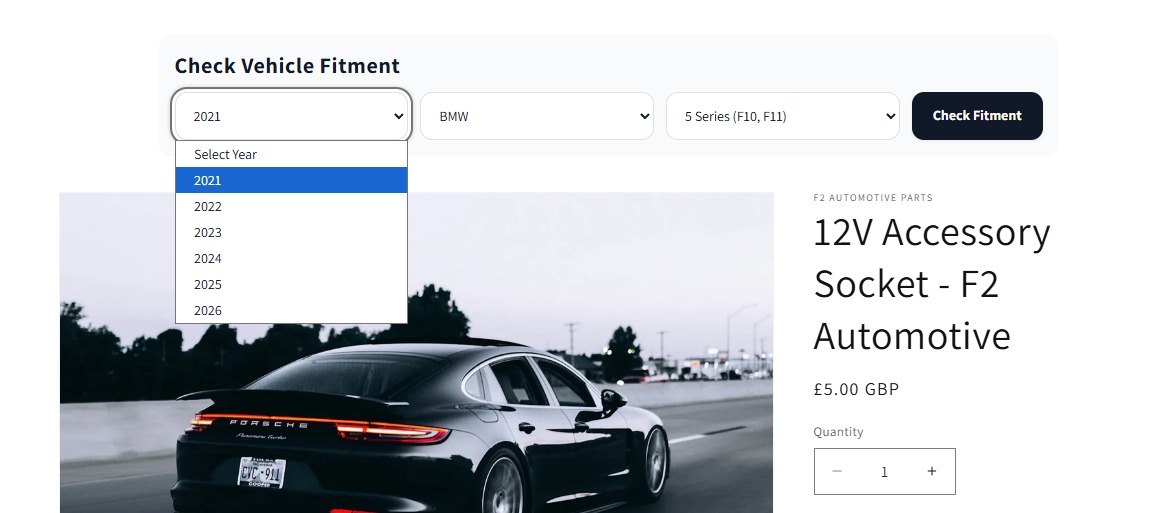
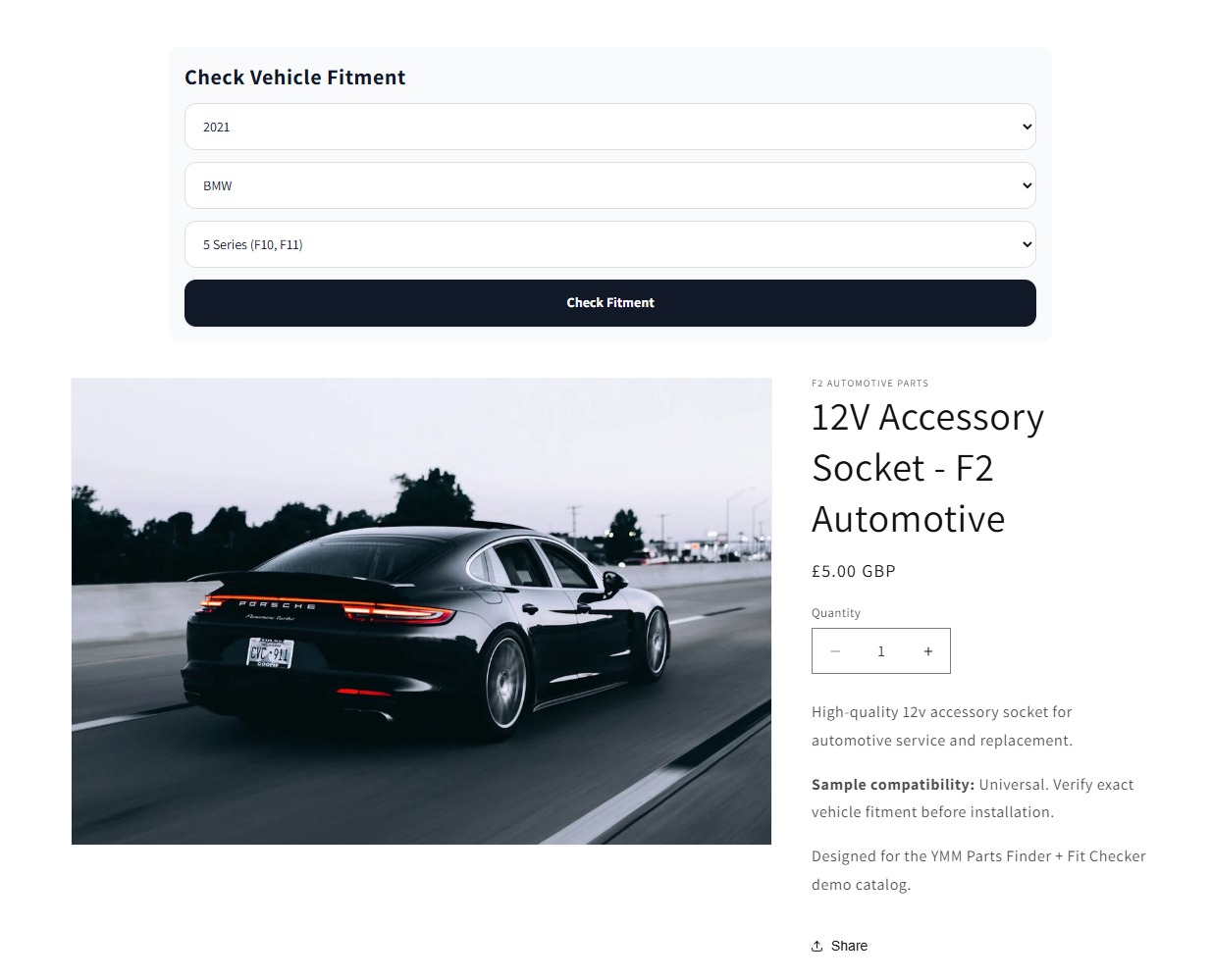
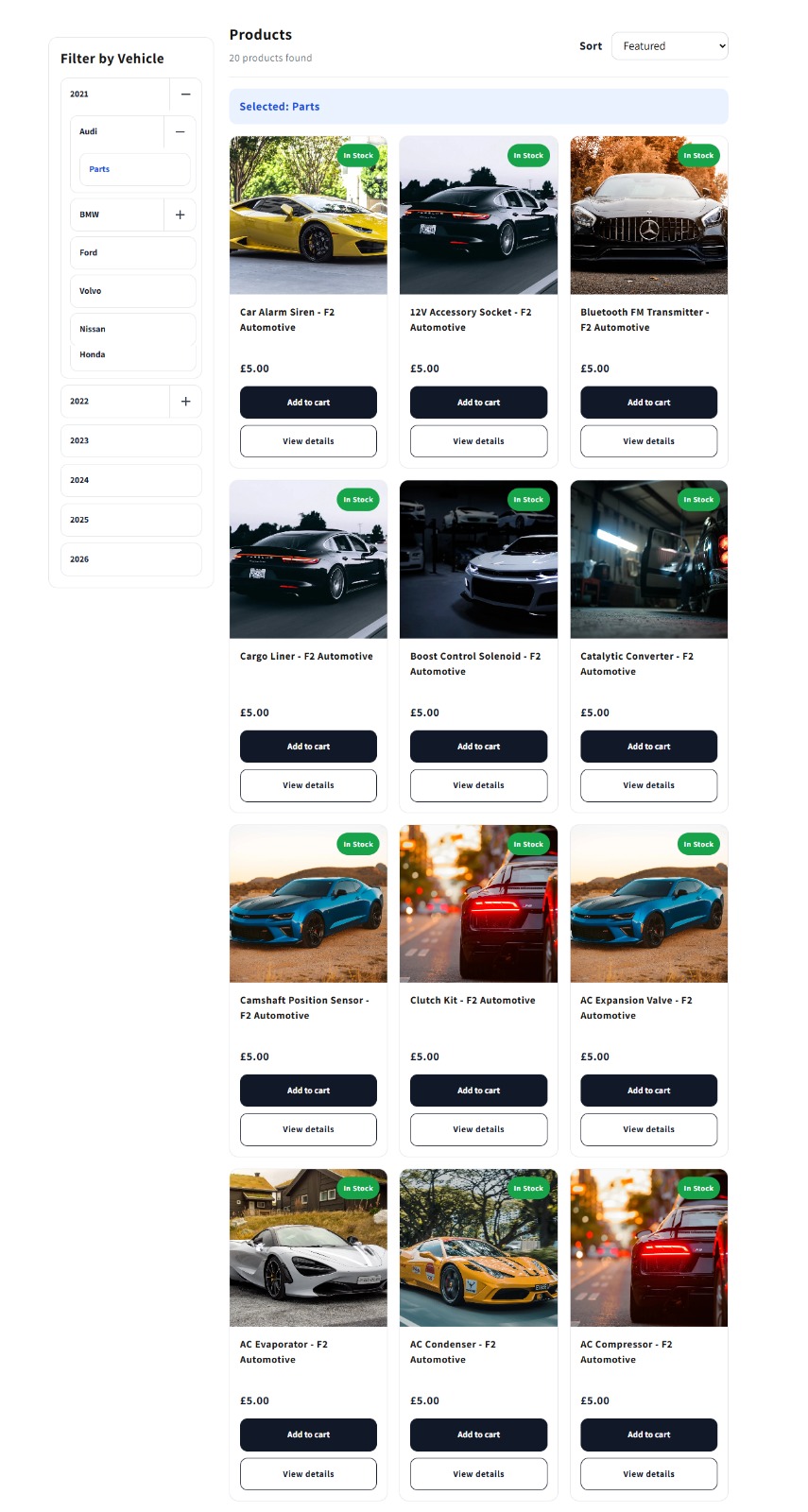
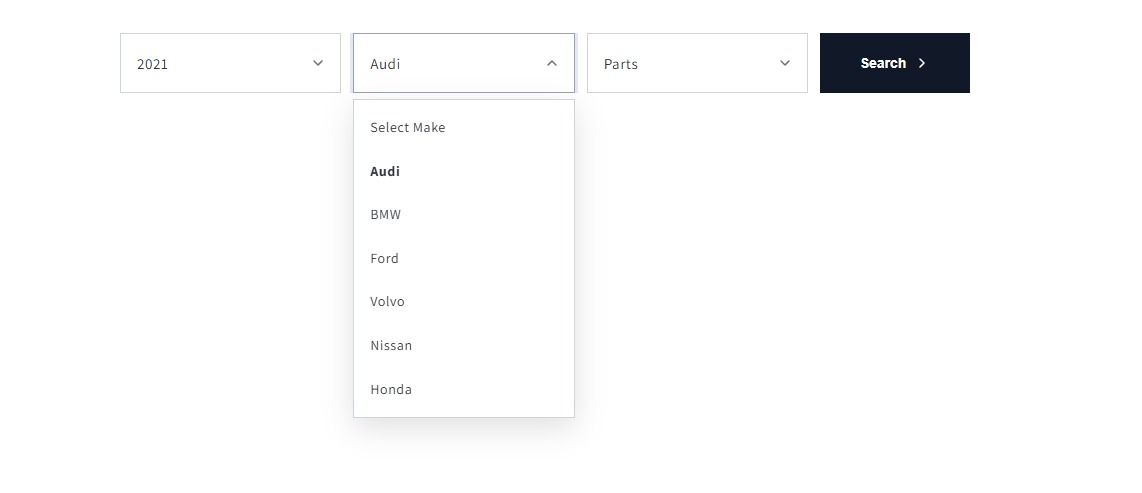
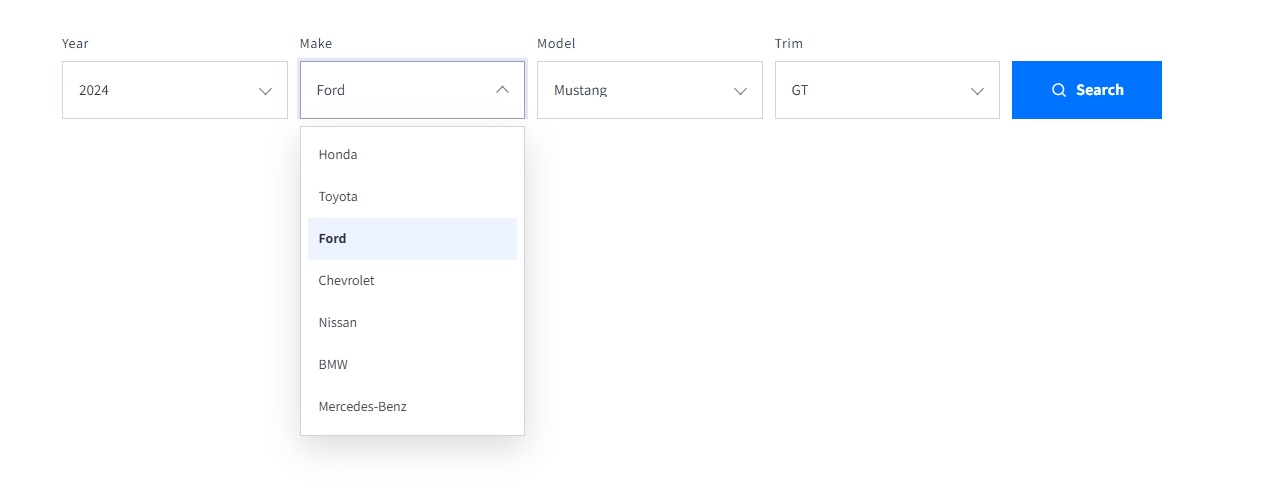
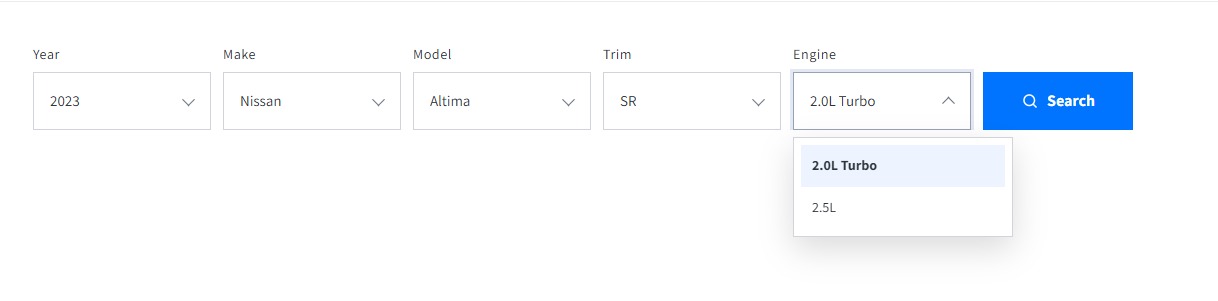
Support Helpline
If you need Support, please message us on WhatsApp. We will give you a response just in one minute. Or mail to us, Amzadhossen420360@gmail.com Or Contact Our Support Website : https://friends2a-technology.com/fhopify/contact-us/
Whatsapp Number: +8801602438393
Website: https://friends2a-technology.com/