Installation Guideline
PDF & Docs & Excel Embed by F2 — Installation Guide
1. Install the App
First, install PDF & Docs & Excel Embed by F2 from the Shopify App Store.
After installation, open your Shopify admin and go to:
Online Store → Themes → Customize
Select the theme where you want to display your document.
Important: No theme code editing is required.
You do not need to create or editapps.liquid, Liquid files, snippets, or theme code.
2. Add the App Block
Inside the Shopify Theme Editor:
Step 1
Go to the page where you want to display your document.
For example:
- Home page
- Product page
- Collection page
- Custom page
- Any other compatible template
Step 2
Click:
Add section
Step 3
In the section picker, open the:
Apps
tab.
You will see the available app blocks from the app.
For PDF & Docs & Excel Embed by F2, you will see:
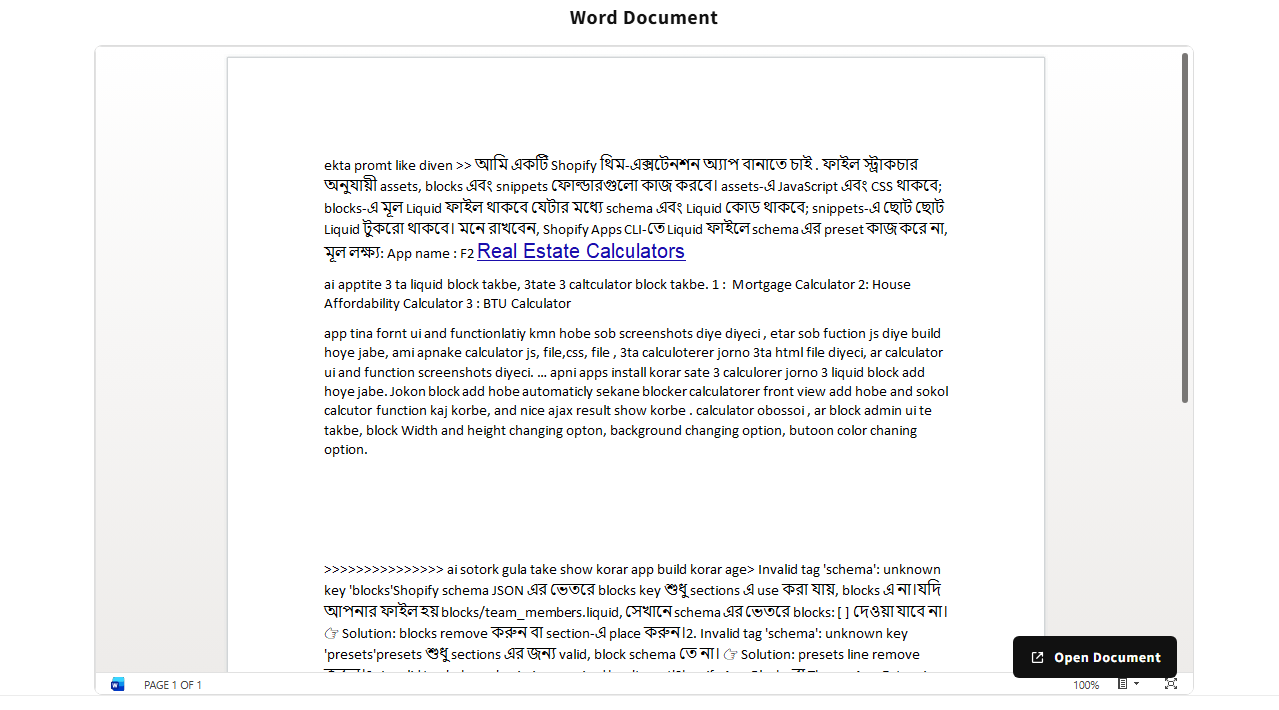
- DOC/DOCX Embed
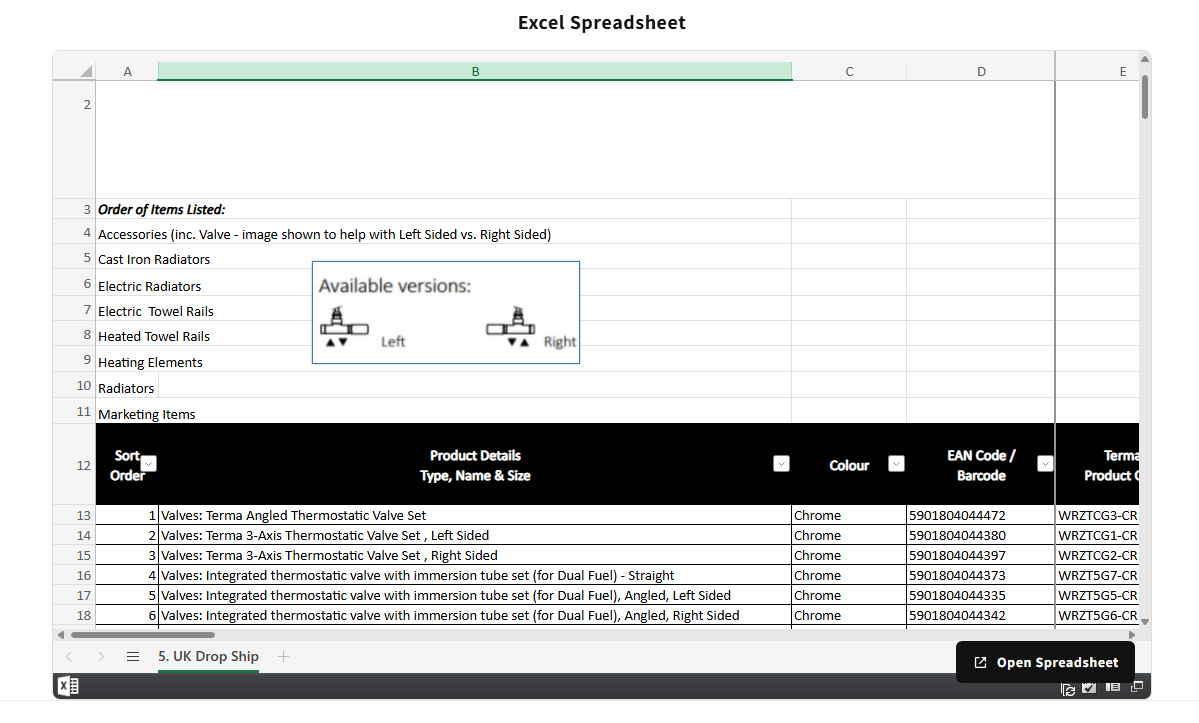
- Excel Embed
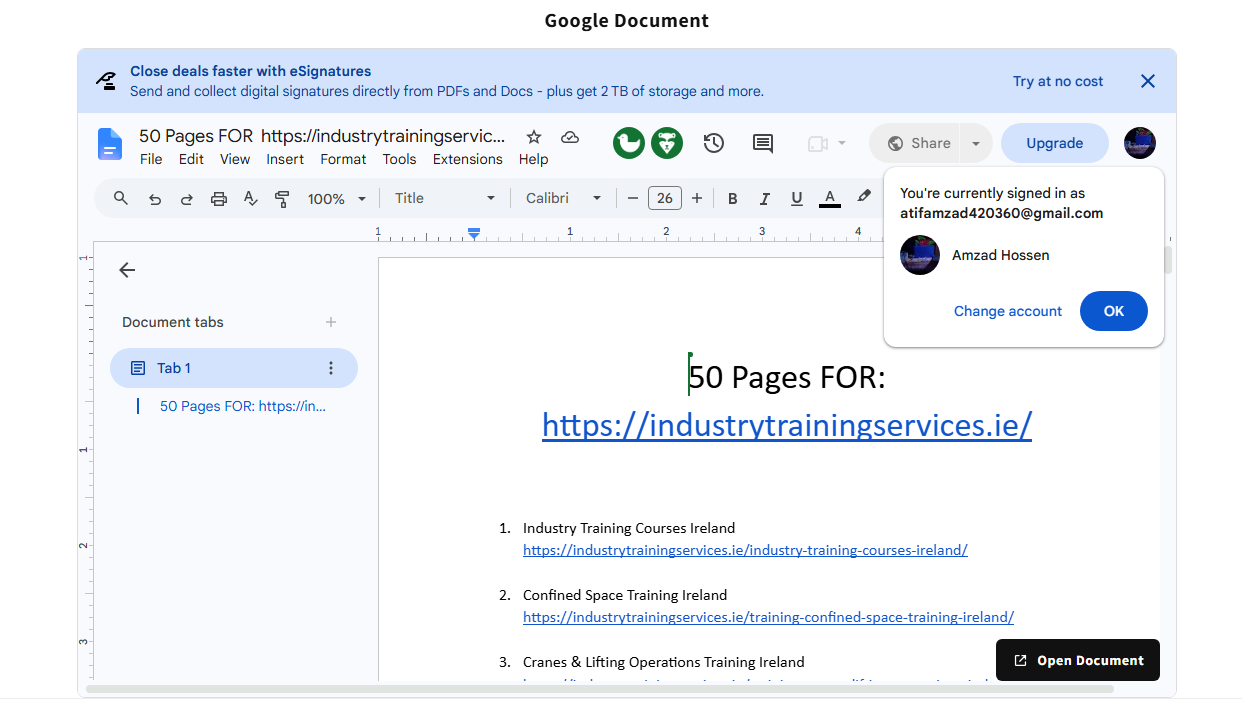
- Google Docs/Drive Embed
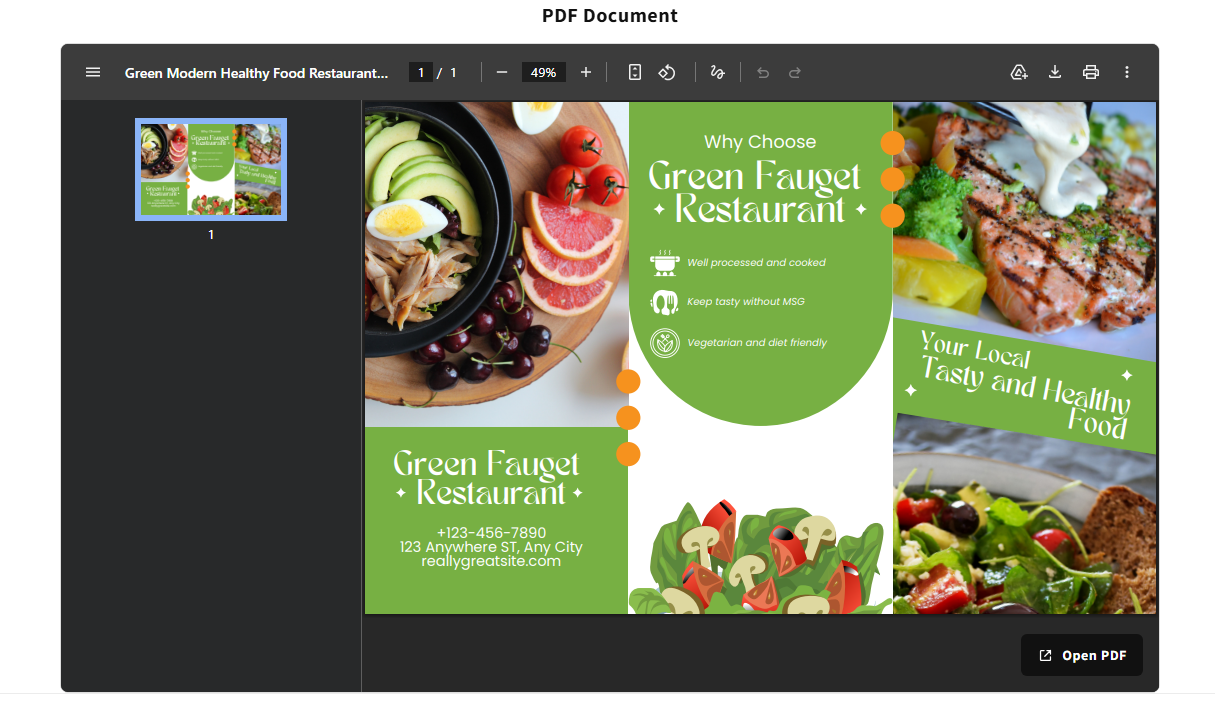
- PDF Embed
Step 4
Select the block you want to use.
The block will be automatically added to the selected section.
3. DOC / DOCX Embed
Use DOC/DOCX Embed when you want to display a Microsoft Word document.
Steps
- Click Add section
- Select Apps
- Select DOC/DOCX Embed
- Open the block settings
- Add your DOC or DOCX file URL
- Configure the available settings
- Click Save
The Word document will then be displayed directly inside your storefront.
Supported files
.doc.docx
File URL
Your document must be hosted at a publicly accessible URL.
The URL should be accessible without requiring the customer to log in.
4. Excel Embed
Use Excel Embed to display an Excel spreadsheet on your storefront.
Steps
- Open the Shopify Theme Editor
- Select the desired page
- Click Add section
- Select Apps
- Select Excel Embed
- Open the block settings
- Add your Excel file URL
- Configure the block appearance and display settings
- Click Save
Supported files
.xls.xlsx
The spreadsheet will appear inside the app’s responsive viewer.
5. Google Docs / Google Drive Embed
Use Google Docs/Drive Embed when your document is hosted on Google Docs or Google Drive.
Steps
- Open your Shopify Theme Editor
- Select the desired page
- Click Add section
- Select Apps
- Select Google Docs/Drive Embed
- Add your Google Docs or Google Drive URL
- Configure the available settings
- Click Save
Important Google Drive setting
Make sure the file has appropriate sharing permission.
For example, the document may need to be accessible to:
Anyone with the link
depending on the Google sharing configuration and the type of document.
If the file is private, storefront visitors may not be able to view it.
6. PDF Embed
Use PDF Embed to display a PDF document directly on your storefront.
Steps
- Open Online Store → Themes → Customize
- Select the desired page
- Click Add section
- Select Apps
- Select PDF Embed
- Enter your PDF file URL
- Configure the block settings
- Click Save
Supported file
.pdf
The PDF will be displayed inside the responsive PDF viewer.
7. Customize the App Block
Each embed block provides its own settings in the Shopify Theme Editor.
Depending on the selected block, you can configure options such as:
- Document/file URL
- Title
- Viewer height
- Width
- Background
- Border
- Border radius
- Button
- Button text
- Button color
- Text color
- Alignment
- Spacing
- Desktop settings
- Mobile settings
- Other display options
Simply change the settings from the Theme Editor and preview the result.
No coding is required.
8. Mobile Responsive
All F2 Embed blocks are designed to be responsive.
The blocks automatically adapt to:
- Desktop
- Laptop
- Tablet
- Mobile
- Small mobile screens
The embed viewer uses the available width of its parent section instead of requiring a fixed outer width.
Therefore, merchants do not need to add custom CSS for normal responsive behavior.
9. Using Multiple Documents
You can add multiple embed blocks to the same page.
For example, you can create a page containing:
PDF
→ Product Manual
DOC/DOCX
→ Installation Instructions
Excel
→ Product Specification Sheet
Google Docs/Drive
→ Company Documentation
Each block can have its own document URL and settings.
10. Changing or Replacing a Document
To replace an existing document:
- Go to Online Store → Themes → Customize
- Open the page containing the embed block
- Select the appropriate app block
- Replace the existing document URL
- Adjust the settings if necessary
- Click Save
The new document will be displayed automatically.
11. Important — No Theme Code Required
Do NOT do this:
- Do not create
apps.liquid - Do not edit
apps.liquid - Do not create a Liquid snippet manually
- Do not paste Liquid code into the theme
- Do not edit theme source code
- Do not install the block manually through code
Instead:
Theme Editor → Add section → Apps → Select F2 Embed Block
That’s all.
This is the recommended installation method for the app’s Theme App Extension blocks.
12. Troubleshooting
Document is not displaying
Check that:
- The URL is correct
- The file still exists
- The URL is publicly accessible
- The file format is supported
- The document does not require authentication
- Google Drive sharing permissions are correctly configured
Google Drive document is not visible
Check the Google Drive sharing permission and make sure storefront visitors have permission to access the document.
PDF/Excel/DOC viewer appears empty
Check the original file URL in a new browser tab.
If the URL cannot be opened publicly, the embed viewer may not be able to access it.
Mobile display looks different
The block automatically adapts to the available mobile width. You can also adjust the mobile-specific settings from the Theme Editor if the block provides them.
13. Quick Installation
For merchants who just want the short version:
1. Install the app
2. Go to Online Store → Themes → Customize
3. Select your desired page
4. Click Add section
5. Open Apps
6. Select one of:
- DOC/DOCX Embed
- Excel Embed
- Google Docs/Drive Embed
- PDF Embed
7. Add your document URL
8. Customize the settings
9. Click Save
No theme code editing is required.
App Features
Easily embed PDFs, Word documents, Excel spreadsheets, and Google Docs directly into your Shopify store with responsive and customizable document viewers.
PDF & Docs & Excel Embed by F2 helps merchants display important documents directly on their Shopify storefront without requiring custom theme code. Merchants can add PDF, DOC/DOCX, Excel, or Google Docs/Drive files through Shopify’s Theme Editor and customize the appearance of each embed block.
Features:
Display PDF documents directly inside your Shopify store
Embed DOC and DOCX files for product manuals, guides, and documents
Display Excel and XLS/XLSX spreadsheets directly on your storefront
Embed Google Docs and Google Drive documents using a shareable link
Add multiple document embed blocks to different pages or sections
Customize document viewer height, width, spacing, and appearance
Customize background, border, button, text, and alignment settings
Provide a responsive viewing experience across desktop, tablet, and mobile devices
Use separate settings for mobile display and responsive layouts
Add an optional Open Document button for visitors
Works directly through Shopify Theme Editor with no manual theme code editing required
Apps Demo Screenshots
Support Helpline
If you need Support, please message us on WhatsApp. We will give you a response just in one minute. Or mail to us, Amzadhossen420360@gmail.com Or Contact Our Support Website : https://friends2a-technology.com/fhopify/contact-us/
Whatsapp Number: +8801602438393
Website: https://friends2a-technology.com/