Table of Contents
Installation Guideline
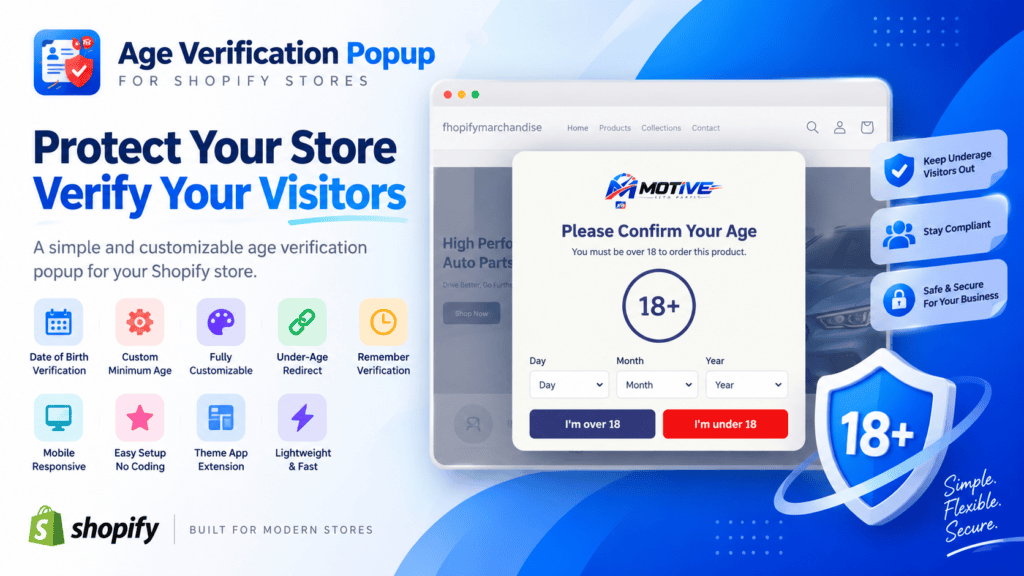
Age Verification Popup — Installation Guide
Welcome to Age Verification Popup
Protect your online store with a customizable age verification popup. The app allows you to ask visitors to confirm their age before accessing your store or purchasing age-restricted products.
You can easily customize the popup design, minimum age, date-of-birth fields, buttons, colors, animation, verification duration, and redirect behavior — without editing your theme code.
Step 1 — Install the App
Install Age Verification Popup from the Shopify App Store.
After installation, open the app from your Shopify Admin.
The app works through Shopify’s Theme App Extension, so you can add and manage the popup directly from the Shopify Theme Editor.
Step 2 — Open Your Theme Editor
From your Shopify Admin:
Online Store → Themes → Customize
Then select the theme where you want to use the Age Verification Popup.
Make sure you are editing the same theme that you want to publish on your storefront.
Step 3 — Add the Age Verification Popup
Inside the Shopify Theme Editor:
- Open the desired template.
- Find the Apps section.
- Click Add Block.
- Select Age Confirmation Popup.
- Add the block to your theme.
The popup will now appear in the theme preview.
Step 4 — Configure the Minimum Age
In the Age Confirmation Popup settings, find:
Minimum Age
Enter the minimum age required for your store.
For example:
- 18 for alcohol, tobacco, or other 18+ products
- 21 for products requiring a 21+ age restriction
- Any other minimum age appropriate for your business requirements
The popup will use this value when validating the visitor’s date of birth.
Step 5 — Configure the Popup Content
You can customize the main popup content directly from the Theme Editor.
Popup Title
Example:
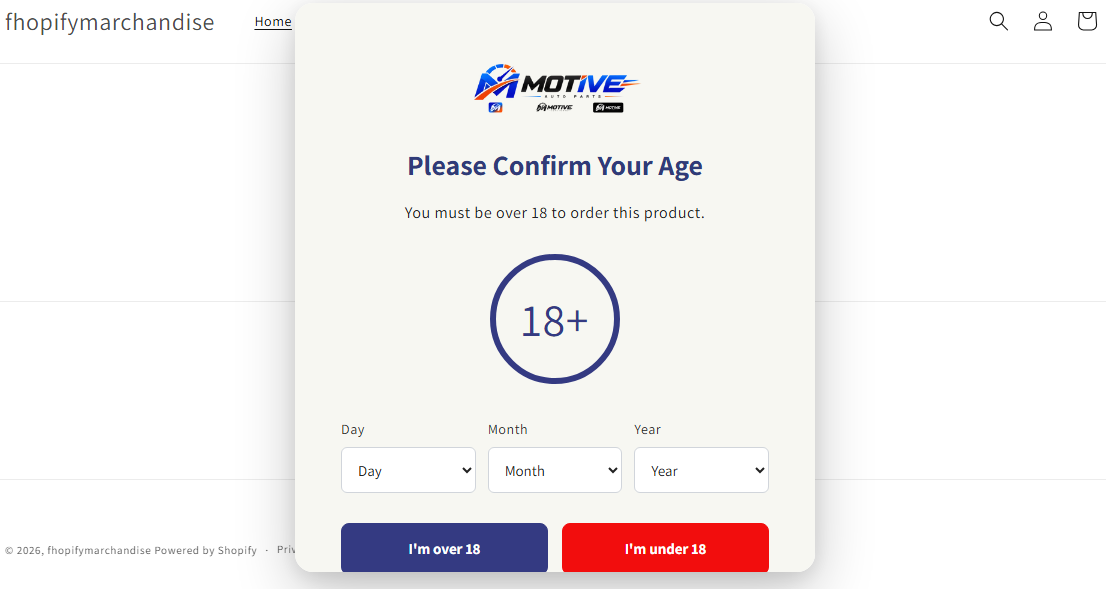
Please Confirm Your Age
Description
Example:
You must be over 18 to order this product.
You can change these texts to match your store and brand.
Step 6 — Configure Date of Birth Fields
Enable:
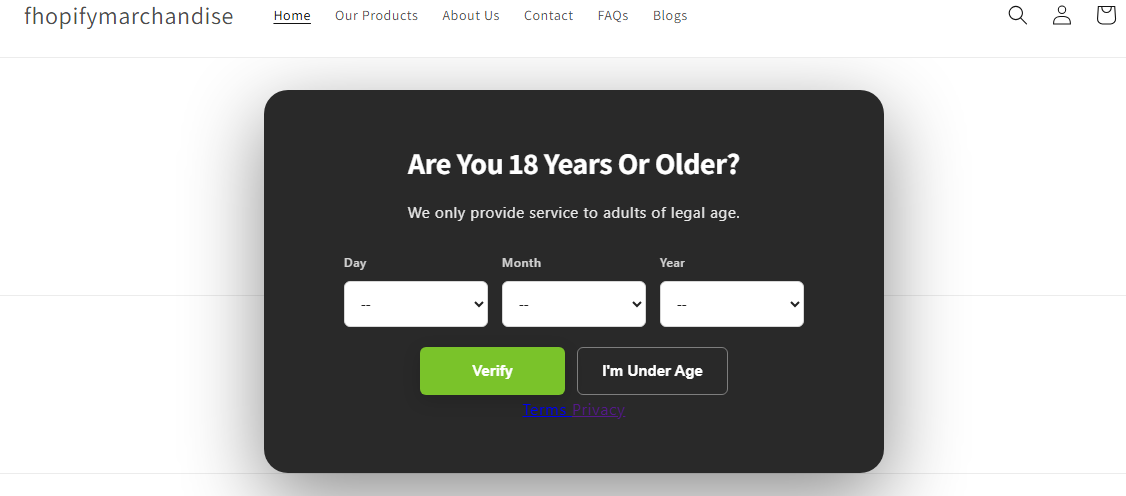
Show Date of Birth Fields
When enabled, visitors will see:
- Day
- Month
- Year
Visitors must enter a valid date of birth before they can confirm their age.
The app automatically calculates the visitor’s age based on the selected date of birth.
You can also customize the labels:
- Day Label
- Month Label
- Year Label
For example:
Date / Month / Year
or
DD / MM / YYYY
depending on your preferred presentation.
Step 7 — Configure the Confirmation Buttons
You can customize both buttons.
Confirmation Button
Default:
I’m over 18
This button allows eligible visitors to enter the store after successful age verification.
Under-Age Button
Default:
I’m under 18
This button is intended for visitors who do not meet the minimum age requirement.
You can change the button text according to your store’s requirements.
Step 8 — Configure Under-Age Redirect
You can optionally set an:
Under Age Redirect URL
When a visitor clicks I’m under 18, they can be redirected to the URL you specify.
For example, you could redirect visitors to:
- Your homepage
- A general information page
- A non-age-restricted website
- Another page appropriate for your business
If no custom URL is provided, the app uses its default fallback behavior.
Step 9 — Customize Popup Design
The app includes several appearance settings so you can match the popup with your store’s branding.
You can customize:
Popup Width
Control how wide the popup appears on desktop devices.
Popup Background Color
Choose the background color of the popup.
Title Color
Set the color of the popup heading.
Description Color
Set the color of the supporting text.
Yes Button Color
Choose the color of the age confirmation button.
No Button Color
Choose the color of the under-age button.
Overlay Opacity
Control how dark the background overlay appears behind the popup.
Border Radius
Adjust the roundness of the popup corners.
Set it to 0 if you want completely square corners.
Step 10 — Add Your Logo
If your store requires branding inside the popup, you can use the:
Logo Image
setting.
Upload your store logo and it will be displayed above the popup title.
For the best result, use a clear, high-quality logo with a transparent background.
Step 11 — Choose Popup Animation
The app provides multiple animation options:
- None — Popup appears without animation.
- Fade — Popup smoothly fades into view.
- Zoom — Popup appears with a subtle zoom effect.
- Slide — Popup smoothly slides into view.
Choose the animation that best matches your store’s design.
Step 12 — Configure Verification Duration
Use:
Remember Verification
to control how long a visitor remains verified.
Available options include:
Session
The visitor remains verified during the current browser session.
1 Day
The visitor does not need to verify again for 1 day.
7 Days
Verification is remembered for 7 days.
30 Days
Verification is remembered for 30 days.
This helps prevent visitors from having to repeatedly confirm their age while browsing your store.
Step 13 — Configure Popup Delay
Use:
Popup Delay
to control how long the app waits before displaying the popup.
For example:
0 seconds
The popup appears immediately.
3 seconds
The popup appears after approximately 3 seconds.
You can adjust this according to your preferred storefront experience.
Step 14 — Show the Popup on Homepage Only
Enable:
Show on Homepage Only
when you want the age verification popup to appear only on your store’s homepage.
Disable this option if you want the popup to be available across the relevant storefront pages where the app block is active.
Step 15 — Save Your Changes
After configuring the popup:
Click Save in the Shopify Theme Editor.
Then click Preview or open your storefront in a new browser tab.
Test Your Age Verification Popup
Before publishing the theme, we recommend testing the complete verification flow.
Test 1 — Valid Age
Enter a date of birth that meets the minimum age requirement.
Example:
Day: 13
Month: 11
Year: 1980
Then click:
I’m over 18
The popup should close and the visitor should be allowed to continue browsing.
Test 2 — Under Minimum Age
Enter a date of birth that does not meet the required minimum age.
Then click:
I’m over 18
The app should display an age validation message and keep the popup open.
The visitor should not be allowed to bypass the age verification.
Test 3 — Missing Date of Birth
Leave one or more DOB fields empty and click:
I’m over 18
The app will ask the visitor to complete their date of birth.
Test 4 — Under-Age Button
Click:
I’m under 18
The visitor should be redirected according to your configured Under Age Redirect URL.
Test 5 — Remember Verification
After successfully verifying your age, refresh the page.
Depending on your Remember Verification setting, the popup should remain hidden for the configured duration.
App Features
Age Verification Popup helps Shopify merchants create a professional age verification experience for their storefront. Easily verify visitors based on their date of birth, control the minimum required age, and prevent underage visitors from accessing age-restricted content or products.
Customize the popup to match your store branding with flexible colors, buttons, logo, animations, popup size, overlay opacity, and more — all directly from the Shopify Theme Editor without editing code.
Whether you sell alcohol, tobacco, vaping products, adult products, supplements, or other age-restricted products, Age Verification Popup provides a simple and customizable way to add an age confirmation screen to your Shopify store.
Key Features
- Easy Age Verification — Verify visitors before they continue browsing your store.
- Date of Birth Verification — Let visitors enter their Day, Month, and Year to verify their age.
- Custom Minimum Age — Set the required minimum age, such as 18, 21, or another age.
- Custom Popup Design — Create a popup that matches your store’s branding.
- Logo Support — Add your store logo to the age verification popup.
- Custom Buttons — Customize the text and colors of the confirmation and under-age buttons.
- Under-Age Redirect — Redirect visitors who do not meet the required age to your preferred URL.
- Remember Verification — Remember verified visitors for Session, 1 Day, 7 Days, or 30 Days.
- Popup Animation — Choose from Fade, Zoom, Slide, or No Animation.
- Custom Popup Width — Control the popup size for your storefront.
- Overlay Opacity Control — Adjust the darkness of the background overlay.
- Custom Colors — Customize popup background, title, description, and button colors.
- Homepage Only Option — Show the age verification popup only on your homepage when required.
- Popup Delay — Choose when the popup should appear after the page loads.
- Mobile Responsive — Designed to provide a smooth experience across desktop, tablet, and mobile devices.
- No Coding Required — Configure everything through the Shopify Theme Editor.
- Theme App Extension — Easily add the popup using Shopify’s native Theme App Extension.
- Shopify Theme Editor Support — Add, customize, preview, and manage the popup without modifying theme files.
- Lightweight & Simple — Designed for a clean storefront experience without unnecessary complexity.
Apps Demo Screenshots
Support Helpline
If you need Support, please message us on WhatsApp. We will give you a response just in one minute. Or mail to us, Amzadhossen420360@gmail.com Or Contact Our Support Website : https://friends2a-technology.com/fhopify/contact-us/
Whatsapp Number: +8801602438393
Website: https://friends2a-technology.com/