Table of Contents
Installation Guideline
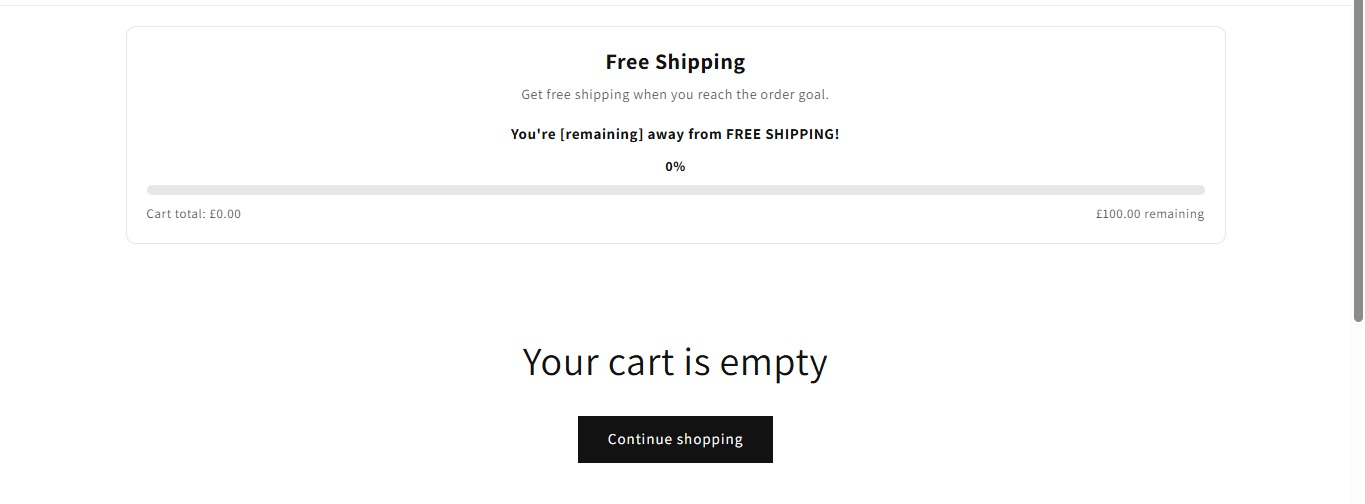
F2 Cart Rules & Upsell
Installation & Complete Usage Guide
F2 Cart Rules & Upsell is a Shopify app designed to help merchants control cart purchasing rules, promote additional products, validate cart requirements, and provide customers with a faster checkout experience.
The app includes 4 main Theme App Extension blocks:
| Block | Purpose | Recommended Page |
|---|---|---|
| 1. Cart Quantity & Order Rules | Control cart quantity and order-value rules | Cart Page |
| 2. Cart Upsell & Add-on | Promote additional products | Cart Page |
| 3. Buy Now / Direct Checkout | Enable fast direct purchasing | Product & Home Page |
| 4. Cart Rule Notice & Validation | Display and validate cart requirements | Cart Page |
1. Installing the App
After installing F2 Cart Rules & Upsell from the Shopify App Store:
Step 1
Go to:
Shopify Admin → Apps → F2 Cart Rules & Upsell
Step 2
Open your theme editor:
Shopify Admin → Online Store → Themes → Customize
Step 3
Select the theme where you want to use the app.
Step 4
Open the page where you want to add an app block.
Step 5
Click:
Add block → Apps
Step 6
Select:
F2 Cart Rules & Upsell
You will see the available app blocks.
Step 7
Select the required block and configure its settings.
Step 8
Click Save.
2. Block 1 — Cart Quantity & Order Rules
What does this block do?
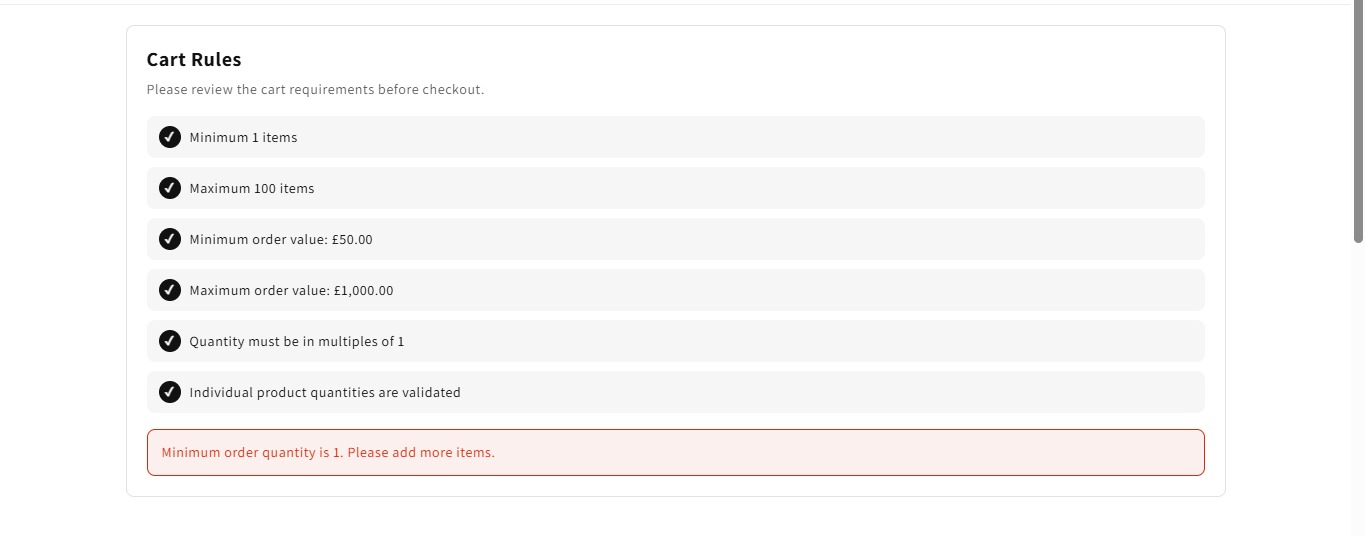
The Cart Quantity & Order Rules block allows merchants to create purchasing rules based on cart quantity and order value.
It can be used to control things such as:
- Minimum cart quantity
- Maximum cart quantity
- Minimum order value
- Maximum order value
- Quantity multiples
- Individual product quantity validation
- Rule summary
- Checkout protection
The block includes settings for these different cart requirements.
Why should merchants use it?
This block is useful when a store has purchasing restrictions.
For example:
Minimum purchase requirement
A merchant may require customers to purchase at least:
3 items
Maximum purchase requirement
A merchant may allow customers to purchase a maximum of:
20 items
Minimum order value
A merchant may require:
Minimum order value: $50
Maximum order value
A merchant may limit an order to:
Maximum order value: $5,000
Quantity multiples
A merchant may require products to be purchased in multiples of:
5
This is especially useful for wholesale and B2B stores.
Block 1 Features
Minimum Quantity
Enable this option to require customers to purchase a minimum number of products.
Example:
Minimum Quantity: 3A customer with only 1 or 2 items in the cart will not satisfy the configured rule.
Maximum Quantity
Set the maximum number of items allowed in the cart.
Example:
Maximum Quantity: 20Minimum Order Value
Set the minimum cart/order value.
Example:
Minimum Order Value: $50Customers must reach the required order value before continuing.
Maximum Order Value
Set a maximum order value.
Example:
Maximum Order Value: $5,000Quantity Multiple
Require customers to purchase products in specific quantity multiples.
Example:
Quantity Multiple: 5Valid quantities:
5
10
15
20
25
This is useful for:
- Wholesale stores
- Bulk products
- B2B stores
- Packaging-based products
Individual Product Quantity Validation
This option allows the merchant to validate the quantity of individual products in the cart.
Rule Summary
Merchants can display the configured rules to customers.
Example:
Cart Rules

Minimum Quantity: 3
Maximum Quantity: 20
Minimum Order Value: $50
Maximum Order Value: $5,000
The current block provides a rule-summary interface for enabled rules.
Checkout Protection
The block can also provide client-side checkout protection when cart rules are not satisfied.
Important: The current implementation performs validation on the storefront/client side. If a merchant requires strict server-side enforcement that cannot be bypassed, Shopify Functions or another server-side mechanism is required.
Where should Block 1 be used?
Recommended Page:
Cart Page
Recommended location:
Place it around the cart summary or below the cart items.
Example:
--------------------------------
Your Cart
--------------------------------

Product A             $30
Product B             $25

--------------------------------

Cart Rules

Minimum Quantity: 2
Minimum Order Value: $50

✓ Your cart meets all requirements.

--------------------------------

Subtotal: $55

[ Checkout ]
--------------------------------
Best for:
- Wholesale stores
- B2B stores
- Bulk product stores
- Stores with minimum order requirements
- Stores with maximum order restrictions
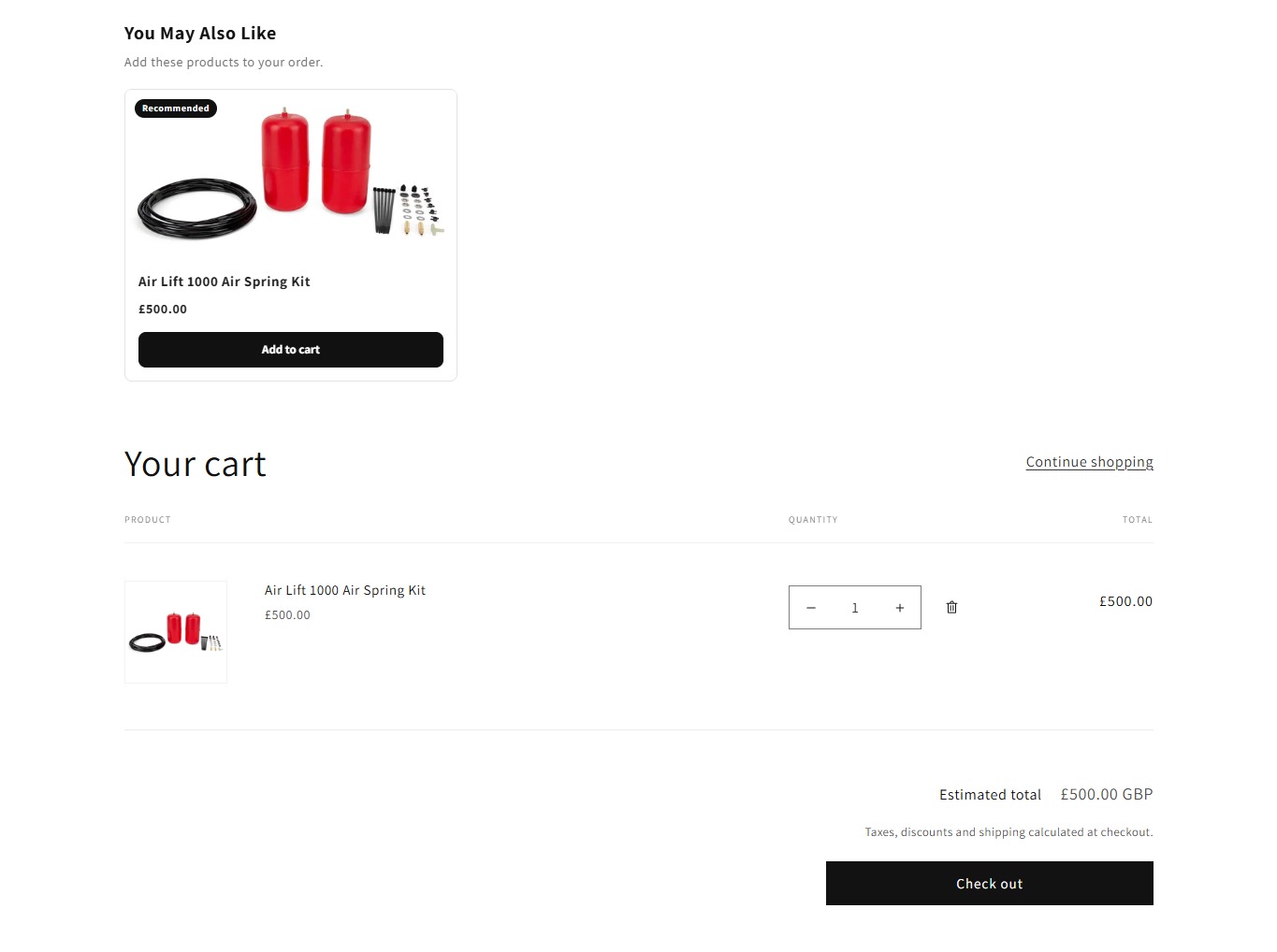
3. Block 2 — Cart Upsell & Add-on
What does this block do?
The Cart Upsell & Add-on block helps merchants promote additional products after a customer has added products to the cart.
The current block supports up to three configured upsell products, custom titles/descriptions, product images, prices, compare-at prices, quantity controls, and Add to Cart actions.
Why should merchants use it?
The main purpose is to increase average order value (AOV).
For example, a customer adds:
Laptop — $1,000
The store can recommend:
- Laptop Bag — $40
- Wireless Mouse — $25
- Keyboard — $50
The customer can add those products directly from the cart.
Block 2 Features
Upsell Product 1
Merchant can select the first upsell product using the product picker.
Upsell Product 2
The current implementation supports Product 2 through a product handle setting.
Upsell Product 3
Product 3 can also be configured using its product handle.
Custom Product Title
Merchants can provide a custom title for an upsell product.
Example:
Original:
Wireless Bluetooth MouseCustom title:
Complete Your SetupCustom Product Description
Merchants can add a custom description for each upsell product.
Example:
Perfect companion for your new laptop.Product Image
Merchants can choose whether to display product images.
Product Price
Product pricing can be displayed in the upsell card.
Compare-at Price
If a product has a compare-at price, it can be displayed alongside the current price.
Quantity Control
Customers can increase or decrease the upsell quantity using the quantity controls.
Recommended Badge
Merchants can display a badge such as:
RecommendedThe block provides settings for displaying and customizing this badge.
Where should Block 2 be used?
Recommended Page:
Cart Page
Recommended position:
Cart Items
     ↓
Cart Upsell
     ↓
Cart Summary
     ↓
Checkout
Example:
--------------------------------

Your Cart

MacBook Pro
$1,499

--------------------------------

You May Also Like

Wireless Mouse
$29
[ Add to Cart ]

Laptop Bag
$49
[ Add to Cart ]

Keyboard
$59
[ Add to Cart ]

--------------------------------

Subtotal: $1,499

[ Checkout ]
--------------------------------
Why is this block valuable?
It can help merchants sell:
Accessories
Laptop → Laptop Bag
Complementary products
Camera → Camera Bag
Related products
Shoes → Socks
Product bundles
Phone → Case + Screen Protector
Add-ons
Coffee Machine → Coffee Beans
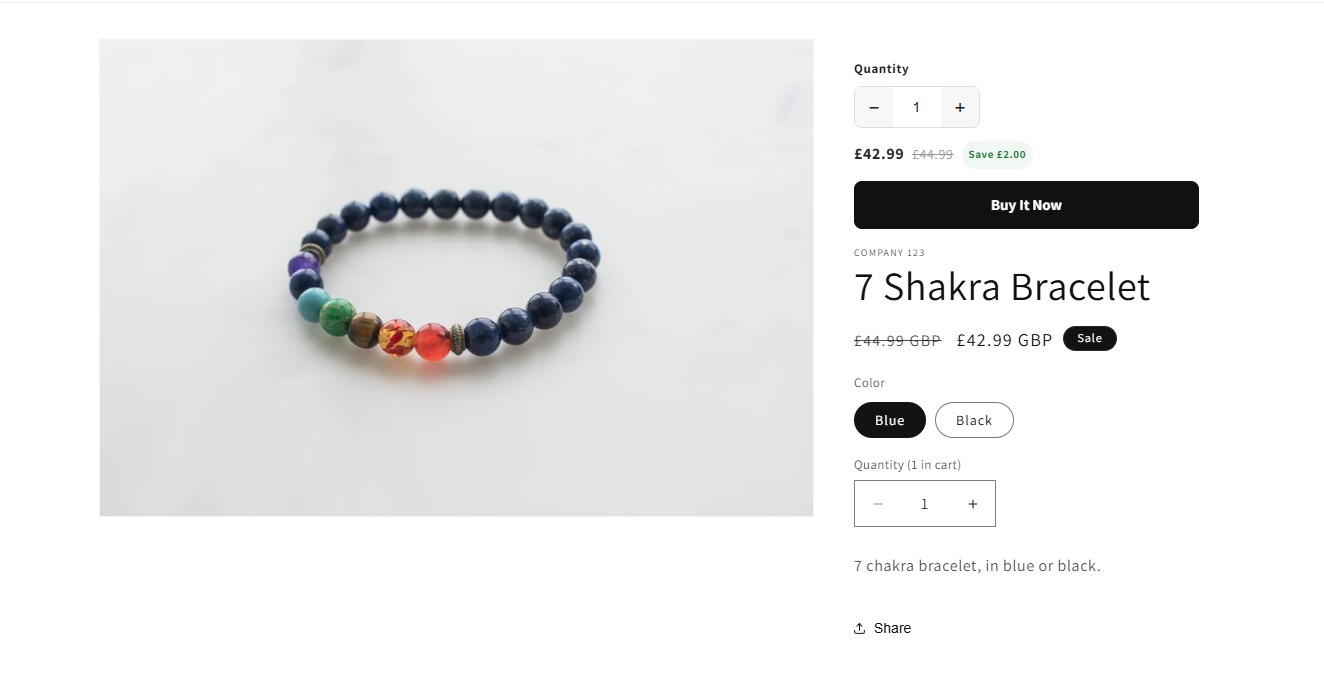
4. Block 3 — Buy Now / Direct Checkout
What does this block do?
The Buy Now / Direct Checkout block gives customers a faster way to purchase a product.
Instead of:
Product
↓
Add to Cart
↓
Cart
↓
Checkout
the customer can use:
Product
↓
Buy Now
↓
Checkout
The current implementation handles product/variant information and sends the selected quantity through Shopify’s cart endpoint before redirecting according to the configured setting.
Where can Block 3 be used?
1. Product Page
This is the most common use.
Recommended location:
Product Information → Below Add to Cart
Example:
Product Image

Premium T-Shirt
$49

Size: Medium
Color: Black

Quantity: [- 1 +]

[ Add to Cart ]

[ BUY IT NOW ]
2. Home Page
The Universal Buy Now implementation can also be used with a selected product on compatible Home Page/custom product sections.
Example:
--------------------------------

Featured Product

Premium Headphones

$99

[ BUY IT NOW ]

--------------------------------
The merchant can select which product the block should use.
3. Featured Product Sections
Block 3 can be useful inside a Featured Product section where the theme supports app blocks.
4. Custom Product Sections
Merchants can create a custom product presentation on the Home Page and place the Buy Now block alongside it.
Why should merchants use Block 3?
Faster purchasing
Customers can move directly toward checkout.
Product promotion
Merchants can promote a specific product on the homepage.
Landing pages
Useful for product-focused marketing campaigns.
One-product stores
Especially useful for stores selling a primary product.
Quantity Control
Merchants can enable quantity selection.
Example:
Quantity

[-]  2  [+]

[ BUY IT NOW ]
The block supports default, minimum, and maximum quantity settings.
Price Display
Merchants can optionally display:
- Product price
- Compare-at price
- Savings
These options are available in the block settings.
Checkout Redirect
When direct checkout is enabled:
Buy Now
   ↓
Add Product
   ↓
Checkout
When disabled:
Buy Now
   ↓
Add Product
   ↓
Cart
The current JavaScript flow supports redirecting to /checkout or /cart based on the setting.
5. Block 4 — Cart Rule Notice & Validation
What does this block do?
The Cart Rule Notice & Validation block focuses on communicating cart requirements to customers and showing validation messages.
It includes settings for:
- Minimum quantity
- Maximum quantity
- Minimum order value
- Maximum order value
- Quantity multiples
- Individual product quantity validation
- Rule summary
- Error messages
- Checkout protection
These options are present in the current block configuration.
Why should merchants use it?
Suppose the store has this rule:
Minimum Order Value: $50A customer has only:
Cart Total: $35The merchant can communicate the requirement clearly:
Minimum order value is $50.
Please update your cart before checkout.
Examples
Minimum Quantity Notice
Minimum quantity required: 3Maximum Quantity Notice
Maximum quantity allowed: 20Minimum Order Value Notice
Minimum order value: $50Maximum Order Value Notice
Maximum order value: $5,000Quantity Multiple Notice
Products must be purchased in multiples of 5.Where should Block 4 be used?
Recommended Page:
Cart Page
Recommended location:
Cart Items
     ↓
Cart Rule Notice
     ↓
Cart Summary
     ↓
Checkout
Block 1 vs Block 4
These two blocks have related functionality, so merchants should configure them carefully.
Block 1 — Cart Quantity & Order Rules
Focus:
Configure and evaluate cart purchasing rules
Block 4 — Cart Rule Notice & Validation
Focus:
Communicate rules and validation results to customers
They can be used together, but merchants should avoid displaying duplicate messages.
6. Recommended Store Setup
For a typical Shopify store, we recommend the following configuration.
Product Page
Add:
Block 3 — Buy Now / Direct Checkout
Recommended position:
Product Information
        ↓
Quantity
        ↓
Add to Cart
        ↓
BUY IT NOW
Home Page
Add:
Block 3 — Buy Now / Direct Checkout
Use it with:
- Featured Product
- Custom Product Section
- Promotional Product
- Landing Page Product
Cart Page
Add:
Block 1 — Cart Quantity & Order Rules
Then:
Block 2 — Cart Upsell & Add-on
Then:
Block 4 — Cart Rule Notice & Validation
Recommended structure:
--------------------------------
CART
--------------------------------

Cart Products

--------------------------------

Cart Quantity & Order Rules

--------------------------------

You May Also Like

Product A
[ Add to Cart ]

Product B
[ Add to Cart ]

--------------------------------

Cart Rule Notice

--------------------------------

Subtotal

[ Checkout ]
--------------------------------
7. Which Block Should a Merchant Use?
Wholesale Store
Recommended:
Block 1 + Block 4
Why?
Because wholesale stores often need:
- Minimum quantities
- Maximum quantities
- Minimum order value
- Quantity multiples
Fashion Store
Recommended:
Block 2 + Block 3
Example:
Product Page
↓
Buy Now

Cart
↓
Related Products
Electronics Store
Recommended:
Block 2 + Block 3
Example:
Laptop
↓
Buy Now

Cart
↓
Mouse + Keyboard + Laptop Bag
B2B Store
Recommended:
Block 1 + Block 4
Example:
Minimum Order Value: $100
Minimum Quantity: 5
Quantity Multiple: 5
One-Product Store
Recommended:
Block 3
Use it on:
- Home Page
- Product Page
- Promotional sections
8. Page-by-Page Recommendation
| Page | Block | Recommendation |
|---|---|---|
| Home Page | Block 1 | ❌ Not recommended |
| Home Page | Block 2 | Optional |
| Home Page | Block 3 | ⭐⭐⭐⭐⭐ |
| Home Page | Block 4 | ❌ Not recommended |
| Product Page | Block 1 | ❌ Not recommended |
| Product Page | Block 2 | Optional |
| Product Page | Block 3 | ⭐⭐⭐⭐⭐ |
| Product Page | Block 4 | ❌ Not recommended |
| Cart Page | Block 1 | ⭐⭐⭐⭐⭐ |
| Cart Page | Block 2 | ⭐⭐⭐⭐⭐ |
| Cart Page | Block 3 | Optional |
| Cart Page | Block 4 | ⭐⭐⭐⭐⭐ |
| Checkout | Theme App Blocks | Generally not applicable |
9. Complete Customer Flow
A store using all major features can have this experience:
                    HOME PAGE
                        │
                        ↓
                Featured Product
                        │
                  [ BUY NOW ]
                        │
                        ↓
                  PRODUCT PAGE
                        │
                  [ BUY NOW ]
                        │
                        ↓
                    CART PAGE
                        │
            ┌───────────┴───────────┐
            ↓                       ↓
       Cart Rules                Upsells
            │                       │
            └───────────┬───────────┘
                        ↓
                Rule Validation
                        │
                        ↓
                    CHECKOUT
10. Installation Checklist
After installing the app:
Theme Setup
- Open Shopify Admin
- Go to Online Store
- Open Themes
- Click Customize
- Select the required page
- Click Add Block
- Open Apps
- Select F2 Cart Rules & Upsell
- Add the required block
- Configure settings
- Save the theme
11. Testing Checklist
After configuration, merchants should test each feature.
Cart Rules
- Minimum quantity
- Maximum quantity
- Minimum order value
- Maximum order value
- Quantity multiple
- Individual product quantity validation
- Checkout protection
Cart Upsell
- Upsell product
- Product image
- Product price
- Compare-at price
- Quantity selector
- Add to Cart
- Recommended badge
- Success message
Buy Now
- Product Page
- Home Page
- Featured Product section
- Custom Product section
- Product selection
- Variant
- Quantity
- Buy Now button
- Checkout redirect
Cart Notice
- Rule summary
- Success message
- Error message
- Minimum quantity
- Maximum quantity
- Minimum order value
- Maximum order value
- Quantity multiple
- Checkout validation
12. Quick Summary
Block 1 — Cart Quantity & Order Rules
Control the cart.
Use it when the store needs purchasing restrictions such as minimum quantity, maximum quantity, minimum order value, maximum order value, or quantity multiples.
Block 2 — Cart Upsell & Add-on
Increase sales.
Use it to recommend complementary products and encourage customers to add more products to their order.
Block 3 — Buy Now / Direct Checkout
Make purchasing faster.
Use it on Product Pages, Home Page featured products, and compatible custom product sections.
Block 4 — Cart Rule Notice & Validation
Communicate cart requirements.
Use it to show customers whether their cart satisfies the configured purchasing rules and provide clear validation messages.
F2 Cart Rules & Upsell — In One Sentence
Control your cart, increase average order value, promote additional products, and give customers a faster checkout experience — all with flexible Shopify Theme App Blocks.
App Features
F2 Cart Rules & Upsell is an all-in-one Shopify app designed to improve cart management, increase order value, and create a smoother shopping experience. Set flexible cart rules, display product upsells, add Buy Now options, and validate customer orders before checkout—all with customizable, responsive blocks that integrate seamlessly with your Shopify theme.
F2 Cart Rules & Upsell — 4 Blocks & 20 Features
1. Cart Quantity & Order Rules
Short Description: Set quantity and order-value limits to control how customers can purchase products.
20 Key Features:
- Minimum Cart Quantity
- Maximum Cart Quantity
- Minimum Order Value
- Maximum Order Value
- Quantity Multiple Rules
- Individual Product Quantity Validation
- Minimum Product Quantity
- Maximum Product Quantity
- Custom Validation Messages
- Rule Summary Display
- Checkout Protection
- Cart Value Validation
- Total Quantity Validation
- Product Quantity Validation
- Multiple Quantity Validation
- Enable/Disable Individual Rules
- Custom Error Messages
- Real-Time Cart Validation
- Automatic Cart Update Detection
- Custom Rule Styling
2. Cart Upsell & Add-on
Short Description: Display recommended products in the cart to increase average order value and encourage additional purchases.
20 Key Features:
- Add Up to 3 Upsell Products
- Product Image Display
- Product Price Display
- Compare-at Price Display
- Custom Product Title
- Custom Product Description
- Custom Button Text
- Quick Add to Cart
- Adjustable Product Quantity
- Recommended Badge
- Custom Added Message
- Product Availability Check
- Variant-Aware Add to Cart
- One-Click Upsell
- Custom Primary Color
- Custom Text Color
- Custom Border Color
- Custom Border Radius
- Responsive Mobile Layout
- Theme Editor Support
3. Buy Now / Direct Checkout
Short Description: Let customers instantly purchase a product and go directly to checkout or the cart.
20 Key Features:
- Universal Buy Now Button
- Product Selector
- Automatic Current Product Detection
- Variant Selection Support
- Direct Add to Cart
- Direct Checkout
- Cart Redirect Option
- Quantity Selector
- Minimum Quantity
- Maximum Quantity
- Default Quantity
- Product Price Display
- Compare-at Price Display
- Savings Display
- Loading State
- Success Message
- Error Message
- Custom Button Styles
- Responsive Design
- Theme Editor Compatibility
4. Cart Rule Notice & Validation
Short Description: Show clear cart rules, validation messages, and purchase requirements before customers proceed to checkout.
20 Key Features:
- Minimum Quantity Notice
- Maximum Quantity Notice
- Minimum Order Value Notice
- Maximum Order Value Notice
- Quantity Multiple Notice
- Product Quantity Validation
- Rule Summary
- Custom Heading
- Custom Description
- Custom Validation Message
- Custom Error Message
- Checkout Protection
- Real-Time Validation
- Cart Value Validation
- Total Quantity Validation
- Success/Error Status Display
- Custom Background Color
- Custom Text Size
- Custom Border Radius
- Responsive Design
Recommended Page Placement
| Block | Best Page | Main Purpose |
|---|---|---|
| Cart Quantity & Order Rules | Cart | Control order limits |
| Cart Upsell & Add-on | Cart | Increase average order value |
| Buy Now / Direct Checkout | Product / Home | Faster purchasing |
| Cart Rule Notice & Validation | Cart | Show rules & validation |
Best combination: Cart Page → Rules + Upsell + Notice, Product/Home Page → Buy Now.
Apps Demo Screenshots
Support Helpline
If you need Support, please message us on WhatsApp. We will give you a response just in one minute. Or mail to us, Amzadhossen420360@gmail.com