Google Reviews Documentation
Google Reviews By F2 — Installation & Setup Guide
⭐ Display Your Google Business Reviews on Your Shopify Store
Thank you for using Google Reviews By F2.
This app allows you to connect your Google Business Profile, select your business location, sync your Google reviews, and display them beautifully on your Shopify store.
No coding is required for normal installation.
🚀 Quick Setup
The complete setup takes only a few simple steps:
1. Connect Google Business
↓
2. Select Your Business Location
↓
3. Sync Your Reviews
↓
4. Add a Google Reviews block to your Shopify theme
↓
5. Customize the design
↓
6. Save & Publish
Step 1 — Open Google Reviews By F2
After installing the app, open:
Shopify Admin → Apps → Google Reviews By F2
You will see the main dashboard.
The dashboard shows:
- Google Connection status
- Total Reviews
- Total Locations
- Average Rating
- Selected Google Business Location
- Sync Reviews
- Select Location
- Export CSV
- Disconnect Google
Step 2 — Connect Your Google Account
From the app dashboard, click:
Connect Google
You will be redirected to Google’s secure sign-in page.
Select the Google account that manages your Google Business Profile.
Google will show a permission screen.
Review the requested permissions and click:
Continue
Important: Make sure you select the Google account that has access to the Google Business Profile you want to display.
After successful authorization, you will automatically return to the app.
You should now see:
🟢 Google Business Connected
Step 3 — Get Your Google Business Locations
After connecting Google, click:
Get Accounts
The app will retrieve the Google Business accounts and locations available to your connected Google account.
You may have multiple locations.
For example:
- F2commerce
- Friends2a-Technology
- Nexen Sports
- Scentz Arabia
- Other Google Business locations
Step 4 — Select Your Business Location
Click:
Select Location
You will see the Select Google Business Location page.
The page displays all available Google Business locations.
For each location, you can see information such as:
- Business Name
- Location ID
- Store Code
- Rating
- Number of Reviews
Choose the location whose reviews you want to display.
Example
If your Google Business Profile is:
Friends2a-Technology
select:
Friends2a-Technology
Then click:
Save Selected Location
Step 5 — Verify Your Selected Location
After saving the location, return to the dashboard.
You should now see:
🟢 Google Business Connected
and:
🔵 Selected Location: Your Business Name
The dashboard should also show:
- Total Reviews
- Total Locations
- Average Rating
Example
Step 6 — Sync Your Google Reviews
After selecting your location, click:
Sync Reviews
The app will retrieve your latest Google Business reviews and save them inside the app.
After synchronization, the dashboard will show your reviews under:
Latest Reviews
You can see:
- Reviewer name
- Reviewer photo
- Star rating
- Review text
- Review date
Step 7 — Open Shopify Theme Editor
Now it’s time to display your reviews on your storefront.
Go to:
Shopify Admin → Online Store → Themes
Find your current published theme and click:
Customize
This opens the Shopify Theme Editor.
Step 8 — Add Google Reviews By F2
Inside the Shopify Theme Editor, select the page where you want to display your reviews.
For example:
Home Page
Then click:
Add section
or open the:
Apps
area.
Depending on your theme, you may see the Google Reviews app blocks under Apps.
You should see blocks such as:
- ⭐ Google Reviews Badge
- ⭐ Google Reviews Grid
- ⭐ Google Reviews Masonry
- ⭐ Google Reviews Showcase
- ⭐ Google Reviews Slider
Step 9 — Choose Your Review Layout
Choose the layout that best matches your store design.
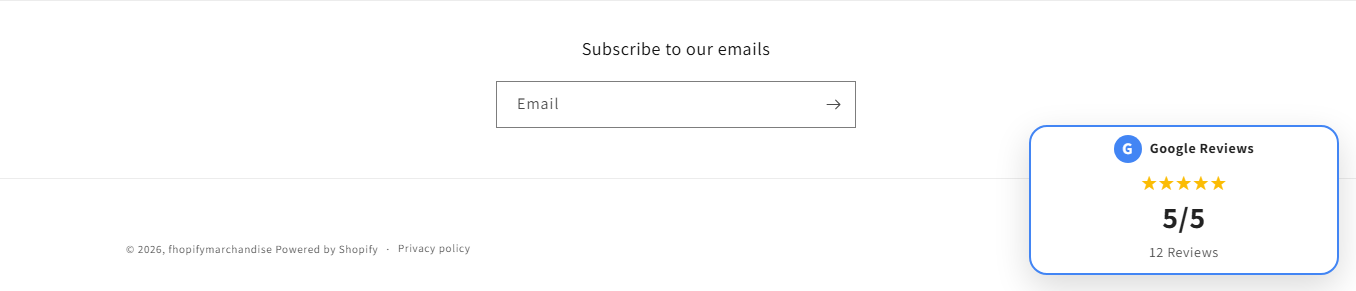
⭐ Google Reviews Badge
Best for displaying a compact review summary.
Example:
Recommended for:
- Header
- Sidebar
- Product pages
- Footer
- Small spaces
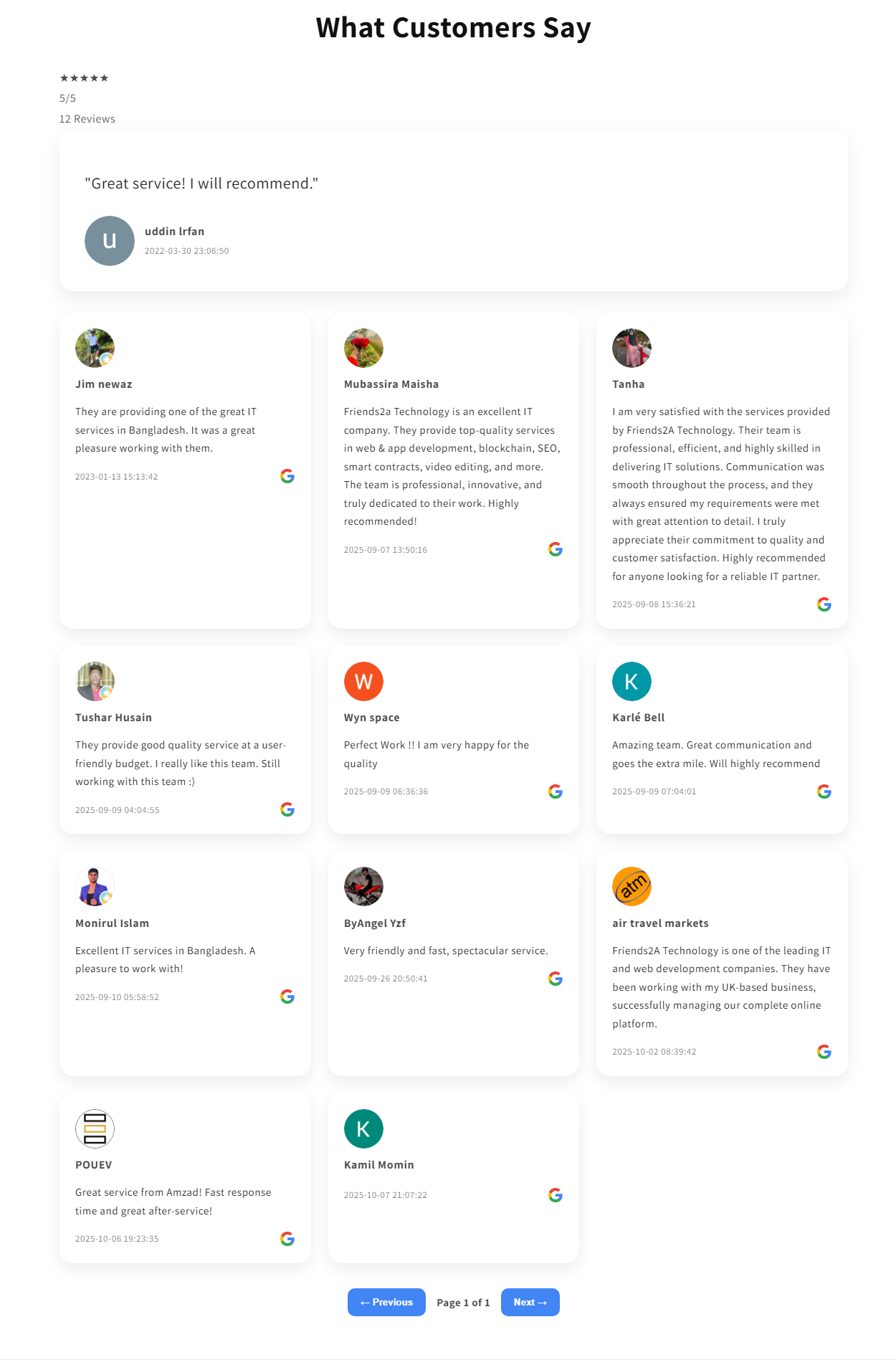
⭐ Google Reviews Grid
Displays multiple reviews in a clean card/grid layout.
Recommended for:
- Home page
- About page
- Landing pages
- Service pages
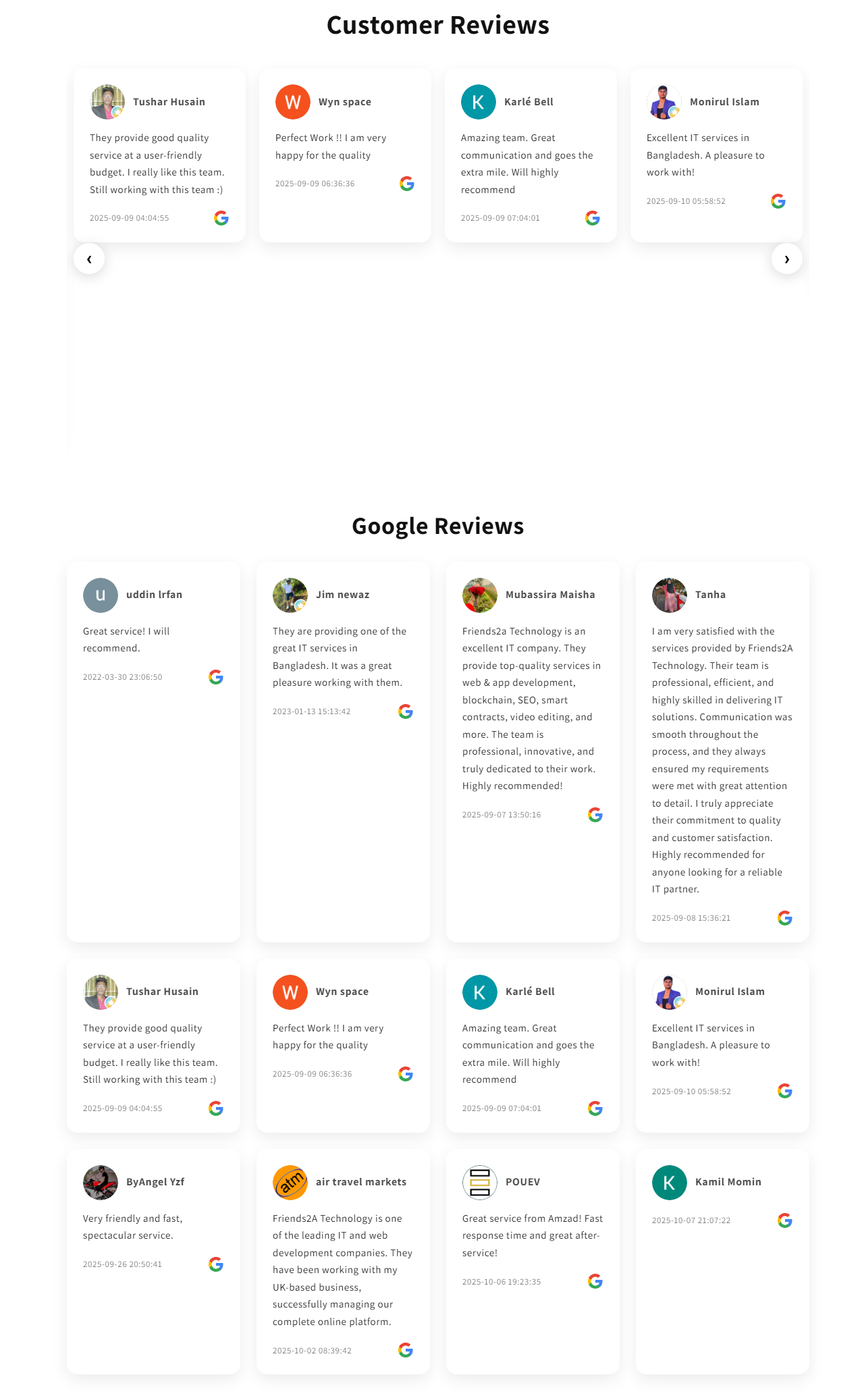
⭐ Google Reviews Masonry
Displays reviews using a masonry-style layout.
This layout is useful when your reviews have different text lengths.
Recommended for:
- Modern websites
- Agency websites
- Creative stores
- Review/testimonial sections
⭐ Google Reviews Showcase
Creates a larger testimonial-style presentation.
Recommended for:
- Homepage
- Brand story sections
- High-conversion landing pages
- Service businesses
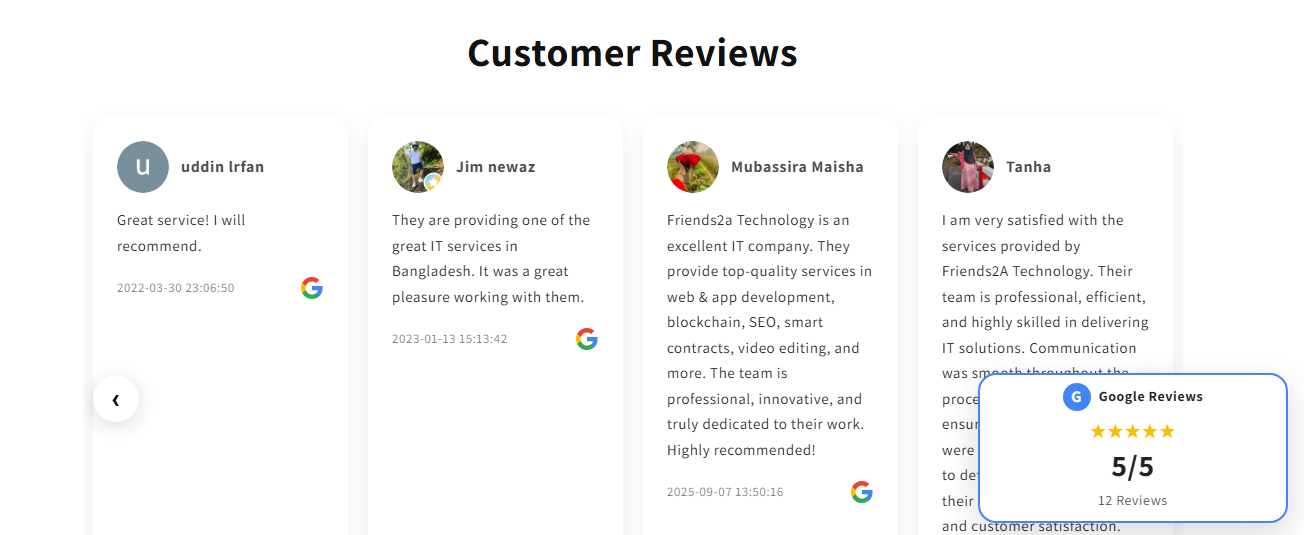
⭐ Google Reviews Slider
Displays reviews in a horizontal slider/carousel.
Customers can browse multiple reviews without taking too much vertical space.
Recommended for:
- Homepage
- Product pages
- Landing pages
- Mobile-friendly sections
Step 10 — Customize Your Review Block
After adding a block, Shopify will show its settings on the left side.
Depending on the selected block, you can customize options such as:
Section Title
Example:
Customer Reviews
Title Alignment
- Left
- Center
- Right
Title Size
Adjust the heading size.
Title Color
Choose your preferred heading color.
Reviews Limit
Choose how many reviews should be displayed.
For example:
Desktop Columns
Choose how many review cards appear on desktop.
For example:
Mobile Columns
Choose the mobile layout.
For example:
Author Photo
Enable or disable reviewer profile photos.
Step 11 — Preview Your Store
After customizing the block, check the preview.
Make sure:
✅ Reviews are visible
✅ Business name is correct
✅ Star ratings are correct
✅ Review text looks good
✅ Desktop layout looks good
✅ Mobile layout looks good
✅ Colors match your store
✅ Spacing looks correct
Step 12 — Save Your Changes
When everything looks correct, click:
Save
in the Shopify Theme Editor.
Your Google reviews will now appear on your storefront.
📱 Mobile Setup
The app blocks are designed to work with responsive Shopify themes.
However, we recommend checking your storefront on:
Desktop
and
Mobile
after adding the block.
For example:
Desktop
Mobile
If your selected block provides a Mobile Columns setting, use:
1 Column
for a clean mobile experience.
🔄 How to Update Reviews
When you receive new Google reviews:
- Open Google Reviews By F2
- Select your Google Business location
- Click Sync Reviews
- Wait for synchronization to complete
- Refresh your storefront
Your latest reviews will then be available in the app.
🔌 How to Change Your Google Business Location
If your Google account contains multiple locations:
- Open Google Reviews By F2
- Click Select Location
- Choose another Business Location
- Click Save Selected Location
- Return to the dashboard
- Click Sync Reviews
The app will use the newly selected location for your review display.
🔐 Google Connection & Disconnect
Your Google Business connection is associated with the Shopify store where you installed the app.
If you want to remove the Google connection:
- Open Google Reviews By F2
- Go to Google Business Status & Actions
- Click:
Disconnect Google
You can reconnect your Google account later using:
Connect Google
Important: Disconnecting Google will stop the app from accessing your Google Business data until you connect an account again.
⚠️ Important: Use the Correct Google Account
If your business location does not appear after connecting Google, first check whether you are using the correct Google account.
The Google account must have access to the relevant Google Business Profile.
If you manage several businesses, make sure you select the correct account before continuing.
❓ My Business Location Is Not Showing
If your location is missing:
Check 1
Make sure you connected the correct Google account.
Check 2
Return to the app dashboard and click:
Get Accounts
Check 3
Open:
Select Location
and check the available locations again.
Check 4
Make sure the Google Business Profile is accessible from the connected Google account.
❓ Reviews Are Not Showing
If your location is connected but reviews are not showing:
1.
Check that a valid location is selected.
2.
Click:
Sync Reviews
3.
Wait for synchronization to complete.
4.
Refresh the Shopify Theme Editor.
5.
Save the theme again.
❓ Google Says Connected but No Location Is Selected
If your dashboard shows:
🟢 Google Business Connected
but:
🟡 No valid Business Location is selected
don’t worry.
Simply click:
Select Location
Choose your business location and click:
Save Selected Location
Then click:
Sync Reviews
🧩 Adding Multiple Review Blocks
You can use multiple Google Reviews By F2 blocks on your storefront.
For example:
Homepage
Google Reviews Showcase
↓
Product Page
Google Reviews Badge
↓
Footer
Google Reviews Slider
You can customize each block independently through Shopify’s Theme Editor.
🎨 Recommended Homepage Setup
For a professional store, we recommend:
Hero / Main Content
Your normal store content
↓
Google Reviews Showcase
Show your best customer feedback
↓
Google Reviews Grid
Display multiple reviews
↓
Google Reviews Badge
Show your overall rating
This creates a strong social-proof section without overwhelming visitors.
🛠️ Theme Editor Troubleshooting
If a Google Reviews block appears incorrectly inside your theme:
First
Remove the block and add it again from:
Theme Editor → Apps
Second
Check the block’s responsive settings.
Third
Make sure the block is placed inside an appropriate section.
Fourth
Save the theme and preview the storefront.
If you need Support, please message us on WhatsApp. We will give you a response just in one minute. Or mail to us, Amzadhossen420360@gmail.com Or Contact Our Support Website : https://friends2a-technology.com/fhopify/contact-us/
Display Google Reviews in grids, sliders, badges, and showcase layouts to build trust.
Google Reviews By F2 helps merchants display real Google Business reviews across their Shopify store. Showcase reviews using Grid, Slider, Masonry, Badge, and Showcase layouts. Support multiple store locations and manage reviews from different Google Business profiles. Customize colors, text, columns, pagination, and layouts without coding. Build trust and increase conversions with responsive review widgets optimized for desktop and mobile devices.
Feature 1
Display Google Reviews with Grid, Slider, Masonry, Badge and ShowcaseFeature 2
Support multiple Google Business locations from a single dashboardFeature 3
Customize colors, text, layouts, columns and review display settingsFeature 4
Show authentic social proof to build trust and increase conversionsFeature 5
Responsive review widgets optimized for desktop and mobile devices