Very Important Note: If you paste this code in all themes, you will find additional settings inside the apps section. Therefore, I recommend that no matter which theme you are using, you should paste this code in the Sections folder under the file name apps.liquid.
Hello, Our Apps Users
We’ve noticed that some users are experiencing issues with Shopify free apps when using the Horizon (new update) theme and a few other Shopify free themes.
However, this issue does not occur with the Shopify Dawn theme, Shopify core premium themes, or ThemeForest themes.
If you are facing this issue on the Horizon theme or any newly updated Shopify free theme, please review the Video we’ve shared and follow the guideline below.
Create file name : apps.liquid and past it
Summary :
– This issue is related to the Horizon / Shopify free theme layout behavior
– It is not an app bug
– Dawn, Shopify premium themes, and ThemeForest themes work without any issues
– Following the steps above will resolve the problem
If you still face issues after following this guide, please share updated screenshots and we will be happy to assist further.
Why This Issue Happens:
In the Horizon new update theme (and some other Shopify free themes), when you add an app block, it is automatically wrapped inside a Section container.
This Section applies automatic CSS and admin UI styles, which may conflict with the app’s layout. As a result, app content such as FlipBooks or iframe-based apps may appear squeezed, misaligned, or broken.
This is a theme-level layout behavior, not an app bug.
How to Fix the Issue (Solution)
Please follow these steps carefully:
1. Go to Online Store → Themes → Edit code
2. Open the Sections folder
3. Find the file named apps.liquid
– If the file exists, open it and paste the provided code into it
– If the file does not exist, create a new file named apps.liquid and paste the code into it
4. Save the file
5. Go back to Theme Customization
6. Add the app block again
After completing these steps, everything should display correctly.
					{%- style -%}
  .apps-section-{{ section.id }} {
    background-color: {{ section.settings.bg_color }};
    {% if section.settings.bg_image != blank %}
      background-image: url({{ section.settings.bg_image | image_url: width: 2400 }});
    {% else %}
      background-image: none;
    {% endif %}
    background-size: {{ section.settings.bg_size }};
    background-position: {{ section.settings.bg_position }};
    background-repeat: {{ section.settings.bg_repeat }};
    background-attachment: {{ section.settings.bg_attachment }};
    margin-top: {{ section.settings.margin_top }}px;
    margin-bottom: {{ section.settings.margin_bottom }}px;
    padding-top: {{ section.settings.padding_top }}px;
    padding-bottom: {{ section.settings.padding_bottom }}px;
    min-height: {{ section.settings.section_height }}px;
    position: relative;
    overflow: hidden;
  }

  .apps-section-{{ section.id }} .apps-section__inner {
    position: relative;
    z-index: 1;
    min-height: inherit;
    display: flex;
    flex-direction: column;
    justify-content: center;
  }

  .apps-section-{{ section.id }} .apps-section__blocks {
    display: flex;
    flex-direction: column;
    width: 100%;
    align-items:
      {% case section.settings.block_alignment %}
        {% when 'left' %} flex-start
        {% when 'center' %} center
        {% when 'right' %} flex-end
      {% endcase %};
  }

  .apps-section-{{ section.id }} .apps-section__block-item {
    width: 100%;
    max-width: 100%;
  }

  .apps-section-{{ section.id }} .apps-section__block-item > * {
    max-width: 100%;
  }

  @media screen and (max-width: 749px) {
    .apps-section-{{ section.id }} {
      margin-top: {{ section.settings.margin_top_mobile }}px;
      margin-bottom: {{ section.settings.margin_bottom_mobile }}px;
      padding-top: {{ section.settings.padding_top_mobile }}px;
      padding-bottom: {{ section.settings.padding_bottom_mobile }}px;
      min-height: {{ section.settings.section_height_mobile }}px;
      background-attachment: scroll;
    }
  }
{%- endstyle -%}

<div class="apps-section-{{ section.id }}">
  <div class="apps-section__inner {% if section.settings.include_margins %}page-width{% endif %}">
    <div class="apps-section__blocks">
      {% for block in section.blocks %}
        <div class="apps-section__block-item" {{ block.shopify_attributes }}>
          {% render block %}
        </div>
      {% endfor %}
    </div>
  </div>
</div>

{% schema %}
{
  "name": "Apps",
  "tag": "section",
  "class": "section",
  "settings": [
    {
      "type": "checkbox",
      "id": "include_margins",
      "default": true,
      "label": "Include page margins"
    },
    {
      "type": "header",
      "content": "Background"
    },
    {
      "type": "color",
      "id": "bg_color",
      "label": "Background color",
      "default": "#ffffff"
    },
    {
      "type": "image_picker",
      "id": "bg_image",
      "label": "Background image"
    },
    {
      "type": "select",
      "id": "bg_size",
      "label": "Background size",
      "default": "cover",
      "options": [
        { "value": "cover", "label": "Cover" },
        { "value": "contain", "label": "Contain" },
        { "value": "auto", "label": "Auto" }
      ]
    },
    {
      "type": "select",
      "id": "bg_position",
      "label": "Background position",
      "default": "center center",
      "options": [
        { "value": "left top", "label": "Left top" },
        { "value": "center top", "label": "Center top" },
        { "value": "right top", "label": "Right top" },
        { "value": "left center", "label": "Left center" },
        { "value": "center center", "label": "Center center" },
        { "value": "right center", "label": "Right center" },
        { "value": "left bottom", "label": "Left bottom" },
        { "value": "center bottom", "label": "Center bottom" },
        { "value": "right bottom", "label": "Right bottom" }
      ]
    },
    {
      "type": "select",
      "id": "bg_repeat",
      "label": "Background repeat",
      "default": "no-repeat",
      "options": [
        { "value": "no-repeat", "label": "No repeat" },
        { "value": "repeat", "label": "Repeat" },
        { "value": "repeat-x", "label": "Repeat horizontally" },
        { "value": "repeat-y", "label": "Repeat vertically" }
      ]
    },
    {
      "type": "select",
      "id": "bg_attachment",
      "label": "Background attachment",
      "default": "scroll",
      "options": [
        { "value": "scroll", "label": "Scroll" },
        { "value": "fixed", "label": "Fixed" }
      ]
    },
    {
      "type": "header",
      "content": "Desktop spacing"
    },
    {
      "type": "range",
      "id": "margin_top",
      "min": 0,
      "max": 300,
      "step": 4,
      "unit": "px",
      "label": "Margin top",
      "default": 0
    },
    {
      "type": "range",
      "id": "margin_bottom",
      "min": 0,
      "max": 300,
      "step": 4,
      "unit": "px",
      "label": "Margin bottom",
      "default": 0
    },
    {
      "type": "range",
      "id": "padding_top",
      "min": 0,
      "max": 300,
      "step": 4,
      "unit": "px",
      "label": "Padding top",
      "default": 0
    },
    {
      "type": "range",
      "id": "padding_bottom",
      "min": 0,
      "max": 300,
      "step": 4,
      "unit": "px",
      "label": "Padding bottom",
      "default": 0
    },
    {
      "type": "range",
      "id": "section_height",
      "min": 0,
      "max": 1200,
      "step": 20,
      "unit": "px",
      "label": "Section minimum height",
      "default": 0
    },
    {
      "type": "header",
      "content": "Mobile spacing"
    },
    {
      "type": "range",
      "id": "margin_top_mobile",
      "min": 0,
      "max": 200,
      "step": 4,
      "unit": "px",
      "label": "Mobile margin top",
      "default": 0
    },
    {
      "type": "range",
      "id": "margin_bottom_mobile",
      "min": 0,
      "max": 200,
      "step": 4,
      "unit": "px",
      "label": "Mobile margin bottom",
      "default": 0
    },
    {
      "type": "range",
      "id": "padding_top_mobile",
      "min": 0,
      "max": 200,
      "step": 4,
      "unit": "px",
      "label": "Mobile padding top",
      "default": 0
    },
    {
      "type": "range",
      "id": "padding_bottom_mobile",
      "min": 0,
      "max": 200,
      "step": 4,
      "unit": "px",
      "label": "Mobile padding bottom",
      "default": 0
    },
    {
      "type": "range",
      "id": "section_height_mobile",
      "min": 0,
      "max": 800,
      "step": 20,
      "unit": "px",
      "label": "Mobile section minimum height",
      "default": 0
    },
    {
      "type": "header",
      "content": "Block alignment"
    },
    {
      "type": "select",
      "id": "block_alignment",
      "label": "Block alignment",
      "default": "left",
      "options": [
        { "value": "left", "label": "Left" },
        { "value": "center", "label": "Center" },
        { "value": "right", "label": "Right" }
      ]
    }
  ],
  "blocks": [
    { "type": "@app" }
  ],
  "presets": [
    { "name": "Apps" }
  ]
}
{% endschema %}
Google Reviews Documentation
Google Reviews By F2 Documentation
Welcome
Google Reviews By F2 helps you display authentic Google Business Reviews on your Shopify store using multiple layouts including:
- Reviews Grid
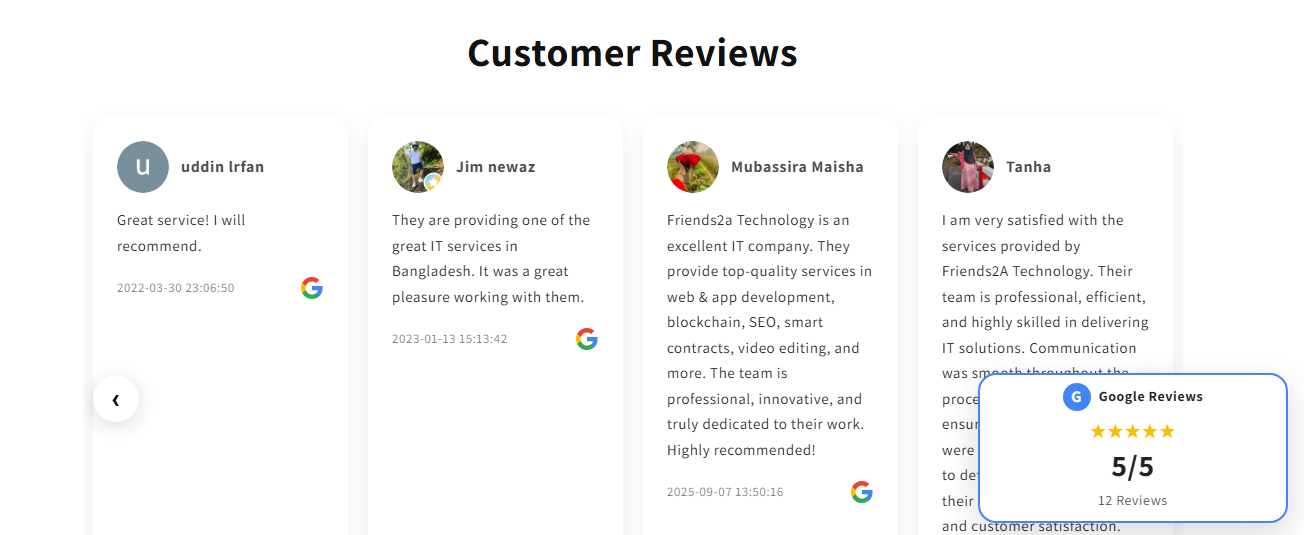
- Reviews Slider
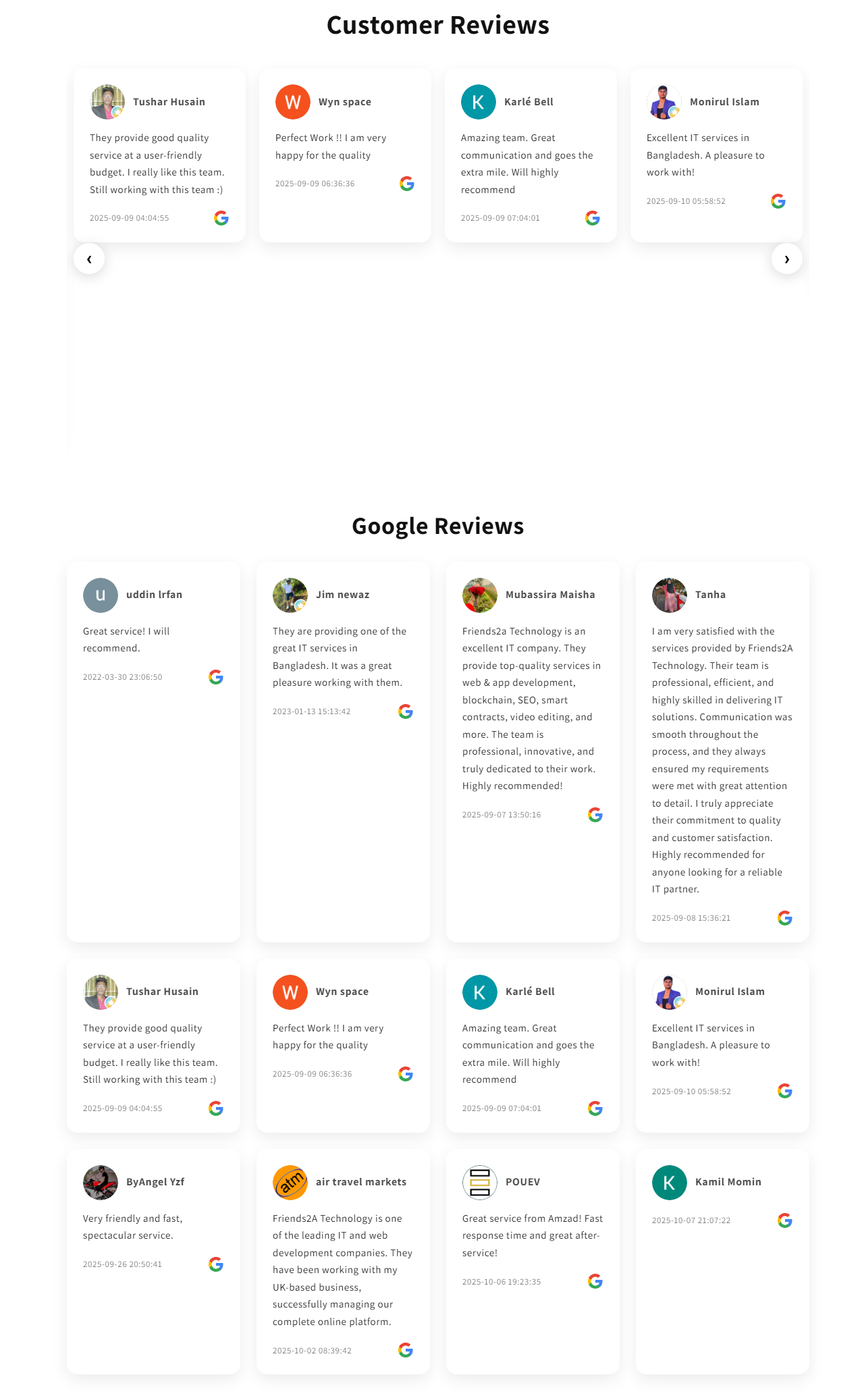
- Reviews Masonry
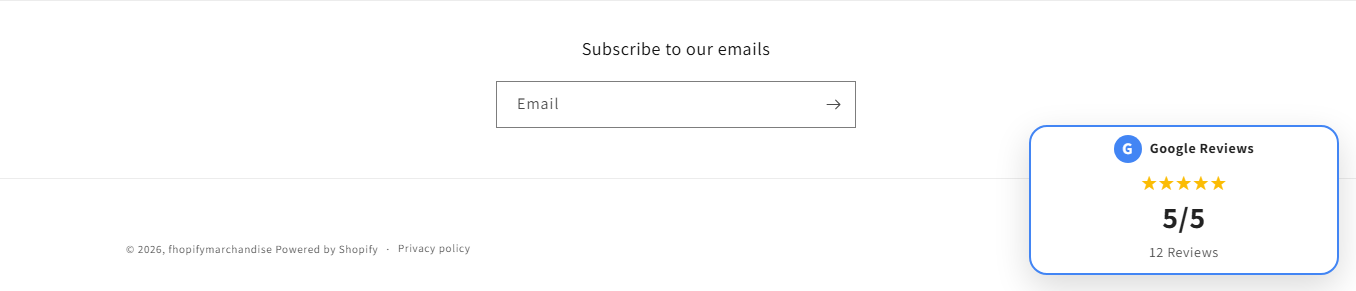
- Reviews Badge
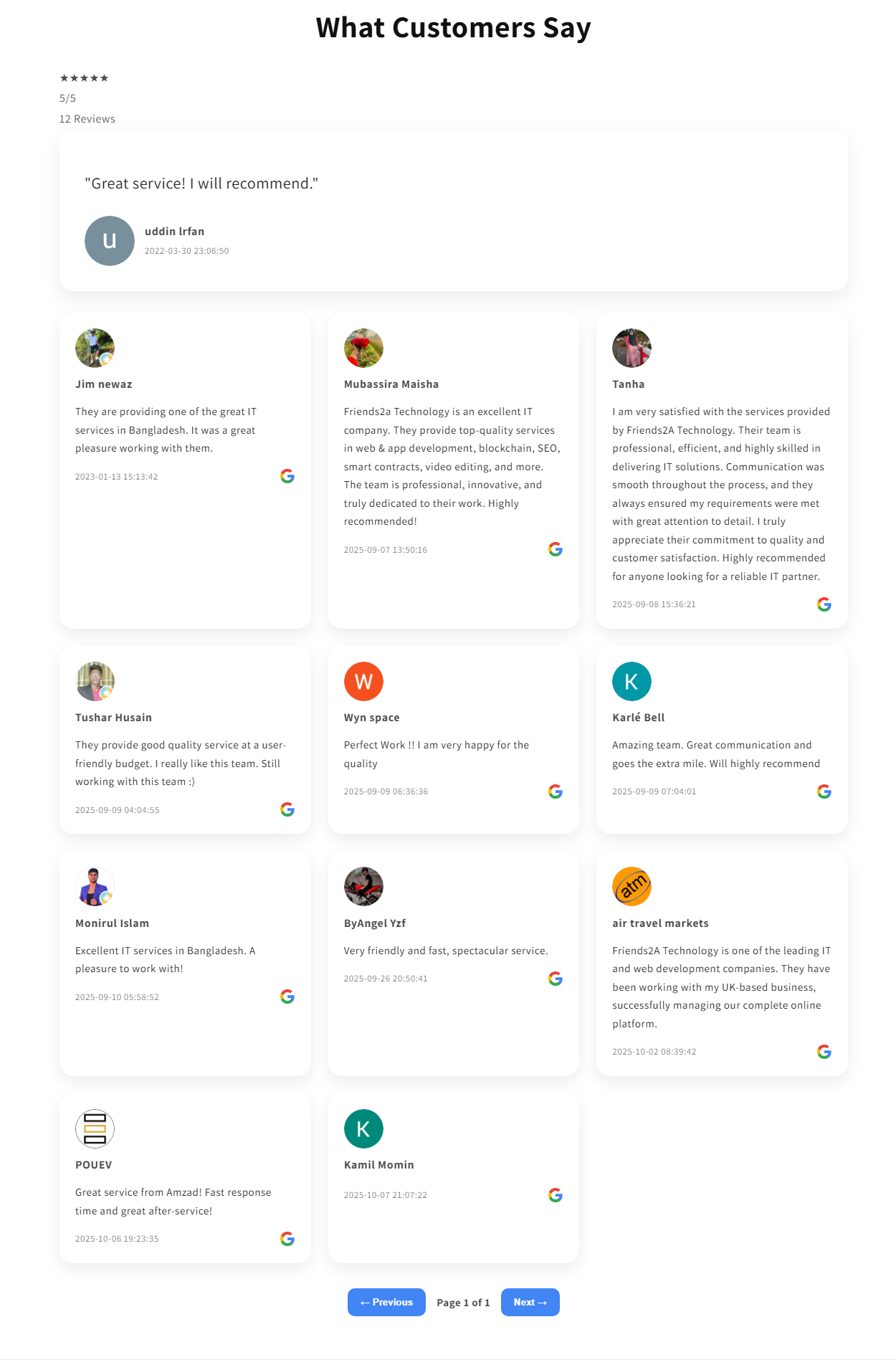
- Reviews Showcase
Installation Guide
Step 1: Install App
- Install Google Reviews By F2 from Shopify App Store.
- Open the app dashboard.
- You will see the Google Business Actions section.
Step 2: Connect Google Account
Click:
Connect GoogleAuthorize the Google account that manages your Google Business Profile.
After authorization, you will be redirected back to the app dashboard.
Step 3: Get Business Accounts
Click:
Get AccountsThe app will automatically retrieve all Google Business accounts associated with your Google account.
Step 4: Select Business Location
Click:
Select LocationChoose the Google Business location whose reviews you want to display.
Examples:
- Main Store
- New York Branch
- London Office
- Dubai Store
Save your selection.
Step 5: Sync Reviews
Click:
Sync ReviewsThe app will:
- Fetch Google reviews
- Fetch author names
- Fetch ratings
- Fetch review dates
- Store reviews securely
Reviews will appear instantly inside the dashboard.
Multi Location Setup
Google Reviews By F2 supports multiple business locations.
Examples:
- Store 1
- Store 2
- Store 3
- Franchise Locations
- Multiple Branches
Adding Multiple Locations
- Connect Google Account
- Get Accounts
- Open Location Manager
- Add multiple locations
- Save locations
- Sync reviews
Each location can maintain its own review data.
Switching Locations
At any time you can:
- Open Location Manager
- Select another location
- Click Sync Reviews
The app will automatically load reviews for the selected location.
Display Reviews On Store
Open:
Online Store
→ Customize Theme
→ Add App Block
Available widgets:
Reviews Grid
Best for:
- Homepage
- Product Pages
- Landing Pages
Features:
- 1–4 columns
- Mobile responsive
- Photo support
- Rating stars
- Date display
Reviews Slider
Best for:
- Homepage
- Hero sections
Features:
- Auto play
- Navigation arrows
- Multiple reviews per slide
- Mobile responsive
Reviews Masonry
Best for:
- Testimonial sections
- Long reviews
Features:
- Pinterest style layout
- Variable card heights
- Pagination support
Reviews Badge
Best for:
- Floating trust badges
- Conversion optimization
Features:
- Review count
- Average rating
- Floating display
Reviews Showcase
Best for:
- Highlighting best reviews
Features:
- Featured review section
- Additional review cards
- Responsive layout
Review Sync Information
Reviews are synced directly from Google Business Profile.
The app stores:
- Author Name
- Author Photo
- Review Rating
- Review Text
- Review Date
No manual review entry is required.
Troubleshooting
No Accounts Found
Possible reasons:
- Wrong Google account
- Google Business Profile not connected
Solution:
Reconnect Google and click Get Accounts again.
No Locations Found
Possible reasons:
- Business location not verified
Solution:
Verify your location inside Google Business Profile.
Reviews Not Showing
Possible reasons:
- Location not selected
- Reviews not synced
Solution:
Select a location and click Sync Reviews.
Theme Widget Not Visible
Possible reasons:
- App block not added
Solution:
Open Theme Customizer and add the widget again.
Frequently Asked Questions
Does the app support multiple locations?
Yes.
Does the app support multiple Shopify stores?
Yes. Each Shopify store can connect its own Google Business account.
Do reviews update automatically?
Yes, after syncing.
Can I display reviews in different layouts?
Yes.
Grid, Slider, Masonry, Badge and Showcase layouts are available.
Is coding required?
No.
All widgets can be added directly through Shopify Theme Editor.
Support
Need help?
Contact Friends2a Technology support team for assistance with setup, location configuration and review synchronization.
If you need Support, please message us on WhatsApp. We will give you a response just in one minute. Or mail to us, Amzadhossen420360@gmail.com Or Contact Our Support Website : https://friends2a-technology.com/fhopify/contact-us/
Display Google Reviews in grids, sliders, badges, and showcase layouts to build trust.
Google Reviews By F2 helps merchants display real Google Business reviews across their Shopify store. Showcase reviews using Grid, Slider, Masonry, Badge, and Showcase layouts. Support multiple store locations and manage reviews from different Google Business profiles. Customize colors, text, columns, pagination, and layouts without coding. Build trust and increase conversions with responsive review widgets optimized for desktop and mobile devices.
Feature 1
Display Google Reviews with Grid, Slider, Masonry, Badge and ShowcaseFeature 2
Support multiple Google Business locations from a single dashboardFeature 3
Customize colors, text, layouts, columns and review display settingsFeature 4
Show authentic social proof to build trust and increase conversionsFeature 5
Responsive review widgets optimized for desktop and mobile devices