Very Important Note: If you paste this code in all themes, you will find additional settings inside the apps section. Therefore, I recommend that no matter which theme you are using, you should paste this code in the Sections folder under the file name apps.liquid.
Hello, Our Apps Users
We’ve noticed that some users are experiencing issues with Shopify free apps when using the Horizon (new update) theme and a few other Shopify free themes.
However, this issue does not occur with the Shopify Dawn theme, Shopify core premium themes, or ThemeForest themes.
If you are facing this issue on the Horizon theme or any newly updated Shopify free theme, please review the Video we’ve shared and follow the guideline below.
Create file name : apps.liquid and past it
Summary :
– This issue is related to the Horizon / Shopify free theme layout behavior
– It is not an app bug
– Dawn, Shopify premium themes, and ThemeForest themes work without any issues
– Following the steps above will resolve the problem
If you still face issues after following this guide, please share updated screenshots and we will be happy to assist further.
Why This Issue Happens:
In the Horizon new update theme (and some other Shopify free themes), when you add an app block, it is automatically wrapped inside a Section container.
This Section applies automatic CSS and admin UI styles, which may conflict with the app’s layout. As a result, app content such as FlipBooks or iframe-based apps may appear squeezed, misaligned, or broken.
This is a theme-level layout behavior, not an app bug.
How to Fix the Issue (Solution)
Please follow these steps carefully:
1. Go to Online Store → Themes → Edit code
2. Open the Sections folder
3. Find the file named apps.liquid
– If the file exists, open it and paste the provided code into it
– If the file does not exist, create a new file named apps.liquid and paste the code into it
4. Save the file
5. Go back to Theme Customization
6. Add the app block again
After completing these steps, everything should display correctly.
					{%- style -%}
  .apps-section-{{ section.id }} {
    background-color: {{ section.settings.bg_color }};
    {% if section.settings.bg_image != blank %}
      background-image: url({{ section.settings.bg_image | image_url: width: 2400 }});
    {% else %}
      background-image: none;
    {% endif %}
    background-size: {{ section.settings.bg_size }};
    background-position: {{ section.settings.bg_position }};
    background-repeat: {{ section.settings.bg_repeat }};
    background-attachment: {{ section.settings.bg_attachment }};
    margin-top: {{ section.settings.margin_top }}px;
    margin-bottom: {{ section.settings.margin_bottom }}px;
    padding-top: {{ section.settings.padding_top }}px;
    padding-bottom: {{ section.settings.padding_bottom }}px;
    min-height: {{ section.settings.section_height }}px;
    position: relative;
    overflow: hidden;
  }

  .apps-section-{{ section.id }} .apps-section__inner {
    position: relative;
    z-index: 1;
    min-height: inherit;
    display: flex;
    flex-direction: column;
    justify-content: center;
  }

  .apps-section-{{ section.id }} .apps-section__blocks {
    display: flex;
    flex-direction: column;
    width: 100%;
    align-items:
      {% case section.settings.block_alignment %}
        {% when 'left' %} flex-start
        {% when 'center' %} center
        {% when 'right' %} flex-end
      {% endcase %};
  }

  .apps-section-{{ section.id }} .apps-section__block-item {
    width: 100%;
    max-width: 100%;
  }

  .apps-section-{{ section.id }} .apps-section__block-item > * {
    max-width: 100%;
  }

  @media screen and (max-width: 749px) {
    .apps-section-{{ section.id }} {
      margin-top: {{ section.settings.margin_top_mobile }}px;
      margin-bottom: {{ section.settings.margin_bottom_mobile }}px;
      padding-top: {{ section.settings.padding_top_mobile }}px;
      padding-bottom: {{ section.settings.padding_bottom_mobile }}px;
      min-height: {{ section.settings.section_height_mobile }}px;
      background-attachment: scroll;
    }
  }
{%- endstyle -%}

<div class="apps-section-{{ section.id }}">
  <div class="apps-section__inner {% if section.settings.include_margins %}page-width{% endif %}">
    <div class="apps-section__blocks">
      {% for block in section.blocks %}
        <div class="apps-section__block-item" {{ block.shopify_attributes }}>
          {% render block %}
        </div>
      {% endfor %}
    </div>
  </div>
</div>

{% schema %}
{
  "name": "Apps",
  "tag": "section",
  "class": "section",
  "settings": [
    {
      "type": "checkbox",
      "id": "include_margins",
      "default": true,
      "label": "Include page margins"
    },
    {
      "type": "header",
      "content": "Background"
    },
    {
      "type": "color",
      "id": "bg_color",
      "label": "Background color",
      "default": "#ffffff"
    },
    {
      "type": "image_picker",
      "id": "bg_image",
      "label": "Background image"
    },
    {
      "type": "select",
      "id": "bg_size",
      "label": "Background size",
      "default": "cover",
      "options": [
        { "value": "cover", "label": "Cover" },
        { "value": "contain", "label": "Contain" },
        { "value": "auto", "label": "Auto" }
      ]
    },
    {
      "type": "select",
      "id": "bg_position",
      "label": "Background position",
      "default": "center center",
      "options": [
        { "value": "left top", "label": "Left top" },
        { "value": "center top", "label": "Center top" },
        { "value": "right top", "label": "Right top" },
        { "value": "left center", "label": "Left center" },
        { "value": "center center", "label": "Center center" },
        { "value": "right center", "label": "Right center" },
        { "value": "left bottom", "label": "Left bottom" },
        { "value": "center bottom", "label": "Center bottom" },
        { "value": "right bottom", "label": "Right bottom" }
      ]
    },
    {
      "type": "select",
      "id": "bg_repeat",
      "label": "Background repeat",
      "default": "no-repeat",
      "options": [
        { "value": "no-repeat", "label": "No repeat" },
        { "value": "repeat", "label": "Repeat" },
        { "value": "repeat-x", "label": "Repeat horizontally" },
        { "value": "repeat-y", "label": "Repeat vertically" }
      ]
    },
    {
      "type": "select",
      "id": "bg_attachment",
      "label": "Background attachment",
      "default": "scroll",
      "options": [
        { "value": "scroll", "label": "Scroll" },
        { "value": "fixed", "label": "Fixed" }
      ]
    },
    {
      "type": "header",
      "content": "Desktop spacing"
    },
    {
      "type": "range",
      "id": "margin_top",
      "min": 0,
      "max": 300,
      "step": 4,
      "unit": "px",
      "label": "Margin top",
      "default": 0
    },
    {
      "type": "range",
      "id": "margin_bottom",
      "min": 0,
      "max": 300,
      "step": 4,
      "unit": "px",
      "label": "Margin bottom",
      "default": 0
    },
    {
      "type": "range",
      "id": "padding_top",
      "min": 0,
      "max": 300,
      "step": 4,
      "unit": "px",
      "label": "Padding top",
      "default": 0
    },
    {
      "type": "range",
      "id": "padding_bottom",
      "min": 0,
      "max": 300,
      "step": 4,
      "unit": "px",
      "label": "Padding bottom",
      "default": 0
    },
    {
      "type": "range",
      "id": "section_height",
      "min": 0,
      "max": 1200,
      "step": 20,
      "unit": "px",
      "label": "Section minimum height",
      "default": 0
    },
    {
      "type": "header",
      "content": "Mobile spacing"
    },
    {
      "type": "range",
      "id": "margin_top_mobile",
      "min": 0,
      "max": 200,
      "step": 4,
      "unit": "px",
      "label": "Mobile margin top",
      "default": 0
    },
    {
      "type": "range",
      "id": "margin_bottom_mobile",
      "min": 0,
      "max": 200,
      "step": 4,
      "unit": "px",
      "label": "Mobile margin bottom",
      "default": 0
    },
    {
      "type": "range",
      "id": "padding_top_mobile",
      "min": 0,
      "max": 200,
      "step": 4,
      "unit": "px",
      "label": "Mobile padding top",
      "default": 0
    },
    {
      "type": "range",
      "id": "padding_bottom_mobile",
      "min": 0,
      "max": 200,
      "step": 4,
      "unit": "px",
      "label": "Mobile padding bottom",
      "default": 0
    },
    {
      "type": "range",
      "id": "section_height_mobile",
      "min": 0,
      "max": 800,
      "step": 20,
      "unit": "px",
      "label": "Mobile section minimum height",
      "default": 0
    },
    {
      "type": "header",
      "content": "Block alignment"
    },
    {
      "type": "select",
      "id": "block_alignment",
      "label": "Block alignment",
      "default": "left",
      "options": [
        { "value": "left", "label": "Left" },
        { "value": "center", "label": "Center" },
        { "value": "right", "label": "Right" }
      ]
    }
  ],
  "blocks": [
    { "type": "@app" }
  ],
  "presets": [
    { "name": "Apps" }
  ]
}
{% endschema %}
Map Listing Pro
How to Add Locations
You can add one or multiple locations using a simple text format. Just provide your location details in the format below.
Example Format
Title: New York Corporate Office
Address: New York, NY, USA
Phone: +1 212-555-1000
Email: newyork@example.com
Website: https://example.com
Lat: 40.7128
Lng: -74.0060
Hours: 09:00 AM – 06:00 PM
Category: Office
Description: Main corporate office in New York.
Title: Los Angeles Medical Center
Address: Los Angeles, CA, USA
Phone: +1 310-555-1001
Email: losangeles@example.com
Website: https://example.com
Lat: 34.0522
Lng: -118.2437
Hours: 24 Hours
Category: Medical
Description: Healthcare and wellness center.
Title: Chicago Beauty Salon
Address: Chicago, IL, USA
Phone: +1 312-555-1002
Email: chicago@example.com
Website: https://example.com
Lat: 41.8781
Lng: -87.6298
Hours: 10:00 AM – 08:00 PM
Category: Beauty
Description: Professional beauty and spa services.
You can add as many locations as you want using the same format.
Convert to JSON with ChatGPT
If you already have location data in the format above, simply copy and paste it into ChatGPT and use the prompt below:
Convert the following location data into valid JSON for my Shopify Map Listing App. Use “lat” and “lng” fields only. Keep all fields including title, address, phone, email, website, lat, lng, hours, category and description. Return valid JSON only.
ChatGPT will automatically generate a valid JSON array that you can paste directly into the Locations JSON field.
Important Notice
⚠️ The app requires:
lat
lng
field names inside JSON.
Do NOT use:
latitude
longitude
Incorrect Example:
{
  "latitude": 40.7128,
  "longitude": -74.0060
}
Correct Example:
{
  "lat": 40.7128,
  "lng": -74.0060
}
Using latitude and longitude may prevent locations and map markers from displaying correctly.
Required Fields
Title
Address
Lat
Lng
Optional Fields
Phone
Email
Website
Hours
Category
Description
Multiple Locations
You can add unlimited locations. The app will automatically:
Display all locations on the map
Create location listing cards
Enable search functionality
Enable category filtering
Generate map markers
Open popups on marker click
Support View On Map button
Support Directions button
Support Website button
Support Grid Layout
Support Sidebar Layout
Work on Desktop, Tablet and Mobile devices
Tips
For best results:
Use accurate latitude and longitude coordinates.
Use valid JSON format.
Separate multiple locations with commas inside the JSON array.
Verify coordinates before saving.
Click Save after updating the Locations JSON field.
Your locations will appear instantly on the map after saving the block settings.
Json Will Like This
					[
  {
    "title":"New York Corporate Office",
    "address":"New York, NY, USA",
    "phone":"+1 212-555-1000",
    "website":"https://example.com",
    "lat":40.7128,
    "lng":-74.0060,
    "hours":"09:00 AM - 06:00 PM",
    "category":"Office",
    "description":"Main corporate office in New York."
  },
  {
    "title":"Los Angeles Medical Center",
    "address":"Los Angeles, CA, USA",
    "phone":"+1 310-555-1001",
    "website":"https://example.com",
    "lat":34.0522,
    "lng":-118.2437,
    "hours":"24 Hours",
    "category":"Medical",
    "description":"Healthcare and wellness center."
  },
  {
    "title":"Chicago Beauty Salon",
    "address":"Chicago, IL, USA",
    "phone":"+1 312-555-1002",
    "website":"https://example.com",
    "lat":41.8781,
    "lng":-87.6298,
    "hours":"10:00 AM - 08:00 PM",
    "category":"Beauty",
    "description":"Professional beauty and spa services."
  },
  {
    "title":"Houston Electronics Store",
    "address":"Houston, TX, USA",
    "phone":"+1 713-555-1003",
    "website":"https://example.com",
    "lat":29.7604,
    "lng":-95.3698,
    "hours":"09:00 AM - 09:00 PM",
    "category":"Retail",
    "description":"Electronics and gadgets retail store."
  },
  {
    "title":"Phoenix Fitness Center",
    "address":"Phoenix, AZ, USA",
    "phone":"+1 602-555-1004",
    "website":"https://example.com",
    "lat":33.4484,
    "lng":-112.0740,
    "hours":"05:00 AM - 11:00 PM",
    "category":"Fitness",
    "description":"Modern gym and fitness center."
  },
  {
    "title":"Miami Restaurant",
    "address":"Miami, FL, USA",
    "phone":"+1 305-555-1005",
    "website":"https://example.com",
    "lat":25.7617,
    "lng":-80.1918,
    "hours":"11:00 AM - 11:00 PM",
    "category":"Restaurant",
    "description":"Popular dining destination."
  },
  {
    "title":"Seattle Coffee House",
    "address":"Seattle, WA, USA",
    "phone":"+1 206-555-1006",
    "website":"https://example.com",
    "lat":47.6062,
    "lng":-122.3321,
    "hours":"07:00 AM - 09:00 PM",
    "category":"Cafe",
    "description":"Premium coffee and snacks."
  },
  {
    "title":"Denver Real Estate Office",
    "address":"Denver, CO, USA",
    "phone":"+1 720-555-1007",
    "website":"https://example.com",
    "lat":39.7392,
    "lng":-104.9903,
    "hours":"09:00 AM - 06:00 PM",
    "category":"Real Estate",
    "description":"Property sales and consulting."
  },
  {
    "title":"Atlanta Car Service Center",
    "address":"Atlanta, GA, USA",
    "phone":"+1 404-555-1008",
    "website":"https://example.com",
    "lat":33.7490,
    "lng":-84.3880,
    "hours":"08:00 AM - 07:00 PM",
    "category":"Automotive",
    "description":"Vehicle repair and maintenance."
  },
  {
    "title":"Boston Education Center",
    "address":"Boston, MA, USA",
    "phone":"+1 617-555-1009",
    "website":"https://example.com",
    "lat":42.3601,
    "lng":-71.0589,
    "hours":"08:00 AM - 05:00 PM",
    "category":"Education",
    "description":"Training and educational programs."
  },
  {
    "title":"Las Vegas Hotel",
    "address":"Las Vegas, NV, USA",
    "phone":"+1 702-555-1010",
    "website":"https://example.com",
    "lat":36.1699,
    "lng":-115.1398,
    "hours":"24 Hours",
    "category":"Hotel",
    "description":"Luxury hotel and accommodation."
  },
  {
    "title":"San Francisco Tech Hub",
    "address":"San Francisco, CA, USA",
    "phone":"+1 415-555-1011",
    "website":"https://example.com",
    "lat":37.7749,
    "lng":-122.4194,
    "hours":"09:00 AM - 06:00 PM",
    "category":"Technology",
    "description":"Technology innovation center."
  }
]
Map Listing App – Installation & Setup Guide
Thank you for installing the Map Listing App.
Follow the steps below to add interactive maps and location listings to your Shopify store.
Step 1: Add the App Block
Open Shopify Admin.
Go to Online Store → Themes.
Click Customize.
Open the page where you want to display the map.
Click Add Section or Add Block.
Select Map Listing App.
Choose one of the available layouts:
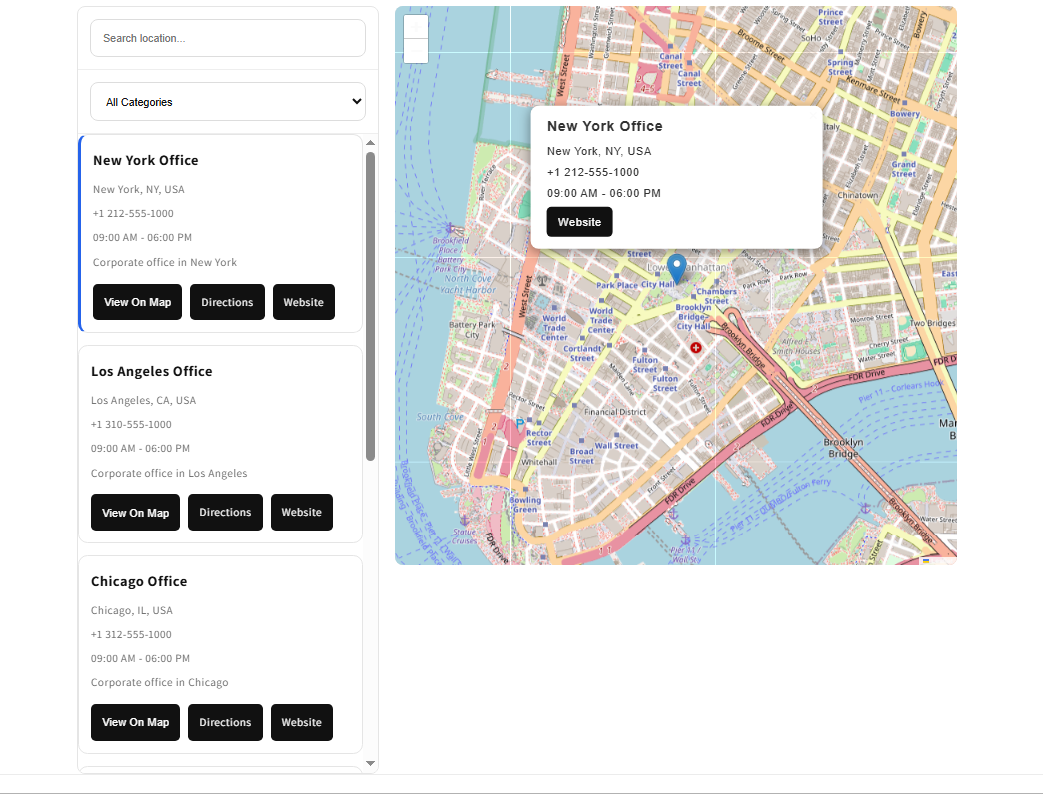
Map Listing Sidebar
Displays locations in a sidebar with an interactive map.
Features:
Search locations
Category filter
View On Map button
Directions button
Website button
Interactive markers and popups
Map Listing Grid
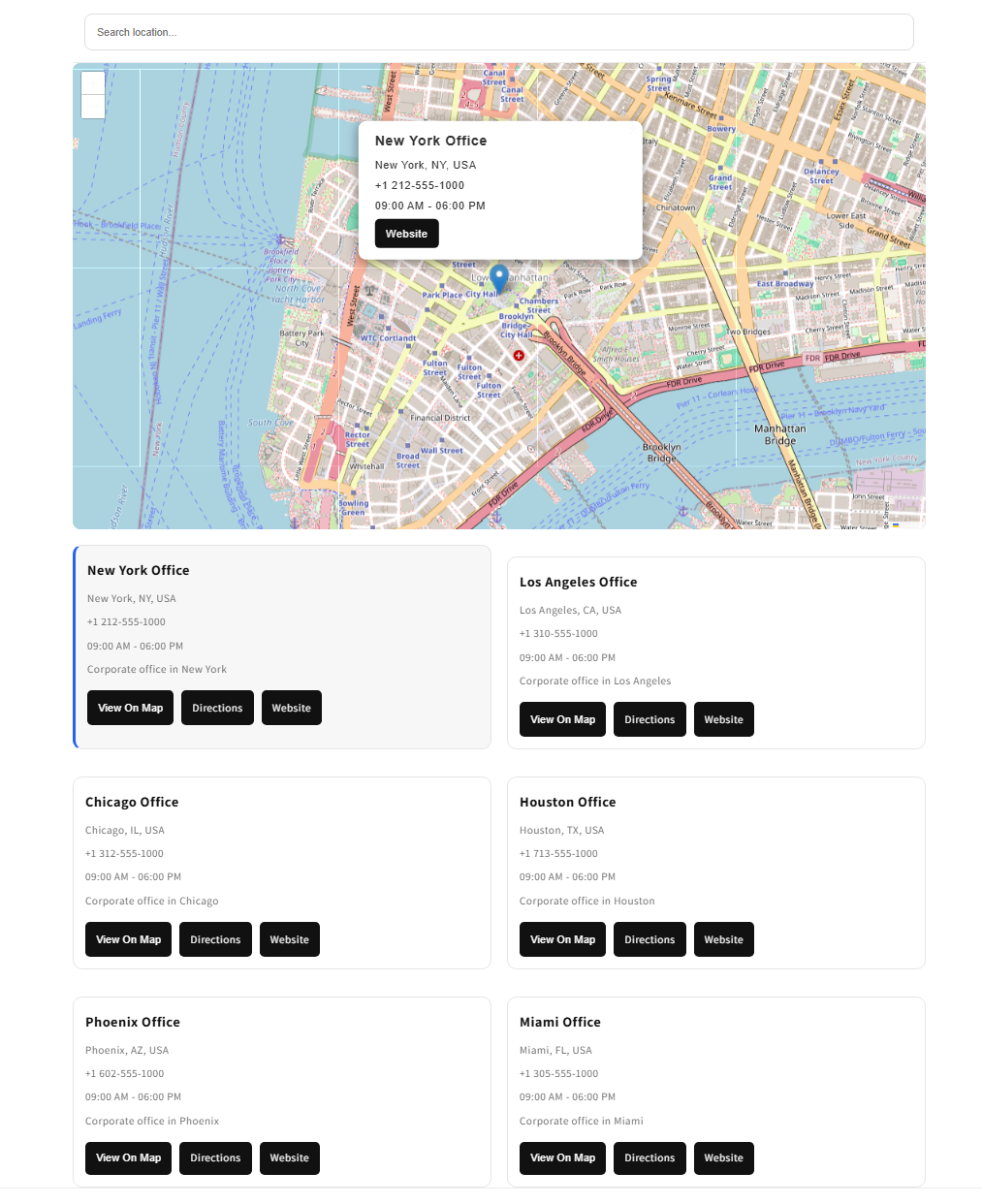
Displays locations in a responsive grid layout with an interactive map.
Features:
Search locations
Interactive map
Responsive grid cards
View On Map button
Directions button
Website button
Mobile friendly layout
Step 2: Add Location Data
Inside the block settings, locate the:
Locations JSON
field.
Paste your locations directly in JSON format.
Example:
[
  {
    "title": "New York Corporate Office",
    "address": "New York, NY, USA",
    "phone": "+1 212-555-1000",
    "email": "info@example.com",
    "website": "https://example.com",
    "lat": 40.7128,
    "lng": -74.0060,
    "hours": "09:00 AM - 06:00 PM",
    "category": "Office",
    "description": "Main corporate office in New York."
  }
]
You can add unlimited locations.
Step 3: Generate JSON with ChatGPT
If your locations are not already in JSON format, prepare them like this:
Title: New York Corporate Office
Address: New York, NY, USA
Phone: +1 212-555-1000
Email: info@example.com
Website: https://example.com
Lat: 40.7128
Lng: -74.0060
Hours: 09:00 AM – 06:00 PM
Category: Office
Description: Main corporate office in New York.
Then ask ChatGPT:
Convert the following location data into valid JSON for my Shopify Map Listing App. Use “lat” and “lng” fields only. Return valid JSON only.
ChatGPT will automatically generate a valid JSON array that you can paste directly into the Locations JSON field.
Important Notice
⚠️ The app requires:
lat
lng
field names inside JSON.
Do NOT use:
latitude
longitude
Incorrect:
{
  "latitude": 40.7128,
  "longitude": -74.0060
}
Correct:
{
  "lat": 40.7128,
  "lng": -74.0060
}
Using latitude and longitude may prevent locations and map markers from displaying correctly.
Step 4: Configure Block Settings
The app includes extensive customization options.
Layout Settings
Map Height
Desktop Columns
Mobile Columns
Sidebar Width
Search Settings
Show Search
Search Placeholder
Button Settings
View Map Button Text
Directions Button Text
Website Button Text
Button Background Color
Button Text Color
Button Radius
Card Settings
Card Background Color
Card Border Color
Card Radius
Card Padding
Typography Settings
Title Color
Title Size
Text Color
Text Size
Design Settings
Grid Gap
Border Radius
Marker Color
Active Card Background
Search Background
Search Text Color
Step 5: Save Changes
After configuring your settings:
Click Save.
Refresh your storefront.
Your locations will appear automatically.
Features Included
✔ Interactive Map
✔ Unlimited Locations
✔ Location Search
✔ Category Filter
✔ View On Map Button
✔ Directions Button
✔ Website Button
✔ Interactive Popups
✔ Custom Marker Support
✔ Sidebar Layout
✔ Grid Layout
✔ Mobile Friendly
✔ Responsive Design
✔ Custom Colors & Styling
✔ Multiple Categories
✔ Fast Loading
✔ Easy JSON Import
✔ ChatGPT JSON Conversion Support
Required Fields
The following fields are required:
Title
Address
Lat
Lng
Optional Fields
The following fields are optional:
Phone
Email
Website
Hours
Category
Description
Troubleshooting
If locations are not displaying correctly:
Check Coordinates
Verify that:
Lat contains latitude value
Lng contains longitude value
Example:
{
  "lat": 40.7128,
  "lng": -74.0060
}
Validate JSON
Ensure your JSON format is valid.
Required Fields
Make sure every location contains:
Title
Address
Lat
Lng
Save Changes
After editing the Locations JSON field:
Click Save.
Refresh the storefront preview.
Need Assistance?
If you need help generating JSON data, simply provide your location details to ChatGPT and ask it to convert them into valid JSON for the Map Listing App.
The generated JSON can be pasted directly into the Locations JSON field and will automatically create map markers, listing cards, search results and category filters.
If you need Support, please message us on WhatsApp. We will give you a response just in one minute. Or mail to us, Amzadhossen420360@gmail.com Or Contact Our Support Website : https://friends2a-technology.com/fhopify/contact-us/
Display store locations on Google Maps with search, filters, business hours, and directions.
Map Listing by Friends2A Technology enables merchants to display and manage business locations on Google Maps with search, filters, business hours, contact details, and directions.
Display multiple store, office, and branch locations on Google MapsHelp customers find locations with search and category filtersShow business hours, contact details, and website linksProvide directions to locations directly from Google MapsCustomize map styles and layouts to match your store design