Pet Care Tools by F2
Create professional and customizable pet care tools for your Shopify store using Theme App Blocks.
Add pet care calculators, size guides, and helpful tools to your store. Easily configure the available tools and settings from the Shopify Theme Editor.
Available App Blocks
– Pet Size Calculator
– Pet Food Calculator
– Pet Care Tool
Quick Actions
[Open Theme Editor]
[Installation Guide] [Pet Care Tools Guide]
How It Works
1. Open the Shopify Theme Editor.
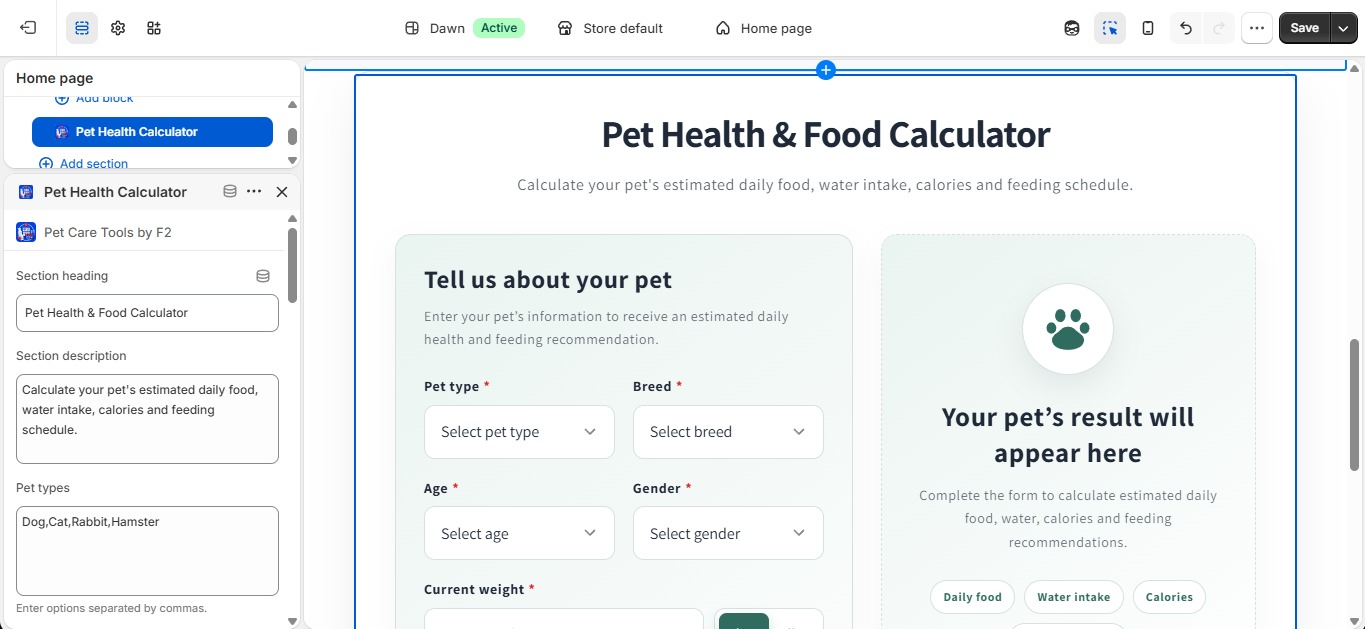
2. Add the Pet Care Tools by F2 app block to your desired page or section.
3. Select and configure the required pet care tool.
4. Customize the tool settings and information according to your requirements.
5. Save your theme and publish the changes.
Everything you need to install, configure, and use the Pet Care Tools is provided below.
Table of Contents
Installation Guideline
Pet Care Tools by F2 – Installation & Setup Guide
Pet Care Tools by F2 includes three useful pet-care tools that can be added to your Shopify store. Each block works differently, so please follow the instructions below to set up and test the app correctly.
1. Add the Pet Care Tools Blocks
- Go to Shopify Admin → Online Store → Themes.
- Click Customize on your active theme.
- Open the page or template where you want to display the pet-care tool.
- Click Add section or Add block and select the required Pet Care Tools by F2 block.
- Configure the block settings according to your store’s requirements.
- Click Save and preview the storefront.
The app provides three blocks:
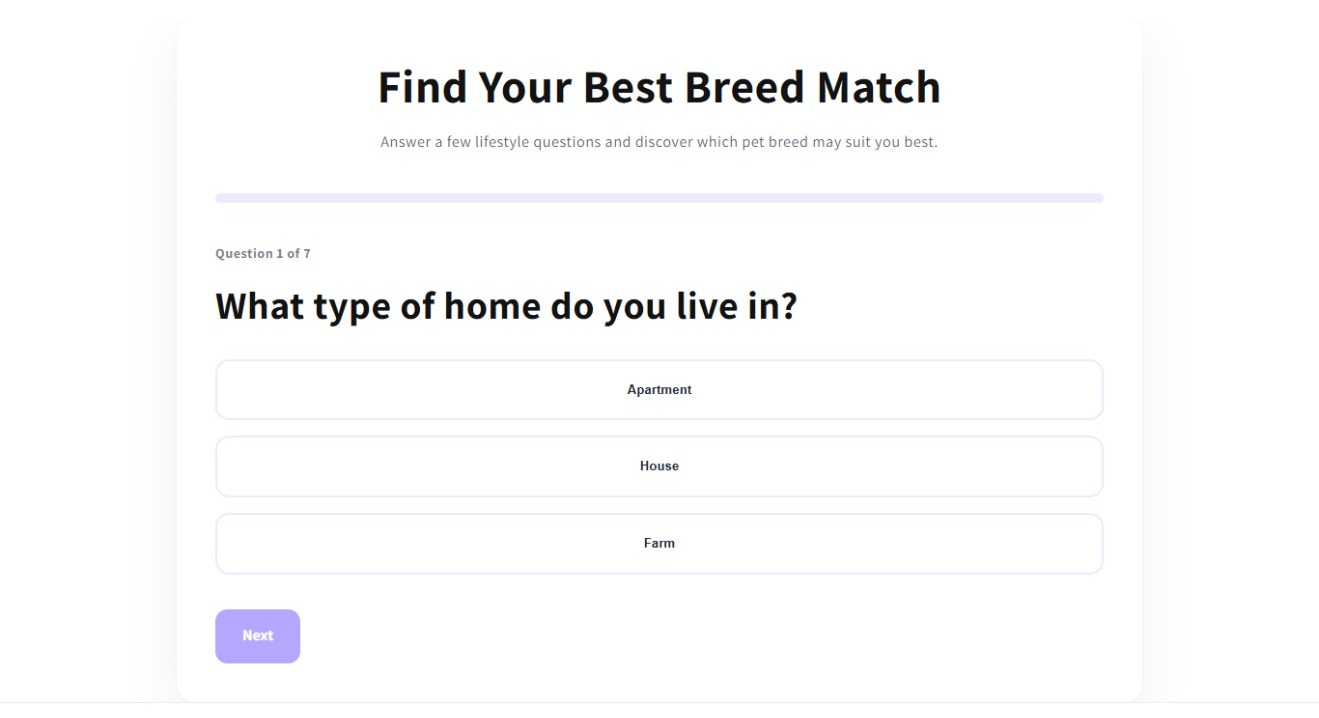
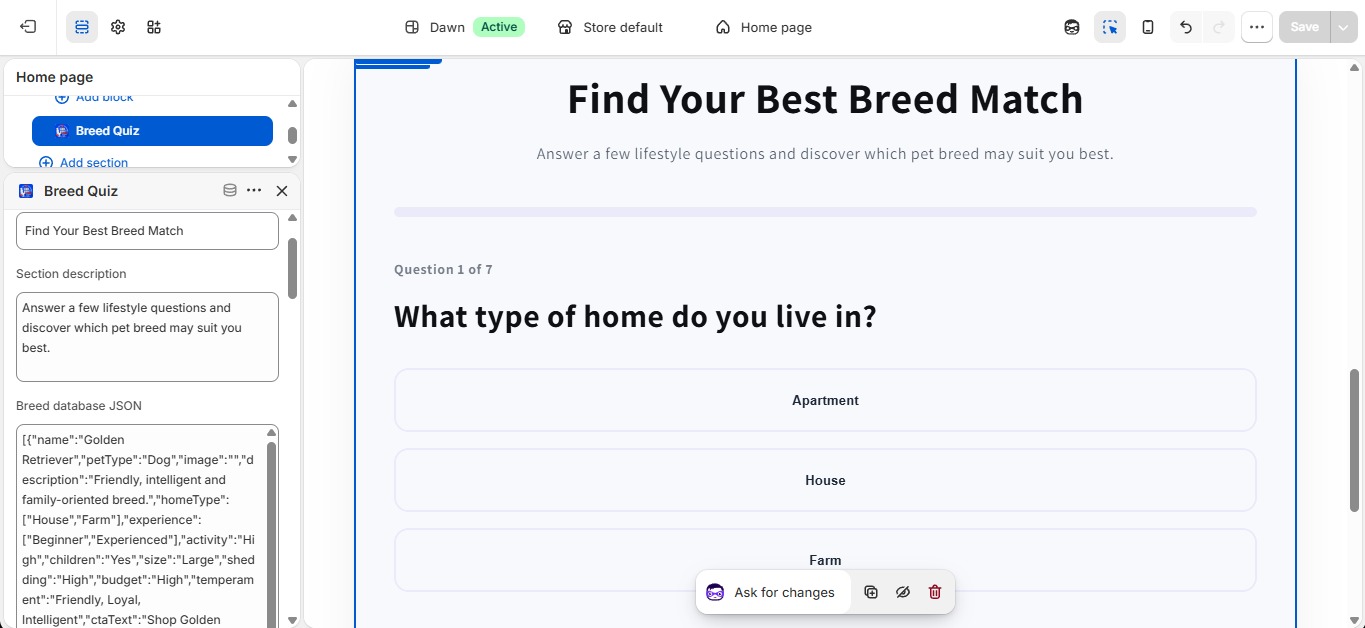
Block 1 – Breed Recommendation Quiz
The Breed Recommendation Quiz does not require JSON data.
The required quiz data is already provided within the app, so you can simply add the block to your storefront and configure its available settings.
After adding the block, customers can answer the quiz questions and view breed recommendations based on their selections.
No JSON setup is required for this block.
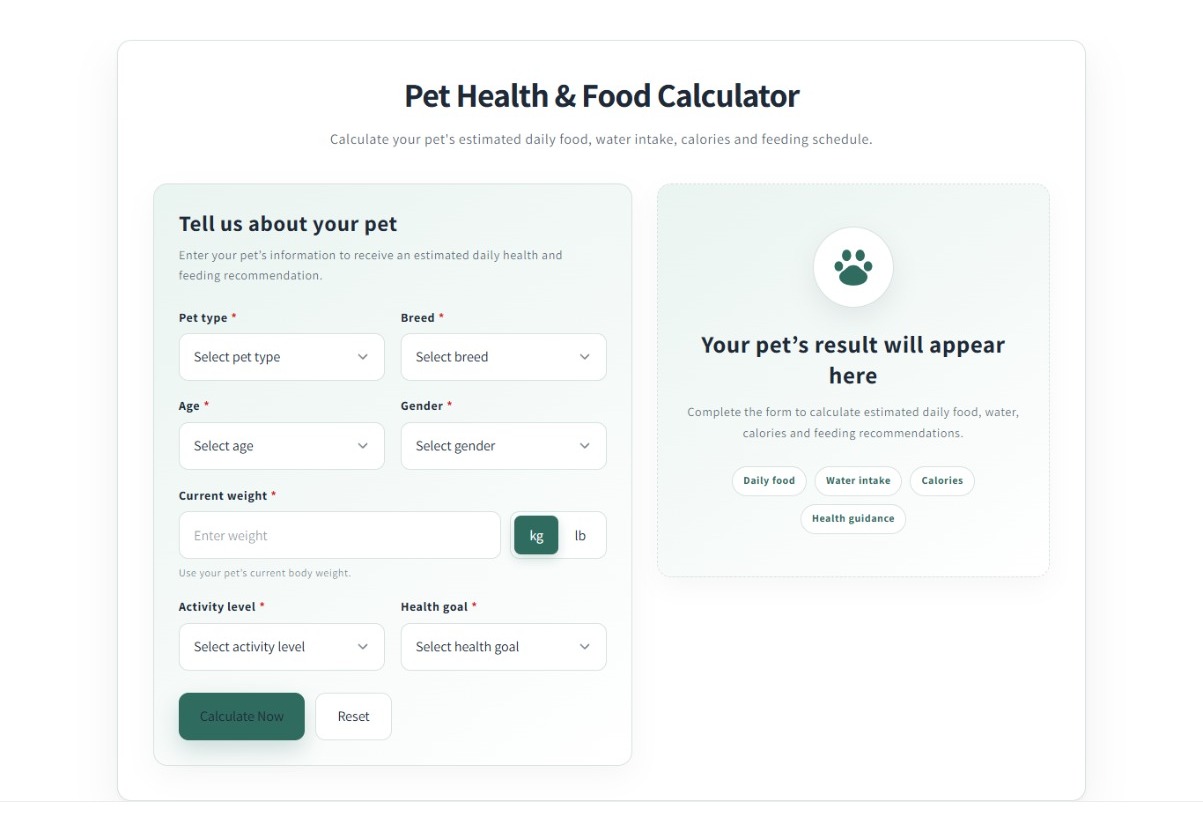
Block 2 – Pet Health & Food Calculator
The Pet Health & Food Calculator also does not require any JSON data.
Simply add the block to your desired page and save the theme.
Customers can enter their pet information, such as pet type, breed, age, weight, activity level, and health goal, and use the calculator to view the available results.
No JSON database or JSON code is required for this block.
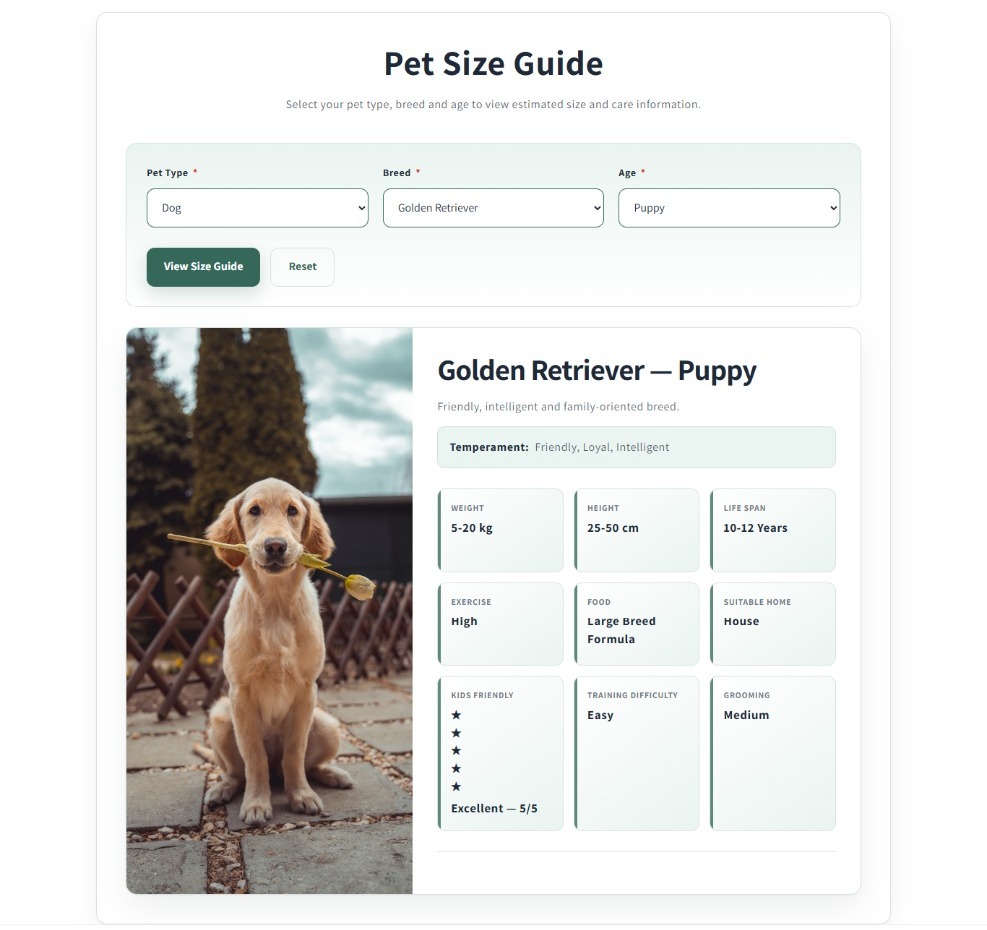
Block 3 – Pet Size Guide
The Pet Size Guide requires JSON data to display breed and age-specific size information.
For this block, you need to provide a valid JSON database in the block’s Breed Database JSON field.
2. Test the Pet Size Guide With Demo JSON
To make testing easier, a Demo JSON Testing Code has been provided on this page.
You can copy the demo JSON from the Demo JSON Testing Code section above and use it to test the Pet Size Guide before creating your own database.
Recommended testing process:
Copy Demo JSON → Add Pet Size Guide → Paste JSON → Save → Open storefront → Test
Steps:
- Copy the complete Demo JSON code provided in the Demo JSON Testing Code section above.
- Go to your Shopify Theme Editor.
- Add the Pet Size Guide block.
- Find the Breed Database JSON field.
- Paste the copied Demo JSON into the field.
- Click Save.
- Open your storefront and test the Pet Size Guide.
- Select the available Pet Type → Breed → Age options.
- Click View Size Guide to view the breed information.
If the demo data works correctly, your Pet Size Guide block is ready to be customized with your own pet and breed data.
3. Add Your Own Pet Size Guide Data
After successfully testing the Demo JSON, you can replace the demo information with your own data.
You can create your JSON data in several ways:
- Use the CSV to JSON Converter available inside the app.
- Use the Data to JSON Converter available inside the app.
- Convert your existing CSV or structured data into JSON using a suitable tool such as ChatGPT.
- Manually create your JSON by following the provided Demo JSON structure.
For larger databases, the built-in converters can make the data preparation process easier.
Pet Size Guide comes with built-in default breed data, so no JSON file needs to be added to your theme. You can also create your own breed database and enter it in the JSON input box below. If you leave the JSON input empty, the built-in default data will be used. If you provide valid JSON, your custom data will replace the default data. Your JSON must follow the format shown below.
Example JSON Format for Pet Size Guide Block
					[
  {
    "petType": "Dog",
    "name": "Golden Retriever",
    "image": "https://images.unsplash.com/photo-1552053831-71594a27632d?w=800",
    "description": "Friendly, intelligent and family-oriented breed.",
    "temperament": "Friendly, Loyal, Intelligent",
    "lifespan": "10-12 Years",
    "exercise": "High",
    "food": "Large Breed Formula",
    "suitableHome": "House",
    "kidsFriendly": 5,
    "trainingDifficulty": "Easy",
    "grooming": "Medium",
    "ages": {
      "Puppy": {
        "weight": "5-20 kg",
        "height": "25-50 cm"
      },
      "Adult": {
        "weight": "25-34 kg",
        "height": "55-61 cm"
      },
      "Senior": {
        "weight": "24-33 kg",
        "height": "55-61 cm"
      }
    }
  },
  {
    "petType": "Dog",
    "name": "Labrador Retriever",
    "image": "https://images.unsplash.com/photo-1517849845537-4d257902454a?w=800",
    "description": "Active, friendly and excellent family companion.",
    "temperament": "Gentle, Intelligent, Outgoing",
    "lifespan": "10-12 Years",
    "exercise": "High",
    "food": "Large Breed Formula",
    "suitableHome": "House",
    "kidsFriendly": 5,
    "trainingDifficulty": "Easy",
    "grooming": "Low",
    "ages": {
      "Puppy": {
        "weight": "6-18 kg",
        "height": "25-48 cm"
      },
      "Adult": {
        "weight": "25-36 kg",
        "height": "55-62 cm"
      },
      "Senior": {
        "weight": "24-35 kg",
        "height": "55-62 cm"
      }
    }
  },
  {
    "petType": "Dog",
    "name": "German Shepherd",
    "image": "https://images.unsplash.com/photo-1589941013453-ec89f33b5e95?w=800",
    "description": "Confident, courageous and highly trainable.",
    "temperament": "Confident, Courageous, Smart",
    "lifespan": "9-13 Years",
    "exercise": "High",
    "food": "Large Breed Formula",
    "suitableHome": "House",
    "kidsFriendly": 4,
    "trainingDifficulty": "Medium",
    "grooming": "Medium",
    "ages": {
      "Puppy": {
        "weight": "8-25 kg",
        "height": "30-55 cm"
      },
      "Adult": {
        "weight": "30-40 kg",
        "height": "60-65 cm"
      },
      "Senior": {
        "weight": "28-38 kg",
        "height": "60-65 cm"
      }
    }
  },
  {
    "petType": "Cat",
    "name": "Persian",
    "image": "https://images.unsplash.com/photo-1519052537078-e6302a4968d4?w=800",
    "description": "Calm, affectionate and long-haired breed.",
    "temperament": "Quiet, Gentle, Sweet",
    "lifespan": "12-17 Years",
    "exercise": "Low",
    "food": "Adult Cat Formula",
    "suitableHome": "Apartment",
    "kidsFriendly": 4,
    "trainingDifficulty": "Easy",
    "grooming": "High",
    "ages": {
      "Kitten": {
        "weight": "1-3 kg",
        "height": "15-20 cm"
      },
      "Adult": {
        "weight": "3-5.5 kg",
        "height": "23-25 cm"
      },
      "Senior": {
        "weight": "3-5 kg",
        "height": "23-25 cm"
      }
    }
  },
  {
    "petType": "Cat",
    "name": "Maine Coon",
    "image": "https://images.unsplash.com/photo-1574158622682-e40e69881006?w=800",
    "description": "Large, playful and friendly cat breed.",
    "temperament": "Gentle, Playful, Loyal",
    "lifespan": "12-15 Years",
    "exercise": "Medium",
    "food": "Large Cat Formula",
    "suitableHome": "House",
    "kidsFriendly": 5,
    "trainingDifficulty": "Easy",
    "grooming": "Medium",
    "ages": {
      "Kitten": {
        "weight": "1-4 kg",
        "height": "18-22 cm"
      },
      "Adult": {
        "weight": "5-8 kg",
        "height": "25-40 cm"
      },
      "Senior": {
        "weight": "5-7.5 kg",
        "height": "25-40 cm"
      }
    }
  }
]
4. Important: Follow the Demo JSON Structure
The Demo JSON is a template for the Pet Size Guide.
When creating additional breeds, follow the same structure, field names, and value formats used in the demo.
Do not randomly rename the required fields.
For example, if the demo uses:
"petType": "Dog"keep the field name:
"petType"Do not change it to:
"pet_type"or:
"type"Similarly, if a particular value is used by the app for matching, keep the required value consistent with the demo structure.
The safest method is to copy an existing demo object, duplicate it, and then change only the relevant breed information.
5. Adding Multiple Breeds
If you want to add more breeds:
- Copy an existing JSON object from the Demo JSON.
- Duplicate the object inside the JSON array.
- Change the breed information.
- Add the required age information and other relevant details.
- Keep the same JSON structure and field names.
- Make sure commas, quotation marks, brackets, and braces are correctly formatted.
- Paste the complete JSON into the Breed Database JSON field.
- Save and test the storefront.
For example, you can use the Demo JSON as a template for adding breeds such as Golden Retriever, Labrador Retriever, German Shepherd, Beagle, or other breeds.
6. Using the CSV to JSON Converter
If your pet or breed information is already stored in a CSV file, you can use the CSV to JSON Converter inside the app.
- Open the converter in the app.
- Add or upload your CSV data.
- Convert the data into JSON.
- Review the generated JSON.
- Compare its structure with the provided Demo JSON.
- Make sure the required field names and values match the structure expected by the Pet Size Guide.
- Copy the final JSON.
- Paste it into the Breed Database JSON field.
7. Using the Data to JSON Converter
You can also use the Data to JSON Converter available inside the app.
Enter your structured pet or breed data and convert it into JSON.
After conversion, always compare the generated JSON with the Demo JSON Testing Code before adding it to the Pet Size Guide.
The converter helps create JSON formatting, but your final data should still follow the required structure of the Pet Size Guide.
8. Important JSON Rules
Before saving your Pet Size Guide data, make sure:
- Your JSON is valid.
- Required field names are unchanged.
- Required matching values follow the Demo JSON structure.
- Double quotation marks are used correctly.
- Multiple objects are separated with commas.
- Opening and closing brackets are correct.
- Required breed and age data are included.
- You have not accidentally removed a required field.
- The complete JSON is pasted into the Breed Database JSON field.
If the Pet Size Guide shows an error such as “No age information is available for the selected breed”, first check whether the selected breed contains correctly formatted age data in your JSON.
9. Recommended Setup Method
For the easiest setup, we recommend this process:
Step 1: Add the required Pet Care Tools by F2 block.
Step 2: For Breed Recommendation Quiz, simply add and configure the block. No JSON is required.
Step 3: For Pet Health & Food Calculator, simply add and configure the block. No JSON is required.
Step 4: For Pet Size Guide, copy the Demo JSON from the Demo JSON Testing Code section above.
Step 5: Paste the Demo JSON into the Breed Database JSON field.
Step 6: Save and test the Pet Size Guide on your storefront.
Step 7: Once the demo works, create your own JSON using the same structure.
Step 8: Replace the demo data with your own pet and breed database.
This approach allows you to confirm that the Pet Size Guide is working correctly before adding your complete database.
Important Note
Only the Pet Size Guide requires JSON data.
The Breed Recommendation Quiz and Pet Health & Food Calculator do not require JSON setup.
If you experience an issue with the Pet Size Guide, first test it using the Demo JSON Testing Code provided above. If the demo works but your custom data does not, compare your custom JSON carefully with the demo structure and check for missing fields, incorrect values, quotation marks, commas, brackets, or age data.
CSV to JSON Generator
Upload a CSV file and convert every row into clean JSON data. Preview and format the generated JSON directly inside your browser.
The CSV is processed locally in your browser. Its content is not uploaded to an external server or saved in a database.
Upload CSV File
Drag and drop a CSV file or select a file from your computer. Only one CSV file can be selected at a time.
CSV File Information
Review the selected file before converting it into JSON.
Upload a CSV file to view its name, size, type, row count and conversion status.
Converted Data Preview
Preview the first converted rows before reviewing the complete JSON output.
Upload a CSV file and select Convert to JSON to display the converted row preview.
Generated JSON
Use Pretty JSON for a readable result or Minified JSON for a compact output.
Upload and convert a CSV file to generate Pretty or Minified JSON output.
How to Use the Generated JSON
Upload & Convert
Upload a valid CSV file and select Convert to JSON.
Review
Check the converted rows and switch between Pretty and Minified formats.
Copy or Download
Copy the generated JSON or download it as a JSON file for use in your application.
The uploaded CSV file is processed entirely inside the user's browser. CSV content is not uploaded to an external server or stored in the WordPress database.
Data to JSON Generator
Enter simple key and value data and convert it into clean JSON instantly. Numbers, booleans, null values, arrays, JSON objects and normal text are detected automatically.
All conversion happens inside your browser. The entered information is not uploaded to an external server or saved in the WordPress database.
name = Product One
price = 25
available = true
↓
JSON
Input Format
Add one key and value on each line. Use an equal sign or colon between the field name and its value.
Equal Sign Format
name = Product One
Colon Format
price: 25
Array Format
tags = shirt,summer,new
Text, numbers, true, false, null, comma-separated arrays, JSON arrays and JSON objects are recognized automatically.
Enter Your Data
Enter one field per line. Empty lines and lines beginning with the # character are ignored.
Converted Field Preview
Review the detected field names, values and JSON value types before using the generated output.
Enter key and value data, then select Convert to JSON to view the field preview.
| Field | Value | Detected Type |
|---|
JSON Preview
Switch between readable Pretty JSON and compact Minified JSON.
Convert the entered key and value data to generate Pretty or Minified JSON.
How to Use the Generated JSON
Enter Data
Add one key and value on each line using an equal sign or colon.
Convert and Review
Convert the data and check each detected value type before using the result.
Copy or Download
Copy the generated JSON or download the result as a JSON file.
Entered data is converted entirely inside the user's browser. The content is not uploaded to an external server or stored in the WordPress database.
App Features
Help pet owners calculate nutrition, explore breed guides, and find suitable pet matches.
Pet Care Tools by F2 helps merchants add interactive pet care tools to their Shopify store. Customers can calculate daily food, water, and calorie needs, browse breed-specific size and care information, and receive breed recommendations based on lifestyle. Merchants manage breed data through a flexible JSON database, making it easy to update information without editing code. The app is responsive, customizable, and compatible with Online Store 2.0 themes.
Features:
Calculate daily food, water, and calorie needs for dogs, cats, and other pets.
Display breed-specific size, care, and growth information with custom JSON data.
Recommend suitable breeds based on lifestyle, home, and activity preferences.
Manage unlimited pet breeds and data with an easy JSON-based database.
Fully responsive Online Store 2.0 app blocks with customizable design settings.
Apps Demo Screenshots
Support Helpline
If you need Support, please message us on WhatsApp. We will give you a response just in one minute. Or mail to us, Amzadhossen420360@gmail.com Or Contact Our Support Website : https://friends2a-technology.com/fhopify/contact-us/
Whatsapp Number: +8801602438393
Website: https://friends2a-technology.com/