Smart Size Guide by F2
Create professional and customizable size guides for your Shopify store using Theme App Blocks.
Add responsive size charts and measurement guides to your product pages. Easily configure size information and display settings from the Shopify Theme Editor.
Available App Blocks
– Smart Size Guide
Quick Actions
[Open Theme Editor]
[Installation Guide] [Size Guide Setup]
How It Works
1. Open the Shopify Theme Editor.
2. Add the Smart Size Guide by F2 app block to your desired product page or section.
3. Configure your size guide and measurement settings.
4. Add your size information and customize the display according to your requirements.
5. Save your theme and publish the changes.
Everything you need to install, configure, and use the Smart Size Guide is provided below.
Table of Contents
Installation Guideline
Smart Size Guide by F2 – Installation & JSON Setup Guide
Smart Size Guide by F2 uses structured JSON data to power the Smart Size Finder and Size Chart features. You can create the required JSON data in several easy ways.
1. Use the CSV to JSON Converter
Inside the Smart Size Guide by F2 app dashboard, you will find a CSV to JSON Converter.
If your size information is already available in CSV format, you can use this tool to convert it into JSON.
Steps:
Open the Smart Size Guide by F2 app dashboard.
Go to the CSV to JSON Converter.
Add or upload your properly structured CSV data.
Convert the CSV into JSON.
Copy the generated JSON.
Paste it into the required JSON field inside the corresponding app block.
Save your changes and test the block on your storefront.
This is useful when you already have a large amount of size data in spreadsheet or CSV format.
2. Use the Data to JSON Converter
The app dashboard also includes a Data to JSON Converter.
If your information is not already in CSV format, you can enter your structured data manually and convert it into JSON.
Steps:
Open the Data to JSON Converter from the app dashboard.
Enter your size, measurement, brand, gender, product type, or other required data.
Convert the data into JSON.
Copy the generated JSON.
Paste it into the appropriate JSON field in the Smart Size Finder or Size Chart block.
Save and test your configuration.
3. Create JSON with ChatGPT or Another AI Assistant
If you prefer, you can also use ChatGPT or another AI assistant to convert your existing CSV or structured data into JSON.
For example, you can provide your size chart data and ask ChatGPT to convert it into the same JSON structure used by Smart Size Guide by F2.
However, there is one very important requirement:
Important: Do Not Change Required JSON Keys or IDs
The JSON field names, keys, and IDs used by the app must remain exactly the same as shown in our supported JSON structure.
For example:
If the required key is:
house
you must continue using:
house
Do not replace it with:
home
Even if both words have a similar meaning, the app reads the exact key or ID defined in its supported JSON structure.
The same rule applies to all required fields such as:
genderbrandproductmeasurementssizesrangescolumnsrowsand any other keys shown in the demo JSON.
You may change the actual values inside these fields, but you should not rename the required keys.
For example, this is correct:
"brand": "Nike"
You may change Nike to another brand because it is a value.
But you should not change:
"brand"
to:
"company"
because brand is a required key used by the app.
Demo JSON Testing Code for F2 Size Chart Block
					[
  {
    "gender": "Men",
    "brand": "Nike",
    "product": "T-Shirt",
    "columns": [
      {
        "key": "size",
        "label": "Size",
        "unit": ""
      },
      {
        "key": "chest",
        "label": "Chest",
        "unit": "cm"
      },
      {
        "key": "waist",
        "label": "Waist",
        "unit": "cm"
      }
    ],
    "rows": [
      {
        "size": "S",
        "chest": "88-94",
        "waist": "74-80"
      },
      {
        "size": "M",
        "chest": "95-102",
        "waist": "81-88"
      },
      {
        "size": "L",
        "chest": "103-110",
        "waist": "89-96"
      },
      {
        "size": "XL",
        "chest": "111-118",
        "waist": "97-104"
      }
    ]
  },
  {
    "gender": "Women",
    "brand": "Zara",
    "product": "Dress",
    "columns": [
      {
        "key": "size",
        "label": "Size",
        "unit": ""
      },
      {
        "key": "bust",
        "label": "Bust",
        "unit": "cm"
      },
      {
        "key": "waist",
        "label": "Waist",
        "unit": "cm"
      },
      {
        "key": "hip",
        "label": "Hip",
        "unit": "cm"
      }
    ],
    "rows": [
      {
        "size": "XS",
        "bust": "80-84",
        "waist": "60-64",
        "hip": "86-90"
      },
      {
        "size": "S",
        "bust": "85-89",
        "waist": "65-69",
        "hip": "91-95"
      },
      {
        "size": "M",
        "bust": "90-94",
        "waist": "70-74",
        "hip": "96-100"
      },
      {
        "size": "L",
        "bust": "95-101",
        "waist": "75-81",
        "hip": "101-107"
      }
    ]
  },
  {
    "gender": "Kids",
    "brand": "Puma",
    "product": "T-Shirt",
    "columns": [
      {
        "key": "size",
        "label": "Size",
        "unit": ""
      },
      {
        "key": "height",
        "label": "Height",
        "unit": "cm"
      },
      {
        "key": "chest",
        "label": "Chest",
        "unit": "cm"
      }
    ],
    "rows": [
      {
        "size": "4Y",
        "height": "104",
        "chest": "56"
      },
      {
        "size": "6Y",
        "height": "116",
        "chest": "60"
      },
      {
        "size": "8Y",
        "height": "128",
        "chest": "64"
      },
      {
        "size": "10Y",
        "height": "140",
        "chest": "70"
      }
    ]
  }
]
Demo JSON Testing Code for F2 Smart Size Finder Block
					[
  {
    "gender": "Men",
    "brand": "Nike",
    "product": "T-Shirt",
    "measurements": [
      {
        "key": "chest",
        "label": "Chest",
        "unit": "cm",
        "required": true,
        "placeholder": "Enter chest measurement"
      },
      {
        "key": "waist",
        "label": "Waist",
        "unit": "cm",
        "required": true,
        "placeholder": "Enter waist measurement"
      }
    ],
    "sizes": [
      {
        "size": "S",
        "ranges": {
          "chest": {
            "min": 88,
            "max": 94
          },
          "waist": {
            "min": 74,
            "max": 80
          }
        },
        "message": "Size S is the best match for your measurements.",
        "note": "Choose a larger size if you prefer a relaxed fit."
      },
      {
        "size": "M",
        "ranges": {
          "chest": {
            "min": 95,
            "max": 102
          },
          "waist": {
            "min": 81,
            "max": 88
          }
        },
        "message": "Size M is the best match for your measurements.",
        "note": "This recommendation is based on the measurements entered."
      },
      {
        "size": "L",
        "ranges": {
          "chest": {
            "min": 103,
            "max": 110
          },
          "waist": {
            "min": 89,
            "max": 96
          }
        },
        "message": "Size L is the best match for your measurements.",
        "note": "Choose a larger size if you prefer an oversized fit."
      },
      {
        "size": "XL",
        "ranges": {
          "chest": {
            "min": 111,
            "max": 118
          },
          "waist": {
            "min": 97,
            "max": 104
          }
        },
        "message": "Size XL is the best match for your measurements.",
        "note": "Please compare the result with the product fit description."
      }
    ]
  },
  {
    "gender": "Women",
    "brand": "Zara",
    "product": "Dress",
    "measurements": [
      {
        "key": "bust",
        "label": "Bust",
        "unit": "cm",
        "required": true,
        "placeholder": "Enter bust measurement"
      },
      {
        "key": "waist",
        "label": "Waist",
        "unit": "cm",
        "required": true,
        "placeholder": "Enter waist measurement"
      },
      {
        "key": "hip",
        "label": "Hip",
        "unit": "cm",
        "required": true,
        "placeholder": "Enter hip measurement"
      }
    ],
    "sizes": [
      {
        "size": "XS",
        "ranges": {
          "bust": {
            "min": 80,
            "max": 84
          },
          "waist": {
            "min": 60,
            "max": 64
          },
          "hip": {
            "min": 86,
            "max": 90
          }
        },
        "message": "Size XS is the recommended fit.",
        "note": "For a looser fit, consider the next size."
      },
      {
        "size": "S",
        "ranges": {
          "bust": {
            "min": 85,
            "max": 89
          },
          "waist": {
            "min": 65,
            "max": 69
          },
          "hip": {
            "min": 91,
            "max": 95
          }
        },
        "message": "Size S is the recommended fit."
      },
      {
        "size": "M",
        "ranges": {
          "bust": {
            "min": 90,
            "max": 94
          },
          "waist": {
            "min": 70,
            "max": 74
          },
          "hip": {
            "min": 96,
            "max": 100
          }
        },
        "message": "Size M is the recommended fit."
      },
      {
        "size": "L",
        "ranges": {
          "bust": {
            "min": 95,
            "max": 101
          },
          "waist": {
            "min": 75,
            "max": 81
          },
          "hip": {
            "min": 101,
            "max": 107
          }
        },
        "message": "Size L is the recommended fit."
      }
    ]
  },
  {
    "gender": "Kids",
    "brand": "Puma",
    "product": "T-Shirt",
    "measurements": [
      {
        "key": "height",
        "label": "Height",
        "unit": "cm",
        "required": true,
        "placeholder": "Enter height"
      },
      {
        "key": "chest",
        "label": "Chest",
        "unit": "cm",
        "required": true,
        "placeholder": "Enter chest measurement"
      }
    ],
    "sizes": [
      {
        "size": "4Y",
        "ranges": {
          "height": {
            "min": 99,
            "max": 107
          },
          "chest": {
            "min": 53,
            "max": 57
          }
        },
        "message": "Size 4Y is the recommended fit."
      },
      {
        "size": "6Y",
        "ranges": {
          "height": {
            "min": 108,
            "max": 119
          },
          "chest": {
            "min": 58,
            "max": 62
          }
        },
        "message": "Size 6Y is the recommended fit."
      },
      {
        "size": "8Y",
        "ranges": {
          "height": {
            "min": 120,
            "max": 131
          },
          "chest": {
            "min": 63,
            "max": 67
          }
        },
        "message": "Size 8Y is the recommended fit."
      },
      {
        "size": "10Y",
        "ranges": {
          "height": {
            "min": 132,
            "max": 143
          },
          "chest": {
            "min": 68,
            "max": 72
          }
        },
        "message": "Size 10Y is the recommended fit."
      }
    ]
  }
]
4. Follow the Demo JSON Templates
To make setup easier, we provide Demo JSON Templates for the app features.
These templates show the exact structure, key names, IDs, and format expected by the app.
We strongly recommend that you:
Review the provided Demo JSON.
Copy the template.
Keep the same JSON structure and required keys.
Replace the sample values with your own data.
Add more brands, products, genders, measurements, sizes, or rows by following the same structure.
Validate the JSON before saving.
Using the provided template is the easiest way to avoid formatting errors or unsupported key names.
5. Test the App with Demo JSON
If you want to test the app before creating your own data, you can use the Demo JSON provided below.
Simply:
Copy the Demo JSON.
Open the required app block.
Paste it into the JSON input field.
Save the changes.
Open the storefront.
Select the available options and confirm that the Size Chart or Smart Size Finder works correctly.
Once the demo data works correctly, you can create your own JSON by following the exact same structure.
Final Recommendation
For the easiest setup:
Use CSV to JSON if your data is already in CSV format.
Use Data to JSON if you want to convert manually entered structured data.
Use ChatGPT or another AI assistant if you need help preparing larger or custom JSON datasets.
Always follow the provided Demo JSON Template.
Never rename the required JSON keys or IDs.
Change only the values and add additional data while keeping the supported structure unchanged.
Following these guidelines will help ensure your Smart Size Finder and Size Chart data load and function correctly.
CSV to JSON Generator
Upload a CSV file and convert every row into clean JSON data. Preview and format the generated JSON directly inside your browser.
The CSV is processed locally in your browser. Its content is not uploaded to an external server or saved in a database.
Upload CSV File
Drag and drop a CSV file or select a file from your computer. Only one CSV file can be selected at a time.
CSV File Information
Review the selected file before converting it into JSON.
Upload a CSV file to view its name, size, type, row count and conversion status.
Converted Data Preview
Preview the first converted rows before reviewing the complete JSON output.
Upload a CSV file and select Convert to JSON to display the converted row preview.
Generated JSON
Use Pretty JSON for a readable result or Minified JSON for a compact output.
Upload and convert a CSV file to generate Pretty or Minified JSON output.
How to Use the Generated JSON
Upload & Convert
Upload a valid CSV file and select Convert to JSON.
Review
Check the converted rows and switch between Pretty and Minified formats.
Copy or Download
Copy the generated JSON or download it as a JSON file for use in your application.
The uploaded CSV file is processed entirely inside the user's browser. CSV content is not uploaded to an external server or stored in the WordPress database.
Data to JSON Generator
Enter simple key and value data and convert it into clean JSON instantly. Numbers, booleans, null values, arrays, JSON objects and normal text are detected automatically.
All conversion happens inside your browser. The entered information is not uploaded to an external server or saved in the WordPress database.
name = Product One
price = 25
available = true
↓
JSON
Input Format
Add one key and value on each line. Use an equal sign or colon between the field name and its value.
Equal Sign Format
name = Product One
Colon Format
price: 25
Array Format
tags = shirt,summer,new
Text, numbers, true, false, null, comma-separated arrays, JSON arrays and JSON objects are recognized automatically.
Enter Your Data
Enter one field per line. Empty lines and lines beginning with the # character are ignored.
Converted Field Preview
Review the detected field names, values and JSON value types before using the generated output.
Enter key and value data, then select Convert to JSON to view the field preview.
| Field | Value | Detected Type |
|---|
JSON Preview
Switch between readable Pretty JSON and compact Minified JSON.
Convert the entered key and value data to generate Pretty or Minified JSON.
How to Use the Generated JSON
Enter Data
Add one key and value on each line using an equal sign or colon.
Convert and Review
Convert the data and check each detected value type before using the result.
Copy or Download
Copy the generated JSON or download the result as a JSON file.
Entered data is converted entirely inside the user's browser. The content is not uploaded to an external server or stored in the WordPress database.
App Features
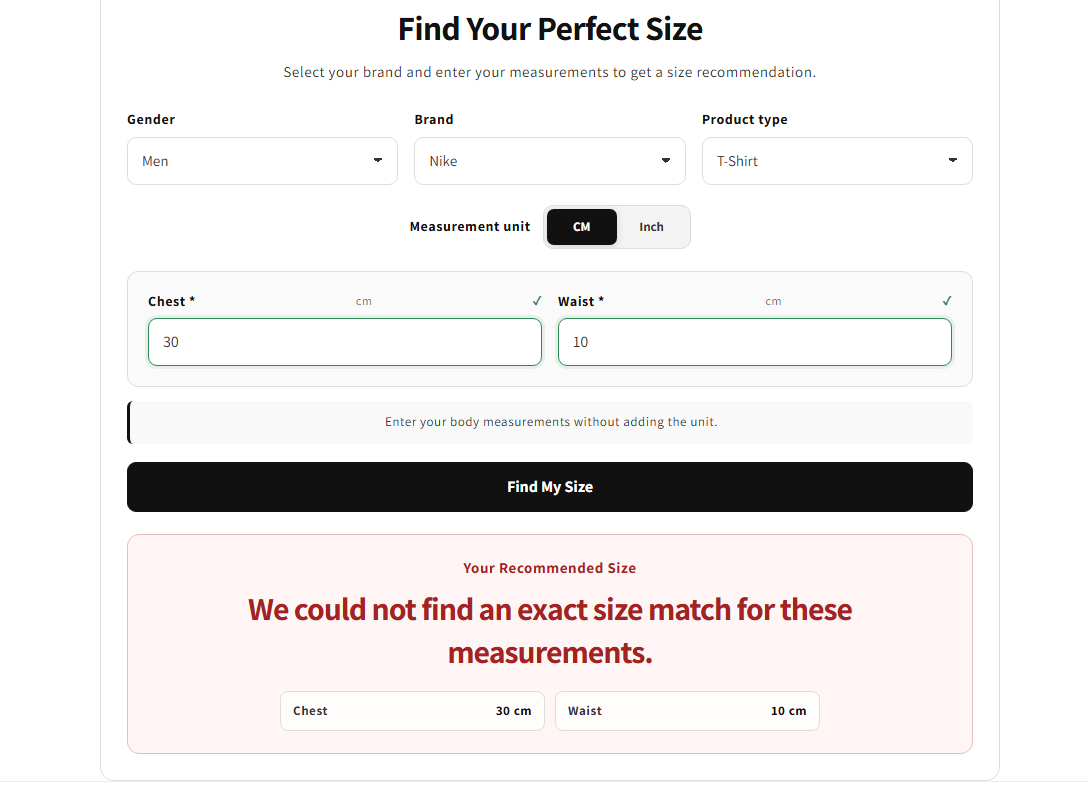
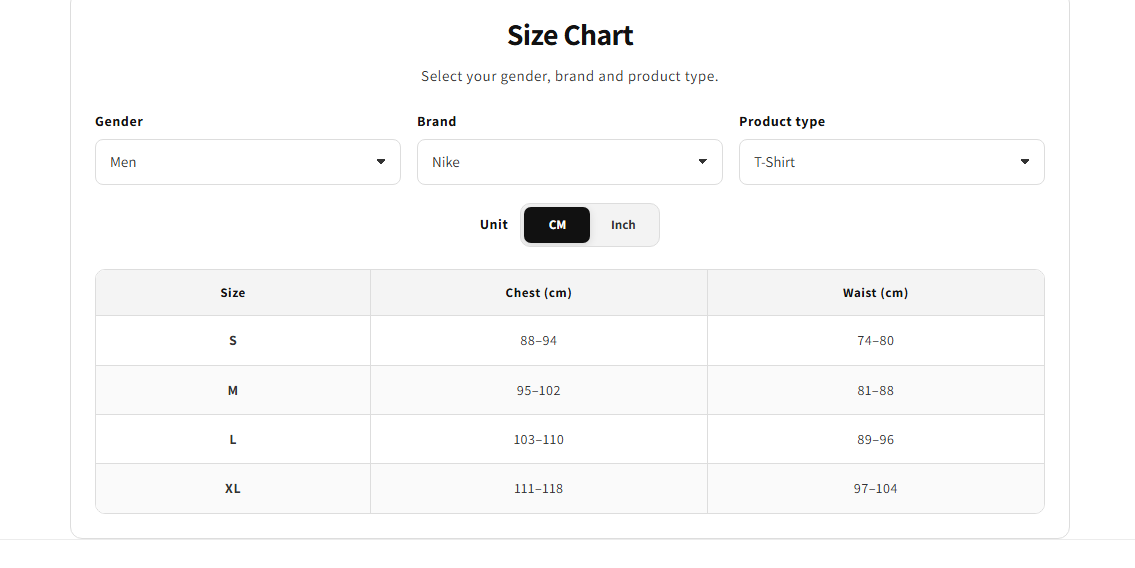
Help shoppers find their perfect size with smart recommendations and customizable size charts.
Smart Size Guide by F2 helps merchants provide accurate size recommendations and customizable size charts to shoppers. The app includes a Smart Size Finder and a flexible Size Chart block that support multiple brands, product types, men’s, women’s, and kids’ sizing. Merchants can manage unlimited size data with JSON, customize the appearance, support CM and Inch units, and help customers choose the right size with confidence, reducing size-related uncertainty.
Features:
Smart size recommendations based on body measurements and product data
Customizable size charts for men’s, women’s, and kids’ products
Supports multiple brands, product types, and CM or Inch measurements
Unlimited JSON-based size data for flexible size management
Responsive theme blocks with easy customization and no coding required
Apps Demo Screenshots
Support Helpline
If you need Support, please message us on WhatsApp. We will give you a response just in one minute. Or mail to us, Amzadhossen420360@gmail.com Or Contact Our Support Website : https://friends2a-technology.com/fhopify/contact-us/
Whatsapp Number: +8801602438393
Website: https://friends2a-technology.com/