Table of Contents
Installation Guideline
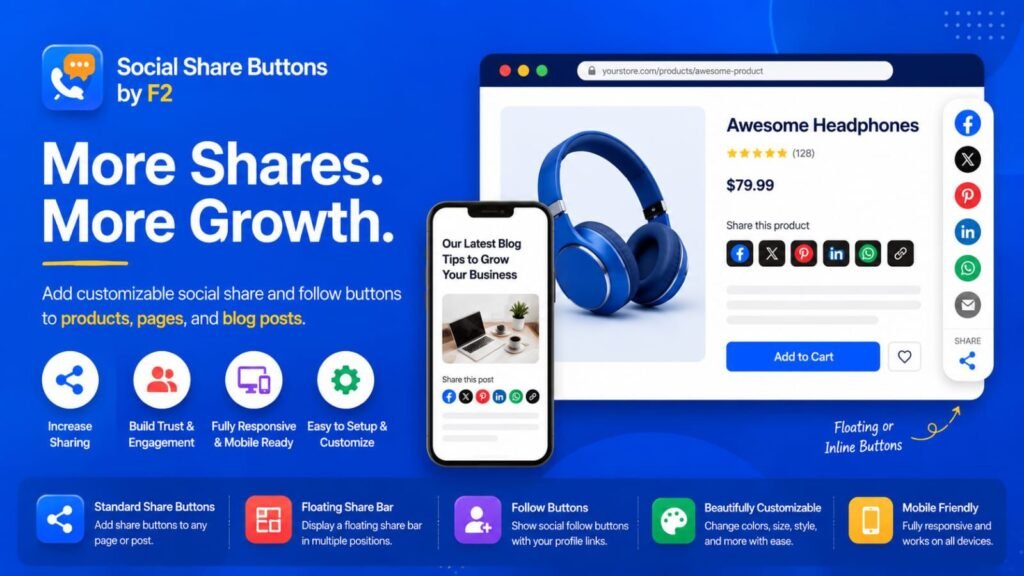
Social Share Buttons by F2 — Installation & Testing Guideline
Thank you for reviewing Social Share Buttons by F2.
This guide explains how to install, configure, and test the app’s social sharing and social follow features on a Shopify storefront.
The app provides three storefront blocks:
- Standard Share Buttons
- Floating Share Bar
- Social Follow Buttons
No manual theme-code editing, external account, or API key is required.
1. Install the App
- Install Social Share Buttons by F2 on the development store.
- Complete the Shopify app installation process.
- Open the app from Shopify Admin → Apps if required.
- No external account or third-party service is required for basic setup.
2. Add Standard Share Buttons
The Standard Share Buttons block allows customers to share the current storefront page through the enabled social platforms.
Steps
- Go to Shopify Admin → Online Store → Themes.
- Find the active theme.
- Click Customize.
- Open a supported storefront template, such as:
- Product
- Collection
- Blog Post / Article
- Page
- Select the appropriate section or area where you want to display the buttons.
- Click Add block.
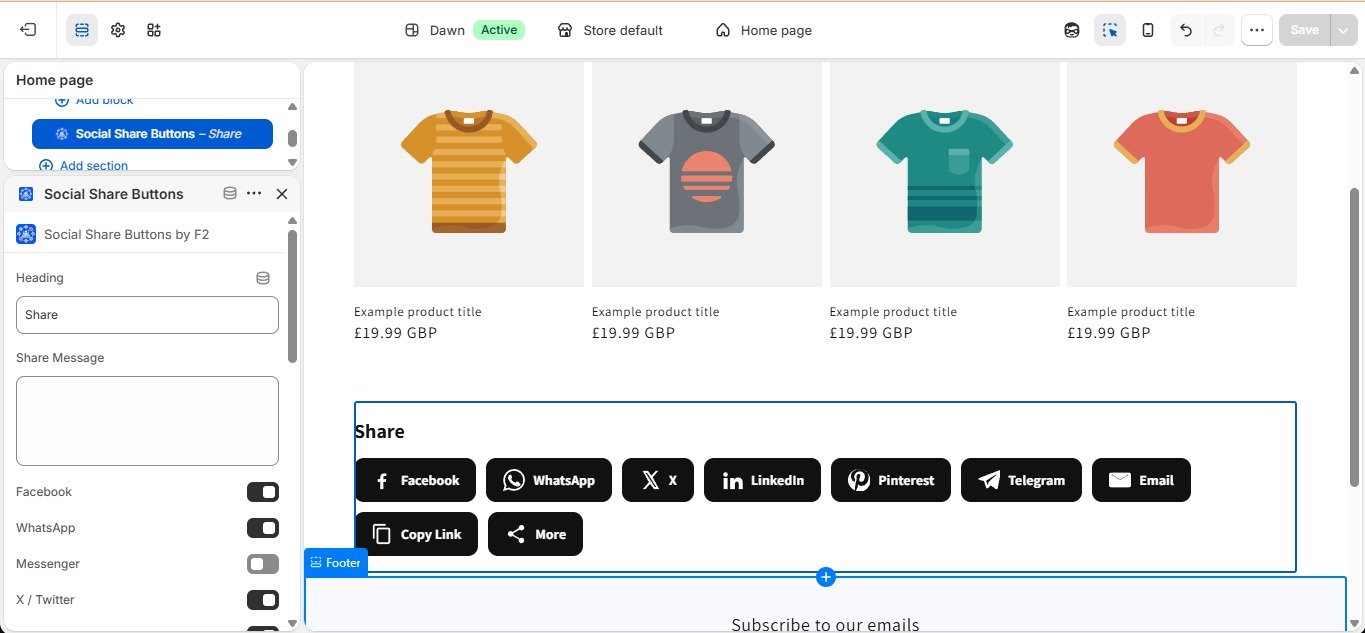
- Select Social Share Buttons by F2 – Standard Share Buttons.
- Add the block to the page.
- Configure the available settings.
- Click Save.
3. Configure Standard Share Buttons
After adding the block, configure the available settings from the Shopify Theme Editor.
Depending on the available block settings, you can configure:
- Social networks
- Button layout
- Button size
- Spacing
- Colors
- Styling
- Other available display options
Enable only the social platforms you want customers to use.
For example:
Enabled:
- X
- Copy Link
Disabled:
- Any platform you do not want to display
Click Save after making changes.
4. Test Standard Share Buttons
After saving the block:
- Open the storefront preview.
- Navigate to the page where the block was added.
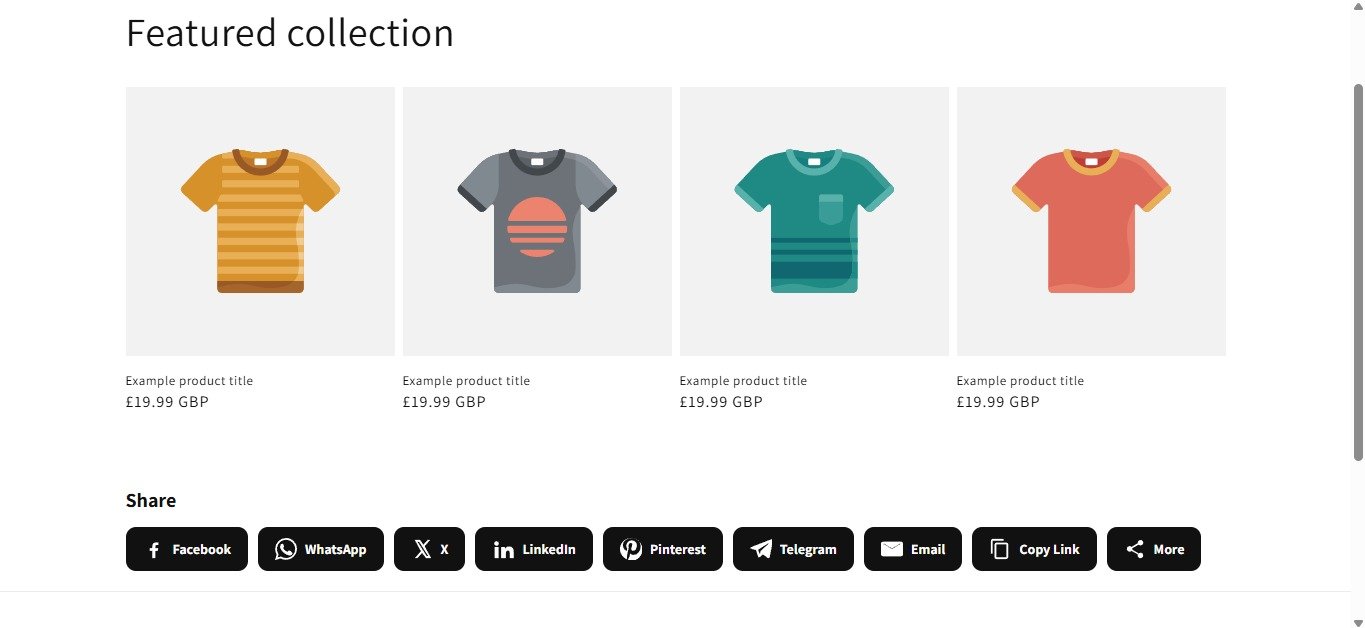
- Confirm that the enabled social share buttons are visible.
- Confirm that disabled platforms are not displayed.
- Click each enabled sharing button.
- Verify that the appropriate sharing interface or action opens.
- If Copy Link is enabled, click it and verify that the current page link is copied correctly.
Test the block on different supported storefront pages when appropriate.
5. Add the Floating Share Bar
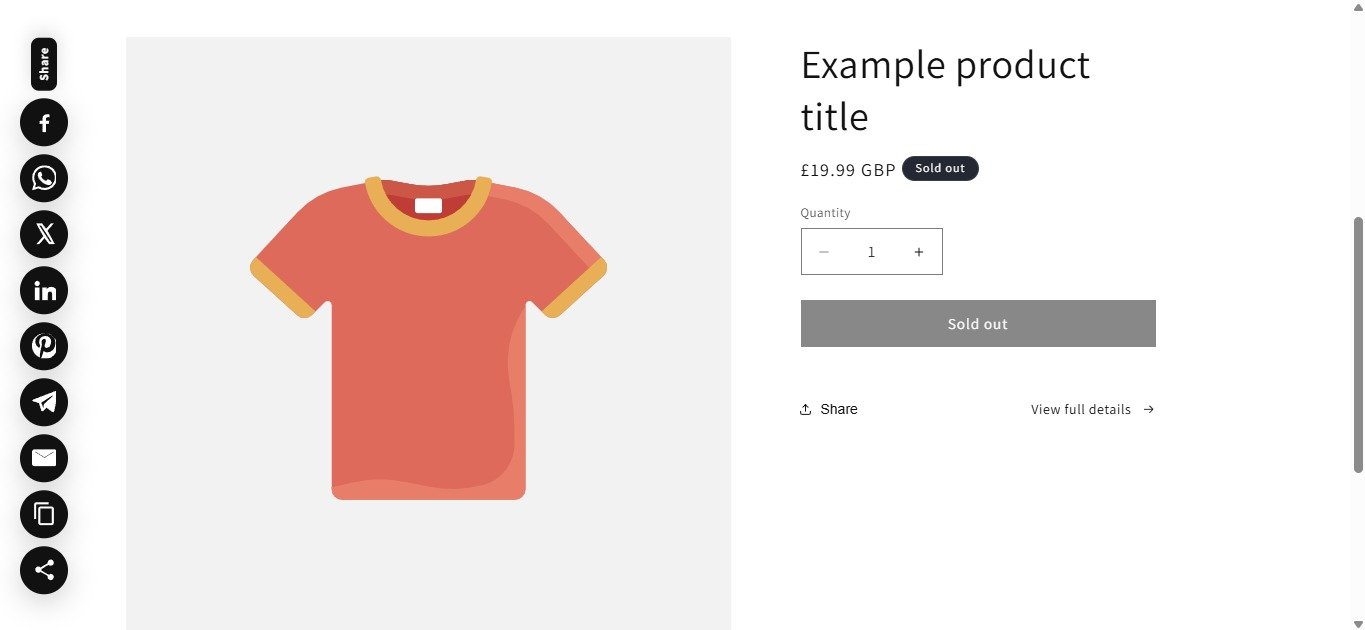
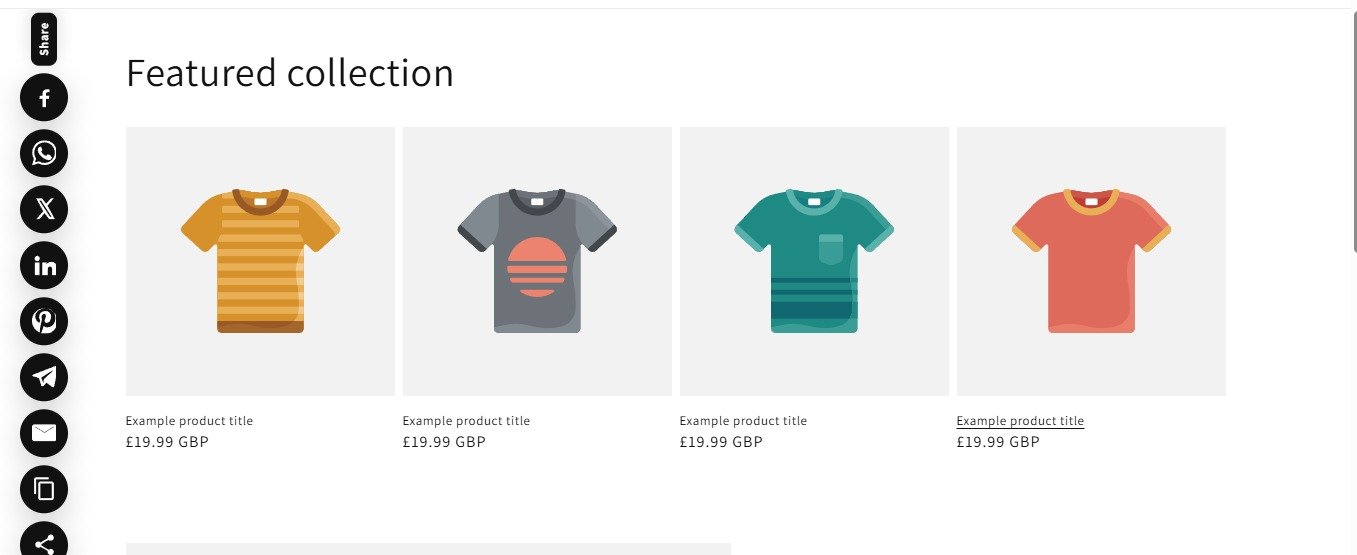
The Floating Share Bar provides a floating social sharing interface on supported storefront pages.
Steps
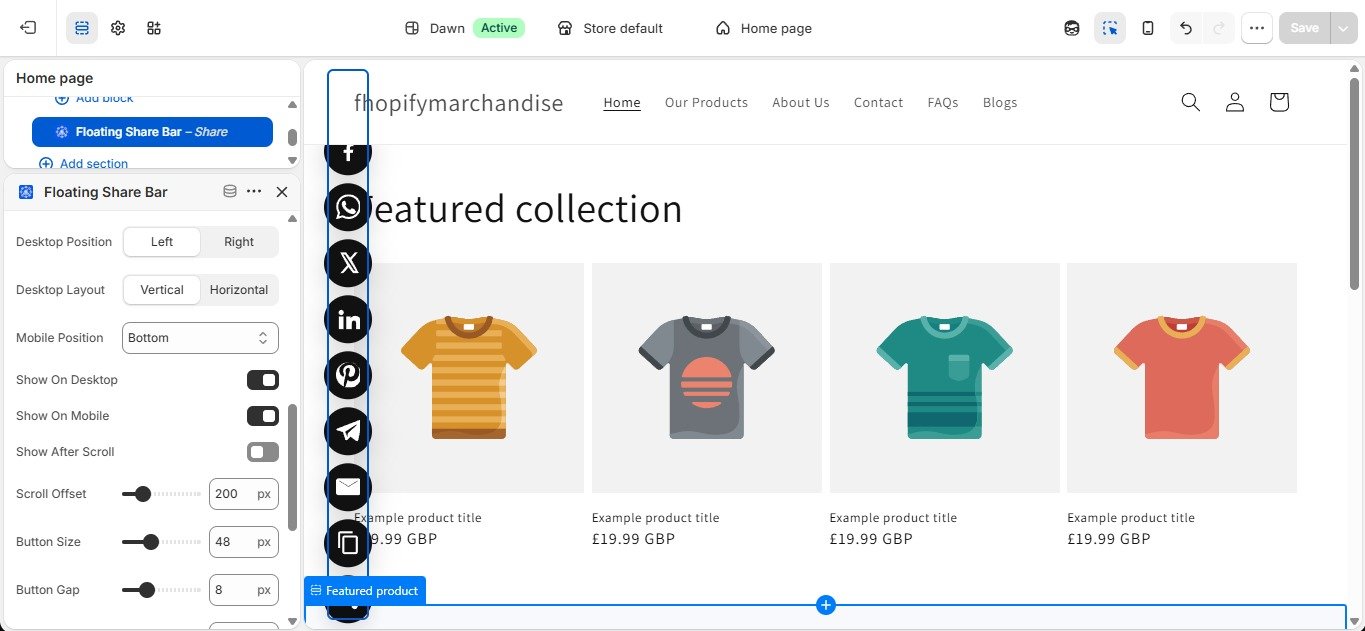
- Open Shopify Admin → Online Store → Themes → Customize.
- Open a supported storefront template.
- Click Add block.
- Select Social Share Buttons by F2 – Floating Share Bar.
- Add the block to the template.
- Configure the available display and styling settings.
- Enable the social platforms you want to display.
- Click Save.
6. Test the Floating Share Bar
- Open the storefront preview.
- Navigate to the page where the Floating Share Bar was added.
- Confirm that the floating share bar is visible.
- Check that the enabled social platforms are displayed.
- Click each enabled sharing option.
- Verify that the corresponding sharing action works correctly.
- Check the appearance on both desktop and mobile screen sizes.
7. Add Social Follow Buttons
The Social Follow Buttons block allows merchants to display links to their social media profiles.
Steps
- Go to Online Store → Themes → Customize.
- Open a supported storefront template.
- Click Add block.
- Select Social Share Buttons by F2 – Social Follow Buttons.
- Add the block to the desired location.
- Enter the social profile URLs for the platforms you want to display.
- Enable the desired social platforms.
- Configure the available styling settings.
- Click Save.
8. Test Social Follow Buttons
- Open the storefront preview.
- Locate the Social Follow Buttons block.
- Confirm that the enabled social profile buttons are displayed.
- Verify that disabled platforms are not displayed.
- Click each enabled social profile button.
- Confirm that it opens the configured social profile.
- Verify that the entered profile URL is correct.
9. Test Supported Storefront Pages
Test the app blocks on the supported storefront templates where they are added.
Recommended pages include:
- Product pages
- Collection pages
- Blog posts / Articles
- Pages
- Other supported storefront pages
For each page, verify that the selected block displays correctly and does not interfere with the existing theme layout.
10. Desktop and Mobile Testing
Test the blocks on both desktop and mobile storefront views.
Verify:
- Buttons are visible.
- Buttons are properly aligned.
- Spacing is correct.
- Text/icons are not cut off.
- The Floating Share Bar does not obstruct important storefront content.
- Social Follow Buttons remain usable on smaller screens.
- Sharing actions can be accessed normally.
11. Configuration Changes
You can modify the block settings directly from the Shopify Theme Editor.
After changing any setting:
- Update the required configuration.
- Click Save.
- Open the storefront preview.
- Verify that the change has been applied correctly.
No manual Liquid, CSS, or JavaScript code editing is required.
App Features
Add customizable social share & follow buttons to boost engagement and increase store traffic.
Social Share Buttons by F2 helps merchants add customizable social share and follow buttons to products, blog posts, pages, and other storefront content. Merchants can choose which social networks to display, enable standard or floating share buttons, customize button appearance, and control placement without editing theme code. The app helps customers easily share content across social platforms, improving content visibility, engagement, and store reach.
Features:
Customizable social share buttons for products, pages, and blog posts
Floating and inline share button layouts with flexible placement options
Enable or disable individual social networks from the theme editor
Responsive design optimized for desktop, tablet, and mobile devices
Customizable button styles, colors, sizes, and display settings
Apps Demo Screenshots
Support Helpline
If you need Support, please message us on WhatsApp. We will give you a response just in one minute. Or mail to us, Amzadhossen420360@gmail.com Or Contact Our Support Website : https://friends2a-technology.com/fhopify/contact-us/
Whatsapp Number: +8801602438393
Website: https://friends2a-technology.com/