
Why This Issue Happens:
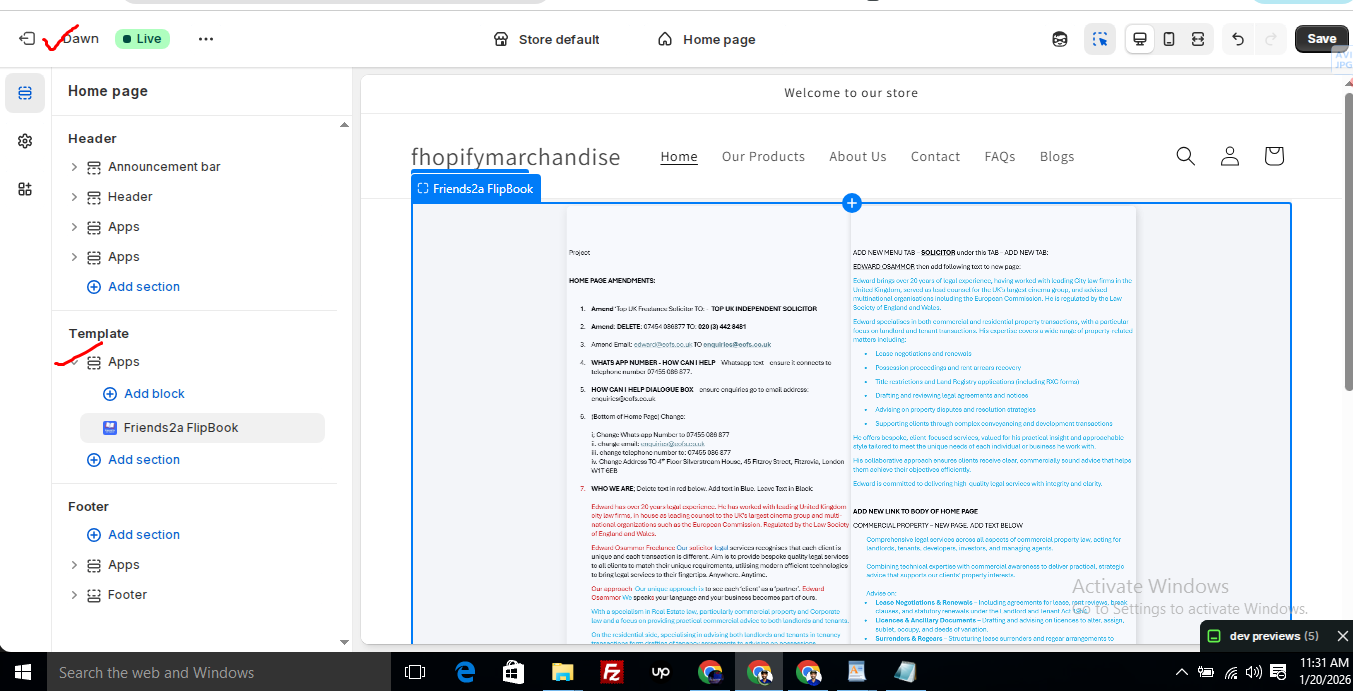
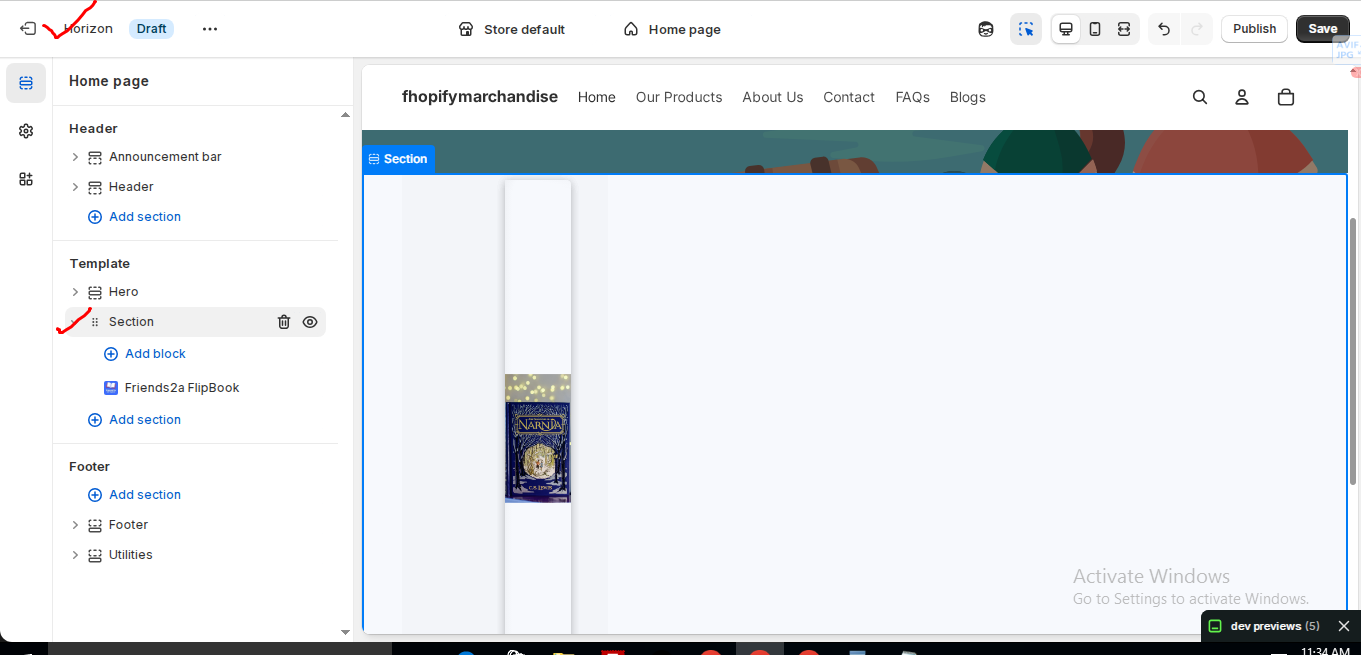
In the Horizon new update theme (and some other Shopify free themes), when you add an app block, it is automatically wrapped inside a Section container.
This Section applies automatic CSS and admin UI styles, which may conflict with the app’s layout. As a result, app content such as FlipBooks or iframe-based apps may appear squeezed, misaligned, or broken.
This is a theme-level layout behavior, not an app bug.
How to Fix the Issue (Solution)
Please follow these steps carefully:
1. Go to Online Store → Themes → Edit code
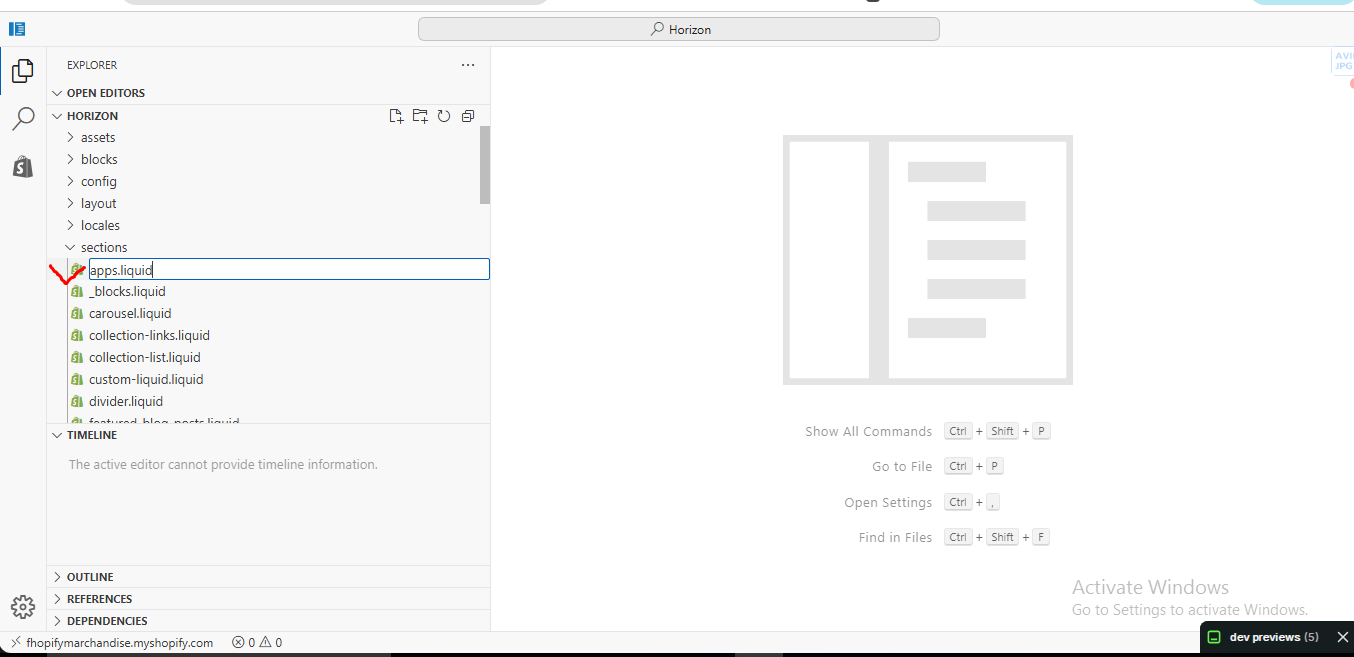
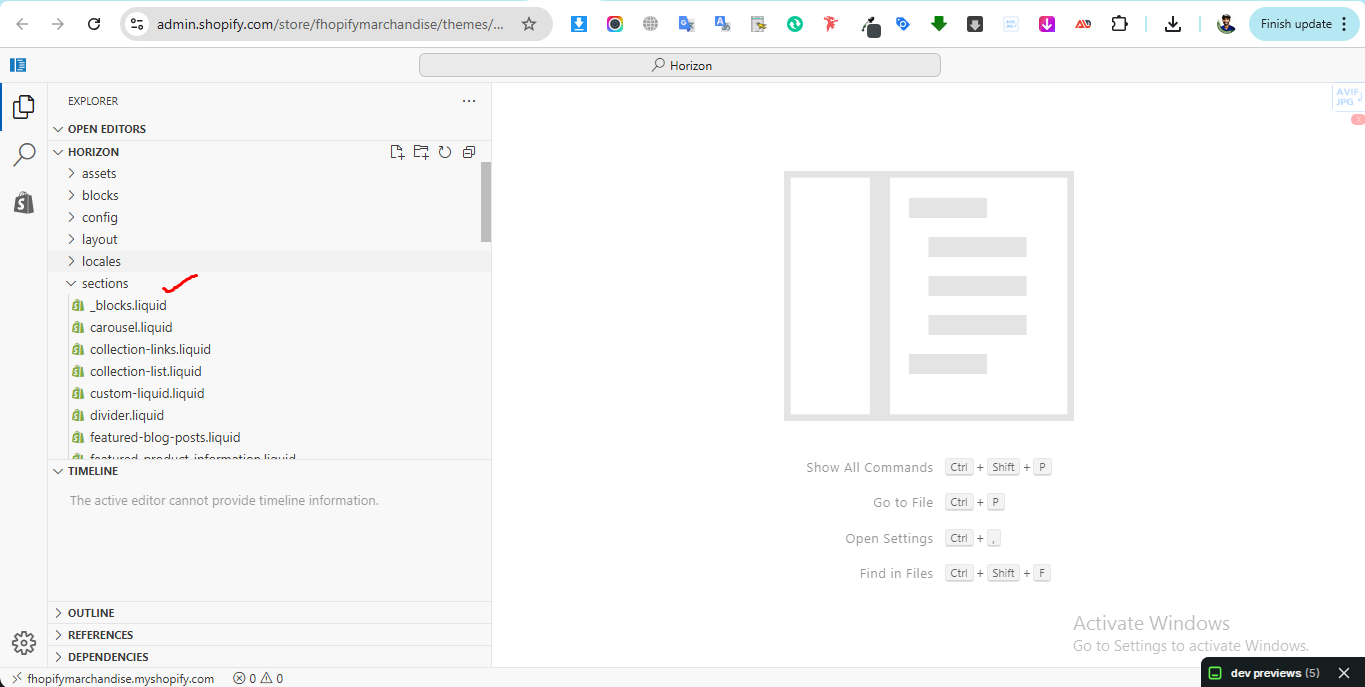
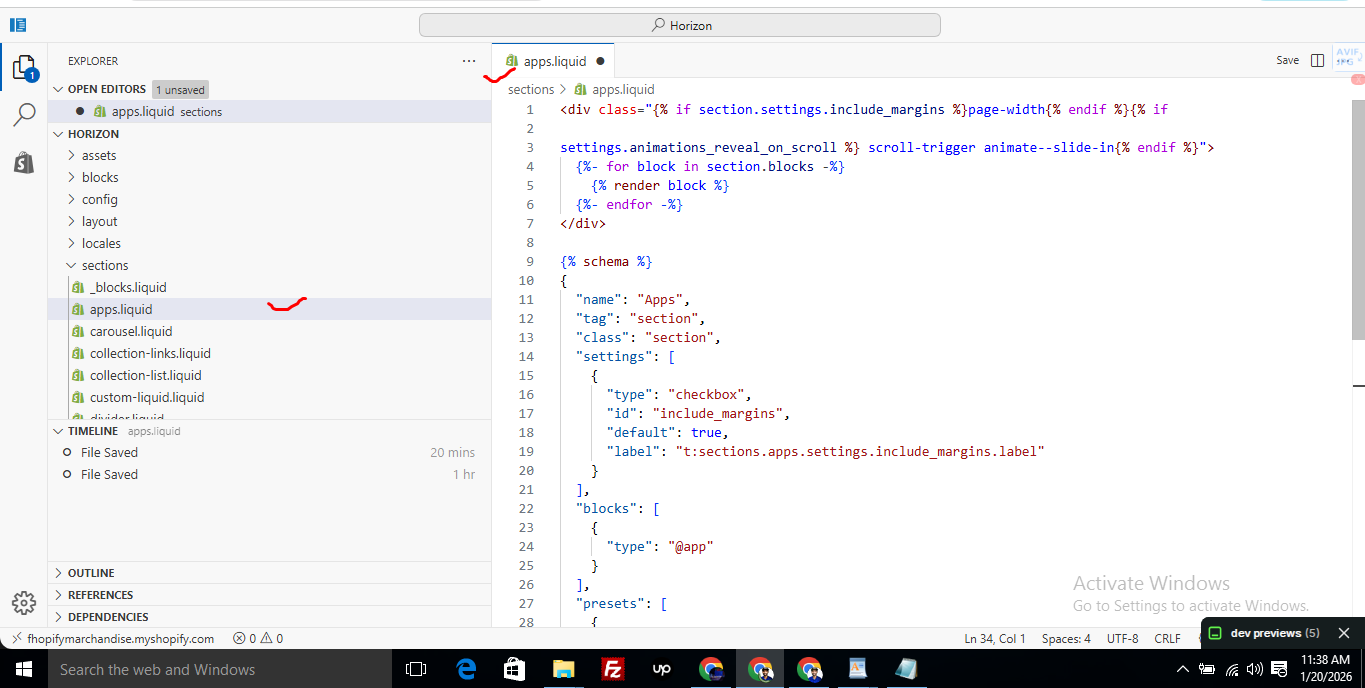
2. Open the Sections folder
3. Find the file named apps.liquid
– If the file exists, open it and paste the provided code into it
– If the file does not exist, create a new file named apps.liquid and paste the code into it
4. Save the file
5. Go back to Theme Customization
6. Add the app block again
After completing these steps, everything should display correctly.
Summary :
– This issue is related to the Horizon / Shopify free theme layout behavior
– It is not an app bug
– Dawn, Shopify premium themes, and ThemeForest themes work without any issues
– Following the steps above will resolve the problem
If you still face issues after following this guide, please share updated screenshots and we will be happy to assist further.
					<div class="{% if section.settings.include_margins %}page-width{% endif %}">
  {% for block in section.blocks %}
    {% render block %}
  {% endfor %}
</div>

{% schema %}
{
  "name": "Apps",
  "tag": "section",
  "class": "section",
  "settings": [
    {
      "type": "checkbox",
      "id": "include_margins",
      "default": true,
      "label": "Include page margins"
    }
  ],
  "blocks": [
    { "type": "@app" }
  ],
  "presets": [
    { "name": "Apps" }
  ]
}
{% endschema %}
Step 1: Install the App
1. Go to the Shopify App Store.
2. Search for Friends2a Theme Sections.
3. Click Add App → Select your Shopify store → Approve installation.
4. Once installed, the sections will be automatically added to your theme editor.
Step 2: Add Sections to Your Store
1. In your Shopify Admin, go to: Online Store → Themes → Customize.
2. Choose any page (e.g. Home page, Product page, or Custom page).
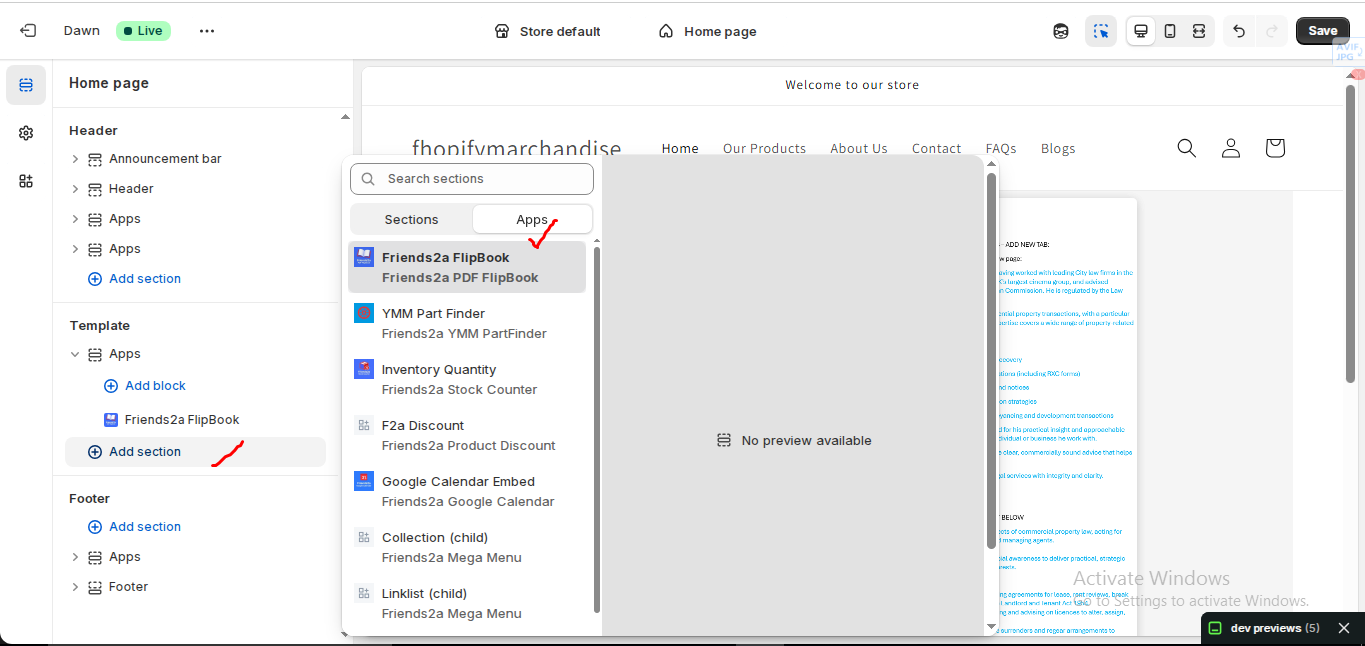
3. Click “Add section”.
4. Select the Apps tab.
5. Scroll to find the available Friends2a Theme Sections, such as:
Available Sections & Blocks
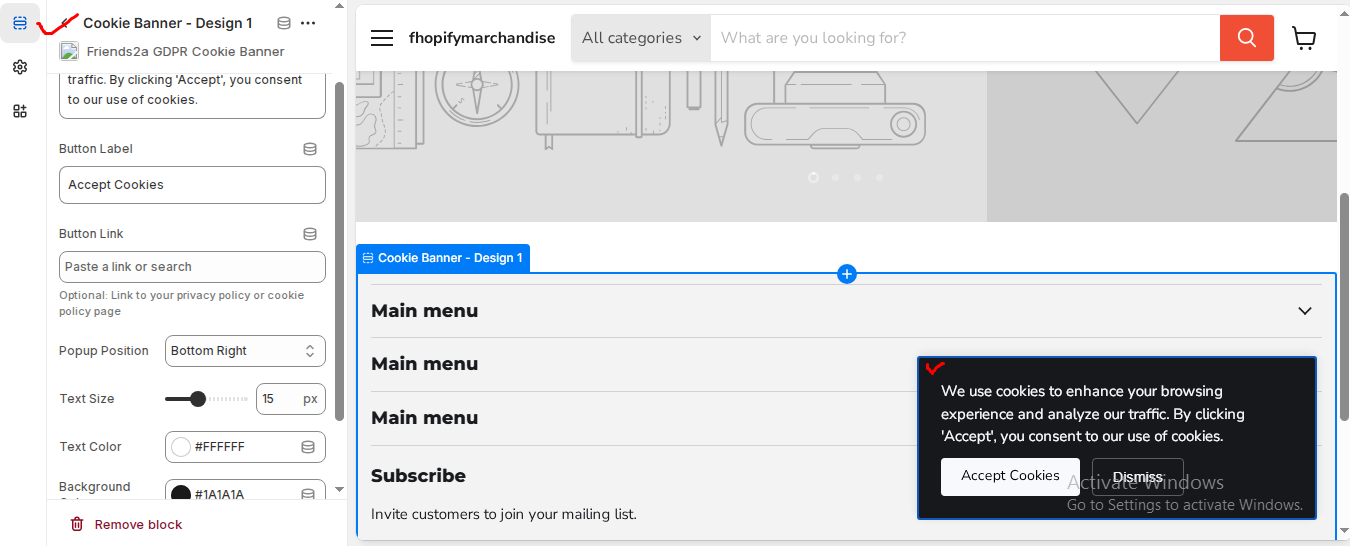
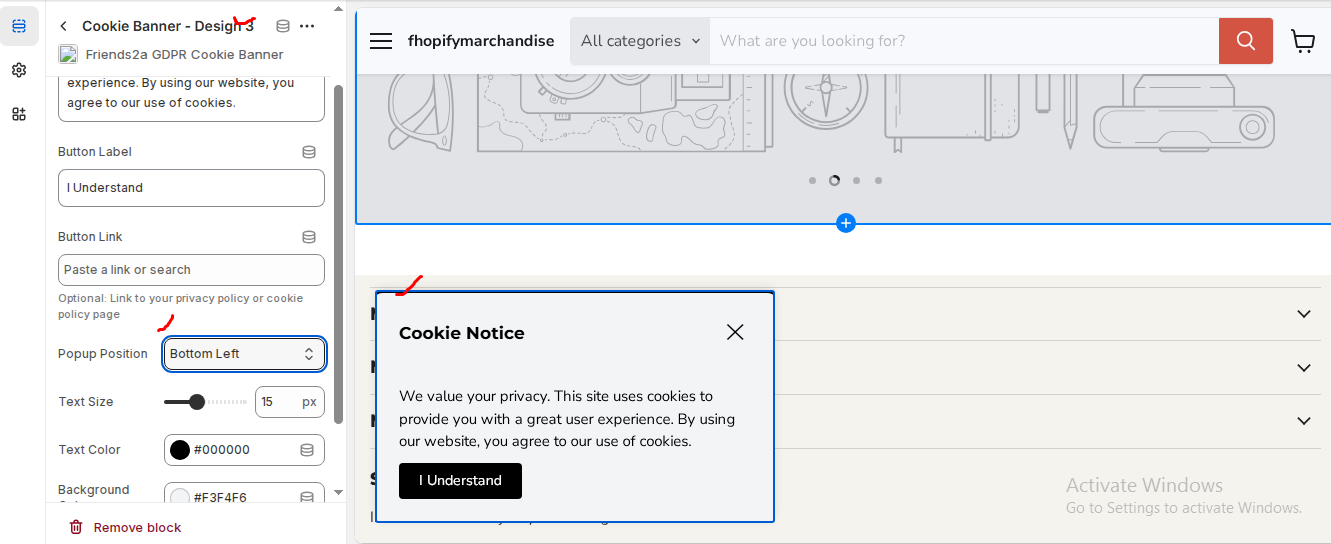
🏷️ Cookie Banners
– Cookie Banner – Design 1
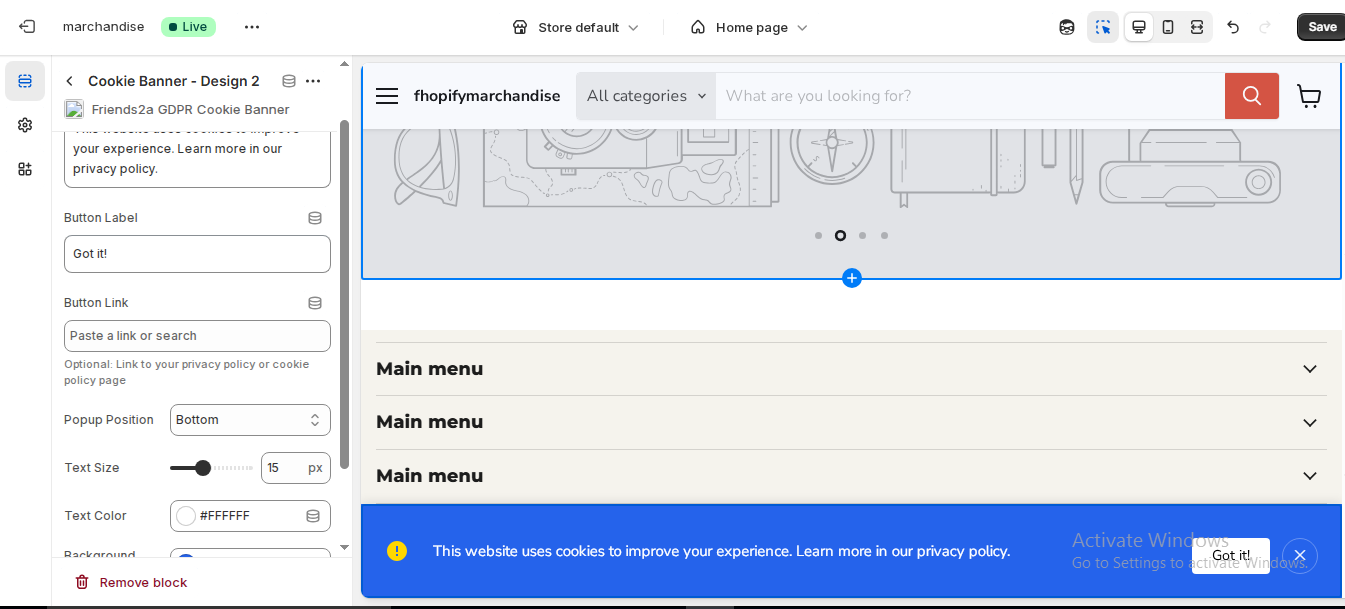
– Cookie Banner – Design 2
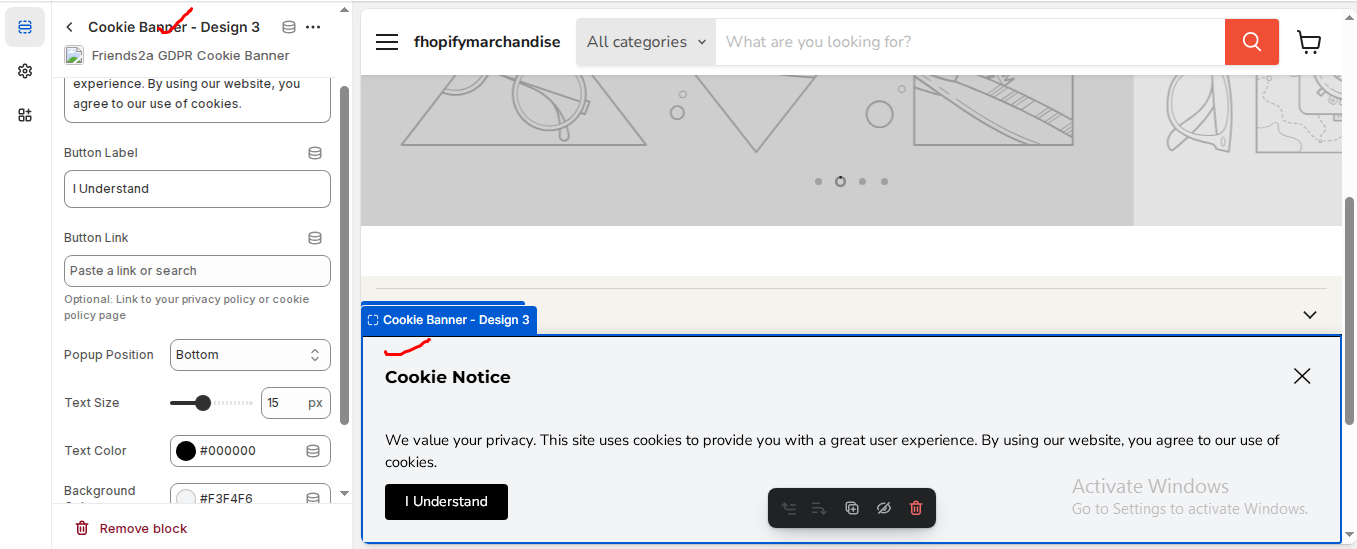
– Cookie Banner – Design 3
🛒 Product Display
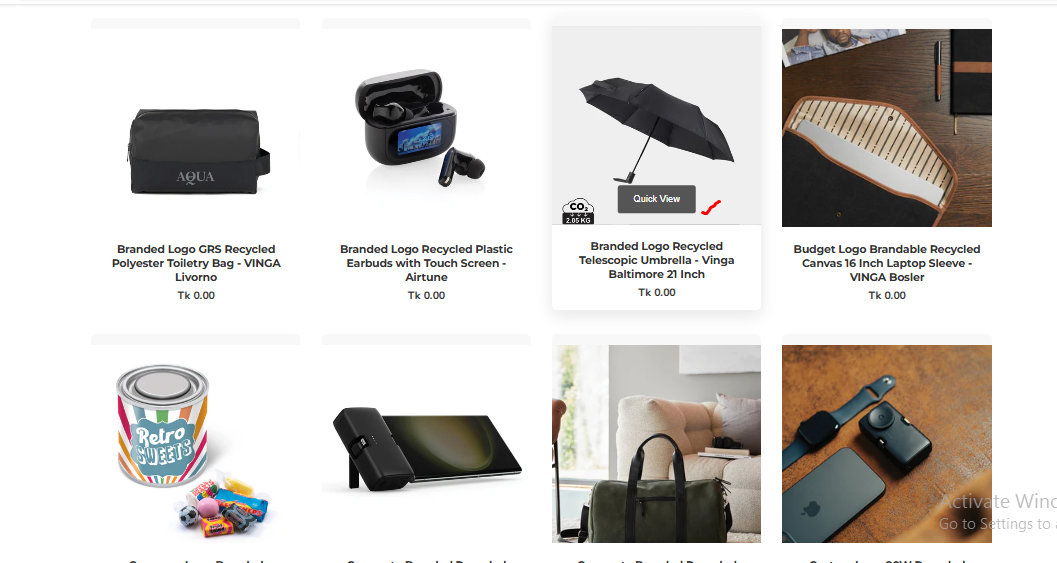
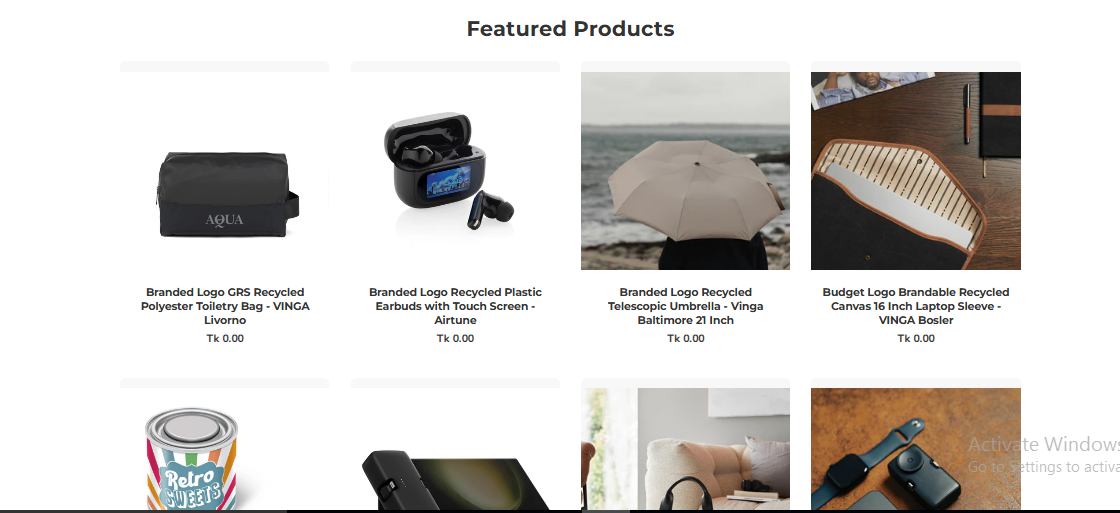
– Friends2a Product Grid – With Quick View option for instant product preview.
– Friends2a Logo Carousel – Showcase partner or brand logos with smooth slider.
💬 Interactive Add-ons
– Friends2a FAQ Section – Add common questions and answers with collapsible panels.
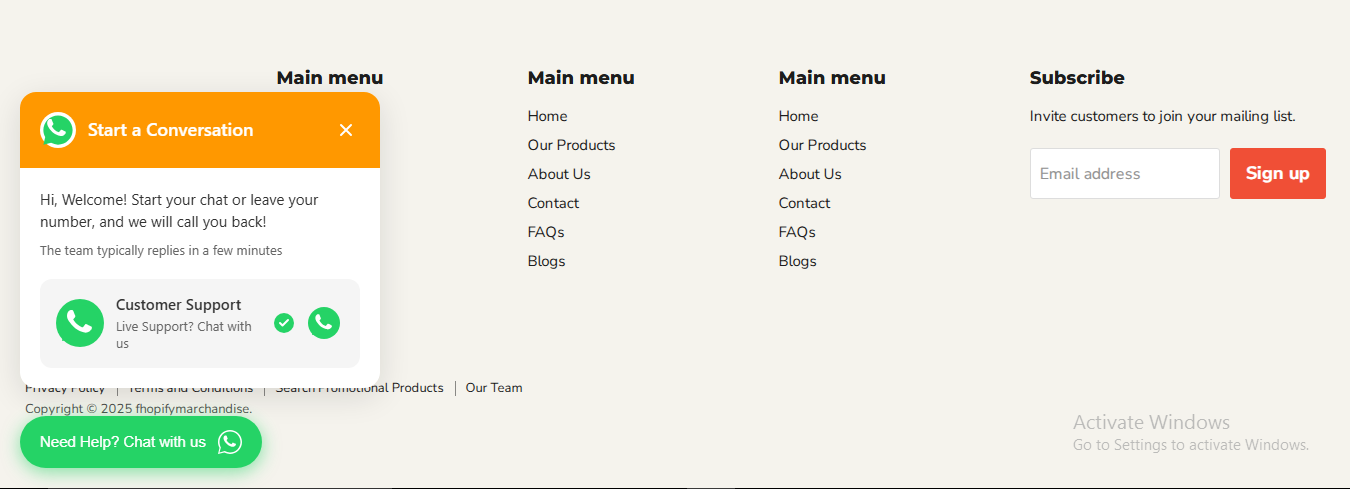
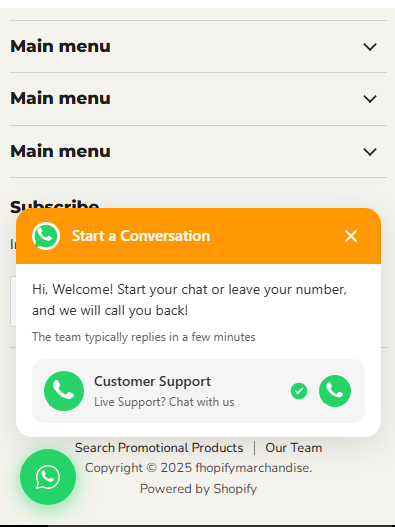
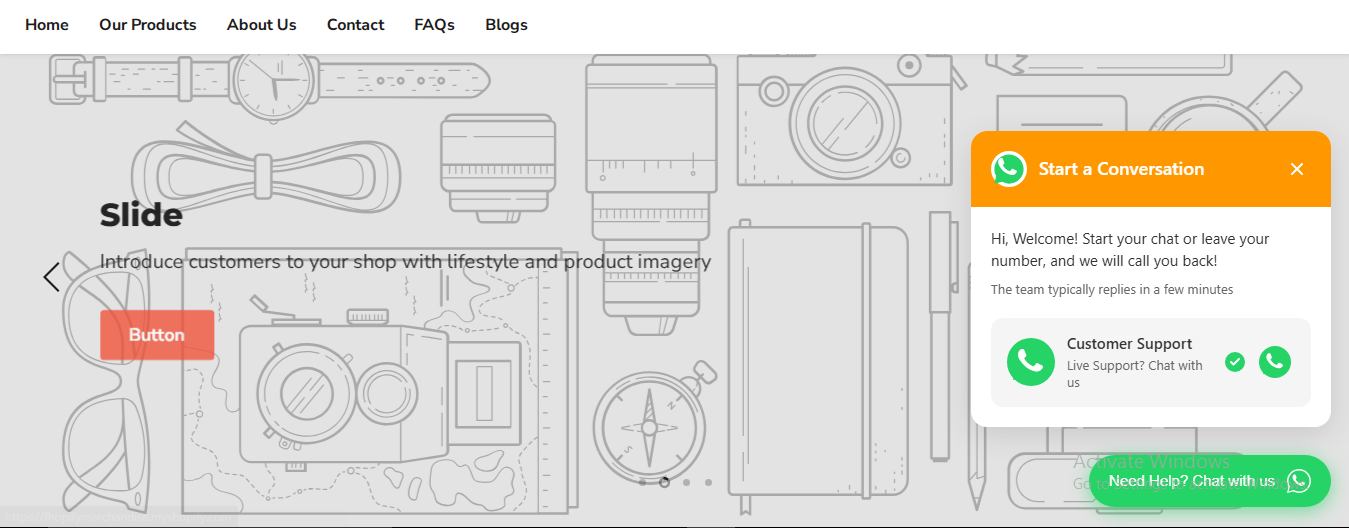
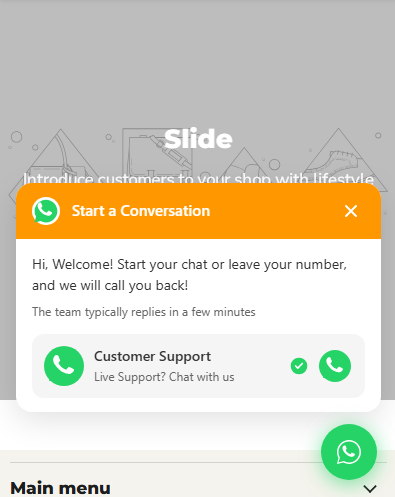
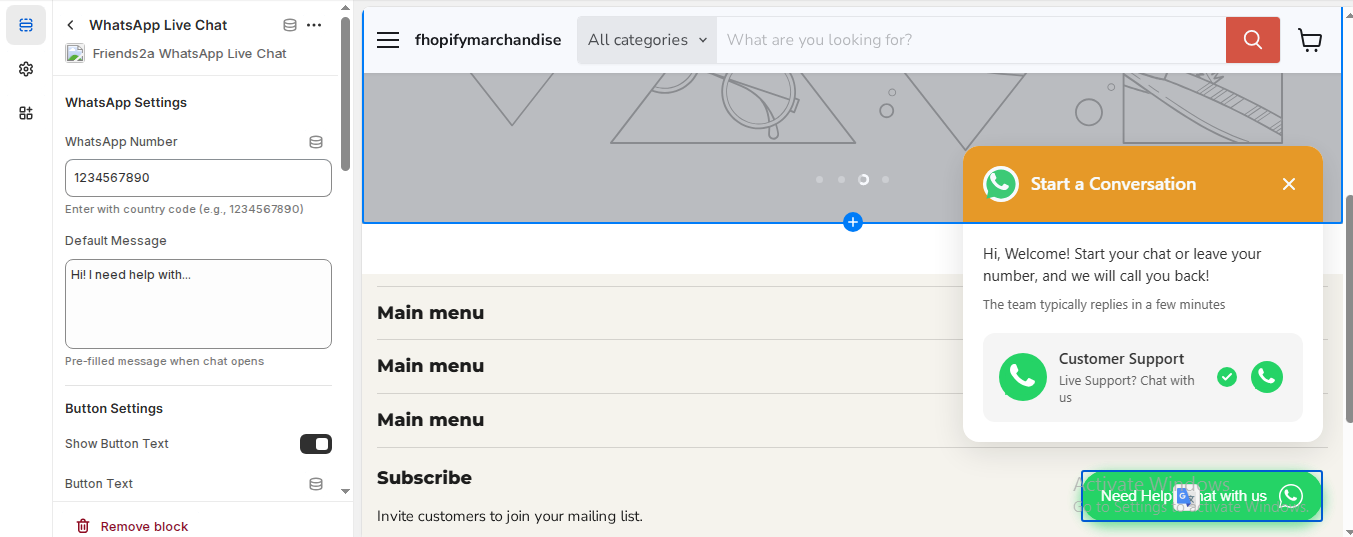
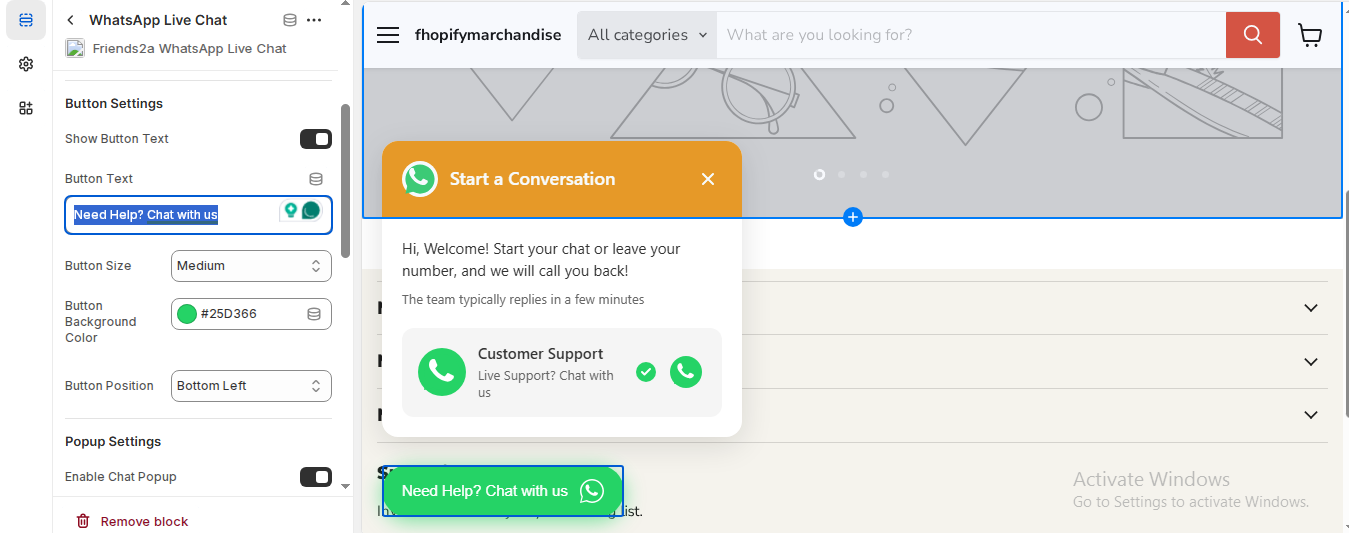
– Friends2a WhatsApp Chat – Let customers chat with you instantly.
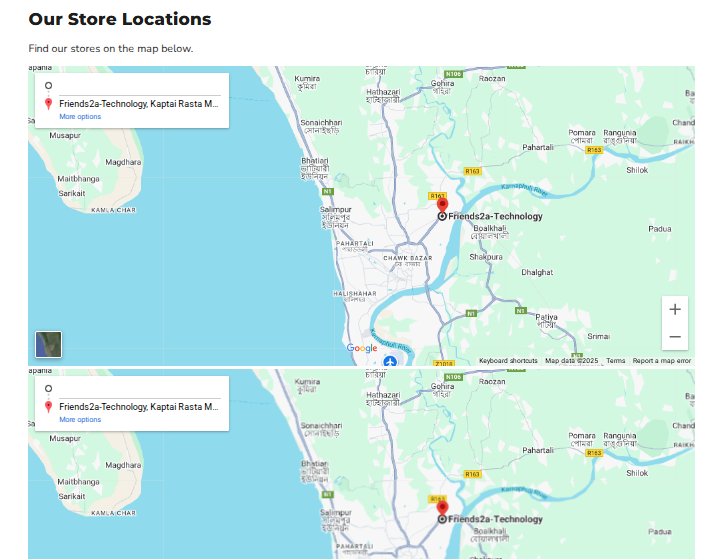
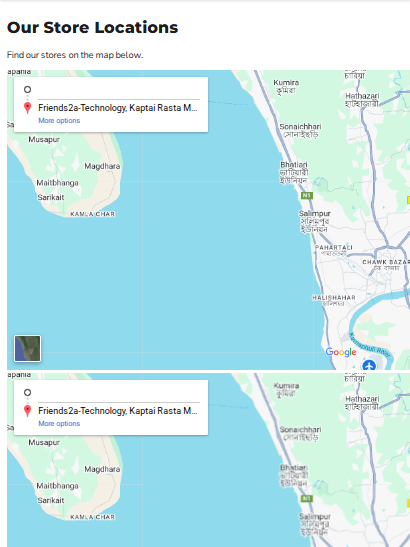
– Friends2a Store Locator – Display store locations with Google Map integration.
👥 Team & Media
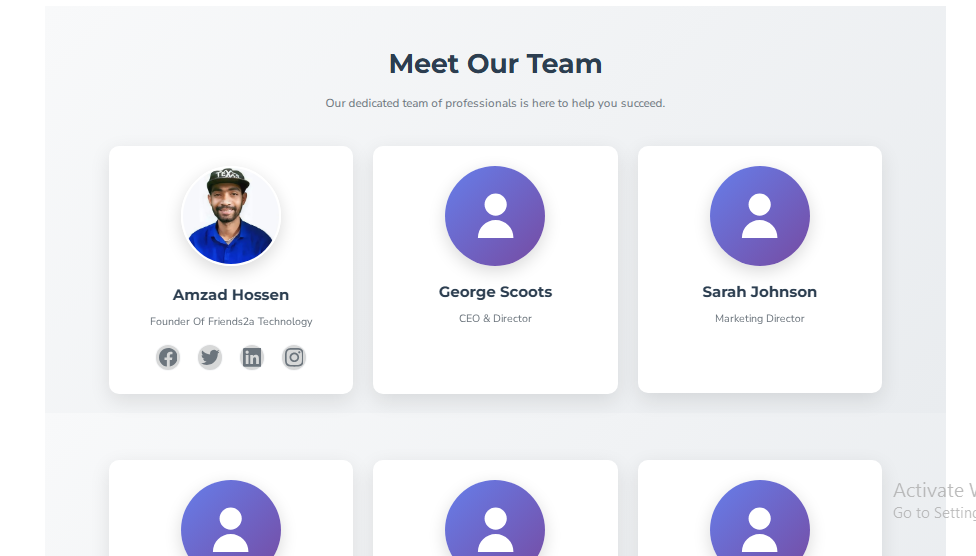
– Friends2a Team Members – Highlight your team or staff profiles.
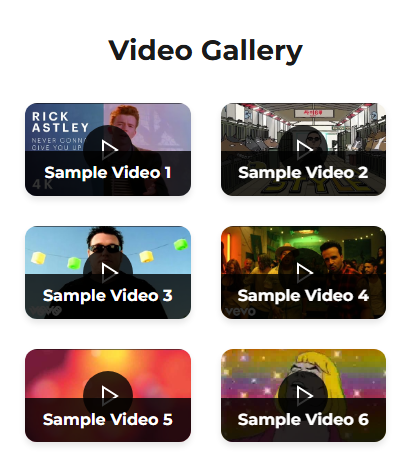
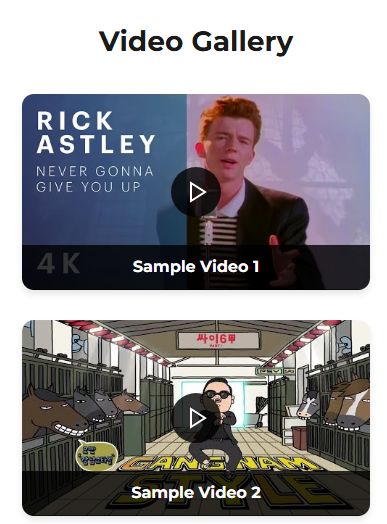
– Friends2a Video Gallery – Embed YouTube/Vimeo videos or product demos.
💳 Icons & Footer
– Secure Payment Icons – Show accepted payment methods to build trust.
– Social Media Footer – Add social media links and follow buttons.
Step 3: Customize Each Section
1. After adding a section, click on it in the left panel.
2. Customize everything:
– Text, titles, and buttons
– Colors and background images
– Layout (grid, carousel, etc.)
– Visibility and alignment
3. Use drag-and-drop to reorder sections anywhere on your page.
Step 4: Save & Preview
1. Click Save in the top-right corner.
2. Open your live store to preview your design.
3. Adjust anytime from Online Store → Customize.
If you need Support, please message us on WhatsApp. We will give you a response just in one minute. Or mail to us, Amzadhossen420360@gmail.com Or Contact Our Support Website : https://friends2a-technology.com/fhopify/contact-us/
10+ Pre-Built Sections & Blocks – Build a complete Shopify 2.0 store easily.
Product Grid with Quick View – Let customers preview products instantly.
Smart Add-ons – Cookie banner, WhatsApp chat, map, and icon options.
Full Customization Control – Edit sections directly from Shopify editor.
Fast & Responsive Design – Liquid-based, lightweight, and mobile-friendly.